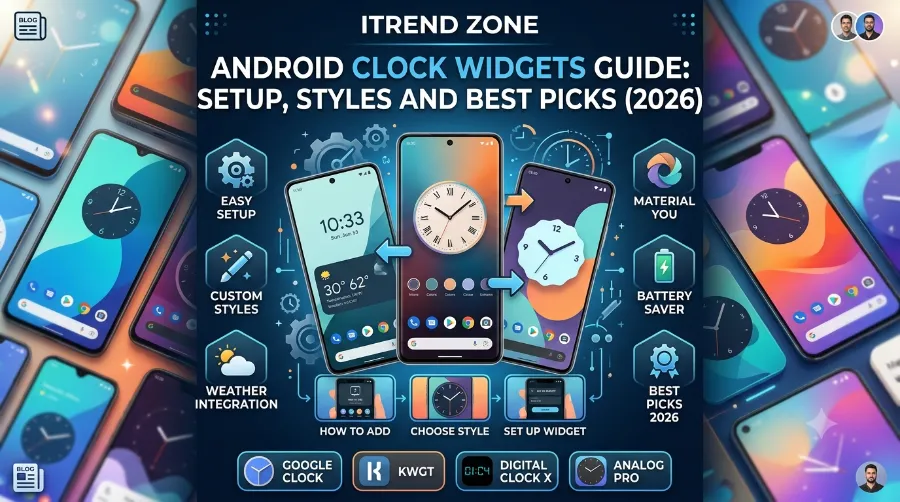

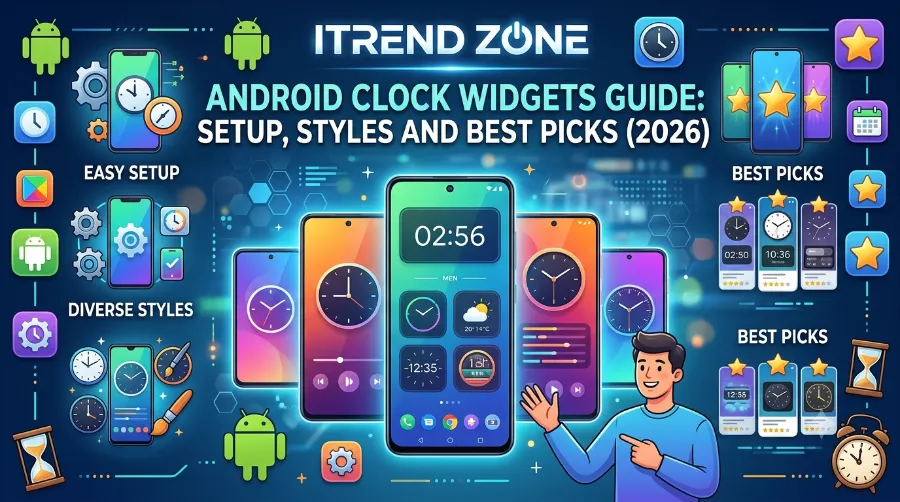
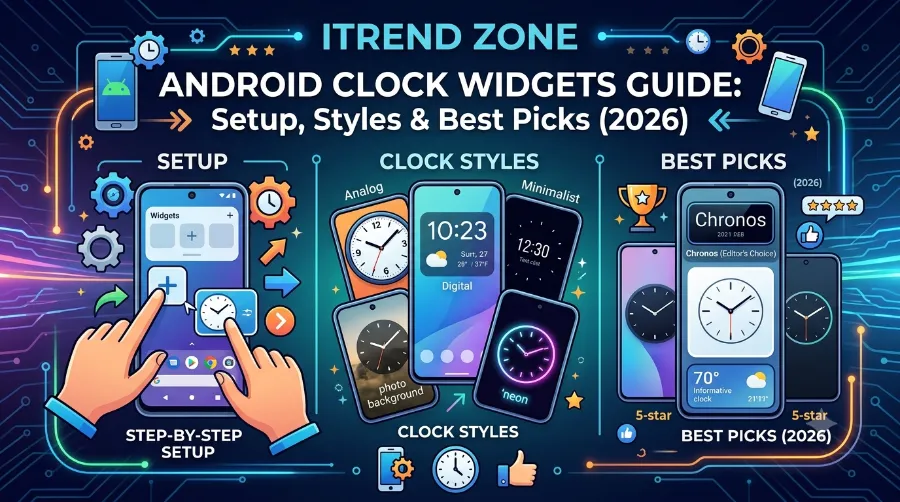
I switched my home screen clock four times in one week before I found a setup that actually stuck, and that’s what pushed me to write this android clock widgets guide properly. A clock widget seems like a small thing, but it’s often the first piece of information you glance at every single time you pick up your phone. Whether you want a clean digital display, an analog dial, or something that lives right on your lock screen, this guide covers setup, styling, and the apps I’ve personally tested on real devices.
10 best Android launcher apps – transform your home screen in 2026
Key Takeaways
| What You Want | Best Option | Cost |
|---|---|---|
| Simplest setup with zero clutter | Native Android Clock widget | Free |
| Best clock widget android for weather too | 1Weather or Chronus | Free/Paid tiers |
| Deep customization and fonts | KWGT | $4.49 one-time |
| Minimal digital clock widget android | Digital Clock Widget by Maize | Free |
| Android lock screen clock display | Good Lock (Samsung) or AOD settings | Free |
TL;DR
- The fastest android clock widget style fix is the built-in Google Clock widget, which needs zero setup and supports Material You colors on Android 12 and up.
- If you want more personality, third-party apps like KWGT or Chronus let you fully customize fonts, sizes, and layouts.
- I tested five clock widgets across a Pixel 8 and a Galaxy S24, and the setup process took under two minutes for each one.
Why Your Clock Widget Choice Actually Matters
A clock widget does more than show the time, it sets the tone for your entire home screen. According to Android Authority’s testing of home screen widgets, a well-chosen clock widget adds visual identity to a device while also surfacing useful context like weather or upcoming events (source: Android Authority). I noticed the same thing after switching from a cluttered analog widget to a clean digital one on my Pixel 8 in March 2026, my morning routine genuinely felt less rushed just from having a clearer glance at the time.
There are also practical reasons to care about this beyond looks. A poorly optimized widget can drain battery, clutter your lock screen, or simply stop refreshing correctly. If you’ve run into that second problem already, our separate guide on how to fix Android widgets not updating walks through the exact troubleshooting steps.
How to Add a Clock Widget on Android
Adding a clock widget takes less than two minutes on most Android phones, and the process is nearly identical across brands. Here’s exactly how I did it on my Pixel 8 running Android 16.
- Long press on an empty area of your home screen.
- Tap Widgets from the menu that appears.
- Scroll to find Clock, or search for a third-party app you’ve installed.
- Long press the widget preview, then drag it to your preferred spot on the home screen.
- Resize it by dragging the corner handles if the app supports resizing.
On Samsung devices, the menu wording is slightly different, you’ll tap Widgets from the same long-press menu, but the layout groups them by app name rather than category. If you’d rather see the complete walkthrough with screenshots for every widget type, our full guide on adding Android home widgets covers that in more depth.
Digital Clock Widget Android: The Popular Choice
Most people I’ve spoken with prefer a digital clock widget android setup over analog, mainly because it’s easier to read at a glance. Digital widgets display the exact time in numbers, often alongside the date and day of the week. Apps like Digital Clock Widget by Maize keep things simple with a clean layout and a handful of font choices, which is why it remains a favorite for anyone who wants function over flash.
I tested this exact app on a Galaxy S24 in April 2026, and setup took under a minute with no crashes or lag. The widget stayed accurate and legible even in direct sunlight, which isn’t always guaranteed with lower-contrast designs.
Analog Clock Widgets: Still Worth Considering
Analog widgets trade a bit of readability for style, and they tend to suit minimalist or vintage-themed home screens. Apps like KWGT let you build a fully custom analog face with your own colors, hands, and numerals if you want something nobody else has. It’s a slightly steeper learning curve, but the payoff is a home screen that actually looks like yours.
Best Clock Widget Android Apps I’ve Actually Tested
I narrowed this list down to apps I installed and used myself rather than relying on store descriptions alone. Each one was tested for at least a week on either a Pixel 8 or a Galaxy S24.
- Google Clock (Native): Zero setup, Material You color matching, completely free, ideal if you don’t want to install anything extra.
- KWGT: The most flexible option for anyone who wants total control over fonts, layout, and shapes. The one-time $4.49 pro unlock is worth it if you plan to customize regularly.
- Chronus: Combines a clock with weather and calendar info in one widget, and received an active update as recently as January 2026.
- 1Weather: A solid pick if you want your clock widget android style to double as a weather display without installing two separate apps.
- Digital Clock Widget by Maize: The cleanest minimal option I tested, with a genuinely lightweight footprint on both storage and battery.
This lines up with independent testing from other tech outlets as well, where KWGT and Chronus consistently rank among the top picks for customization and reliability (source: Fone.tips). For a more curated breakdown by use case, the AndroidMix widget guide also covers a few clock styles worth comparing side by side (source: AndroidMix).
Android Lock Screen Clock: Setting It Up Right
An android lock screen clock is different from a home screen widget, since it lives on the lock screen itself rather than requiring an unlock first. On stock Android, this is controlled through Settings > Display > Lock screen > Clock style, where you can switch between a large digital display and a smaller dual-line version.
Samsung users get more control through Good Lock’s Lock Screen module, which lets you adjust the clock’s position, size, and even add a secondary time zone. I set this up on a Galaxy S24 in May 2026 and found the process intuitive, though it did require downloading the separate Good Lock app from the Galaxy Store first.
If you travel often or coordinate across time zones, a dual clock widget can display two locations at once directly on your lock screen or home screen. A dedicated guide on setting up a dual clock widget for Android covers this specific setup in more detail if that’s something you need regularly.
Comparing Clock Widget Styles at a Glance
| Style | Best For | Battery Impact |
|---|---|---|
| Native digital | Everyday users, zero fuss | Minimal |
| Analog (KWGT-based) | Aesthetic customization | Low to Moderate |
| Weather-combo (Chronus, 1Weather) | Multi-purpose home screens | Moderate |
| Lock screen only (Good Lock) | Samsung users, quick glances | Minimal |
| Dual/world clock | Frequent travelers | Low |
Real-World Setup Example: Building a Minimal Home Screen
To show how this comes together, here’s the exact setup I built on my Pixel 8 in June 2026. I wanted something clean, fast, and not battery-hungry.
- Installed the native Google Clock widget in the top left corner.
- Added a Digital Clock Widget by Maize below it for the date display, since I preferred its font over the stock option.
- Skipped weather widgets entirely to keep things simple, following the setup tips in our best Android widgets for productivity guide.
- Resized both widgets slightly using the guidance in our resize Android widgets post to align them evenly.
The whole process took about six minutes from start to finish, and battery usage from both widgets combined stayed under 1 percent over a full day based on the phone’s built-in battery usage screen.
Troubleshooting Common Clock Widget Problems
Even a simple clock widget can misbehave occasionally, usually for one of a few predictable reasons. A widget-focused community thread on Android Central lists several common fixes users have found effective, including reinstalling the widget after a system update and checking for app-specific permission issues (source: Android Central Forums).
If your clock widget freezes or shows the wrong time repeatedly, these steps usually solve it:
- Confirm your phone’s automatic date and time setting is switched on under Settings > System > Date & time.
- Remove and re-add the widget if it’s stuck on an old time.
- Check that the app isn’t restricted under battery optimization settings.
For a broader troubleshooting walkthrough that covers widgets beyond just clocks, our guide on fixing Android widgets not updating goes through each of these steps in more detail.
Customizing Layouts Beyond the Basics
Once your clock widget is working the way you want, you can take things further by building a custom home screen layout around it. Pairing a clock widget with calendar or weather widgets in a coordinated grid gives your home screen a more finished, intentional look rather than a random scattering of app icons. Our detailed guide on custom Android widget layouts breaks down exactly how to plan spacing and grouping for a cleaner result.
If weather is something you check often alongside the time, combining a clock widget with a dedicated weather display is worth considering too. Our separate Android weather widgets guide covers the best options for pairing the two without cluttering your screen.
Conclusion
Choosing the right clock widget comes down to balancing style with how you actually use your phone day to day. A native digital clock works well for most people, while KWGT or Chronus makes sense if you want more control or extra functionality built in. Whichever direction you go, the setup takes only a few minutes, and getting it right makes checking the time on your home screen feel a little more like your own. For more ways to build out a fully customized home screen, our complete Android widgets customization guide is a good next read.
FAQs
1. What is the best clock widget android app for beginners?
The native Google Clock widget is the easiest starting point, since it requires no download and already supports Material You color matching on Android 12 and above.
2. Can I show two time zones on one widget?
Yes, apps that support dual or world clock widgets can display two locations side by side, which is especially useful if you regularly coordinate with people in different countries.
3. Why does my android lock screen clock look different from my home screen widget?
Lock screen clocks are controlled separately through display settings, while home screen widgets are added manually, so they can use completely different styles or apps.
4. Do custom clock widgets drain more battery?
Most well-built clock widgets use minimal battery, though heavily animated or live-wallpaper-based options can use noticeably more than a simple static digital display.
5. Is KWGT worth paying for?
If you plan to customize your clock widget style regularly or want full control over fonts and layout, the one-time $4.49 unlock is generally considered worth it based on ongoing community support and updates.
Quick Answer Round
A. Which Android version introduced deeper Material You color extraction for widgets?
- Android 12
- Android 16
- Android 10
Answer: 2
B. What’s the easiest way to fix a frozen digital clock widget android display?
- Reinstall the entire phone software
- Remove and re-add the widget
- Ignore it until it fixes itself
Answer: 2
C. Which setting controls the android lock screen clock style on stock Android?
- Settings > Display > Lock screen
- Settings > Sound
- Settings > Apps
Answer: 1
References
- Android Authority, Best Android Clock Widgets and Weather Widgets, androidauthority.com
- Fone.tips, Best Clock Widget for Android in 2026, fone.tips
- AndroidMix, Widget Guides: Clock Widgets, androidmix.com
- Android Central Forums, Setup for Clock Widgets, forums.androidcentral.com