
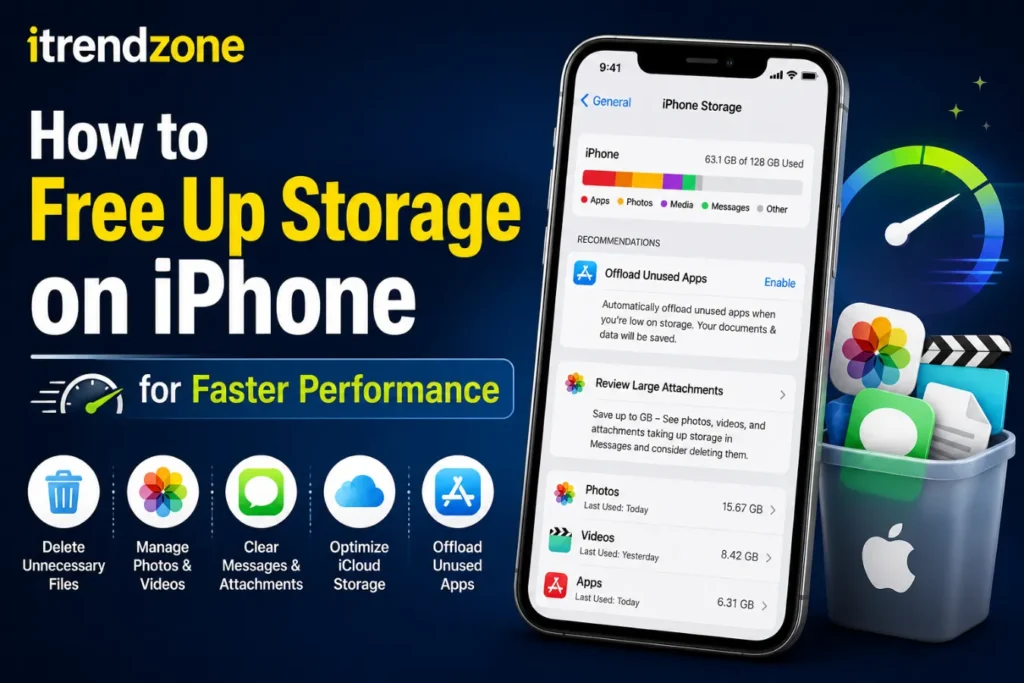

If your iPhone feels slower than usual, limited storage may be the reason. Many users focus on battery health and software updates, yet storage space plays a major role in overall performance. When your device is nearly full, apps may load more slowly, updates can fail, and daily tasks may become frustrating.
The good news is that you do not need to buy a new phone right away. By learning how to free up storage on iPhone, you can improve performance, create space for new apps, and enjoy a smoother experience.
Why iPhone Storage Affects Performance
Modern iPhones use fast storage technology, but every device needs some free space to operate efficiently. When storage becomes crowded, the operating system has less room to manage temporary files, app data, and updates.
Common signs of low storage include:
- Apps taking longer to open
- Camera delays when saving photos
- Slow system performance
- Failed iOS updates
- Frequent storage warnings
- Reduced multitasking performance
Apple recommends keeping a portion of your storage free to help the system work efficiently.
Check What Is Using Your Storage
Before deleting anything, identify what consumes the most space.
How to View Storage Usage
- Open Settings.
- Tap General.
- Select iPhone Storage.
- Wait for the storage analysis to load.
You will see a color-coded breakdown showing how much space is used by:
- Apps
- Photos
- Messages
- Media files
- System data
This overview helps you target the biggest storage users first.
Example Storage Breakdown
| Category | Average Usage |
|---|---|
| Photos & Videos | 45–60% |
| Apps | 20–30% |
| Messages | 5–10% |
| Downloads | 3–8% |
| System Data | 5–15% |
Delete Unused Apps
Many people install apps they use once and then forget about.
Removing unused apps is one of the fastest ways to gain storage.
Find Large Apps
In the iPhone Storage menu, apps are listed from largest to smallest.
Look for:
- Old games
- Shopping apps
- Travel apps
- Video editing apps
- Social media apps you no longer use
Remove Apps You Don’t Need
To delete an app:
- Tap the app name.
- Select Delete App.
- Confirm deletion.
Even removing a few large apps can free several gigabytes.
Offload Apps Instead of Deleting Them
Sometimes you need an app occasionally but do not want it taking up space.
The Offload App feature removes the app while keeping its documents and settings.
Benefits of Offloading
- Saves storage
- Keeps personal data intact
- Allows quick reinstallation
- Reduces clutter
Enable Automatic Offloading
- Open Settings.
- Go to App Store.
- Turn on Offload Unused Apps.
This feature automatically removes apps you rarely use.
Clean Up Photos and Videos
Photos and videos usually consume the largest amount of storage.
Delete Duplicate Photos
Recent iOS versions include duplicate detection.
Steps:
- Open Photos.
- Select Albums.
- Scroll to Utilities.
- Tap Duplicates.
- Merge duplicate images.
This can instantly recover hundreds of megabytes or even gigabytes.
Remove Unnecessary Videos
Large videos often consume more storage than thousands of photos.
Focus on:
- Screen recordings
- Old downloads
- Duplicate clips
- Unwanted 4K videos
Delete Screenshots
Many users forget to remove screenshots.
Open the Screenshots album and delete images you no longer need.
Enable iCloud Photos
iCloud Photos can help reduce local storage usage.
How It Works
Full-resolution images are stored in the cloud while smaller versions remain on your phone.
Turn On Storage Optimization
- Open Settings.
- Tap your Apple ID.
- Select iCloud.
- Tap Photos.
- Enable Optimize iPhone Storage.
This option can free significant space without losing access to your photos.
Clear Safari Cache
Web browsing creates temporary files over time.
Remove Website Data
- Open Settings.
- Tap Apps.
- Select Safari.
- Tap Clear History and Website Data.
Benefits include:
- More free storage
- Better browser responsiveness
- Reduced cached clutter
Delete Old Messages
Messages often contain photos, videos, and documents that remain stored for years.
Remove Large Attachments
- Open Settings.
- Go to General.
- Tap iPhone Storage.
- Select Messages.
- Review large attachments.
Delete items you no longer need.
Enable Automatic Message Deletion
- Open Settings.
- Tap Messages.
- Select Keep Messages.
- Choose 30 Days or 1 Year.
This prevents message storage from growing endlessly.
Clean Up Downloads
Downloaded files are easy to forget.
Check the Files App
Open Files and review:
- PDFs
- ZIP files
- Documents
- Videos
- Audio files
Delete anything no longer useful.
Remove Offline Downloads
Also check:
- Netflix downloads
- Spotify downloads
- YouTube offline videos
- Podcast downloads
These files can consume several gigabytes.
Manage Music Storage
Offline music libraries can become surprisingly large.
Review Downloaded Songs
- Open Settings.
- Tap General.
- Select iPhone Storage.
- Open Music.
Remove albums or playlists you no longer listen to.
Use Streaming Instead
Streaming services reduce local storage needs while still providing access to vast music libraries.
Remove Duplicate Contacts and Files
Duplicate data wastes storage and creates confusion.
Merge Duplicate Contacts
Open Contacts and follow the duplicate suggestions displayed by iOS.
Review Duplicate Documents
Check cloud storage folders and local downloads for repeated files.
Regular cleanup prevents unnecessary storage consumption.
Reduce Social Media App Storage
Social media apps continuously collect cached content.
Apps such as:
- TikTok
- Snapchat
may occupy several gigabytes over time.
Refresh Storage Usage
Deleting and reinstalling these apps often clears accumulated cache files.
Always verify login credentials before removing apps.
Restart Your iPhone After Cleanup
After deleting large amounts of data, restart your device.
Benefits include:
- Refreshing system resources
- Removing temporary files
- Improving responsiveness
- Rebuilding storage indexes
Many users notice immediate performance improvements.
Storage Savings by Cleanup Method
| Cleanup Method | Typical Space Saved |
| Delete Unused Apps | 1–10 GB |
| Remove Videos | 2–20 GB |
| Clear Safari Data | 100–500 MB |
| Delete Downloads | 500 MB–10 GB |
| Offload Apps | 1–5 GB |
| Optimize Photos | 5–50 GB |
Storage Usage Chart
Average iPhone Storage Consumption
Photos & Videos     ████████████████████ 50%
Apps                ██████████ 25%
Messages            ████ 10%
System Data         ███ 8%
Other Files         ██ 7%
This chart shows why photo and video management often delivers the biggest results.
Best Practices for Long-Term Storage Management
Follow these habits each month:
- Delete unused apps.
- Review large videos.
- Clear Downloads.
- Remove duplicate photos.
- Check message attachments.
- Restart your device.
- Enable automatic storage optimization.
Small monthly maintenance prevents future storage problems.
Common Mistakes to Avoid
Deleting Important Files Without Backup
Always back up important data before large cleanups.
Ignoring Videos
Videos consume much more storage than photos.
Keeping Unused Apps
Old apps quietly occupy valuable space.
Forgetting Downloads
Temporary downloads often remain stored for months.
Frequently Asked Questions
How do I free up storage on my iPhone quickly?
Delete unused apps, remove large videos, clear downloads, and review message attachments. These steps usually provide the fastest results.
Why is my iPhone storage full even after deleting files?
Some storage may be occupied by system data, cached files, or recently deleted content that has not been permanently removed yet.
Does deleting apps improve performance?
Yes. Removing large unused apps can free storage and reduce background activity, helping your device run more smoothly.
What is Optimize iPhone Storage?
It is an iOS feature that stores full-resolution photos in iCloud while keeping smaller versions on your device.
How much free space should I keep on my iPhone?
Many experts recommend maintaining at least 10–20% of total storage as free space for optimal performance.
Conclusion
Learning how to free up storage on iPhone is one of the easiest ways to improve performance without spending money on a new device. By deleting unused apps, managing photos and videos, clearing downloads, and enabling storage optimization features, you can recover valuable space and keep your iPhone running efficiently. Make storage maintenance part of your monthly routine, and your device will stay faster, cleaner, and more reliable for years to come.