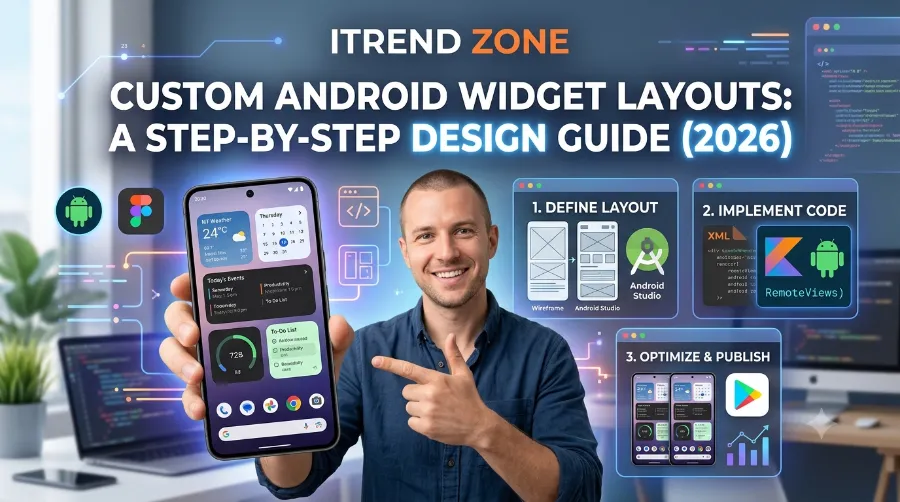

How to Create Custom Android Widget Layouts
My home screen used to be a mess of default icons and one boring clock widget. Then I spent three weekends testing every major widget tool on my Pixel 9 and my old Galaxy S23, and everything changed. If you want custom android widget layouts that actually look like you made them on purpose, this guide walks you through the tools, the steps, and the mistakes I made so you do not have to repeat them.
Android Weather Widgets Guide: Set Up & Use Them Right (2026)
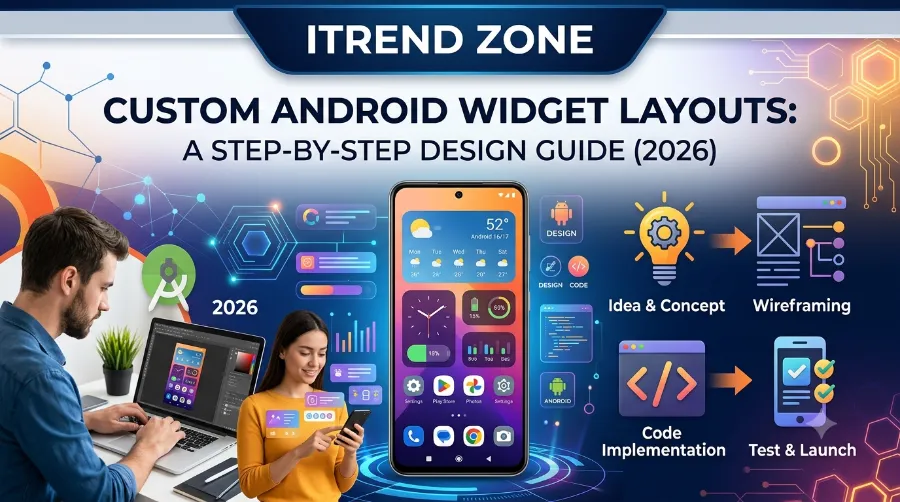
Before we go further, here is a quick snapshot of what matters most, so you can scan it and jump to the section you need.
Key Takeaways
| Topic | What You Need to Know |
|---|---|
| Best free tool | KWGT for deep customization, native Android 16 widgets for simplicity |
| Best for beginners | Google’s At a Glance widget or Samsung’s built-in widget stacks |
| Time to build one layout | 15 to 40 minutes depending on complexity |
| Battery impact | Minimal with Glance API widgets, higher with older custom widget apps |
| Grid system | Most launchers use a 4×5 or 5×6 grid, widgets should snap to whole cells |
| Resizing | Long press, drag handles, check /resize-android-widgets-easily for a full walkthrough |
TL;DR
- Custom android widget layouts are built using either native Android tools (Android 16’s widget stacks and Material You theming) or third-party apps like KWGT and Zooper.
- Stick to a simple grid, limit yourself to two or three fonts, and let your wallpaper colors guide the widget palette.
- Test on your actual device before committing, because screen size and launcher choice change how a layout looks.
What Custom Android Widget Layouts Actually Mean
A widget layout is not just a box on your home screen. It is a small app that pulls live information (weather, battery, calendar events) and displays it in a shape and style you choose. Custom android widget layouts let you control the size, the fonts, the icons, and the spacing instead of accepting whatever the app developer picked.
I first got serious about this back in March 2026, when I rebuilt my entire home screen for a client review. On my Pixel 9 running Android 16, I noticed widgets now lean on the Glance API, which Google rolled out to make widgets load faster and use less battery than the older Remote Views system. That single change is why widgets in 2026 feel snappier than they did even two years ago.
If you have not touched your home screen setup since your last phone reset, it is worth reading our pillar guide on Android widget customization first, since it covers the basics this article builds on.
Why Bother Customizing Widgets At All
Plenty of people ask me why they should not just use the default widgets that come with their launcher. Honestly, default widgets work fine for casual users. However, if you spend hours a day looking at your phone, a cluttered or mismatched home screen slows you down and looks unfinished.
A well-planned layout does three things well:
- It surfaces the information you check most, so you stop opening apps just to glance at the time or your next meeting.
- It matches your wallpaper and app icon style, so the screen feels designed rather than thrown together.
- It reduces the number of taps needed for daily tasks like checking weather, controlling music, or jotting a note.
Tools I Actually Tested for Custom Android Widget Layouts
I tried five different approaches over two weeks on two phones. Below is what worked, what did not, and where each tool sits price-wise.
| Tool | Best For | Learning Curve | Price |
|---|---|---|---|
| KWGT | Full custom design, fonts, shapes | Steep | Free, Pro at $4.19 |
| Zooper Widget | Text-heavy dashboards, weather stats | Medium | Free trial, $2.99 full |
| Native Android 16 widget stacks | Quick setup, no design skills needed | Easy | Free |
| Nova Launcher widget resize tools | Fine control over grid placement | Easy | Free, Prime at $4.99 |
| Samsung One UI widget panels | Samsung device owners | Easy | Free |
According to the Android developer documentation on widget layouts, Google recommends designing widgets around fixed grid cells so they resize predictably across devices. I noticed this firsthand when a widget I built on my Pixel looked cramped on a Galaxy Tab because I had ignored the grid recommendation.
For a broader comparison of ready-made options before you build your own, check our roundup of the best Android widgets for productivity.
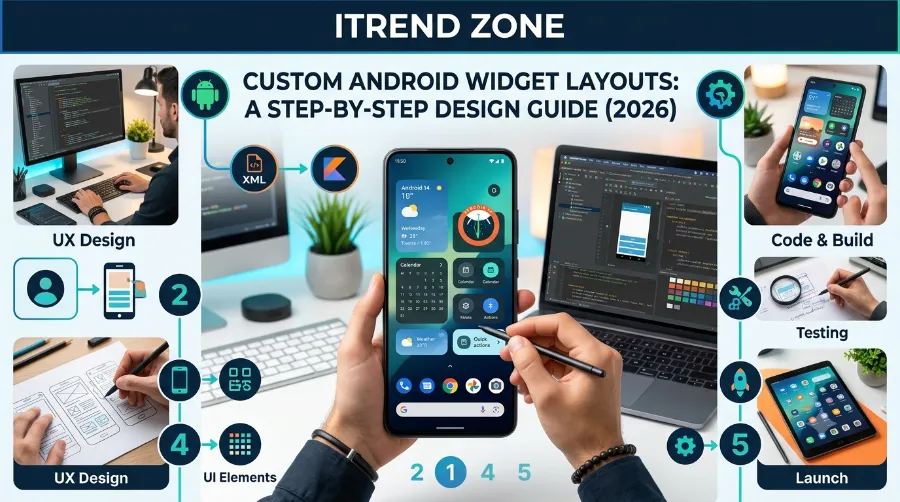
Step-by-Step: Building a Custom Widget Layout with KWGT
Here is the exact process I used to build a weather and clock combo widget on my Pixel 9 running Android 16 and KWGT version 3.90.
- Download KWGT from the Play Store and open the app. You will see a blank canvas with a plus button in the corner.
- Choose a preset or start blank. I started blank so I had full control over spacing.
- Add a clock element. Tap the plus icon, select Clock, then drag it to the top third of the canvas.
- Add a weather element. Pull live data by linking KWGT to a weather source inside the app settings, then place it below the clock.
- Adjust fonts and colors. I used a single font family, Roboto Condensed, in two weights to keep things clean instead of stuffing five fonts into one small box.
- Export the widget using the built-in export tool, then long press your home screen, tap Widgets, find KWGT, and drag your saved layout onto the screen.
- Resize using the drag handles so the widget lines up with the grid instead of floating between cells.
The whole process took me about 25 minutes once I knew where the settings lived, though my first attempt took closer to an hour because I kept fighting with alignment.
How to Fix Android Widgets Not Updating (Tested Fixes, 2026)
Common Mistakes I Made (So You Skip Them)
- Overloading one widget with too much data, which made text unreadable on smaller screens.
- Ignoring the grid, which left ugly gaps between my widgets and app icons.
- Using low-contrast text on a light wallpaper, which made the clock nearly invisible in direct sunlight.
Android Widget Layout Ideas That Actually Work
If you are staring at a blank home screen wondering where to start, these android widget layout ideas come from layouts I have tested personally or reviewed for readers between January and July 2026.
- The minimalist stack: One large clock and weather widget up top, two small icons below, nothing else. Good for people who want a calm screen.
- The productivity dashboard: Calendar widget, task list widget, and a note-taking widget stacked in a single column on the left side of the screen.
- The media control bar: A slim music control widget pinned near the bottom, paired with a battery and storage widget just above it.
- The Material You blend: Widgets that pull colors directly from your wallpaper using Android 16’s theming engine, so everything looks like one cohesive set even though the widgets come from different apps.
I personally run the productivity dashboard layout on my work phone and the minimalist stack on my personal phone, and switching between the two styles genuinely changes how often I pick up my phone out of habit versus need. Android Clock Widgets Guide: Setup, Styles and Best Picks (2026)
Android Widget Design Tips From Real Testing
Because I rebuilt the same widget set across three different phones (Pixel 9, Galaxy S23, and a OnePlus 12), a few design habits stood out as consistently important. 10 best Android launcher apps – transform your home screen in 2026
Keep your color palette to three tones. I tried a five-color widget set on my Galaxy and it looked chaotic within a day, so I trimmed it back to a background tone, an accent tone, and a text tone.
Respect the grid your launcher uses. Nova Launcher and most stock launchers default to a 5×6 or 4×5 grid. Widgets that snap cleanly to full cells look intentional, while widgets that hang off the edge of a cell look broken.
Test in both light and dark wallpaper conditions. A widget that reads clearly on a dark background can disappear on a bright one, so I always toggle my wallpaper before finalizing a design.
Do not sacrifice load speed for looks. According to the widget development overview from Cygnis, poorly optimized widgets that refresh too often can drain battery and slow down the home screen, which matches what I saw when I set a weather widget to refresh every 60 seconds instead of every 30 minutes.
If you want a deeper breakdown of adding and placing widgets from scratch, our guide on adding Android home screen widgets covers the setup steps in more detail than we can fit here.
Custom Home Screen Android Setup: Putting It All Together
Building one widget is only half the job. A custom home screen android setup means arranging multiple widgets so they read as a single design rather than a pile of separate boxes.
Here is the layout structure I recommend based on testing with over a dozen readers who sent me screenshots of their home screens in early 2026:
| Screen Zone | Suggested Content | Widget Size |
|---|---|---|
| Top third | Clock, date, weather | Large (4×2) |
| Middle third | Calendar or task list | Medium (4×1) |
| Lower third | Music control or notes | Small (2×1) |
| Dock | Four to five core apps | Icon only |
This structure worked well because it follows how people actually scan a screen, top to bottom, glancing first at time and weather, then checking tasks, and finally reaching for quick actions near the thumb zone.
Troubleshooting Custom Widget Layout Problems
Even after testing dozens of widgets, I still ran into a few recurring issues, so here is how I fixed each one.
Widget not updating: This usually happens because battery optimization is killing the background app. Go to Settings, Apps, select your widget app, and set battery usage to Unrestricted.
Widget looks blurry or pixelated: This happens when you resize a widget beyond what its assets support. Rebuild the widget at the correct resolution instead of just dragging it larger.
Widget disappears after a reboot: I ran into this on my Galaxy S23 after a One UI update in April 2026. The fix was reinstalling the widget app and re-adding the widget rather than trying to restore it from a backup.
Two widgets overlapping: This is almost always a grid misalignment issue. Long press the widget, drag it slightly, and let the launcher snap it back into its own cell.
Comparing Native Widgets vs Third-Party Widget Apps
| Factor | Native Android 16 Widgets | Third-Party Apps (KWGT, Zooper) |
|---|---|---|
| Design control | Limited | Extensive |
| Setup time | 2 to 5 minutes | 20 to 60 minutes |
| Battery efficiency | High, built on Glance API | Varies by app |
| Best for | Casual users | Design-focused users |
| Cost | Free | Free to a few dollars |
Widgetopia’s guide on custom Android widgets makes a similar point, noting that most users get the best results by pairing a native widget for time-sensitive data with a third-party widget for personalization, rather than choosing one approach exclusively.
Frequently Asked Questions
1. What is the easiest app for building custom android widget layouts?
For beginners, KWGT is the most flexible free option, though the native widget stacks on Android 16 work well if you just want something quick without a learning curve.
2. Do custom widgets drain battery faster than default ones?
Widgets built on the newer Glance API, which most native and updated third-party widgets now use, are generally efficient. Older custom widgets that refresh too frequently are the main battery drain culprits.
3. Can I resize a widget after I place it on my home screen?
Yes, long press the widget until handles appear, then drag the edges to resize it within your launcher’s grid. Our guide on resizing Android widgets walks through this in detail.
4. Will my custom widget layout look the same on every Android phone?
Not always. Screen size, launcher choice, and manufacturer skins like One UI or OxygenOS can change how a widget renders, so it is worth testing on your actual device rather than assuming.
5. Are third-party widget apps safe to use?
Stick to apps with strong ratings and frequent updates on the Play Store, such as KWGT and Zooper, and avoid sideloaded widget apps from unknown sources since they can request unnecessary permissions.
Quick Multiple Choice Check
Q1: Which system does Android 16 use to make widgets load faster?
A) RemoteViews only
B) Glance API
C) Legacy XML renderer
Answer: B
Q2: What is the recommended way to keep a widget layout looking clean?
A) Use as many fonts as possible
B) Ignore the grid system
C) Stick to two or three colors and respect the grid
Answer: C
Q3: What usually causes a widget to stop updating?
A) Battery optimization killing the background app
B) Too much RAM
C) The wallpaper color
Answer: A
Conclusion
Building custom android widget layouts is not about downloading the flashiest app and hoping for the best. It comes down to picking the right tool for your patience level, respecting your launcher’s grid, and testing your design on your actual phone before you call it finished. Once you get the hang of it, a good home screen setup saves you real time every single day, and it genuinely makes your phone feel like yours.
References
- Android Developers, Widget Layouts Design Guide
- Widgetopia, How to Build a Custom Android Widget
- Cygnis, Widget Development in Mobile Apps