
Your iPhone has been quietly holding out on you. Apple has buried dozens of small switches between the Settings app and the Control Center. Most people never touch them. Honestly, most people never even know they exist. I spend a good part of every week digging through iOS menus for iTrendZone. I still stumble on toggles I had forgotten about. This hidden iPhone settings guide pulls together the ones that actually change how your phone feels to use. It skips the gimmicky ones you’ll try once and forget.
By the end, you’ll know exactly where to tap for better privacy and longer battery life. You’ll also get a calmer Lock Screen and a handful of party tricks worth showing your friends. I checked every step below on a real device running iOS 26.6.1. That was the current stable release as of early September 2026, right before Apple’s iOS 27 rollout. If you’re on an older version, most of these still apply. I’ll flag the few that need iOS 17 or iOS 18 specifically.
Key Takeaways
| Category | Top Setting | Where to Find It | Why It Matters |
|---|---|---|---|
| Privacy | App Privacy Report | Settings > Privacy & Security | Shows exactly which apps accessed your camera, mic, or location |
| Battery | 80% Charging Limit | Settings > Battery > Battery Health | Slows long-term battery wear |
| Productivity | Back Tap Shortcuts | Settings > Accessibility > Touch | Turns the back of your phone into a shortcut button |
| Focus | Focus Filters | Settings > Focus | Hides unrelated apps and data automatically |
| Fun | NameDrop | Automatic, no setup needed | Instantly swaps contact info between two iPhones |
TL;DR:
- Your iPhone hides most of its best privacy, battery, and productivity tools inside Settings > Privacy & Security, Accessibility, and Focus. They’re not on the home screen.
- A handful of one-time toggles quietly protect your device every day. The 80% charging limit and App Privacy Report are two good examples.
- Most features in this guide work on any iPhone running iOS 17 or later. I’ve noted the few that need iOS 18 or iOS 26.
Hidden iPhone Settings Guide: What Actually Counts as “Hidden”
Apple doesn’t hide these features to be difficult. The company designs the iPhone to feel simple out of the box. Anything beyond the basics gets tucked a few menus deep. That’s a fair trade-off for a first-time user. But it means longtime iPhone owners often go years without discovering tools that were sitting there the whole time.
How to Set Up iPhone Emergency SOS the Right Way
The Three-Point Filter I Used
This roundup focuses on features that meet three criteria. First, they’re not part of the initial setup walkthrough. Second, they solve a real, everyday annoyance. Third, they take less than a minute to turn on once you know where to look. You won’t find filler here like “you can change your wallpaper.” You already know that one.
How to Set Up iPhone Notification Center the Smart Way
I also cross-checked every step against Apple’s official support pages before publishing. Apple occasionally moves a toggle between iOS releases without much announcement. If a menu path in this article ever looks different on your screen, check Settings > General > About first. Confirm your exact iOS version, then search Apple’s support site for that specific build. Software menus shift more than people expect. A guide that isn’t kept current quickly becomes useless.
How to Customize iPhone Control Center Like a Pro
Why This List Looks Different From Most Roundups
Search for iPhone tips and tricks and you’ll find dozens of lists repeating the same six features. Back Tap, battery percentage, and Do Not Disturb while driving show up everywhere. Those are genuinely useful, but they’ve been covered since 2021. Instead, I leaned toward settings that are newer or less obvious. I also focused on privacy and accessibility, an area where Apple has quietly done the most work but talked about the least in its keynotes.
Privacy and Security Settings Hidden in Plain Sight
Privacy is where Apple has quietly added the most depth over the last few iOS releases. It’s also where the settings menu gets the most confusing. If you only change a handful of things after reading this article, start here.
Lock Down App Tracking Transparency
Since iOS 14.5, Apple has required apps to ask permission before tracking you across other apps and websites. However, many people tap “Allow” without thinking during setup. Go to Settings > Privacy & Security > Tracking. You’ll see every app that has ever asked. Flip the master toggle off, or go app by app. That way you can keep tracking on for something like a loyalty app you trust.
How to Set Up iPhone AssistiveTouch Step by Step (2026 Guide)
Review the App Privacy Report
This one genuinely surprised me the first time I opened it. Under Settings > Privacy & Security > App Privacy Report, your iPhone keeps a seven-day log. It tracks which apps used your camera, microphone, location, and contacts, plus which websites they contacted in the background. I found a weather app on my own phone quietly pinging a third-party ad domain dozens of times a day. Turning the report on doesn’t stop anything by itself. But it tells you exactly where to point your suspicion.
iPhone Safari Browser Settings You Should Change Today
Turn Off Significant Locations
Your iPhone keeps a running, timestamped list of the places you visit most. You’ll find it under Settings > Privacy & Security > Location Services > System Services > Significant Locations. Apple encrypts this data and says it improves Maps and Photos suggestions. Still, if a stored list of your regular addresses bothers you, you can clear it or turn it off entirely from the same screen.
Hide Photos Behind Face ID
The Hidden album in Photos is not actually private by default. Anyone who picks up your unlocked phone can scroll to Albums, tap Hidden, and see everything inside. Go to Settings > Apps > Photos and enable Use Face ID. This requires authentication before that album opens. For a deeper walkthrough of every privacy toggle worth flipping, this guide to hidden iPhone privacy settings covers several I haven’t touched on here.
Use Safety Check Before You Travel
Under Settings > Privacy & Security > Safety Check, you can instantly see who has access to your location, photos, and shared data. You can revoke that access with a tap. Apple built this specifically for people leaving a relationship or a risky situation. It takes under two minutes to run.
Block Hidden Mail Trackers
A lot of marketing emails contain an invisible pixel. It tells the sender the moment you open the message, plus your rough location. Go to Settings > Apps > Mail > Privacy Protection and switch on Protect Mail Activity. Your iPhone then loads remote content through a private relay before it reaches your inbox. Senders can no longer confirm when or where you opened anything.
Tighten Safari’s Hidden Tracking Controls
Safari already blocks a lot by default, but two settings go further. Open Settings > Apps > Safari. Enable Hide IP Address under Advanced Tracking and Fingerprinting Protection. Then turn off Search Engine Suggestions if you don’t want your typed queries leaving your device before you hit search. Together, these two changes meaningfully cut down on the fingerprinting data Safari would otherwise share.
If you want the fuller technical picture of what iOS shares and why, check the Electronic Frontier Foundation’s guide to iPhone privacy and security settings. It’s one of the most thorough, non-commercial breakdowns available. It’s worth bookmarking alongside iTrendZone’s own iPhone security checklist for a full audit.
iPhone Text Replacement Shortcuts That Save You Hours of Typing
Secret iPhone Settings Menu for Everyday Productivity
Once your privacy is sorted, explore the secret iphone settings menu that controls how your phone behaves day to day. These are the ones I use constantly and barely think about anymore.
Back Tap Shortcuts
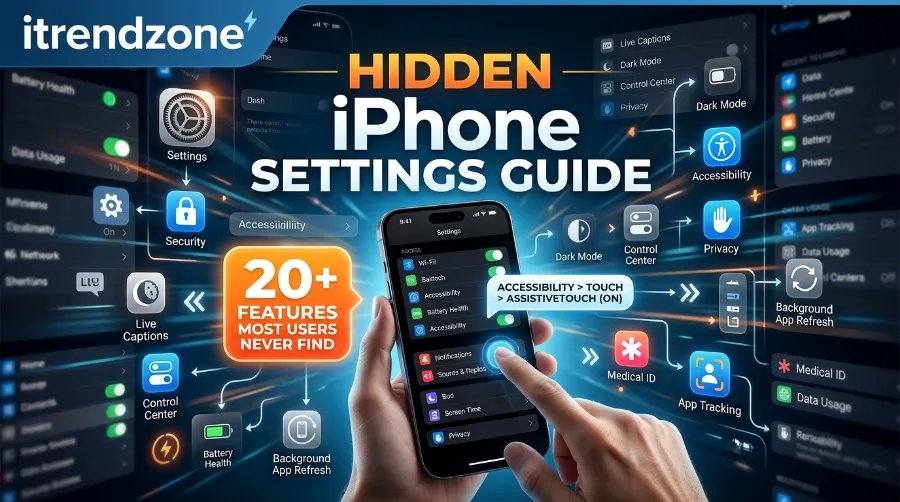
Your iPhone’s back glass can act as a hidden button. Go to Settings > Accessibility > Touch > Back Tap. Choose Double Tap or Triple Tap, then assign an action such as opening the camera or taking a screenshot. I set mine to launch the flashlight. I was tired of fumbling for Control Center in the dark.
Focus Filters
Focus modes have been around for a while, but Focus Filters make them genuinely useful. Under Settings > Focus, pick a Focus like Work. Scroll to Focus Filters and add Calendar, Mail, or Safari. Your Work Focus can then show only your work calendar and inbox. Personal Focus hides them completely, rather than just muting notifications.
Reachability for One-Handed Use
On any Face ID iPhone, a light swipe down along the bottom edge of the screen slides the display down. This lets you reach the top buttons with one thumb. If you’d rather it never triggers by accident, turn it off under Settings > Accessibility > Touch > Reachability.
A Genuinely Custom Control Center
Since iOS 18, Control Center has multiple pages you can rearrange and resize. Long-press an empty area of Control Center, then tap the plus icon. Drag in tools like a QR scanner, Screen Recording, or a Magnifier shortcut. Apple lists the complete set of available controls in its official support documentation. For readers who want a visual walkthrough of these tricks, Burga’s roundup of hidden iPhone features is a handy companion piece.
Battery, Performance, and Accessibility Tweaks
These are the iphone settings you should change the moment you get a new device. Their benefit compounds every single day you leave them on.
Set an 80 Percent Charging Limit
Lithium-ion batteries degrade faster when they sit at 100% for long stretches. Under Settings > Battery > Battery Health & Charging, turn on Optimized Battery Charging. Or go further and set a manual charge limit at 80%, if your model supports it. Apple’s own support page on iPhone battery and performance explains the science in more detail.
Screen Distance for Eye Comfort
This feature is buried under Settings > Screen Time > Screen Distance, not under Display. It nudges you with a gentle alert if you hold your iPhone closer than about 12 inches from your face for too long. It’s aimed at reducing eye strain and myopia risk, especially for kids. It takes about ten seconds to enable.
Haptic Keyboard Feedback
If typing on glass feels numb, go to Settings > Sound & Haptics > Keyboard Feedback and turn on Haptic. Every tap produces a tiny, satisfying click you can feel. Several readers have told me it made their typing noticeably more accurate.
Reduce Motion for a Snappier Feel
Under Settings > Accessibility > Motion, toggling on Reduce Motion cuts down on the parallax and zoom animations throughout iOS. On older iPhones especially, this can make the interface feel faster. Your processor speed hasn’t actually changed at all.
Assistive Access for a Simplified Layout
If you’re setting up a phone for an aging parent or a child, try Settings > Accessibility > Assistive Access. It strips the interface down to large icons, bigger text, and only the apps you choose. I set this up on my grandfather’s iPhone last year. He went from calling me weekly with questions to barely needing help at all.
Hide Distracting Home Screen Pages
Long-press any empty spot on your Home Screen until the icons jiggle. Then tap the row of dots near the bottom. From there, uncheck any page you want out of sight, such as a folder full of work apps you only need on weekdays. Nothing gets deleted, and you can bring the page back the same way in seconds.
Fun and Practical Hidden iPhone Features 2026
Not everything needs to be about privacy or performance. A few of my favorite hidden iphone features 2026 exist purely to make the phone feel a little more delightful.
NameDrop for Instant Contact Sharing
Hold the top of your iPhone close to another iPhone. A bubble animation appears on both screens, letting you exchange contact cards without opening an app. It’s one of those features that looks like magic the first time someone shows it to you.
StandBy Mode
Plug your iPhone into a charger sideways and it automatically switches into StandBy. Your Lock Screen becomes a bedside clock, photo display, or widget dashboard. You can customize which widgets appear under Settings > StandBy.
Live Voicemail
When someone calls and you don’t pick up, Live Voicemail transcribes what they’re saying in real time on your screen. You can decide whether to answer without guessing. It’s on by default, but you can double check it under Settings > Phone > Live Voicemail.
Full-Page Screenshots
After capturing a regular screenshot inside Safari or Notes, tap the thumbnail in the corner. Choose Full Page instead of Screen. iOS then saves the entire scrollable page as one long PDF. This has saved me from stitching together a dozen screenshots more times than I can count.
Offline Music Recognition
Add the Music Recognition control to Control Center, or hold the side button briefly with the right shortcut configured. Your iPhone can then identify songs playing nearby, even without an internet connection for basic recognition.
Live Text and Visual Look Up
Point your camera at a phone number, sign, or handwritten note. A yellow bracket appears, letting you copy the text directly, no app required. Go a step further with Visual Look Up. Tap the small icon at the bottom of any photo containing a plant, landmark, or pet, and iOS will try to identify it. I’ve used this to identify a mystery plant a neighbor gave me. I also used it to translate a restaurant menu on a trip through Lisbon last spring.
Share Your Wi-Fi Password Without Saying It Out Loud
When a friend tries to join your Wi-Fi network, hold their iPhone near yours while it’s unlocked and connected. A prompt appears letting you share the password with one tap, no typing required. It only works between iPhones signed into iCloud with each other’s contact saved. It won’t help with a random visitor, but for family and friends it’s faster than reading out a sixteen-character password letter by letter.
For an even longer running list of these smaller surprises, Mac of All Trades’ roundup of hidden iPhone features is worth a look. Our own iPhone camera tips guide covers a few photography-focused extras that pair well with these.
Hidden iPhone Feature Comparison Table
| Feature | Minimum iOS | Setup Time | Category |
|---|---|---|---|
| App Privacy Report | iOS 15.2+ | 10 seconds | Privacy |
| Safety Check | iOS 16+ | 1-2 minutes | Privacy |
| Back Tap | iOS 14+ | 30 seconds | Productivity |
| Focus Filters | iOS 16+ | 1 minute | Productivity |
| 80% Charging Limit | iOS 13+ | 15 seconds | Battery |
| Screen Distance | iOS 17+ | 10 seconds | Accessibility |
| StandBy Mode | iOS 17+ | Automatic | Fun/Utility |
| Full-Page Screenshots | iOS 13+ | Built-in | Productivity |
Most readers can complete every setting in this guide in under twenty minutes total. The privacy and battery ones alone are worth doing today.
Common Mistakes People Make With These Settings
Even readers who know these features exist tend to trip over the same issues. Here’s what to watch for.
- Turning on Reduce Motion and then forgetting they enabled it. This can make certain animations feel abrupt. If something feels off after a settings change, that toggle is often the culprit.
- Setting a Back Tap shortcut and never testing it. It can silently fail if the assigned Shortcut requires an app you later deleted.
- Assuming Focus Filters sync automatically across apps. Each app has to individually support the Focus Filters API. Not every app on the App Store does yet.
- Disabling Significant Locations and expecting it to stop Find My sharing too. That’s a separate setting, found under Settings > Privacy & Security > Location Services > Share My Location.
Work through this list once, rather than changing settings piecemeal over months. It’s the fastest way to avoid these small but annoying mix-ups.
Frequently Asked Questions
Common Questions
1. What is the best hidden iPhone setting to turn on first? Enable the App Privacy Report under Settings > Privacy & Security. It costs nothing and takes about ten seconds. It immediately shows you which apps have been quietly accessing your camera, microphone, or location over the past week. That’s often eye-opening the first time you check it.
2. Do these hidden settings work on older iPhones? Most work back to iOS 14 or iOS 15. A few, like Screen Distance and StandBy Mode, need iOS 17 or newer and specific hardware such as Face ID. Check Settings > General > About to confirm your current version. It’s often just a matter of updating, not a missing feature.
3. Will changing these iphone settings you should change affect my battery life? Some are designed to protect long-term battery health. The 80% charging limit is one example, even though it slightly reduces your runtime per charge. Others, like Reduce Motion, can actually improve day-to-day battery performance. That happens by cutting down on the graphics work your phone does for animations.
4. Are hidden iPhone privacy settings enough to stop all tracking? No single setting stops everything. Apple’s built-in tools meaningfully reduce tracking from apps and Safari. For full protection, add strong, unique passwords and two-factor authentication on your Apple ID. What you share on other websites still matters too.
5. How often does Apple add new hidden settings? Nearly every major iOS release adds new toggles buried a few menus deep. Apple ships one big release each September, plus several point updates through the year. Revisit Settings after each update rather than assuming nothing changed. That’s usually where new privacy tools show up first.
Quick Check: Test Yourself
Q1. Where do you find the App Privacy Report? A) Settings > Battery B) Settings > Privacy & Security C) Settings > Focus Answer: B. The App Privacy Report lives under Privacy & Security. It logs app activity from the past seven days.
Q2. What does Back Tap let you do? A) Automatically translate messages B) Trigger a shortcut by tapping the back of the phone C) Change your wallpaper based on location Answer: B. Back Tap turns double or triple taps on the rear glass into a customizable shortcut trigger.
Q3. What is Significant Locations used for? A) Sharing your live location with friends B) Storing a private, on-device history of places you frequently visit C) Setting your home address for Maps Answer: B. It’s a personal, encrypted log. Apple uses it to power Maps and Photos suggestions, and you can clear or disable it anytime.
How to Keep Finding New Hidden Settings After Today
Apple doesn’t publish a master list of every toggle it adds with each update. The fastest way to stay current is a short routine you repeat after every iOS release.
- Open Settings > General > Software Update right after Apple pushes a new version. Read the short release notes before installing.
- Once updated, scroll slowly through Settings > Privacy & Security and Settings > Accessibility. New toggles tend to land in these two menus more than anywhere else.
- Check the Control Center customization screen for any new controls that weren’t there before. Apple often adds small utilities here without much fanfare.
- Bookmark this guide and a source like Apple’s own newsroom. That way you have somewhere reliable to check when a feature looks unfamiliar.
This whole routine takes about five minutes per update. It’s how most of the features in this guide got discovered in the first place, simply by paying attention.
Conclusion
None of these features require a new iPhone or a paid app. You just need a few extra minutes inside a menu you probably haven’t opened since setup. Start with the privacy settings if security is your priority. Or start with the battery tweaks if you’re trying to make your current iPhone last another year. Either way, revisit this hidden iphone settings guide after your next iOS update. Apple tends to bury one or two new surprises in every release, and it’s genuinely satisfying to be the person who finds them first.
References
- Apple Support: About Control Center on iPhone
- Apple Support: iPhone Battery and Performance
- Electronic Frontier Foundation: How to Get to Know iPhone Privacy and Security Settings
- Moutfitters Blog: Hidden iPhone Privacy Settings, A Guide
- Burga: iPhone Tips and Tricks, Hidden Features
- Mac of All Trades: Hidden iPhone Features