
You reach for your iPhone during dinner, and it lights up for the fourth time in ten minutes. A group chat notification. A shopping app promo. A calendar reminder you already saw. None of it was urgent, yet all of it pulled your attention away from the table.
How to Enable iPhone Dark Mode Everywhere
iPhone Do Not Disturb is the setting built to stop exactly that, but most people only use a sliver of what it can do. They flip it on before bed and forget it exists the rest of the day. That’s a waste, because Do Not Disturb on iOS 26 can be scheduled, filtered by person, paired with driving detection, and tuned so tightly that only the calls and texts that truly matter get through.
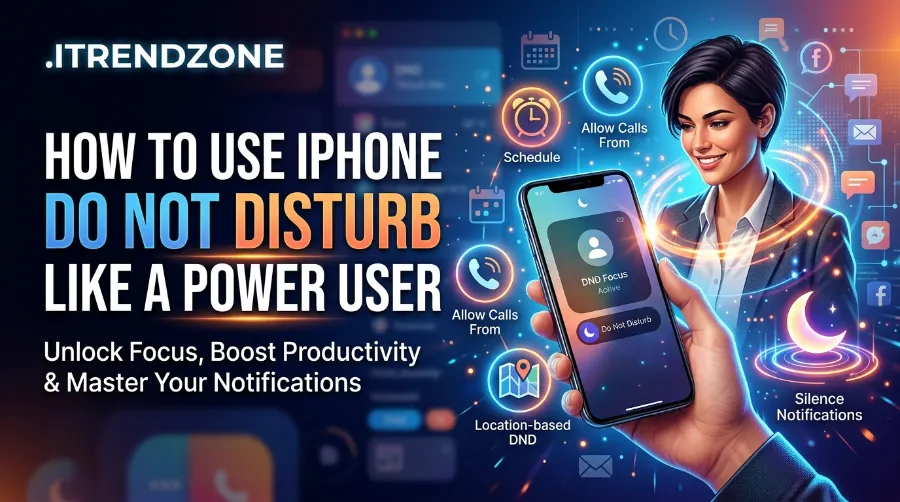
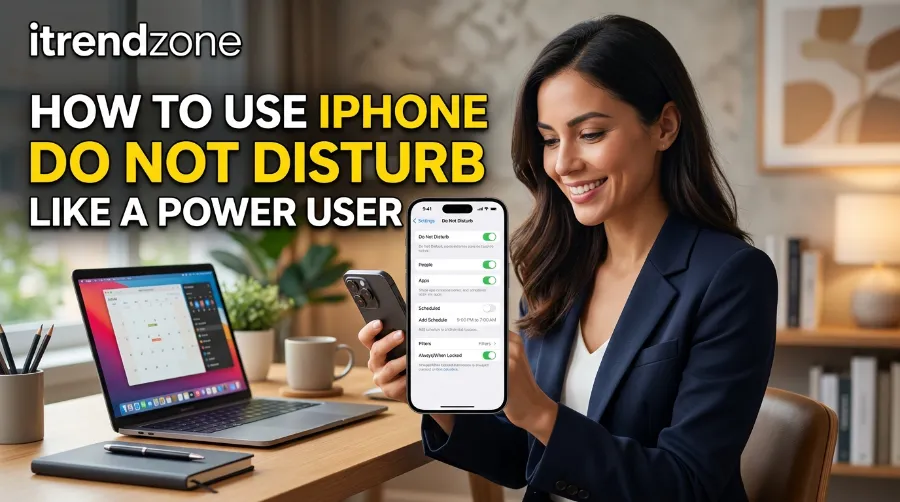
How to Use iPhone Do Not Disturb Like a Power User
This guide walks through the setting from the ground up and then into the parts almost nobody configures: schedule Do Not Disturb on iPhone, understanding Focus mode vs DND, setting smart DND exceptions on iPhone, and using Do Not Disturb while driving so it actually helps instead of annoying you. By the end, you’ll have a setup that protects your attention without cutting you off from the people who need to reach you.
Key Takeaways
| Area | What You’ll Learn | Why It Matters |
|---|---|---|
| Basics | Turning DND on/off from Control Center and Settings | Fastest way to get quiet, right now |
| Scheduling | Automatic on/off times, location-based triggers | Removes the need to remember to toggle it |
| Focus vs DND | How Do Not Disturb fits inside the Focus system | Stops the confusion that’s persisted since iOS 15 |
| Exceptions | Allowed contacts, Repeated Calls, Emergency Bypass | Keeps you reachable for genuine emergencies |
| Driving mode | Auto-detection, CarPlay, auto-reply texts | Cuts distracted-driving risk on every trip |
| Troubleshooting | Why calls silently go to voicemail | Fixes the most common DND complaint |
TL;DR
- iPhone Do Not Disturb is one preset inside Apple’s broader Focus system; it silences calls, texts, and alerts unless you set exceptions.
- You can schedule Do Not Disturb on iPhone to turn on and off automatically, allow specific people through with DND exceptions, and set up Do Not Disturb while driving to auto-reply to texts when you’re behind the wheel.
- The biggest mistake people make is leaving it all-or-nothing; five minutes of setup turns DND from an annoyance into a genuinely useful filter.
What Is iPhone Do Not Disturb, Really?
Do Not Disturb has been part of iPhone since iOS 6 launched back in 2012, originally as a standalone toggle. Apple folded it into the Focus system starting with iOS 15 in 2021, and it still lives there in iOS 26 today. Functionally, Do Not Disturb is a Focus preset: it’s not a separate feature bolted onto Focus, it’s one of the profiles inside it.
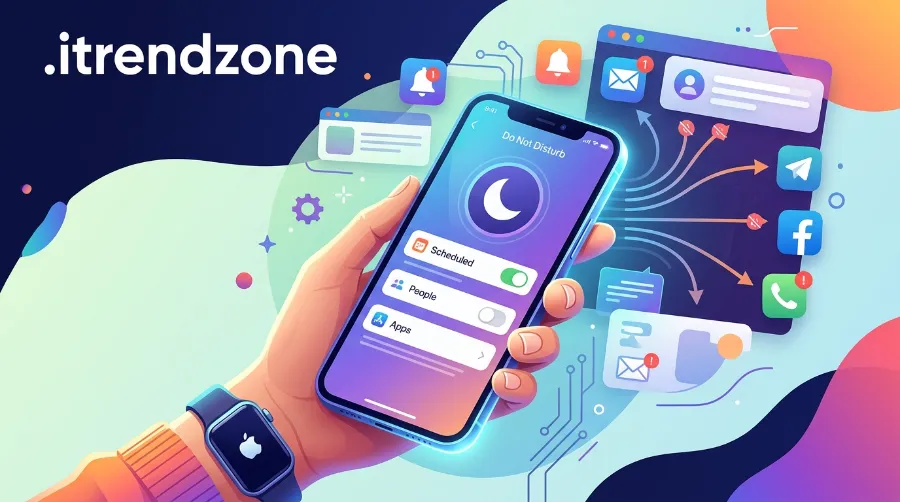
When it’s active, your iPhone silences calls, banners, sounds, and haptics for anything that isn’t specifically allowed through. Notifications still arrive; they just don’t light up your screen or make noise. You’ll find them all waiting quietly in Notification Center when you check.
How to Set iPhone Screen Time Limits That Actually Work
That’s an important distinction from Silent Mode (the physical switch on the side of the phone). Silent Mode mutes sound, but notification banners can still appear on your Lock Screen. Do Not Disturb goes a step further and hides them until you’re ready to look.
How to Set Up iPhone Emergency SOS the Right Way
Focus Mode vs DND: Clearing Up the Confusion
This is genuinely one of the most-asked questions in Apple’s own community forums, and it’s still tripping people up years after the change. Here’s the short version:
- Focus is the umbrella system. It includes Do Not Disturb, Sleep, Work, Personal, Driving, Fitness, Reading, and any custom Focus you build yourself.
- Do Not Disturb is one specific Focus profile, the one that silences almost everything by default.
- Every Focus, including DND, can have its own allowed people, allowed apps, and even its own Home Screen layout.
So when someone asks “should I use Focus or DND?” the honest answer is: if you only need one rule (quiet at night, quiet during meetings), stick with Do Not Disturb. If you want different rules for work hours versus family time versus sleep, build separate Focus modes and treat DND as just one of them.
iPhone Safari Browser Settings You Should Change Today
For a deeper walkthrough of everything else Focus can touch, including how it reshapes your Home Screen and widgets, see our hidden iPhone settings guide — it covers several Focus-adjacent tricks that don’t get much attention.
How to Turn On Do Not Disturb on iPhone
There are three ways to activate it, and each suits a different situation.
- Control Center (fastest): Swipe down from the top-right corner (or up from the bottom on Touch ID models), tap the Focus icon, and select Do Not Disturb. Long-press it for a 1-hour, until-this-evening, or until-you-leave-a-location option.
- Settings app: Go to Settings > Focus > Do Not Disturb to adjust every detail, including allowed people and apps, before turning it on.
- Siri: Say “Hey Siri, turn on Do Not Disturb” and it activates immediately, no unlocking required.
Add the Do Not Disturb tile to Control Center if it isn’t already there through Settings > Control Center, so it’s one tap away instead of buried in a menu. Our Control Center customization guide walks through arranging shortcuts like this one for one-tap access.
How to Schedule Do Not Disturb on iPhone
Manually toggling DND every night is the number-one reason people abandon the feature. Scheduling fixes that permanently.
- Open Settings > Focus > Do Not Disturb.
- Tap Add Schedule or Time, then set a start and end time (for example, 10:30 PM to 6:45 AM).
- Optionally add a Smart Activation rule, which lets iOS learn your patterns from time, location, and app usage and switch DND on when it predicts you’d want it.
- Stack a location-based trigger (“until I leave this location”) for recurring situations like a weekly appointment or a gym session.
A scheduled Do Not Disturb window at night is the single highest-impact change most people can make to this setting, because it means the feature works even on the nights you forget it exists.
iPhone Text Replacement Shortcuts That Save You Hours of Typing
DND Exceptions on iPhone: Staying Reachable for What Matters
Blanket silence sounds appealing until your babysitter can’t reach you, or a client’s urgent call goes straight to voicemail. This is where exceptions come in, and it’s the part that separates a casual user from a power user.
Allowed People
Go to Settings > Focus > Do Not Disturb > People, then tap Add to build an allowed list. Common choices are a spouse, kids, and a boss. Everyone else stays silenced; your allowed list rings through as normal.
You can also flip the model: under Silence Notifications From, choose specific people to mute while leaving everyone else audible. That’s useful if you want quiet from one noisy group chat without going fully dark.
Repeated Calls
Turn on Allow Repeated Calls in the same People settings screen. If the same number calls twice within three minutes, the second call rings through, even if that person isn’t on your allowed list. Apple built this specifically as an emergency safety valve, since most genuine emergencies involve someone calling back quickly when the first call isn’t answered.
Emergency Bypass
For your closest contacts, you can set Emergency Bypass directly on their contact card (Contacts app > select contact > Edit > Ringtone or Text Tone > toggle Emergency Bypass). Their calls and texts will always break through Do Not Disturb, no matter what Focus is active.
App Exceptions
Since iOS 15, you can also allow specific apps to notify you during DND. In Settings > Focus > Do Not Disturb > Apps, add anything time-sensitive to your life, such as a work chat tool or a smart-home security app.
A quick setup checklist for exceptions:
- Add close family and your top 2 to 3 work contacts to Allowed People.
- Turn on Allow Repeated Calls as a safety net.
- Set Emergency Bypass for one or two people you absolutely cannot miss (an elderly parent, a partner during a pregnancy, and so on).
- Add any genuinely time-sensitive app (security, medical, on-call scheduling) to the app exceptions list.
Get this right once and you rarely need to touch it again.
Do Not Disturb While Driving: Setup and Why It’s Worth Using
Do not disturb while driving deserves its own section because it solves a different problem: distracted driving rather than simple interruption fatigue. Apple introduced it with iOS 11 in 2017, and road-safety groups welcomed it immediately. Brake, the UK road safety charity, called it a step that would help drivers “stay focused on the road and not their phones” when it launched.
How It Works
- Automatic activation: iOS can detect driving through motion sensors or when your iPhone connects to your car’s Bluetooth or CarPlay.
- Manual activation: Toggle it directly from Control Center using the car icon.
- What happens: Notifications and texts are silenced, the screen stays dark, and Siri can read messages aloud if you ask. Calls only ring through if you’re connected to CarPlay or a hands-free system, or if you’ve set specific call exceptions.
To set it up: go to Settings > Focus > Do Not Disturb > Do Not Disturb While Driving, then choose Automatically, When Connected to Car Bluetooth, or Manually.
Auto-Reply Texts
Under Settings > Focus > Do Not Disturb > Auto-Reply To, choose who receives an automatic “I’m driving” text when they message you: No One, Recents, Favorites, or All Contacts. If someone replies with the word “Urgent,” their messages will come through for the rest of your drive, a small detail that prevents genuinely urgent texts from being ignored.
Does It Actually Work?
There’s real data on this. A large-scale study by EverQuote, run through its EverDrive driving-behavior app, tracked over 500,000 users between September and October 2017 and found that 80% of iPhone users had Do Not Disturb While Driving enabled, since it ships on by default, and 70% kept it turned on afterward. The same research linked the feature to an 8% drop in phone use behind the wheel among users who had it active. Separately, road-safety researchers have estimated that driver distraction contributes to roughly one in five crashes, underlining why a feature like this earns its place on your phone rather than being an afterthought.
Common Fix: It Turns On When You’re Not Driving
If your iPhone mistakes a train or bus ride for driving, a banner appears reading “I’m currently driving.” Tap it, then select I’m Not Driving, and the mode switches off immediately. If this happens often, switch the activation method from Automatic to When Connected to Car Bluetooth, since Bluetooth pairing is a far more reliable driving signal than motion alone.
How to Set Up iPhone AssistiveTouch Step by Step (2026 Guide)
Focus Presets Beyond Do Not Disturb
Once your Do Not Disturb setup feels solid, it’s worth knowing what else lives under the Focus umbrella, since several of these solve problems DND alone can’t.
| Focus Preset | Typical Trigger | Best Use Case |
|---|---|---|
| Do Not Disturb | Manual or scheduled | General quiet time, sleeping, meetings |
| Sleep | Tied to Health app sleep schedule | Auto-activates at bedtime |
| Work | Set work hours | Silences personal apps during the day |
| Personal | Manual toggle | Off-hours boundary from work apps |
| Driving | Motion or CarPlay detected | Distraction reduction behind the wheel |
| Fitness | Workout app starts | Blocks interruptions mid-workout |
| Reading | Reading or ebook app opens | Keeps notifications out of focused reading time |
Custom Focus modes let you combine these ideas: a “Deep Work” Focus that silences everything except Mail and Slack from 9 AM to noon, for example, is something Do Not Disturb alone can’t replicate, because DND applies the same rule everywhere. For managing what actually reaches you across all of these, our notification center setup guide is a useful next stop.
Troubleshooting: Why Calls Go Straight to Voicemail
This is the number-one Do Not Disturb complaint, and it’s almost always one of these four causes:
- A Focus is still on from yesterday. Check Control Center; the crescent moon icon glows when DND is active.
- The caller isn’t on your Allowed People list, and Allow Repeated Calls is turned off.
- A scheduled Focus overlaps your current time without you realizing it (check Settings > Focus for any active schedules).
- Do Not Disturb While Driving triggered from a bus or train ride, silencing calls even though you weren’t actually driving.
Walk through those four in order and the mystery is almost always solved within a minute.
Frequently Asked Questions
1. Does Do Not Disturb block texts completely, or just silence them? It silences them. Messages still arrive and appear in Notification Center and the Messages app; your iPhone simply doesn’t alert you with a sound, vibration, or lock screen banner while DND is active.
2. Will alarms still go off during Do Not Disturb? Yes. The built-in Clock app alarm still sounds during Do Not Disturb, provided you haven’t manually set that alarm’s sound to None.
3. What’s the actual difference between Focus mode and DND on iPhone? Do Not Disturb is one specific Focus preset built into iOS since iOS 15. Focus is the broader system that includes DND plus Work, Sleep, Personal, Driving, and any custom modes you build. You’re technically “in a Focus” any time DND is on.
4. Can I schedule Do Not Disturb to turn on automatically every night? Yes. Under Settings > Focus > Do Not Disturb, tap Add Schedule and set a start and end time. You can also enable Smart Activation to let iOS learn your habits and activate it automatically.
5. How do I let specific people bypass Do Not Disturb on iPhone? Add them under Settings > Focus > Do Not Disturb > People, or set Emergency Bypass individually on their contact card for the most reliable override.
Q: Does Do Not Disturb While Driving stop GPS or navigation apps from working? A: No. Turn-by-turn navigation and map directions continue to work normally while Do Not Disturb While Driving is active; only calls, texts, and other notifications are affected.
Q: Is Do Not Disturb the same on Android as it is on iPhone? A: Not quite. On Android, Do Not Disturb and Focus mode remain two separate features, DND silences notifications while a distinct Focus mode grays out entire apps, whereas on iPhone, DND is simply one profile inside the single unified Focus system.
Q: If I miss a call during Do Not Disturb, will I know? A: Yes. Missed calls and unread messages still show up as badges and in Notification Center; DND only suppresses the immediate alert, it never deletes or hides the underlying notification.
Conclusion
Do Not Disturb has quietly grown from a single on/off switch in 2012 into one of the more sophisticated notification tools on any smartphone, yet most people still use it the way they did a decade ago. Spend the ten minutes this guide takes to schedule it, add a short allowed-contacts list, and turn on Do Not Disturb While Driving, and the feature stops being an all-or-nothing gamble. It becomes a filter that protects your attention on your terms, while the people and moments that actually matter still get through.