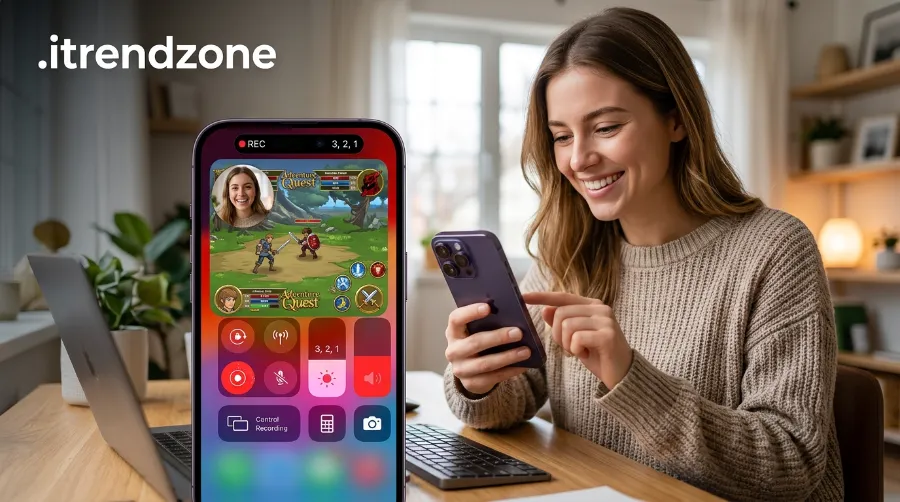

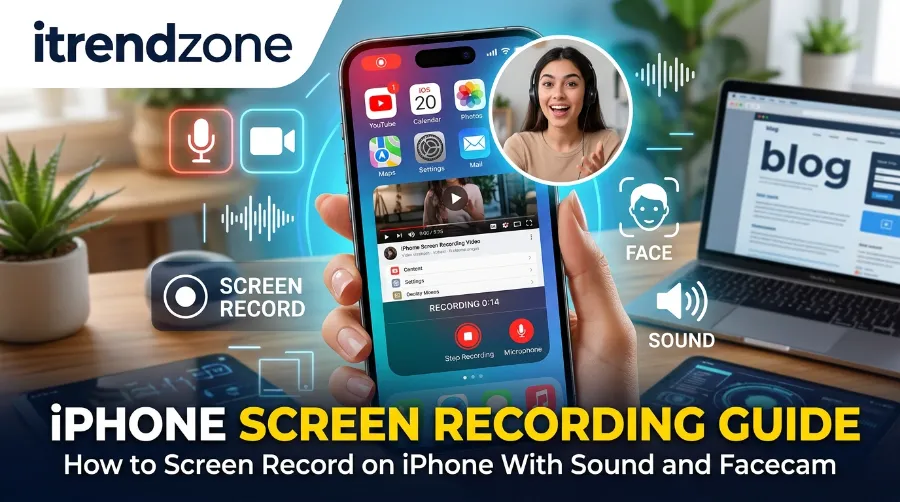
iPhone Screen Recording Guide: How to Screen Record on iPhone With Sound and Facecam
You want to show a friend how to fix a setting, but a screenshot is not enough. You need motion, your voice, and maybe your face in the corner. This iPhone screen recording guide shows you how to do all three, step by step, on any iPhone that runs a recent version of iOS.
I’m Daniel Hayes, and I write iPhone tutorials for iTrendZone. I walk through every method below on a device before I explain it to you. Apple released iOS 27 on September 14, 2026, and the core steps still work the same way, so you can follow along even if you have not updated yet.
TL;DR
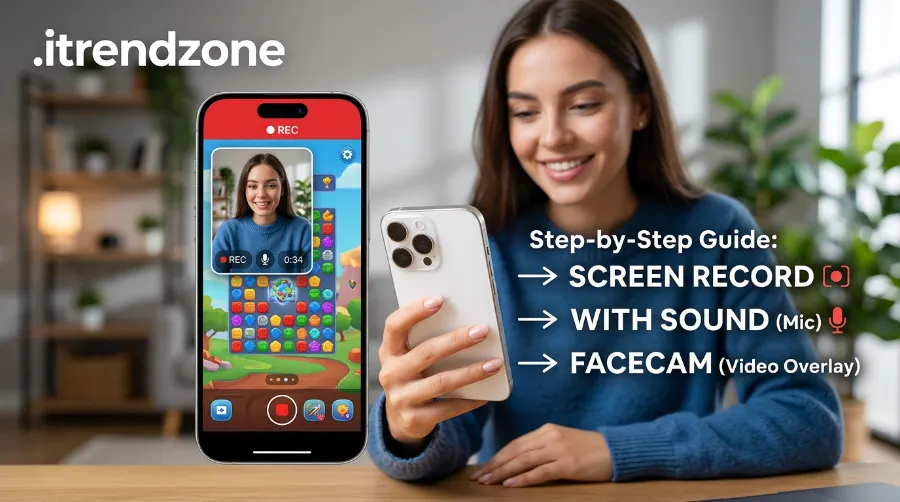
- The built-in recorder saves app sound by default. To add your voice, press and hold the Record button in Control Center, then turn on the Microphone.
- The built-in tool cannot add your face. For a facecam, use a recorder app with a front camera overlay, or film yourself and combine both clips in iMovie.
- If recording fails, check three things first: the Control Center button, the silent switch, and Screen Time restrictions.
Key Takeaways at a Glance
| Goal | Best method | Time needed | Extra app? |
|---|---|---|---|
| Record the screen only | Control Center Record button | 10 seconds | No |
| Record with your voice | Press and hold Record, turn on Microphone | 20 seconds | No |
| Record with your face | Facecam app or iMovie overlay | 5 to 10 minutes | Yes, usually |
| Record FaceTime | Start recording before or during the call | 20 seconds | No |
| Fix a broken recording | Check button, mic, ringer, restrictions | 2 minutes | No |
Why People Want Sound and Facecam in Their Recordings
A silent clip often leaves people confused. They see taps, but they do not hear why you tapped them. Your voice turns a clip into a real lesson.
A face adds trust. Viewers feel they are learning from a person, not a robot. That matters for tutorials, game reactions, and support videos for family.
I looked at the top guides on this topic before I wrote this one. Apple Support, Orchard, iPhone Life, and BuyMobiles all explain the basic steps well. However, most skip the facecam part and the fix-it part. This guide covers both.
How to Turn On iPhone Camera Grid Lines for Better Composition
Before You Start: What You Need
Screen recording has lived inside iOS since iOS 11. Therefore, almost every iPhone in use today supports it. Apple also says iOS 27 works on every iPhone from the iPhone 11 onward, so no device dropped off the list this year.
Here is a short checklist before you press record:
- Enough free storage. Video files grow fast.
- A charged battery, because long recordings drain power.
- Focus or Do Not Disturb turned on, so texts do not pop up on screen.
- A quiet room if you plan to talk.
BuyMobiles gives the same advice about notifications in its step-by-step iPhone screen recording guide. I agree with it. A banner from your boss in the middle of a tutorial is hard to cut out later.
iPhone Cinematic Mode: How to Shoot Pro-Looking Video
How to Add the Screen Recording Control
Many people say “my iPhone has no record button.” In truth, the button exists, but Apple hides it until you add it. This takes less than a minute.
Add the button from Settings
- Open Settings.
- Tap Control Center.
- Scroll to Screen Recording.
- Tap the green plus button next to it.
Add the button from Control Center itself
Newer versions of iOS let you edit Control Center right on the screen. First, swipe down from the top-right corner. Then tap the plus icon in the top-left corner and choose Add a Control. Finally, pick Screen Recording from the list.
How to Shoot Better iPhone Panorama Photos: 12 Proven iPhone Panorama Photo Tips
Apple explains the full process in its guide to customizing Control Center. I suggest you place the button on the first page. That way, you never hunt for it when you need it fast.
How to Screen Record on iPhone (Basic Method)
Let me start with the simplest version. Apple publishes the official steps on its support page, Record the screen on your iPhone, and updated that page on September 14, 2026.
- Swipe down from the top-right corner of the screen. On an iPhone with a Home button, swipe up from the bottom instead.
- Tap the gray Record button.
- Wait for the three-second countdown.
- Close Control Center and do what you want to record.
- To stop, tap the red status indicator at the top, then tap Stop.
Your clip lands in the Photos app. Open your Library and look for the newest video. From there, you can trim the start and end.
I tested this on a recent iPhone running the latest iOS, and the countdown gives you just enough time to swipe away. Apple also warns about two limits. Some apps block recording, and you cannot record while you use screen mirroring.
Best Free iPhone Photo Editing Tools Built Into iOS
How to Screen Record With Audio on iPhone
Now for the part most people search for. To screen record with audio on iPhone, you must understand that there are two kinds of sound. One comes from inside the phone. The other comes through the microphone.
Internal sound versus microphone sound
| Sound type | What it captures | Default setting | When to use it |
|---|---|---|---|
| Internal (app) audio | Music, game sounds, video audio | On, if your ringer is on and volume is up | Game clips, app demos |
| Microphone audio | Your voice and room noise | Off | Tutorials, commentary |
| Both together | App sound plus your voice | You choose | Game reactions, walkthroughs |
Orchard notes that sound is not always included by default, and iPhone Life points out that your ringer must be on to capture app audio. You can read both explanations in the Orchard screen recording article and in the iPhone Life sound guide. My own tests match this. When I flipped the silent switch on, app sound went quiet in my test clip.
Steps to record with your voice
- Open Control Center.
- Press and hold the Record button.
- Tap the Microphone button so it turns on.
- Tap Start Recording.
- Wait for the countdown, then close Control Center.
- Talk in a normal voice while you tap and swipe.
Apple lists these same steps in its support article. The microphone button shows red when it is on. If it stays gray, your voice will not appear in the clip.
Real example: a 90-second tutorial
Suppose you want to teach your mother how to change her wallpaper. You turn on the microphone and start recording. Then you say, “First, open Settings.” You tap the icon, and you keep talking as you go.
After 90 seconds, you stop the clip and send it in Messages. She now has a video she can replay as many times as she wants. In my experience, a short clip that is under two minutes gets watched, while a long one gets skipped.
Tips for cleaner sound
- Hold the phone a hand’s width from your mouth.
- Turn off fans and the TV.
- Do a ten-second test clip first. Play it back and check your volume.
- If you wear AirPods, test them as well. The iPhone may pick up your voice from the earbuds, and the quality can change.
iPhone Screen Recording Guide: How to Add Your Face (Facecam)
Here is the honest truth. The built-in iPhone screen recorder does not have a facecam option. Apple gives you the screen and the microphone, but not the front camera.
Still, you have three good ways to get your face in the video. Each one fits a different need.
Method 1: Use a recorder app with a face overlay
Several apps in the App Store let you record the screen and show a small bubble of your face at the same time. People call this Picture-in-Picture. Game creators use it a lot.
Before you download one, check three things on the store page:
- Does the listing say “face cam,” “reactions,” or “front camera overlay”?
- Does it show recent updates?
- Does it ask for permissions that make sense?
Always read the privacy details first. Third-party apps handle your camera, microphone, and screen, so trust matters. AirTalk Wireless also warns readers to match the tool to the job in its guide to recording with or without sound.
How to Use iPhone Live Photos Like a Pro: The Complete iPhone Live Photos Guide
Method 2: Record twice, then combine in iMovie
This method costs nothing and gives you full control. It takes a few more minutes, but the result looks clean.
- Record your screen with the microphone on.
- Record yourself with a second phone, or with the front camera in the Camera app, while you repeat your speech.
- Open iMovie and start a new project.
- Add the screen recording first.
- Add your face clip as an overlay and choose Picture in Picture.
- Resize the face bubble and move it to a corner.
- Export the video.
If you want a polished look for your face clip, try Portrait mode tips for softer backgrounds. You can also explore Cinematic mode video when you want a movie-style blur behind you. Both features help a simple desk setup look more professional.
Method 3: Use your Mac for a bigger edit
When you plan to publish on YouTube, a Mac gives you more room. You can record your iPhone screen through a cable, then add a webcam clip in a video editor. This takes longer. Even so, it works well for long tutorials.
iPhone Portrait Mode Tips for Sharper, More Natural Photos
Facecam methods compared
| Method | Cost | Difficulty | Best for |
|---|---|---|---|
| Recorder app with face overlay | Free or paid | Easy | Quick game or reaction clips |
| Two clips plus iMovie | Free | Medium | Clean tutorials |
| Mac editing | Free or paid | Harder | Long, polished videos |
Light your face the right way
Bad light ruins a good facecam. Sit in front of a window instead of with your back to it. If the room is dim, read our Night mode photography guide, because the same light rules apply to video. Also, keep the camera at eye level, so you do not look down at the lens.
For B-roll shots of your desk or room, the iPhone Camera modes explained page helps you pick the right mode. Moreover, our Panorama photo tips work well for a wide intro shot of your workspace.
How to Screen Record FaceTime on iPhone
Many readers ask how to screen record FaceTime. The steps look almost the same as a normal recording, but you must be careful with sound.
- Start your FaceTime call or get ready to join one.
- Open Control Center and press and hold Record.
- Turn the Microphone on if you want your own voice in the clip.
- Tap Start Recording and return to the call.
- Stop the recording from the red indicator when you finish.
Sound can vary. In my experience, the other person’s voice may come through softly, and your own voice may sound different from the way it does on a regular clip. Therefore, I always record a ten-second test first and play it back before I trust it.
iPhone Night Mode Photography: Settings for Low-Light Shots
Ask first, always
Recording a call is more than a technical choice. In the United States, some states need permission from everyone on the call. In the UK and Europe, privacy laws such as the GDPR may apply when you record and share another person’s voice or face.
I’m not a lawyer, so check your local rules. However, the simple habit that protects you is this: tell the person, get a clear yes, and then record.
Screen Recording Not Working? Fix It Step by Step
Something goes wrong for most people at least once. The good news is that the causes repeat, so the fixes are quick. Work through this table from top to bottom.
| Problem | Likely cause | Fix |
|---|---|---|
| No Record button | Control not added | Add Screen Recording in Settings, then Control Center |
| No sound from the app | Silent mode or low volume | Flip the ringer switch on and raise the volume |
| No voice in the clip | Microphone is off | Press and hold Record and turn on the mic |
| Record button is gray | Screen Time restriction | Allow Screen Recording in Content Restrictions |
| Black screen in the video | App blocks capture | Try another app or a different source |
| Recording will not start | Mirroring is active | Stop AirPlay mirroring, then try again |
| Recording stops early | Low storage | Free up space in iPhone Storage |
Fix 1: Check Screen Time
An adult or a work profile may block recording. Go to Settings, then Screen Time, then Content & Privacy Restrictions. Next, tap Content Restrictions and find Screen Recording. Set it to Allow.
Fix 2: Free up storage
Video files take space. Open Settings, tap General, and then tap iPhone Storage. Delete old videos and large apps you no longer use. If you shoot many Live Photos, our Live Photos guide explains how to manage them, which also frees up room.
Fix 3: Restart and update
A simple restart clears many odd bugs. Also, check Settings, General, and Software Update for a new version. Apple often fixes recording bugs in small updates.
Fix 4: Test another app
Some apps protect their content on purpose. Streaming apps often show a black screen. Apple says on its support page that certain apps may not allow you to record audio or video. In that case, nothing is broken on your phone.
Tips for Better Screen Recordings
A few small habits make your clips look and sound much better. I picked these up after many tutorials.
- Clean your Home Screen. Remove private apps or messages from view.
- Turn on Focus. Silence alerts before you press record.
- Plan your steps. Write a short list so you do not ramble.
- Move slowly. Viewers need time to follow your taps.
- Trim in Photos. Cut the countdown and the final tap.
- Keep it short. Short clips hold attention longer.
BuyMobiles gives similar advice and suggests trimming clips before you share them. For example, a 40-second trimmed clip feels sharper than a 70-second clip with dead air at both ends.
iPhone Camera Modes Explained: When to Use Each One
A simple pre-flight routine I use
Before every tutorial, I follow the same quick routine. First, I charge the phone. Next, I turn on Focus. Then I record a five-second test with the microphone on. Finally, I play it back with headphones. This takes under a minute and saves me from redoing a whole clip.
Which Method Should You Choose?
Your best method depends on your goal. Here is a quick way to decide.
| If you want to… | Choose this |
|---|---|
| Show a friend a quick fix | Built-in recorder, no sound |
| Teach a short lesson | Built-in recorder with Microphone on |
| Make a reaction or gaming clip | Recorder app with face overlay |
| Publish a clean tutorial | Two clips combined in iMovie |
| Save a video call | FaceTime recording, with permission |
If you are not sure, begin with the built-in tool. It is free, fast, and safe. Later, move to an app or an editor when you need your face on screen.
Privacy Habits Worth Keeping
Your screen often shows more than you think. Passwords, bank balances, and private chats can slip into a clip. So, before you share a recording, watch it once from start to end.
Also, think about where your clip goes. A video you send to one person is private. A video you post on a public site stays online for a long time. Because of that, blur or cut any private detail before you upload.
Frequently Asked Questions
1. Does iPhone screen recording capture sound by default?
It captures sound that plays inside the phone when your ringer is on and your volume is up. It does not capture your voice unless you turn on the microphone. Press and hold the Record button to switch it on.
2. Can I screen record on iPhone with my face in the video?
Not with the built-in tool alone. You need a recorder app with a front camera overlay, or you can film yourself and combine both clips in iMovie.
3. Why is my screen recording not working?
The most common reasons are a missing Control Center button, a Screen Time restriction, low storage, or active screen mirroring. Check each one in that order. Then restart the phone.
4. Where do I find my screen recordings?
Open the Photos app and look in your Library. Your newest recording appears with your other videos. You can trim it right there.
5. Can I record FaceTime with sound?
Yes, you can start a screen recording during FaceTime and turn on the microphone. Sound quality can vary, so test first. Also, ask the other person for permission before you record.
Quick Quiz: Test What You Learned
Question 1: What do you do to record your voice with a screen recording?
a) Turn on Airplane mode
b) Press and hold Record, then turn on Microphone
c) Restart the phone
Answer: b. The microphone button must show red before you start.
Question 2: Your Record button is gray and will not work. Where should you look first?
a) Battery settings
b) Wi-Fi settings
c) Screen Time, then Content & Privacy Restrictions
Answer: c. Set Screen Recording to Allow.
Question 3: Which option adds your face to a screen recording?
a) A recorder app with a front camera overlay, or an iMovie overlay
b) The Photos app crop tool
c) Low Power Mode
Answer: a. The built-in recorder does not include a facecam.
Final Thoughts Before You Hit Record
You now have a full iPhone screen recording guide that covers the button, the sound, the face, and the fixes. Start simple: add the Record control, turn on the microphone, and make one short test clip today. After that, add your face with an app or iMovie when you want a more personal feel.
Practice makes the process feel easy. Within a week, you will start a clean recording in under ten seconds. Then your tutorials, game clips, and family tech help will look and sound far better than a plain screenshot ever could.
References
- Apple Support: “Record the screen on your iPhone, iPad, or iPod touch” (updated September 14, 2026)
- Apple Support: “Use and customize Control Center on iPhone”
- BuyMobiles Blog: “How to Screen Record on iPhone: A Step-by-Step Guide” (April 20, 2026)
- Orchard Blog: “How to Screen Record on iPhone”
- iPhone Life: “How to Screen Record with Sound on iPhone”
- AirTalk Wireless Blog: “How to Screen Record on iPhone in 5 Easy Steps With or Without Sound”
- 9to5Mac and iPhone in Canada: iOS 27 release coverage (September 2026)