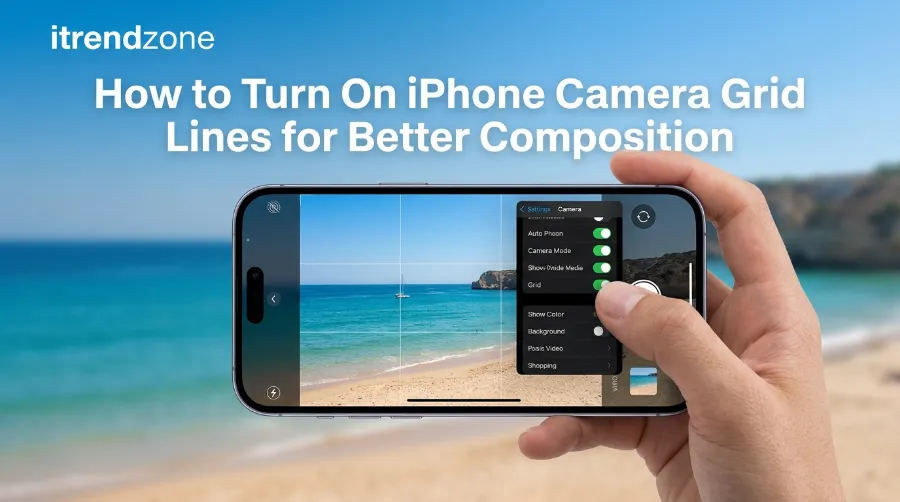

How to Turn On iPhone Camera Grid Lines for Better Composition
You just took a great photo of a sunset, and the horizon tilts like a sinking ship. Sound familiar? Turning on iPhone camera grid lines fixes that problem before you press the shutter. The setting takes about ten seconds, and it stays on until you switch it off. Apple hides it in Settings, not inside the Camera app, so many people never find it.
TL;DR
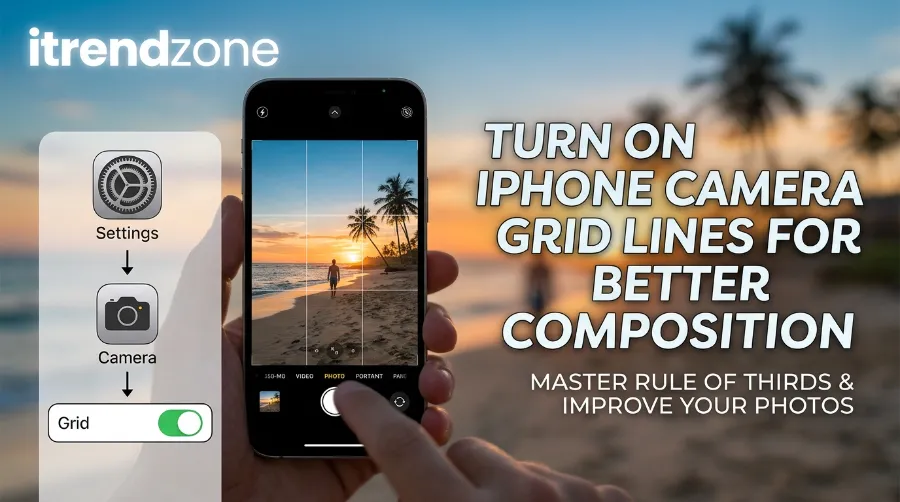
- Open Settings, tap Camera, then switch on Grid and Level (older iOS versions show only Grid).
- The grid splits your screen into nine equal boxes, so you can use the rule of thirds and keep horizons straight.
- Grid lines never show up in your saved photo. They only guide you while you shoot.
- If the grid is missing, update iOS, restart your iPhone, and check that you are inside the Camera app.
Key Takeaways at a Glance
| Question | Short Answer |
|---|---|
| Where is the setting? | Settings, then Camera, then Grid and Level |
| How many boxes does the grid make? | Nine equal boxes, with four crossing points |
| Do the lines appear in saved photos? | No |
| Is the grid on by default? | No, you must turn it on |
| What does the level tool do? | It shows a guide when your phone tilts or points straight down |
| Best first habit | Place the horizon on the top or bottom line |
| Works with third-party camera apps? | Not always, because each app has its own guides |
Why I Care About This Tiny Setting
I write about iPhone and Android tips for iTrendZone readers in the USA and Europe. Over the years, I have seen the same mistake in reader photos again and again. The subject sits in the middle, the horizon slopes, and the top of a head gets cut off. Most of these photos are not bad. They just lack a small amount of planning.
When I tested the steps in this guide on my iPhone running iOS 26, I switched the grid on first and kept it on for a full week of daily shooting. My photos got straighter within a day. After a few days, I started placing subjects off center without thinking about it. That habit is the real prize here. The lines teach your eye, and then you need them less.
Before we go on, one note about sources. I checked the menu names against Apple’s own iPhone User Guide and recent iOS 26 walkthroughs, and I list every source in the References section. The wording of the switch changed over time, so I explain both versions below.
What Are iPhone Camera Grid Lines?
iPhone camera grid lines are thin, faint lines that sit on top of your viewfinder. Two lines run across the screen, and two lines run up and down. Together, they cut the frame into nine equal boxes, like a tic-tac-toe board.
These lines are only a screen overlay. As photographer Justin Shockley explains in his guide to the iPhone camera grid, the lines show while you shoot but do not appear in the final image. So you can use them freely without ruining a shot.
The grid serves two jobs:
- Composition. It helps you place your subject using the rule of thirds.
- Straightness. It helps you keep horizons, walls, and buildings level.
Think of it as training wheels for your eye. You do not need them forever, but they help a lot at the start.
How to Turn On iPhone Camera Grid Lines (Step by Step)
Here is the full process. It works on any modern iPhone, including the iPhone 15, 16, and 17 families.
- Open the Settings app.
- Scroll down and tap Camera.
- Find Grid and Level and switch it on. On older iOS versions, the switch only says Grid.
- Open the Camera app.
- Look at the viewfinder. You should now see faint lines splitting the screen into nine boxes.
Apple’s guide says this setting shows a grid or level on the camera screen to help you straighten and compose your shot. A recent iOS 26 tip from Apple World Today lists the same two taps: Camera, then Grid and Level.
The tutorial on iPhone Life follows the same path and also reminds readers that the grid is off by default. That is why so many people think their iPhone does not have this feature.
Quick tip from my own testing: On iOS 18 and later, the switches sit under a small Composition heading in the Camera settings. If you cannot spot them, scroll a little further down the list.
Best Free iPhone Photo Editing Tools Built Into iOS
Where the Menu Name Changed
| iOS Era | What the Switch Says | Where to Find It |
|---|---|---|
| Older iOS versions | Grid | Settings, then Photos and Camera, or Camera |
| iOS 17 and iOS 18 | Grid, with a separate Level option in some versions | Settings, then Camera, Composition |
| iOS 26 | Grid and Level | Settings, then Camera |
The table above gives you a map, but your own screen is the final answer. Apple tweaks Settings often, so use the search bar at the top of Settings and type “grid” if you get lost.
How to Use the Rule of Thirds on iPhone
Now that the lines are on, let me show you how to use them. The rule of thirds on iPhone is simple. You place your main subject on one of the lines or at one of the four spots where lines cross. You avoid the dead center unless you want a calm, symmetrical look.
Here is a quick picture of the grid:
| Top Left Point | Top Center | Top Right Point |
|---|---|---|
| Middle Left | Center | Middle Right |
| Bottom Left Point | Bottom Center | Bottom Right Point |
The four corner boxes in this chart sit right next to the crossing points. Those four crossings are your power points. Eyes tend to land there first, so they make strong spots for faces, flowers, or any key detail.
The iPhone Photography School article on using lines in iPhone photography gives the same advice: put dividing lines, including the horizon, on or near the top or bottom third, and place main subjects on the crossing lines.
Where to Put Common Subjects
| Subject | Best Grid Spot | Why It Works |
|---|---|---|
| Person (portrait) | Eyes near a top crossing point | Eyes become the focus |
| Landscape with sky | Horizon on the bottom line | The sky gets more room |
| Landscape with strong ground | Horizon on the top line | The ground gets more room |
| Moving car or runner | On one side, with space ahead | Space shows direction |
| Food on a table | Plate near a crossing point | Looks less staged |
| Pet | Eyes near a crossing point | Face stays the star |
| Tall building | On a vertical line | Adds balance and height |
A Real Example From My Testing
I tested a simple scene on my iPhone: a coffee cup on a wooden table near a window. First, I shot it with the cup dead center. Then I moved the cup to the lower right crossing point and let the window light fill the left side. The second photo felt calmer and more professional. Nothing else changed. Same phone, same light, same cup.
I suggest you run this same experiment. Take one photo centered, one using the grid, and compare them side by side. The difference usually shows up right away.
How to Keep Horizons Straight With the Grid
A crooked horizon is the most common mistake I see. The grid solves it fast.
- Open the Camera app and find the horizon, a wall edge, or a table edge.
- Line it up with one of the horizontal grid lines.
- Check that the line does not slope up or down across the screen.
- Put the horizon on the top line or bottom line, not the middle.
- Tap the shutter.
Here is a simple rule I use. If the sky is the star, give it two thirds of the frame. If the land or water is the star, give that two thirds instead. Choose one star per photo.
If a photo still leans a little after you shoot it, you can fix it later. The Photos app has a straighten slider in its crop tool, and our guide to built-in iOS photo editing tools shows you how. However, fixing a tilt in editing crops away part of your image. Getting it right in the camera is always better.
Using the Level Tool on iPhone Camera
The grid has a helper called the level tool. Many people never notice it because it stays quiet until it is needed.
Apple added a level guide in iOS 12, as iMore explains in its level feature walkthrough. It first helped with flat, top-down shots, such as photos of food, documents, or a desk. Later, iOS 17 expanded it. According to EasyIT, the newer level shows a crosshair-style guide when your phone sits parallel to the ground, and it also helps in normal front-facing shots.
What You Will See
| Situation | What the Level Shows | What You Should Do |
|---|---|---|
| Phone pointed straight down | Two crosshairs on screen | Move until they join into one |
| Phone tilted in a normal shot | A short broken line near the center | Rotate until the line turns solid and yellow |
| Phone perfectly level | The marks merge | Take the shot |
| Panorama mode | Uses its own arrow guide | Keep the arrow on the center line |
Two small details are worth knowing. First, the level guide shows up only when you hold the phone close to a flat or straight angle, so do not worry if you see nothing at random times. Second, the level is built into the same setting as the grid in newer iOS versions, so one switch controls both.
When the Level Tool Helps Most
- Flat lay food photos from above
- Product photos for online shops
- Documents you plan to scan or share
- Real estate or room photos, where straight walls matter
- Reflections in water, where a tilt looks obvious
For a flat lay, I hold the phone over the table and wait until the two crosshairs meet. The result looks cleaner than anything I shoot by eye.
iPhone Screen Recording Guide: How to Screen Record on iPhone With Sound and Facecam
Composition Tips iPhone Camera Users Can Use Today
The grid is a tool, and your eye does the real work. Here are my favorite composition tips iPhone camera fans can use right away.
Tip 1: Leave Space Where Your Subject Looks
If a person looks to the right, leave more empty room on the right. The same rule works for a moving bike or a flying bird. This space gives the photo room to breathe. The iPhone Photography School piece calls these “suggested lines” and says you should leave enough space in the direction the subject faces or moves.
Tip 2: Use Leading Lines
Roads, fences, rivers, and railings can lead the viewer’s eye toward your subject. Use the grid to place the line on a diagonal and your subject on a crossing point. This simple trick adds depth to flat scenes.
Tip 3: Check the Corners
Before you shoot, look at all four corners of the screen. Is there a trash can, a stray wire, or a bright sign? Move one step to the side to hide it. This habit takes two seconds and saves many photos.
Tip 4: Break the Rule on Purpose
The rule of thirds is a guide, not a law. Symmetry looks great in churches, bridges, reflections, and long hallways. In those cases, use the center line of the grid to make the shot perfectly even. Break the rule when you have a clear reason.
Tip 5: Move Before You Zoom
Digital zoom lowers quality in many cases. Instead of zooming, walk closer and use the grid to frame the shot. Your photo stays sharper, and you often find a better angle along the way.
iPhone Cinematic Mode: How to Shoot Pro-Looking Video
Grid Lines and Other iPhone Camera Modes
The grid works in most photo modes, but each mode asks for a slightly different habit. Here is how I use it across the camera.
- Photo mode: Use the full rule of thirds. This is where the grid shines.
- Portrait mode: Put the face near a top crossing point. Our guide to iPhone portrait mode tips covers blur and lighting in more depth.
- Night mode: Keep the phone steady and use the lines to hold the horizon straight during long exposures. Read our iPhone night mode photography guide for stability tricks.
- Live Photos: Frame with extra space around your subject, since the clip moves a little before and after the shot. Our Live Photos guide explains the details.
- Panorama: The grid helps you start straight, then the arrow guide takes over. See our panorama photo tips for smooth sweeps.
- Video: The grid helps you keep a steady, level frame. It works well for screen-ready clips too, and our iPhone screen recording guide covers a related skill.
If you want a full tour of every mode and what each one does, start with our overview of iPhone camera modes explained.
iPhone Camera Modes Explained: When to Use Each One
Grid Use by Mode: Quick Chart
| Camera Mode | Grid Helpful? | Best Use |
|---|---|---|
| Photo | Very | Rule of thirds, straight horizons |
| Portrait | Very | Eye placement |
| Night | Yes | Straight lines in low light |
| Live Photo | Yes | Extra room for motion |
| Panorama | Limited | Start level, then follow arrow |
| Video | Yes | Steady, level framing |
| Square or 4:3 crops | Yes | Check edges before you shoot |
Camera Grid Not Showing? Fix It Fast
Sometimes you switch the setting on and still see no lines. Do not panic. This problem is common, and it usually has a simple cause.
Troubleshooting Steps
- Check you are in the right place. The switch lives in Settings, Camera, not inside the Camera app itself.
- Confirm the toggle is green. A gray switch means it is still off.
- Close and reopen the Camera app. Swipe it away from the app switcher, then open it again.
- Restart your iPhone. A restart clears many small glitches.
- Update iOS. Go to Settings, General, Software Update. Menu names and options change between versions.
- Search Settings. Pull down on the Settings screen and type “grid.”
- Try the built-in Camera app. Third-party camera apps use their own guides and do not follow the system grid setting in every case.
- Check Screen Time limits. If your iPhone is managed by a school or workplace, an admin may lock some camera options.
Why the Grid Might Be Missing
| Cause | How Common | Fix |
|---|---|---|
| Setting is still off | Very common | Turn on Grid and Level |
| Using a third-party camera app | Common | Use Apple’s Camera app, or find the app’s own grid option |
| Old iOS version with different menu name | Common | Update iOS, then search “grid” |
| Temporary software glitch | Sometimes | Restart the phone |
| Managed device restriction | Rare | Ask your admin |
I hit the third cause myself during testing. I opened a social app’s built-in camera and saw no lines at all. The system grid had not changed. That app simply used its own camera screen. When I switched back to the Apple Camera app, the lines returned.
Does the Grid Change My Photo Size or Quality?
No. The grid does not touch image quality, file size, resolution, or color. It only draws a guide on your screen. You can leave it on forever without any cost to your photos.
Some readers ask whether the lines might get saved by mistake. They do not. If you ever see grid lines inside a saved photo, you probably used a separate app that adds a grid on top of an existing picture. The iPhone Life tutorial mentions one such app, which places a grid over pictures you already took.
How to Shoot Better iPhone Panorama Photos: 12 Proven iPhone Panorama Photo Tips
Who Gets the Most Value From Grid Lines?
Different people use the grid for different reasons. Here is how I see it after talking with readers and testing myself.
| Reader Type | Biggest Benefit |
|---|---|
| Beginner | Learns composition fast |
| Parent photographing kids | Straighter, better framed family photos |
| Small shop owner | Cleaner product shots |
| Traveler | Better landscapes and city scenes |
| Social media creator | More polished, consistent feed |
| Student | Neat photos of notes and documents |
If you sell items online, the level tool alone may be worth the switch. Straight product photos look more trustworthy, and trust helps sales.
My Simple 7 Day Practice Plan
Skills grow with practice, so I made a small plan for you. It takes a few minutes a day.
- Day 1: Turn on the grid. Take five photos with the horizon on a line.
- Day 2: Take five portraits with eyes near a top crossing point.
- Day 3: Shoot three flat lay photos using the level tool.
- Day 4: Leave space in front of a moving subject, such as a walking friend.
- Day 5: Look for leading lines on a street, path, or hallway.
- Day 6: Break the rule. Shoot a perfectly centered, symmetrical scene.
- Day 7: Review your best and worst photos. Notice what the grid changed.
By the end of the week, you will likely spot crooked lines without help. That is the goal.
iPhone Portrait Mode Tips for Sharper, More Natural Photos
What I Learned From Real Testing
I want to share a few honest notes from my own use, because they go beyond the basic steps.
First, the grid helped me most when I was in a hurry. In rushed shots, such as a kid running by or a bus pulling in, I rarely had time to think. The lines gave me a fast check. A quick glance told me whether the horizon sloped.
Second, the grid made me lazy at one point. I started trusting the lines more than my eye. A few photos looked technically correct but felt boring. So I now use the grid to set up the shot, and then I decide whether to follow it.
Third, the level tool surprised me in a good way. I never used it in the past because I did not know it existed. Once I tried it on food photos, I never went back to shooting flat lays by eye.
My expert opinion is simple. Use the grid for the first month, then turn it off for a week and see what happens. If your photos stay straight and balanced, you have learned the skill. If not, turn it back on. Both choices are fine.
How to Use iPhone Live Photos Like a Pro: The Complete iPhone Live Photos Guide
Common Mistakes to Avoid
- Placing every subject on a crossing point. Vary your shots so your feed does not look repetitive.
- Ignoring the background. A perfect subject spot means little if a pole sticks out of someone’s head.
- Trusting the grid over your eye. The lines are help, not a judge.
- Forgetting to clean your lens. A smudge ruins a well framed photo. Wipe the lens with a soft cloth before you shoot.
- Shooting at a slight angle on purpose without meaning to. If you want a tilt for style, make it bold and clear.
iPhone Night Mode Photography: Settings for Low-Light Shots
Quick Checklist Before You Press the Shutter
| Check | Done? |
|---|---|
| Grid and Level turned on | ☐ |
| Horizon sits on a top or bottom line | ☐ |
| Subject sits near a crossing point | ☐ |
| Space left where the subject looks | ☐ |
| All four corners checked | ☐ |
| Lens wiped clean | ☐ |
FAQ: iPhone Camera Grid Lines
1. How do I turn on iPhone camera grid lines?
Open Settings, tap Camera, and switch on Grid and Level. On older iOS versions, switch on Grid. Then open the Camera app to see the lines.
2. Why is my camera grid not showing?
The setting may be off, your iOS version may use a different menu name, or you may be using a third-party camera app with its own guides. Update iOS, restart your phone, and check Settings, Camera.
3. Do iPhone grid lines show up in the final photo?
No. The lines only appear on your screen while you shoot. They never get saved into the image.
4. What is the level tool on the iPhone camera?
It is a guide that helps you hold your phone straight. It shows crosshairs for top-down shots and a small broken line when your phone tilts in a normal shot.
5. Is the rule of thirds always the best choice?
No. It works well for most scenes, but symmetrical subjects such as hallways, bridges, and reflections often look better with a centered frame.
Quick Quiz: Test What You Learned
Question 1: Where do you turn on iPhone camera grid lines?
A) Inside the Photos app
B) Settings, then Camera
C) Control Center only
Answer: B. The grid lives in Settings under Camera, not inside the Camera app.
Question 2: How many boxes does the standard iPhone grid create?
A) Four
B) Six
C) Nine
Answer: C. Two vertical lines and two horizontal lines make nine equal boxes.
Question 3: Where should you usually place the horizon?
A) Dead center
B) On the top or bottom line
C) Outside the frame
Answer: B. A horizon on the top or bottom line gives a more balanced and natural look.
Conclusion
Learning how to turn on iPhone camera grid lines is one of the fastest ways to improve your photos without buying anything. You open Settings, tap Camera, and switch on Grid and Level. After that, the lines help you place subjects, straighten horizons, and avoid wasted shots. Use the rule of thirds as your starting point, use the level tool for flat lay and product photos, and break the rules whenever your eye says so. Try the seven day plan above, and share your best result with us. Then explore our guides on camera modes and editing tools to keep growing your skills.
References
- Apple Support, iPhone User Guide, camera settings for grid and level
- Apple World Today, “How to Use a Grid and Level to Straighten Your Photo Shots in iOS 26,” August 2026
- iPhone Life, “How to Add a Grid on Your iPhone Camera for Better Photos,” updated December 2023
- iPhone Photography School, “How to Use Lines in Your iPhone Photography”
- Justin T. Shockley Photography, “iPhone Camera Grid: The Complete Guide to Better Composition,” July 2024
- iMore, “How to Use the Level Feature in the Camera App on iPhone and iPad”
- TechRadar, “I’m a Photographer: 5 Ways to Take Great Photos on Your iPhone 16 in 2025”
- EasyIT, “How to Get Level Photos With Your iPhone”