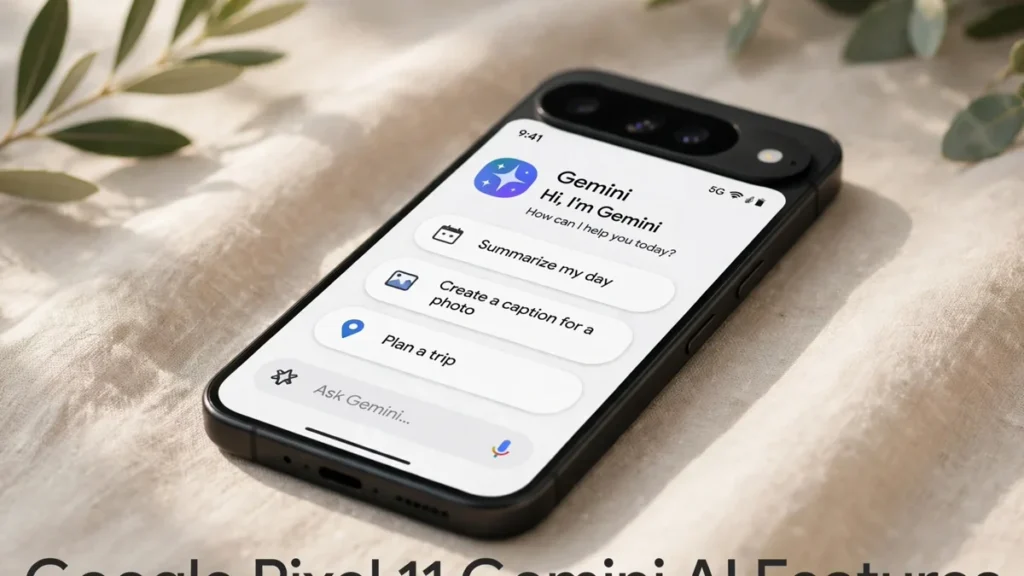

Google Pixel 11 Gemini AI Features
Google Pixel 11 Gemini AI features are the reason I would pick this phone over almost anything else right now. Not the cameras, not the screen, the AI. The Tensor G6 chip has 50% more TPU compute than the G5, and it runs the latest Gemini Nano right on the phone. That means a lot of the smart stuff happens on the device, not in the cloud. It feels quick, it works without a signal, and it keeps more of your data private. Gemini on the Pixel 11 does real jobs, not party tricks. It orders food, books rides, calls shops for you, cleans up your voice notes, translates videos, and fixes photos you thought were ruined.
TL;DR: Google Pixel 11 Gemini AI features in short: Gemini runs multi-step tasks across 40+ apps, calls businesses for you with a live transcript, and cleans filler words from voice notes with Rambler. It translates videos and voice messages live, turns photos into video with Magic Capture, and adds nine Camera Looks. All of it runs on the Tensor G6 chip with Gemini Nano, plus a 6-month Google AI Pro trial.
What Gemini Does on the Pixel 11
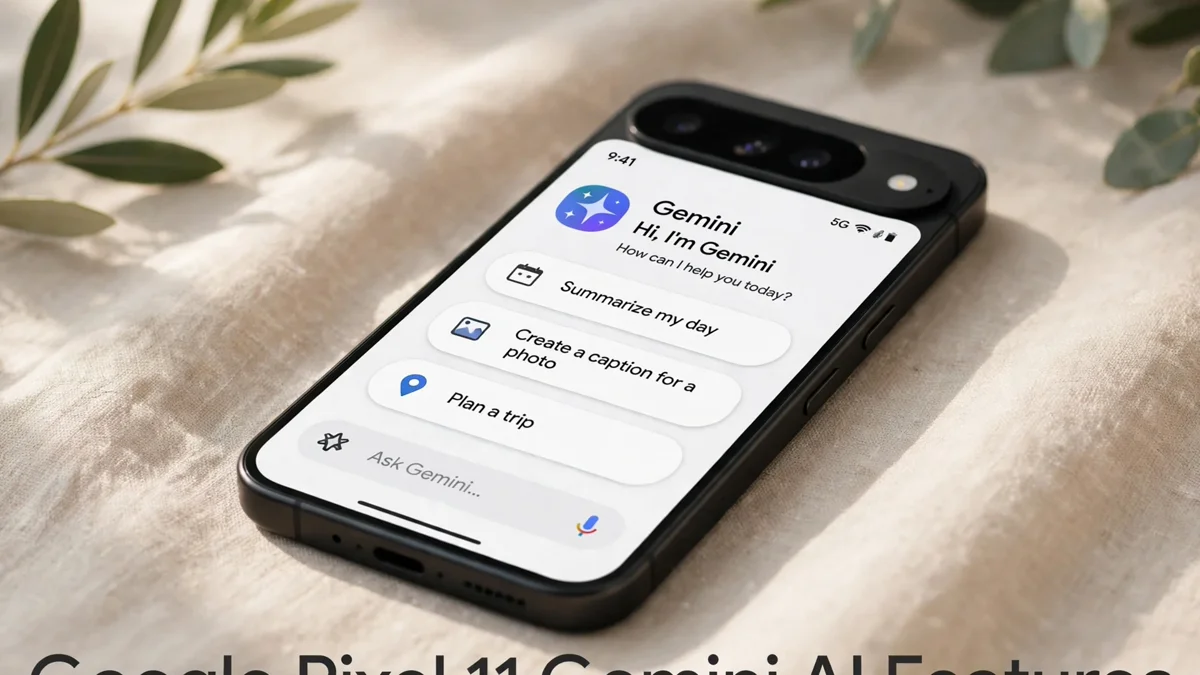
Gemini is baked into the Pixel 11, not bolted on. It sits behind the power button, inside the camera, in the keyboard, and in the apps you already use. Long-press the power button and Gemini pops up, ready to help. Ask it what is on your calendar tomorrow. It can check your messages, look at your photos, and pull details from your apps, then put the answer together in one place.
The key upgrade is the Tensor G6 chip. It has 50% more TPU compute than the G5, so on-device AI runs faster and smoother. Web browsing is 25% faster and app launches are 15% faster too, which sounds small until you use the phone for a week. Everything just feels snappy. Gemini Nano runs on the device, so the features that use it work offline and keep your data on your phone. That matters if you care about privacy, and it matters on a plane or in a dead zone too.
The phone also ships with Android 17 and seven years of OS and security updates. Gemini will keep getting better on this hardware for a long time. If you want the full phone overview first, read our Google Pixel 11 tips complete guide. It covers the price, the chip, the cameras, and the battery.
Multi-Step Tasks Across 40+ Apps
This is the feature that changed how I use my phone. Gemini can now do multi-step tasks across 40+ apps, which means you ask for one thing and it chains the steps together. Say “order my usual pizza and book a ride for 7pm” and Gemini handles both jobs. It opens the food app, places the order, then books the ride. You do not tap through two apps. You just ask.
It works for groceries too. Tell Gemini what you need for the week, and it can build the list and start the order in your grocery app. Planning a trip works the same way. Ask it to find a hotel, check your calendar for free days, and draft a message to your travel partner, and it lines those steps up. Some of the agentic tasks are US-only for now, so if you live elsewhere, a few of them may not work yet. But the list of supported apps keeps growing, and the US-only limits tend to loosen over time.
Proactive cards before you ask
Gemini also shows proactive, glanceable cards inside your apps. These are small cards that appear before you ask, with the thing you probably need next. Your calendar app might show a card with your boarding pass an hour before a flight. Your messages app might show a card with the address of the restaurant your friend just mentioned. It feels a bit like magic the first time it happens, and then it just feels normal. You can turn the cards off per app under Settings, then Google, then Gemini.
The trick is to be specific. “Book a ride” leaves Gemini guessing. “Book a ride to the airport at 6am tomorrow” gives it everything it needs. Give it the time, the place, and the app you prefer, and it rarely gets it wrong. If it does get something wrong, it shows you each step before it finishes, so you can stop it. That check step is the part I like most. Nothing happens in secret. TechRepublic covers the Pixel 11 Gemini AI features in detail, including which apps work with the multi-step tasks.
Gemini Can Call Businesses for You
Here is a feature I did not expect to love: Gemini can dial businesses and talk to them for you, with a live transcript on your screen. Need to check if a restaurant has a table tonight? Gemini calls, asks, and shows you the conversation as text while it happens. You watch the transcript, and you can jump in at any point if you want to take over.
Ask Gemini to call the pharmacy and check if your prescription is ready. You get the answer without holding a phone to your ear for ten minutes. The business on the other end hears a natural voice. It says it is an AI assistant at the start of the call, so nobody is tricked.
One tip: use it for simple questions first. Opening hours, stock checks, and booking confirmations work great. Long, tricky conversations with lots of back-and-forth still work better when you call yourself. Gemini is good, but it is not a person, and a complicated problem can confuse it. Start simple, see how it handles your local shops, and then trust it with more. Our Google Pixel 11 setup guide shows how to turn on the calling features and set your preferences on day one.
Rambler: Voice Notes Without the “Um” and “Ah”
Rambler is my favourite small feature on this phone, and it is easy to miss. It is Gemini voice input that strips filler words like “um” and “ah” from what you say. You talk normally, you ramble a bit, you pause and restart a sentence, and Rambler cleans it up into clear text. It feels like having an editor listen to you and hand back the good version.
Try it for messages first. Open any messaging app, tap the microphone, and just talk. Say what you mean, messily, the way people actually talk. Rambler turns it into a clean message that sounds like you on a good day. Then try it for notes. I dictate shopping lists, ideas for articles, and reminders while I walk, and they come out readable.
It also helps if English is not your first language, or if you think faster than you type. Speak at your normal speed, and let Gemini tidy the rest. The trick is to relax and not perform. The more natural you sound, the better Rambler works. Talk like you talk to a friend, and the text comes out right. PhoneArena’s Pixel 11 review calls out Rambler as one of the standout AI additions, and I agree with them.
Sign-to-Text and Live Translate
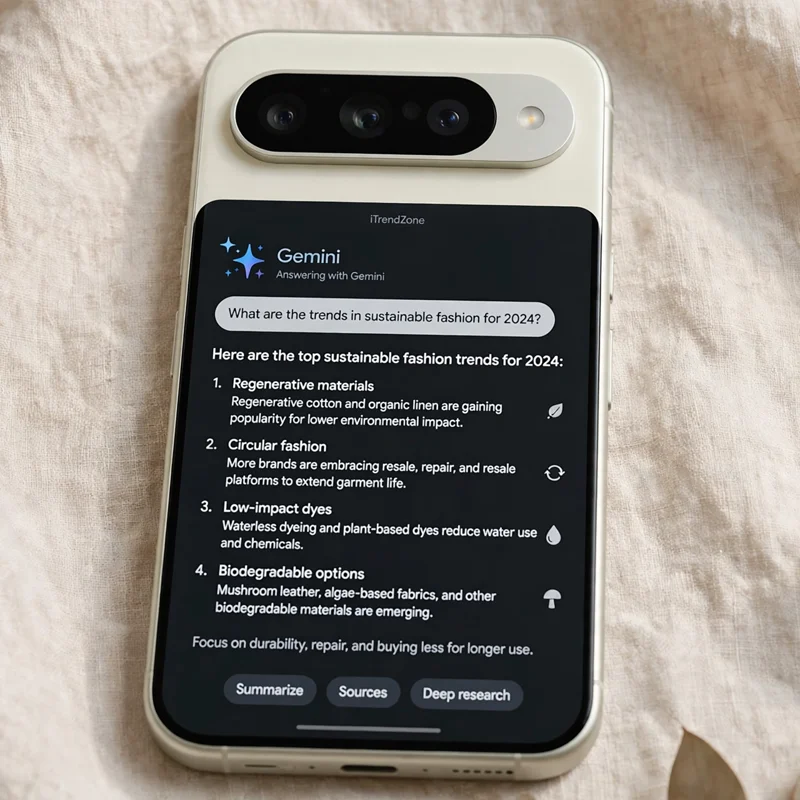
Two features here deserve their own section, because they change who can use the phone easily. First, sign-to-text. The SL2T model in Gboard and Live Transcribe turns sign language into text on the screen. Hold the phone up, sign, and the words appear. It is still early for this kind of tech, and it will not catch every sign perfectly. But it opens the phone up to people who could not use voice input before.
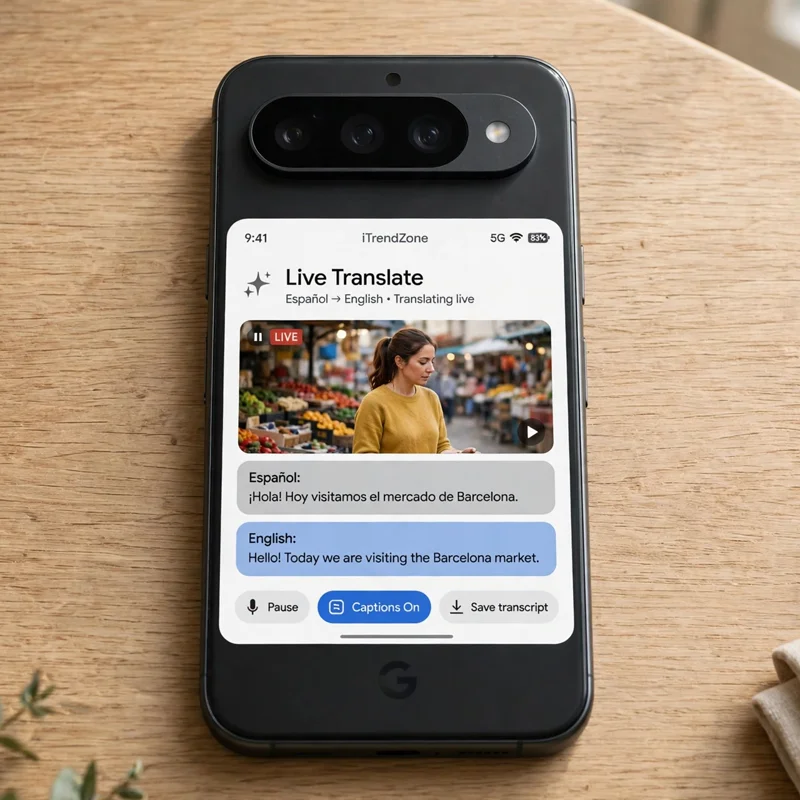
Second, Live Translate works across videos, podcasts, and voice messages. Watch a video in another language and Gemini translates the speech live, on the screen, while you watch. Listen to a voice message in Spanish and read it in English. The translation is not perfect, and slang can trip it up. But it is good enough to follow a conversation, and it gets better with each update.
These two features share one idea: the phone should meet you where you are, not the other way round. If you cannot hear well, sign. If you do not speak the language, translate. The Pixel 11 does both without a separate app and without a subscription. That is the on-device Gemini Nano doing its job.
Magic Capture: Photos That Fix Themselves
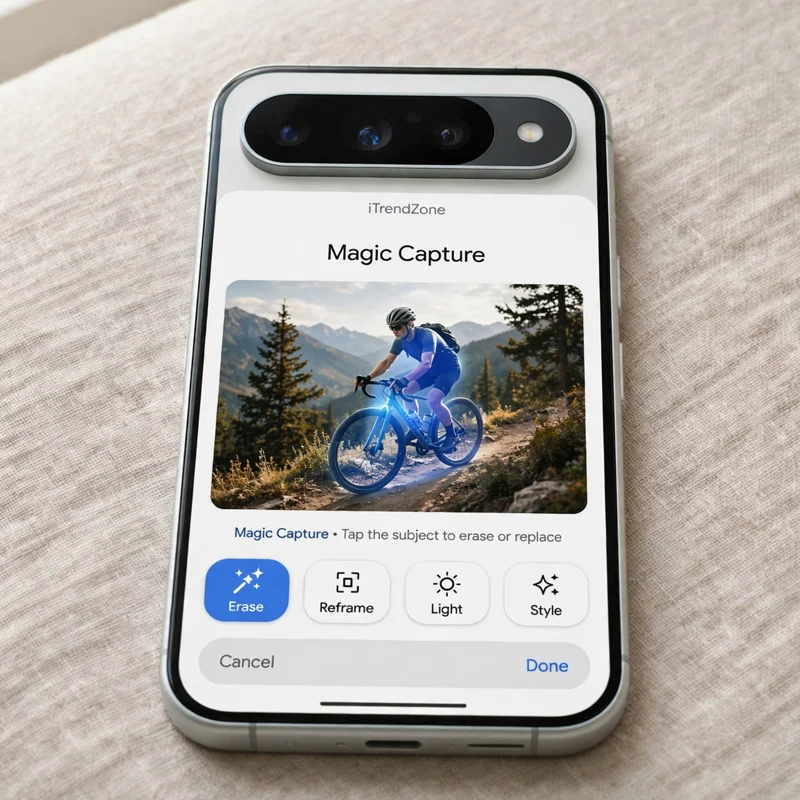
Magic Capture is the camera feature I show people first when they ask what Gemini does. It analyzes around 400 frames around the moment you take a photo, then builds a 12MP photo from the best of them. It crops automatically, unblurs faces, and fixes the shot you thought you missed. Someone blinked? It finds a frame where their eyes were open. The photo is tilted? It straightens the crop. That is not editing after the fact. The camera picks the best version of the moment.
It also makes a video from the same burst, so one tap gives you both a photo and a short clip. I used it at a birthday party, and the video it made was better than the video I shot on purpose, because it caught the second before and after the tap too. Kids, pets, and sports are where it shines, because those are the moments you cannot retake.
One honest note: it works best in good light. In a dark room, there are fewer clean frames to pick from, and the result can look soft. That is where Instant Night Sight helps. Use Magic Capture in daylight, and save the night shots for Night Sight.
Camera Looks and the Creator Suite
Camera Looks are nine preset styles for your photos, and they are the kind of feature you either love or ignore. The defaults are Natural, Shadows, and Vanilla, and six more wait behind them: Digi, Black Tie, Minimal, Editorial, Classic, and Velvet. Each one changes the tone and colour of the photo, a bit like a film stock.
My advice is to pick one look and stick with it for a while. Photos from the same week look like they belong together, and your camera roll stops looking like a random mix. Try Editorial for street photos and Classic for portraits. Black Tie is fun for evenings out. And if you hate them all, Natural is always there, and it is genuinely good.
Then there is the Creator Suite, where video is now the default camera mode. That tells you where Google thinks the phone is heading. Open the camera and you are ready to shoot video, with quick edits, captions, and sharing in one place. Circle to Search works inside the Pixel Camera too, so you can circle anything in the viewfinder and search for it without leaving the camera. See a plant, a shoe, or a sign in another language? Circle it and Gemini tells you what it is.
Gemini Nano On-Device: Fast and Private
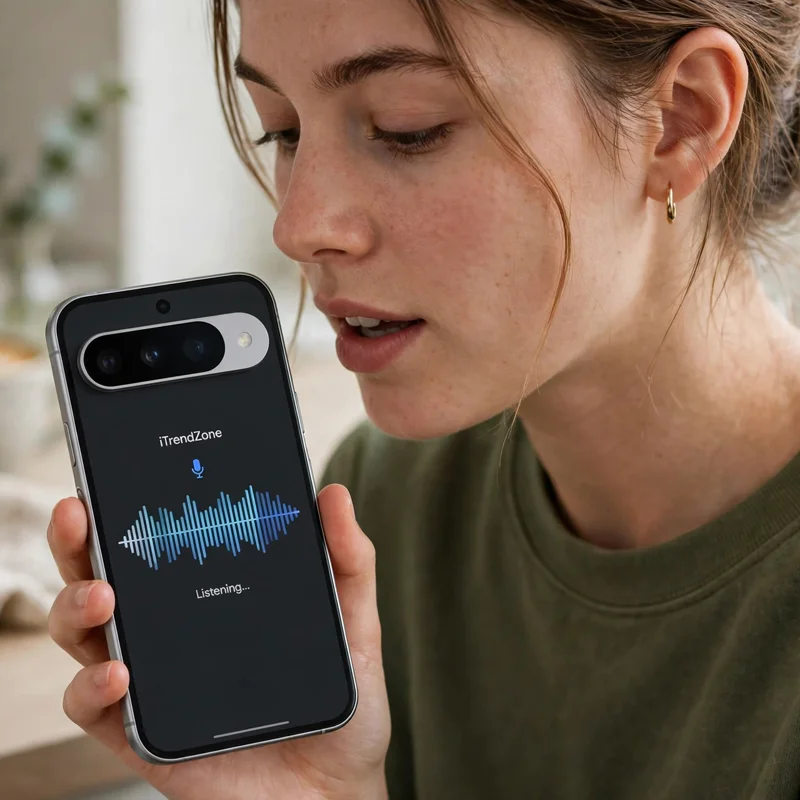
Here is the part that matters most and gets talked about least. The latest Gemini Nano runs on the device, on the Tensor G6 chip, and that changes how AI feels. Features that run on-device answer instantly, because nothing travels to a server and back. They work in airplane mode, in a tunnel, and in a village with one bar of signal. And they keep your data on your phone.
Not everything runs on-device, of course. The big multi-step tasks and the business calls use the cloud, because they need more power than a phone chip can give. Small, personal, everyday jobs stay on the phone. The big jobs go to the cloud, and the phone tells you which is which. Check the privacy settings under Settings, then Google, then Gemini.
Every Pixel 11 also comes with a 6-month Google AI Pro trial, and you should claim it even if you are not sure you will keep it. The trial unlocks the bigger Gemini models in the cloud, so the multi-step tasks run faster and smarter. Google lists the AI Pro trial on the Pixel 11 store page. Set a reminder for five months from now, so you can decide before the trial ends.
The table below sums up which Gemini features run where, so you know what works offline and what needs a connection.
| Gemini feature | Runs on | Needs internet? |
|---|---|---|
| Rambler voice cleanup | On-device (Gemini Nano) | No for basic cleanup |
| Sign-to-text in Gboard | On-device (SL2T model) | No |
| Live Translate | On-device + cloud | Yes for some languages |
| Magic Capture | On-device (Tensor G6 TPU) | No |
| Multi-step tasks (40+ apps) | Cloud | Yes |
| Calling businesses | Cloud | Yes |
| Proactive glanceable cards | On-device | Mostly no |
Gemini Features Compared: What to Try First
With this many features, it helps to know where to start. The chart below ranks the Gemini features by how useful they are in daily life. It is my opinion, not a lab test, but after a few weeks with the phone, this is the order that stuck.
Most useful Gemini features in daily use
Multi-step tasks across apps: 9 out of 10
Magic Capture photos: 9 out of 10
Rambler voice cleanup: 8 out of 10
Live Translate: 8 out of 10
Calling businesses: 7 out of 10
Proactive glanceable cards: 6 out of 10
Camera Looks: 6 out of 10
So start with the top three: multi-step tasks, Magic Capture, and Rambler. Those are the ones you will use every day, and they show off what the Tensor G6 can do. Then add Live Translate if you travel, and try the business calling when you have a simple question to ask a shop.
What Gemini Still Gets Wrong
No honest guide skips the rough edges, so here they are. Gemini sometimes misunderstands a multi-step task and books the wrong time or the wrong place. Check the plan it shows you before it runs. Live Translate can mangle slang and names, so double-check anything important. Magic Capture can pick a frame you did not want, and the original is still there if you look for it. And some agentic tasks are US-only, which is frustrating if you live in the UK or Europe.
The good news is that all of this improves with updates, and the Pixel 11 gets seven years of them. The Gemini you have today is the weakest version you will ever have on this phone. If a feature annoys you today, turn it off and try it again in a few months. It may surprise you.
Also, keep an eye on battery use. AI features use power, especially the cloud ones. A day of heavy Gemini use will drain the phone faster than a quiet day. Our Google Pixel 11 battery tips guide covers the settings that keep the phone alive on heavy AI days, and our Google Pixel 11 security and privacy tips guide shows how to control what Gemini can see.
Test Yourself: Google Pixel 11 Gemini AI Quiz
How much of this guide stuck? Try these five questions, then check your answers at the end.
1. How many apps can Gemini handle in multi-step tasks?
A) 10+ apps
B) 20+ apps
C) 40+ apps
D) 100+ apps
2. What does Rambler do?
A) It translates videos
B) It strips filler words like “um” and “ah” from voice input
C) It calls businesses
D) It edits photos
3. Which chip powers Gemini Nano on the Pixel 11?
A) Tensor G5
B) Snapdragon 8
C) Tensor G4
D) Tensor G6
4. How many frames does Magic Capture analyze around a photo?
A) About 400 frames
B) About 40 frames
C) About 100 frames
D) About 1,000 frames
5. How long is the Google AI Pro trial on the Pixel 11?
A) 1 month
B) 3 months
C) 6 months
D) 12 months
Answers: 1-C, 2-B, 3-D, 4-A, 5-C