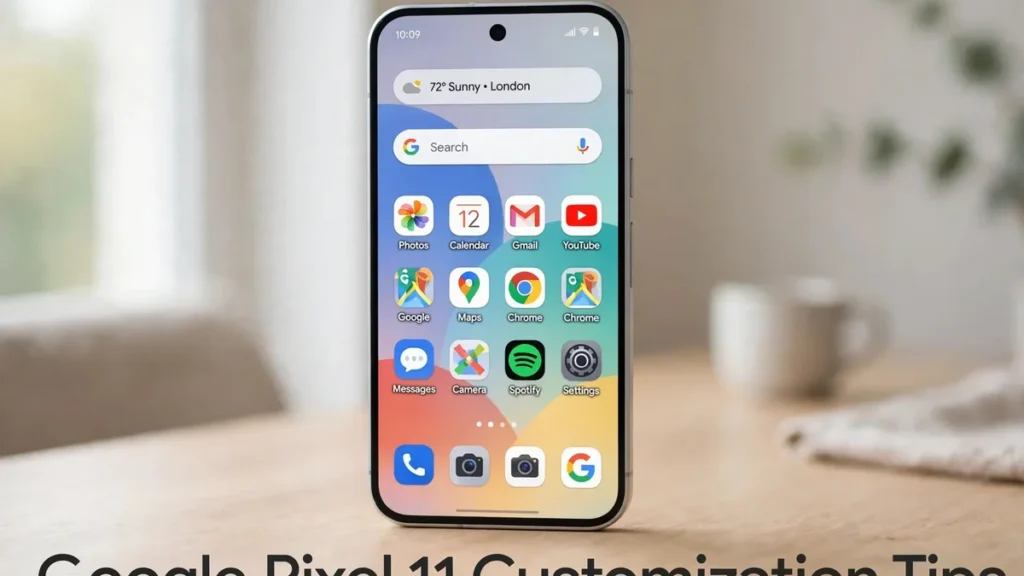

Google Pixel 11 Customization Tips: Make It Truly Yours
Google Pixel 11 customization tips are the fun part of owning this phone. Most people unbox a Pixel, keep the default wallpaper, and never touch a setting again. That is a shame, because the Pixel 11 is one of the easiest phones to make your own. It runs Android 17, it has the Tensor G6 chip with Gemini built in, and it gives you more ways to change how it looks and feels than most phones at this price. I spent my first weekend with it changing almost everything: the wallpaper, the lock screen, the widgets, the sounds, even the way my photos look. Some changes were brilliant. A few were a waste of time, and I will tell you which ones.
TL;DR: Google Pixel 11 customization tips in short: start with wallpaper and style in Settings, set up lock screen shortcuts and widgets, arrange your home screen around the apps you open daily, use Camera Looks to give your photos a consistent style, let Gemini handle routine tasks across 40+ apps, and add a Pixelsnap case and charger to finish the look. The Pixel 11 starts at $899, the Pro at $1,099, and the Pro XL at $1,299.
Start With Wallpaper and Style
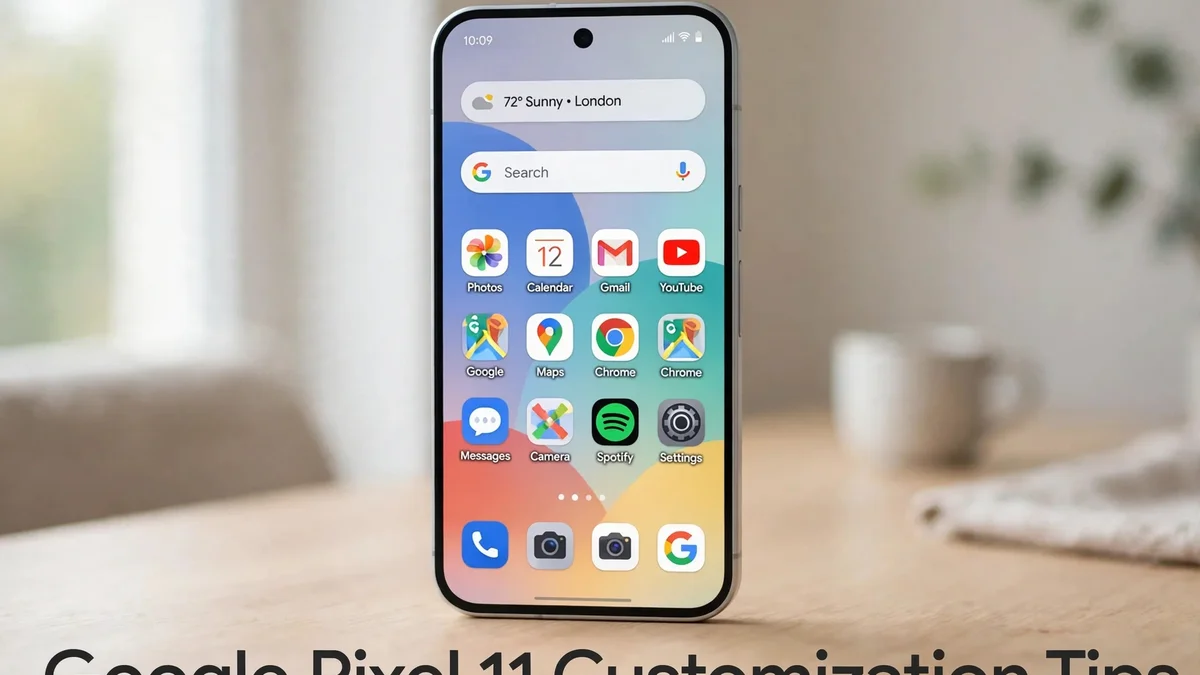
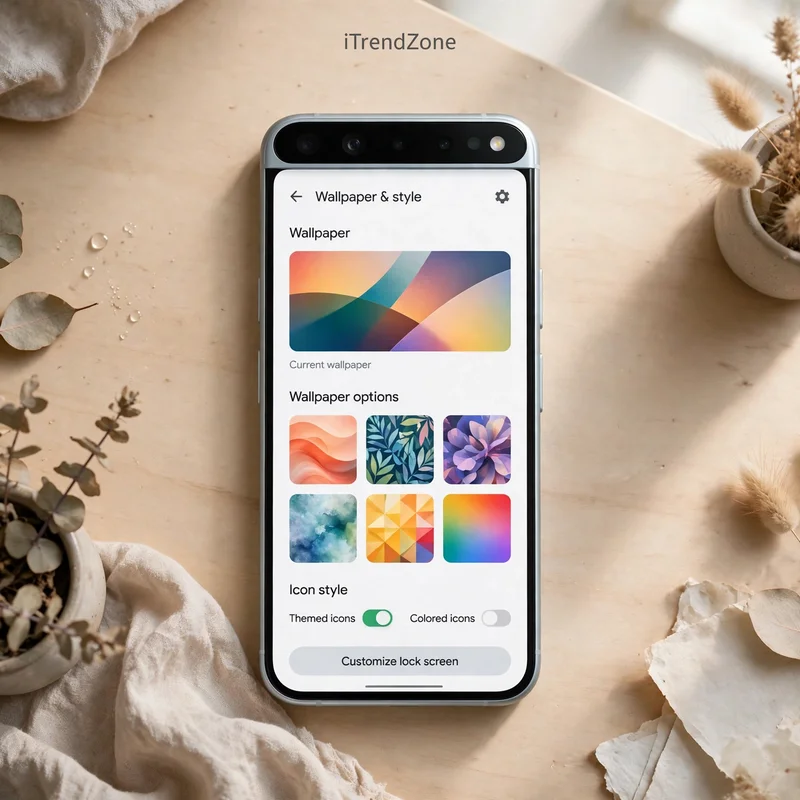
Wallpaper is the fastest win. It takes thirty seconds, and it changes how the whole phone feels every time you unlock it. Open Settings, then Wallpaper and style. You can pick a photo of your own, a live wallpaper, or one of Google’s own designs. My advice is simple: use a photo you actually like looking at, not a busy image that hides your icons. A clean photo with a darker area at the top works best, because your clock and widgets stay easy to read. If you take a great shot with the Pixel 11’s 48MP main camera, that is the perfect wallpaper.
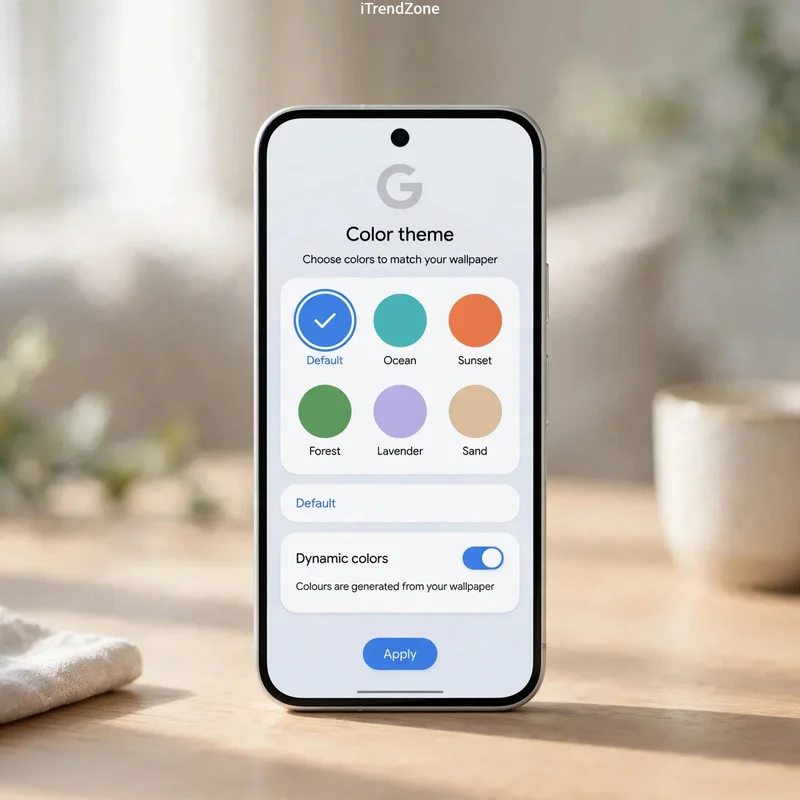
Once you pick a wallpaper, Android 17 does something clever. It pulls colours from the image and offers a matching theme for your icons, menus, and quick settings. So if your wallpaper is a sunset photo, your buttons can turn warm orange. If it is a beach shot, they can turn soft blue. You can accept the suggestion or pick your own palette. Try a few before you settle, because the first one Google suggests is not always the best. Dark theme at night is worth turning on too. It is easier on your eyes, and on an OLED screen it saves a little battery.
Lock screen vs home screen wallpaper
One more wallpaper trick: use a different image for the lock screen and the home screen. Your lock screen can be a bold photo, because you only see it for a second. Your home screen should be calmer, because you stare at it all day. Set them separately in the same Wallpaper and style menu. It sounds like a small thing, but it makes the phone feel considered instead of random. And if you get bored in a month, change it again.
The Lock Screen Deserves More Love
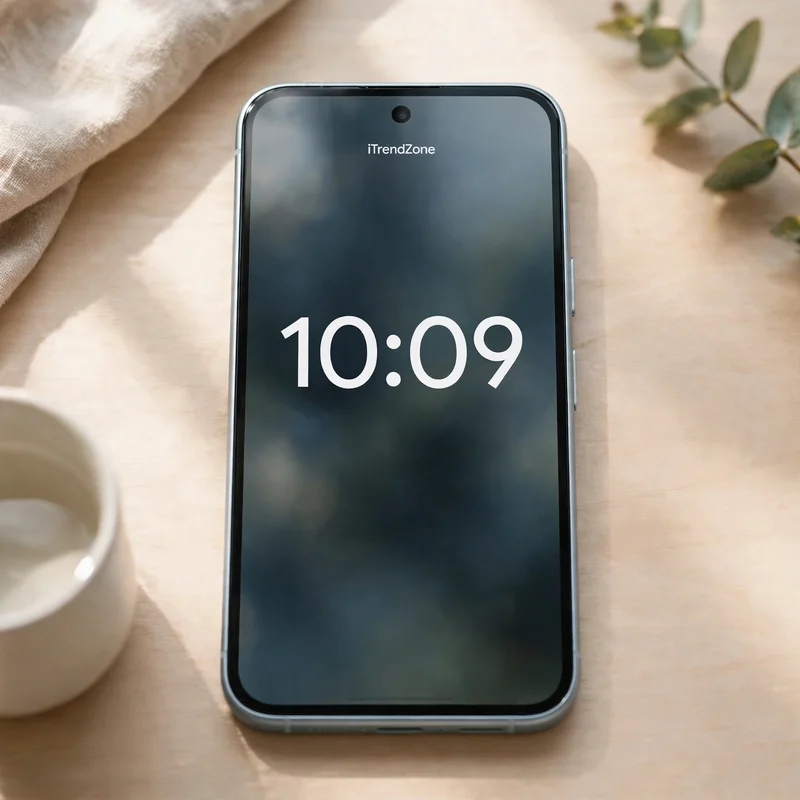
Most people ignore the lock screen, and that is a mistake. You see it dozens of times a day, more than any other screen. So make it useful. First, pick a clock style you can read at a glance. A big clock is great if the phone sits on your desk. A smaller one works better if you want your photo to show. Next, add shortcuts. You can put two on the lock screen, and the sensible picks are the camera and the torch. Double-press the power button to open the camera even faster. That works from anywhere, even with the screen off.
Notifications on the lock screen need a quick decision too. You can show full message text, hide the content, or hide notifications entirely. I show the sender and hide the content when I am out, because a big lock screen is easy for the person next to me to read. At home, I show everything. Change it in Settings under Notifications. Your lock screen should fit your day, not the other way round. If you commute on a busy train, hide the content. If you work from home, show it all.
Widgets That Actually Earn Their Spot
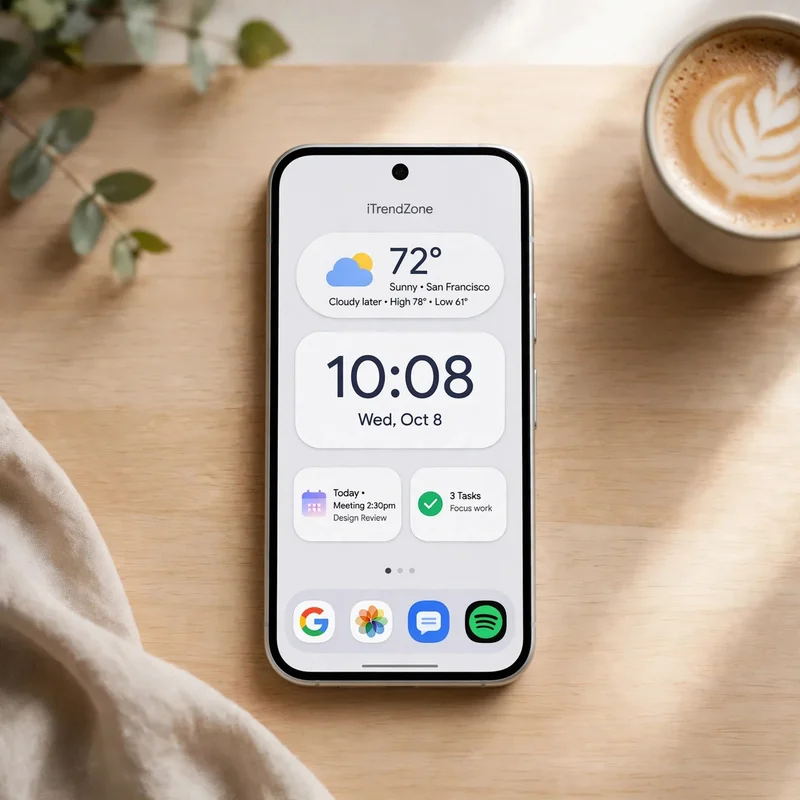
Widgets are where the lock screen and home screen meet, and the rule is simple: only keep the ones you look at daily. A weather widget earns its place. Your calendar earns its place too, if you actually check it. But a widget for an app you open twice a month does not. The Pixel 11 also has At a Glance, which sits at the top of the home screen and shows your next calendar event, the weather, and travel info without you opening anything. Leave it on. It is quiet, it is useful, and it does not shout for attention.
Gemini adds a new layer here. The Pixel 11 has proactive glanceable cards in apps, so useful info shows up before you ask for it. A flight reminder, a parcel update, a dinner reservation: the phone can surface these as cards. You do not have to set them up one by one. They appear as you use your apps. If a card is not useful, dismiss it and the phone learns. Our Google Pixel 11 Gemini AI features guide covers these cards and the multi-step tasks in full detail.
Home Screen Layouts That Fit Real Life
Here is the honest truth: most home screens are a mess. Apps land wherever they fall, folders never get made, and the apps you use daily sit on page three. So spend ten minutes fixing it. First, put your five most-used apps in the dock at the bottom. For me, that is Phone, Messages, Camera, Chrome, and Maps. Yours will be different, and that is the point. Next, put your next five favourites on the first home screen, and move everything else to the app drawer.
Folders help too, but only if you name them honestly. A folder called “Stuff” is useless. A folder called “Banking” or “Travel” or “Food” is useful. Keep folders to four or five apps each, and never bury an app you use daily inside one. Also, try the app grid size. A bigger grid fits more apps, but a smaller grid with larger icons is easier to tap, especially one-handed on a 6.3-inch display. Change the grid by long-pressing an empty spot on the home screen and tapping the settings icon.
One-handed use deserves a mention. The Pixel 11 is a 6.3-inch phone, and reaching the top corner with one thumb is a stretch. Turn on one-handed mode in Settings, and a quick swipe down brings the top of the screen within reach. It sounds like a gimmick until you try it with a coffee in your other hand. Also, set up gesture navigation if you have not already. Swiping is faster than tapping three buttons, and it gives you more screen space back.
Sounds, Vibration, and the HiLight LED
Sound is part of customization too, and it is the part most people skip. Pick a ringtone you can actually hear in a noisy street, not the prettiest one in the list. Set a different notification sound for messages than for email, so you know which one buzzed without looking. And turn on vibration patterns if you keep the phone on silent at work. A short buzz for a message and a long buzz for a call is enough to tell them apart in your pocket.
If you own the Pixel 11 Pro, you get an extra trick: the HiLight LED. It is a ring of light around the camera flash, and it glows when Gemini is listening or processing. But it can also be set for custom contact notifications. So your partner’s messages can glow one way and your boss’s another. It is a small, lovely detail. Our Google Pixel 11 tips complete guide explains the Pro’s extra features, including the 48MP ultrawide with Macro Focus and the 42MP front camera. The standard Pixel 11 does not have the HiLight LED, so if this matters to you, the Pro is worth the extra $200.
Camera Looks: Your Photos, Your Style
This is my favourite customization on the Pixel 11, and it is easy to miss. Camera Looks are built-in photo styles that change the feel of your pictures. The defaults are Natural, Shadows, and Vanilla, and there are six more: Digi, Black Tie, Minimal, Editorial, Classic, and Velvet. Each one shifts the tone and colour of your photos in a different way. Natural looks like real life. Shadows is moodier. Vanilla is warm and soft. Our Google Pixel 11 camera tips guide covers every mode, including Night Sight and Super Zoom up to 30x.
Here is how to use them well. First, pick one look and stick with it for a week. That gives your photos a consistent style, which matters if you post photos online. Then try a different one the next week. Do not switch looks every photo, or your camera roll will look like ten different people took it. Also, remember that Camera Looks work with Magic Capture, which analyzes around 400 frames to build a better 12MP photo, with auto crop and unblur. Google’s Pixel blog shows the new camera features in action if you want a closer look.
Gemini, Your Way
Gemini is baked into the Pixel 11, and you can shape how it works for you. It can handle multi-step tasks across more than 40 apps, like ordering food, booking a ride, or sorting groceries. Some of those agentic tasks are US-only for now, but the everyday ones work widely. The trick is to teach Gemini what you like. If you always order from the same place, say so. If you prefer a certain ride option, tell it once. It remembers. For a second opinion, TechRepublic’s Pixel 11 Gemini AI features rundown covers the same tools.
Live Translate is another quiet gem. It works across videos, podcasts, and voice messages, so a message in another language becomes readable in yours. Turn it on in Settings, and pick the languages you actually need. Do not turn on all of them. And if you type with Gboard, try sign-to-text, which uses the SL2T model to turn signs into text. The Tensor G6 chip runs the latest Gemini Nano on the device, so these features work fast and keep your data private.
Quick Settings and Gestures
Quick Settings is the panel you pull down from the top of the screen, and it is worth arranging once. Long-press a tile to edit, then drag the ones you use daily to the front. Wi-Fi, Bluetooth, torch, and Do Not Disturb should be first. Then add the ones that fit your life: screen recorder, dark theme, or the QR scanner. Remove the tiles you never touch. A short panel is a fast panel.
Gestures are the other half of this. Double-press the power button for the camera, double-tap the back of the phone for a shortcut of your choice, and flip the phone face down to silence a call. These are all in Settings under Gestures, and they are all free. My favourite is double-tap on the back to open the torch. Set these up on day one, because they are the kind of settings you forget exist until someone else shows you.
Cases, Chargers, and Pixelsnap Accessories
Customization is not only software. The case you pick changes how the phone feels in your hand every day. The Pixel 11 supports Pixelsnap, which is Google’s Qi2.2 magnetic system. It gives you wireless charging up to 25W, and cases, wallets, and car mounts snap on neatly. Buy a Pixelsnap case first, because a regular case can block the magnets. You can browse Pixelsnap cases and chargers on the Google Store, then add a magnetic wallet, a car mount, or a desk stand. The 4,985mAh battery lasts 30+ hours, and a 30W USB-C PPS charger gets you to 55% in about 30 minutes. Note that the charger is sold separately. Our Google Pixel 11 battery tips guide covers charging habits in more depth.
Colour matters too, in a practical way. A light case shows dirt fast, while a dark one hides it. A clear case looks great on day one and yellow by month three. If you want the phone to look new in a year, pick a solid colour and clean it weekly with a damp cloth. Also, buy a screen protector made for the Pixel 11 specifically. A generic one will not fit the 6.3-inch display properly, and a bad fit is worse than no protector at all.
| Customization | Where to find it | Time to set up |
|---|---|---|
| Wallpaper and theme colours | Settings, Wallpaper and style | 2 minutes |
| Lock screen clock and shortcuts | Settings, Wallpaper and style, Lock screen | 5 minutes |
| Home screen layout and widgets | Long-press home screen, then Widgets | 10 minutes |
| Camera Looks photo styles | Camera app, Looks menu | 1 minute |
| Quick Settings tiles | Pull down twice, tap the edit icon | 3 minutes |
| Gestures and shortcuts | Settings, System, Gestures | 5 minutes |
| HiLight LED notifications | Settings, Notifications (Pro only) | 3 minutes |
| Pixelsnap case and charger | Google Store or a case shop | One purchase |
Pixel 11 Display Brightness by Model
The table above is your checklist, and the chart below shows why the screen is worth dressing up. Peak brightness differs across the range, and it affects how your wallpaper and widgets look outdoors.
Peak brightness in nits by model
Base model: 3,000 nits peak
Pro: 3,600 nits peak
Base model HDR brightness: 2,000 nits
A Few Small Tweaks Worth Doing
Before you finish, do these five quick things. First, turn on Now Playing, so the phone quietly identifies songs playing around you. Second, set your default apps, so links open in the browser you like. Third, turn on automatic updates, because the Pixel 11 gets 7 years of OS and security updates. Fourth, set a backup. Google backs up your settings, photos, and apps, so a lost phone is an annoyance, not a disaster. Fifth, check your storage. The Pixel 11 starts at 256GB, but photos and videos still add up.
One last thought: do not copy someone else’s setup. A YouTuber’s home screen looks great in a video, but it was built for a video. Your home screen should be built for your day. If you open Maps ten times a day, Maps goes in the dock. If you never open email on your phone, email goes in the drawer. That is the whole secret of customization. Change one thing today, live with it for a week, then change the next thing.
Google Pixel 11 Customization Tips Quiz
Test what you learned. Pick one answer for each question.
1. Where do you change the Pixel 11 wallpaper and theme colours?
A) Settings, Wallpaper and style
B) The Camera app
C) The Play Store
D) Google Maps
2. Which of these is a default Camera Look on the Pixel 11?
A) Neon
B) Vanilla
C) Sunset
D) Chrome
3. What does the HiLight LED on the Pixel 11 Pro do?
A) It charges the phone faster
B) It glows when Gemini is listening or processing, and can flag custom contacts
C) It replaces the camera flash
D) It measures battery health
4. How many apps can Gemini handle multi-step tasks across?
A) 5 apps
B) 10 apps
C) 20 apps
D) 40+ apps
5. What is the peak brightness of the Pixel 11 display?
A) 1,200 nits
B) 2,000 nits
C) 3,000 nits
D) 3,600 nits
Quiz answers: 1-A, 2-B, 3-B, 4-D, 5-C.
Start with the wallpaper, then the lock screen, then one Camera Look. Small changes, one week apart, and the Pixel 11 will feel like yours.