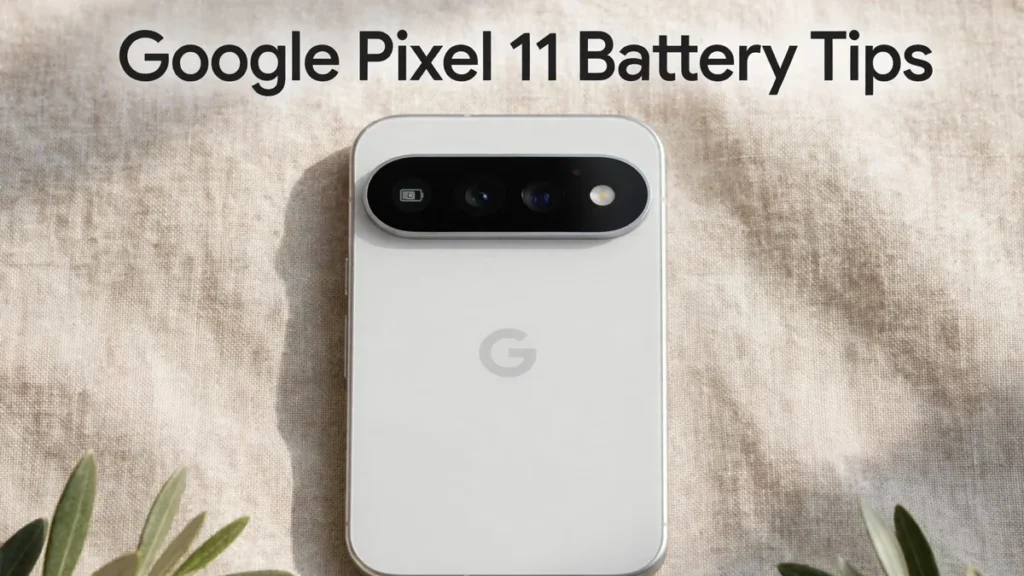

Google Pixel 11 Battery Tips
Google Pixel 11 battery tips matter more than any spec on the box, because a phone that dies at 7pm is no good to anyone. I have used Pixels for years, and the Pixel 11 is the first one where I stopped carrying a charger everywhere. The 4,985mAh battery lasts 30+ hours, and in real life it gets most people through a full day with room to spare. But that only happens if you set it up right. Out of the box, a few settings quietly eat power in the background. Fix those, change how you charge, and the phone feels like a different device.
TL;DR: Google Pixel 11 battery tips in short: the 4,985mAh battery lasts 30+ hours. Turn on Adaptive Battery, keep brightness on auto, and use a 30W USB-C PPS charger for 55% in about 30 minutes. Charge wirelessly at up to 25W with Pixelsnap Qi2.2. Limit the apps that drain power in the background. And switch on Extreme Battery Saver when you need the phone to last into a second day.
What the Pixel 11 Battery Actually Gives You
The Pixel 11 packs a 4,985mAh battery, and Google rates it at 30+ hours of use. That is a big jump from older Pixels, and you feel it. On a normal day of messages, maps, photos, and a bit of video, I end the day around 30% left. That is the kind of margin that stops the low-battery worry. The phone also has 12GB of RAM and the Tensor G6 chip, which helps here too. A faster chip finishes jobs quickly and then rests, so it wastes less power than a chip that strains all day.
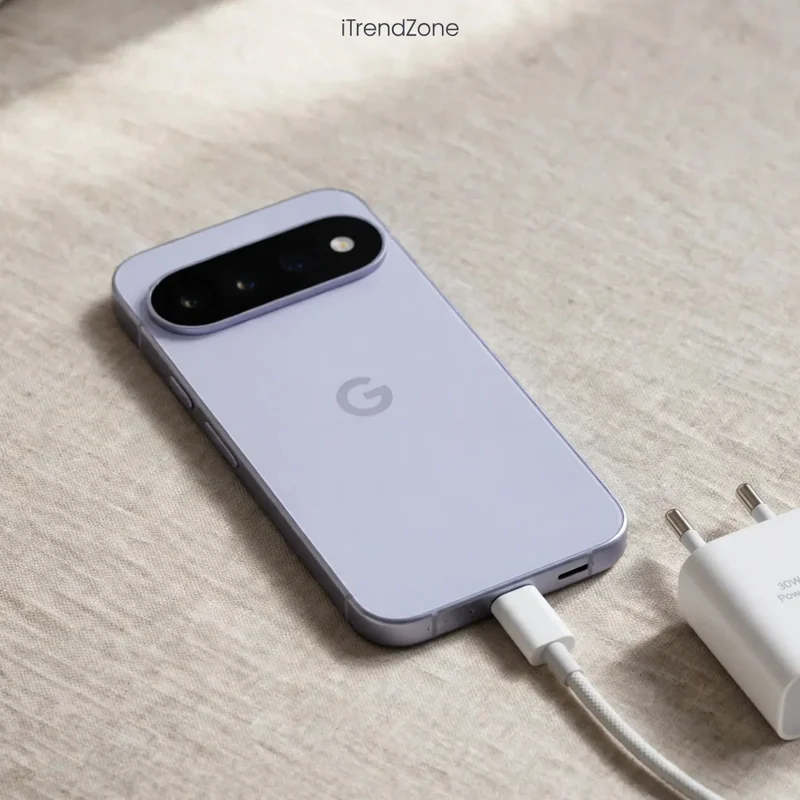
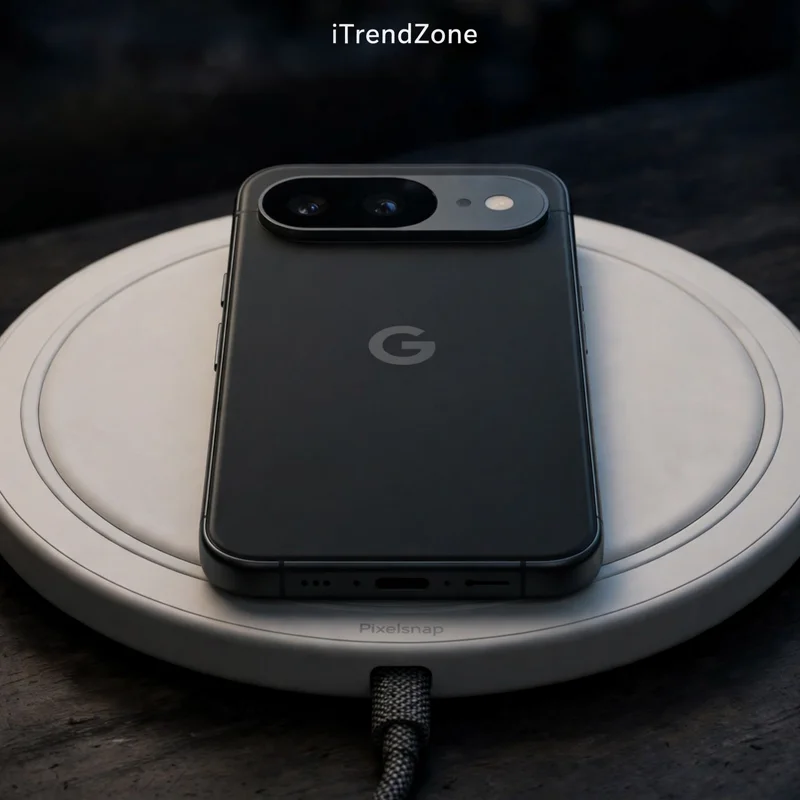
Charging is quick when you use the right charger. The Pixel 11 supports 30W wired charging, and with a 30W USB-C PPS charger it reaches 55% in about 30 minutes. Note that the charger is sold separately, so the one in your drawer from an old phone may not cut it. Check the label on it. If it says 5W or 10W, buy a proper 30W PPS charger. It is the single best battery accessory you can own for this phone. Wireless charging is strong too, thanks to Pixelsnap Qi2.2 at up to 25W. A magnetic wireless charger is now a real option instead of a slow backup.
For the full picture of the phone, read our Google Pixel 11 tips complete guide. It covers the price, the Tensor G6 chip, and the cameras alongside the battery. And if you want the official numbers, Google lists the Pixel 11 battery and charging specs on its store page.
Pixel 11 Battery and Charging at a Glance
The table below puts the three Pixel 11 models side by side. The Pro XL has the biggest battery at 5,115mAh with 45W charging. Expert Reviews measured 25 hours 44 minutes of looping video on it. At Black Friday in November 2026, the Pro XL dropped to $949 on Amazon, $400 off, while the Pixel 11 went as low as $699.
| Model | Battery | Wired charging | Wireless charging |
|---|---|---|---|
| Pixel 11 | 4,985mAh, 30+ hours | 30W, 55% in about 30 minutes | Pixelsnap Qi2.2 up to 25W |
| Pixel 11 Pro | 4,850mAh, 30+ hours | 30W wired | Pixelsnap up to 25W |
| Pixel 11 Pro XL | 5,115mAh | 45W wired | Pixelsnap up to 25W |
| Pixel 11 Pro Fold | Foldable model | Check the official specs | Pixelsnap wireless |
Why Your Battery Drains Faster Than It Should
Most battery drain comes from a short list of usual suspects. The screen is first. The Pixel 11 display goes up to 2,000 nits in HDR and 3,000 nits at peak, and at full brightness outdoors it drinks power. Next comes poor signal. When your phone hunts for a weak signal, the radio works overtime, and that burns battery fast. Then there are apps that run in the background, refreshing feeds and tracking location when you are not even using them.
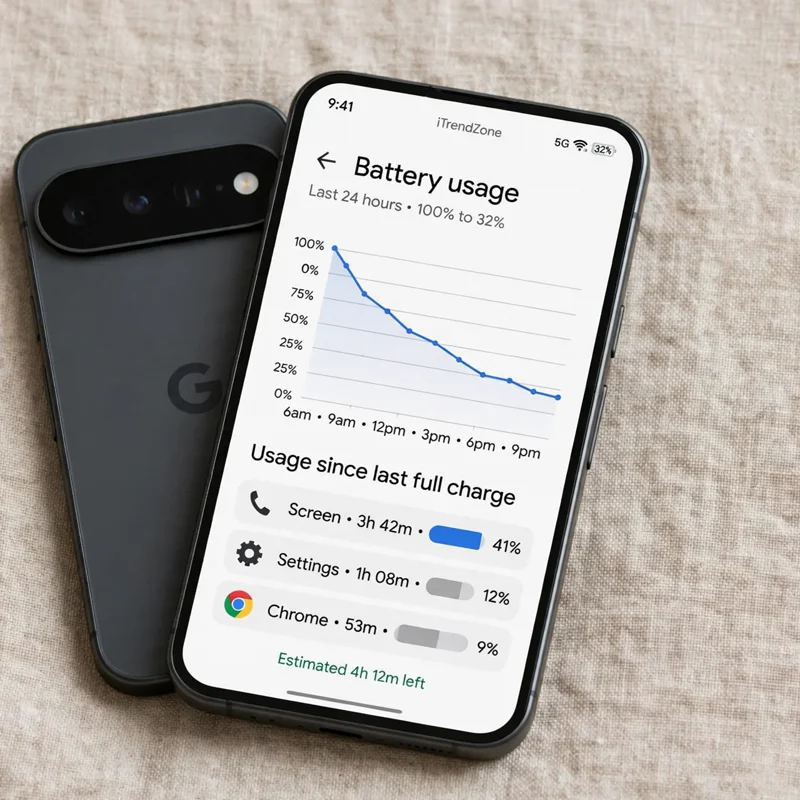
So start by finding the real culprit instead of guessing. Open Settings, then Battery, then Battery usage. The phone shows exactly which apps used the most power in the last 24 hours. If one app sits at the top and you barely opened it, that app is the problem. Restrict it, or delete it and find a lighter option.
Also check your signal habits. If you spend the day in a basement office or a building with thick walls, switch to Wi-Fi calling and keep Wi-Fi on. The phone then uses the Wi-Fi radio, which is far cheaper on power than a struggling mobile signal. And if you travel through dead zones, turn on airplane mode for the stretch. The phone stops hunting for a signal it cannot find, and you save a surprising amount of charge.
Adaptive Battery and the Settings That Matter Most
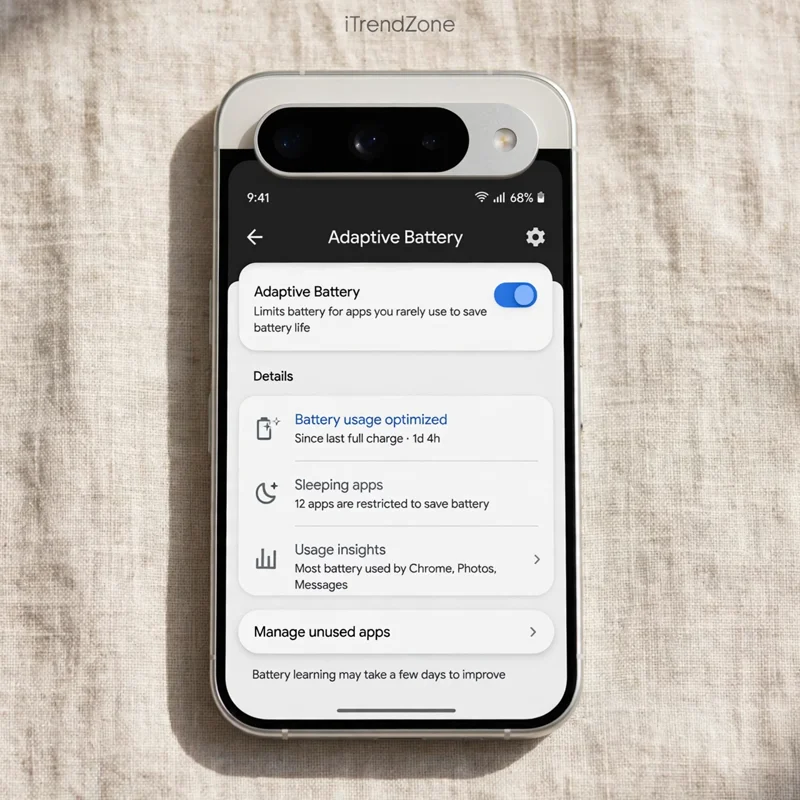
Adaptive Battery is the first setting to turn on, and it is free. It learns which apps you actually use and limits power for the ones you rarely open. Go to Settings, then Battery, then Adaptive Battery, and switch it on. Give it a few days. The phone watches your routine, then quietly throttles the apps you ignore. You will not notice it working, which is the point. Your battery graph just starts looking better.
Next, turn on Adaptive Charging if you charge overnight. It learns when you wake up and finishes the last stretch of charging just before your alarm. That keeps the phone from sitting at 100% all night, which wears the battery out faster over time. You can find it under Settings, then Battery, then Charging optimization. Set it once and forget it.
Then look at Battery Saver. The normal mode kicks in at low charge, but you can also turn it on by hand before a long day out. It cuts background activity and easily buys you an extra hour or two. Extreme Battery Saver goes further: it pauses most apps and keeps only the essentials running. I use it on travel days. Google explains Adaptive Battery and Battery Saver in its own help pages.
Three Quick Settings to Change Today
First, set screen timeout to 30 seconds. A screen left on for two minutes after every use adds up to a lot of wasted power across a day. Second, turn off “Hey Google” detection if you never use it, because the phone listens all day for those words. Third, turn off location for apps that do not need it. A weather app needs your city, not your exact street, and a game does not need location at all. Go to Settings, then Location, then App location permissions, and set most apps to “While using the app” or “Don’t allow.”
Charging the Right Way: Wired, Wireless, and the 30W Rule
Charging sounds simple, but the charger you use changes everything. The Pixel 11 needs a 30W USB-C PPS charger to hit its fastest speed, which is 55% in about 30 minutes. PPS matters here, because it lets the charger adjust its voltage to match what the phone wants at each moment. A regular 30W charger without PPS will still work, but it will be slower. So check the small print on the charger before you buy one. Look for the letters PPS on the box or the listing.
For wireless charging, Pixelsnap Qi2.2 goes up to 25W, which is fast enough to be your daily charger. The magnetic snap lines the phone up perfectly. No more mornings where the phone sat on the pad all night and charged nothing. Put a Pixelsnap charger on your desk and another by your bed, and top up whenever you sit down. Short top-ups through the day are better for the battery than one long charge from empty to full every night.
Heat is the enemy while charging, so keep the phone cool. Do not charge it under a pillow, in direct sun on a car dashboard, or in a thick case that traps heat. If the phone feels hot while charging, take the case off and move it somewhere cooler. Heat ages a battery faster than anything else. Also, try to keep the charge between 20% and 80% most days.
Screen and Brightness Habits That Save Hours
The screen is the biggest battery user on any phone, so small changes here pay off fast. Turn on adaptive brightness and leave it on. The Pixel 11 screen hits 3,000 nits at peak, which is bright enough to read in full sun, but you do not need that indoors. Adaptive brightness learns what you like and drops the level the moment you step inside. Most people never touch brightness again after a week of it.
Next, think about the refresh rate. The Pixel 11 display runs at 60-120Hz, which means it speeds up when you scroll and slows down when the screen is still. That is already efficient, so leave Smooth Display on. The real saving comes from screen time itself. Cut the time the screen stays on after you stop touching it. And turn off always-on display if you do not need the clock on your lock screen.
Dark mode helps too, because this is an OLED screen. On OLED, a black pixel is a pixel that is off, so dark mode literally turns parts of the screen off. Turn on dark mode in Settings, then Display, then Dark theme, and set it to turn on at sunset. It looks good, it is easier on the eyes at night, and it saves power. For more screen and display tips, read our Google Pixel 11 customization tips guide. It shows how to set up dark mode, themes, and the home screen in one pass.
Which Apps Eat Your Battery?
Some apps are hungrier than others, and knowing the pattern helps you plan. Social media apps with endless video feeds are the worst. They keep the screen on, play video, and refresh in the background all at once. Maps and navigation come next, since they use GPS, the screen, and mobile data at the same time. Video calls are heavy too, for the same reason. Games are the heaviest of all when you play them, but most games stop draining once you close them.
The chart below ranks the usual suspects by how hard they hit your battery in a typical hour of use. Use it as a rough guide, not a lab result. Your own Battery usage screen is the real test, because it shows your apps and your habits.
Typical battery drain per hour of use
Games: about 22% per hour
Video calls: about 18% per hour
Maps and navigation: about 15% per hour
Social media video feeds: about 14% per hour
Web browsing: about 8% per hour
Music streaming with screen off: about 3% per hour
So what do you do with this? First, close games and video apps when you finish, instead of leaving them in the background. Second, download maps for offline use before a trip. Third, turn off autoplay for video in social apps. And fourth, use the Battery usage screen once a week to catch any app that has crept up the list.
Long Days, Travel, and Second-Day Battery
Some days are just long, and no setting fixes a 16-hour day on its own. For those days, plan ahead. Charge to 100% before you leave, and carry a small power bank as a backup. A 10,000mAh bank fits in a jacket pocket and gives the Pixel 11 roughly one and a half full charges. That is cheap insurance, and it costs less than a case.
Before a flight or a long drive, download what you need: maps, music, podcasts, and videos. Downloaded content uses far less power than streaming, because the phone is not pulling data the whole time. Switch the phone to airplane mode on the plane, and turn off Bluetooth if you are not using headphones.
If you still run low, Extreme Battery Saver is your friend. It pauses nearly everything except calls, texts, and the apps you pick. Your phone becomes boring for a few hours, but it stays alive. I used it on a delayed flight once, and the phone lasted another six hours on 15%. That is the difference between calling a cab at the airport and hunting for an outlet in a strange terminal. For travel setup in general, our Google Pixel 11 setup guide covers the first-day settings that make trips easier.
Keeping the Battery Healthy for Seven Years
The Pixel 11 gets seven years of OS and security updates, so this battery has to last a long time. That is good news, because it means Google built it to age well, but you still have a part to play. Heat is the biggest threat. Do not leave the phone in a hot car. Do not charge it in direct sun. And do not game while it charges, because that piles heat on heat.
Next, avoid running the battery to zero all the time. Lithium batteries age faster when they sit empty, so plug in around 20% instead of waiting for the warning. And use Adaptive Charging overnight, as above, so the phone does not sit at 100% for hours. These are boring habits, and that is why they work. Boring beats clever when it comes to battery health.
Check battery health now and then under Settings, then Battery, then Battery health. If the capacity drops a lot in the first year, that is unusual. Get it checked with Google support. Normal use costs a little capacity each year. A steep drop is a sign something is wrong. PhoneArena’s Pixel 11 review covers how the battery holds up in daily use.
What to Do When the Battery Still Drains Fast
Sometimes you do everything right and the battery still drops fast. When that happens, work through a short checklist. First, restart the phone. A stuck process can drain power all day, and a restart clears it. Second, check for a system update, because Google often fixes battery bugs in updates. Third, look at the Battery usage screen again and restrict the top app.
If nothing helps, try safe mode for a day. Hold the power button, then long-press Power off, and tap OK to enter safe mode. Third-party apps stop running, so if the battery improves, one of your apps is the culprit. Uninstall recent apps one by one until the drain stops. And if safe mode does not help either, back up your data and do a factory reset. If the drain continues even after a reset, that points to a hardware fault, so contact Google support.
Test Yourself: Google Pixel 11 Battery Quiz
How much of this guide stuck? Try these five questions, then check your answers at the end.
1. How big is the Pixel 11 battery?
A) 4,485mAh
B) 4,985mAh
C) 5,115mAh
D) 4,500mAh
2. How fast does the Pixel 11 charge with a 30W USB-C PPS charger?
A) 55% in about 30 minutes
B) 100% in about 30 minutes
C) 25% in about 30 minutes
D) 80% in about 10 minutes
3. What does Adaptive Battery do?
A) It turns off Wi-Fi at night
B) It makes the screen brighter
C) It learns which apps you use and limits power for the rest
D) It charges the phone faster
4. Which charging standard does the Pixel 11 use for wireless charging up to 25W?
A) MagSafe
B) Pixelsnap Qi2.2
C) Qi1
D) USB-C PD
5. What is the biggest threat to long-term battery health?
A) Using dark mode
B) Using Wi-Fi
C) Turning on Adaptive Battery
D) Heat while charging
Answers: 1-B, 2-A, 3-C, 4-B, 5-D