
Google Pixel 11 Security Privacy Tips
Google Pixel 11 security privacy tips matter more than any camera trick or battery hack. Here is the truth: your phone holds your bank, your photos, your messages, and your identity. Lose control of it, and you lose control of all four. The good news is that the Pixel 11 is one of the safest phones you can buy. It ships with Android 17, the Tensor G6 chip, a Titan M3 security coprocessor, and seven years of updates. But none of that helps if you skip the settings. Most phone thefts and hacks are not clever. They work because someone left the front door open. This guide shuts the door, locks the windows, and shows you the settings that actually matter.
TL;DR: Google Pixel 11 security privacy tips in short: use a six-digit PIN plus the ultrasonic fingerprint reader, turn on two-factor authentication for your Google account, review app permissions every month, keep Gemini’s on-device AI doing the private work, and install updates the day they arrive. Google promises seven years of OS and security updates, so your Pixel 11 stays protected until 2033 if you let it.
Your Lock Screen Is the Front Door
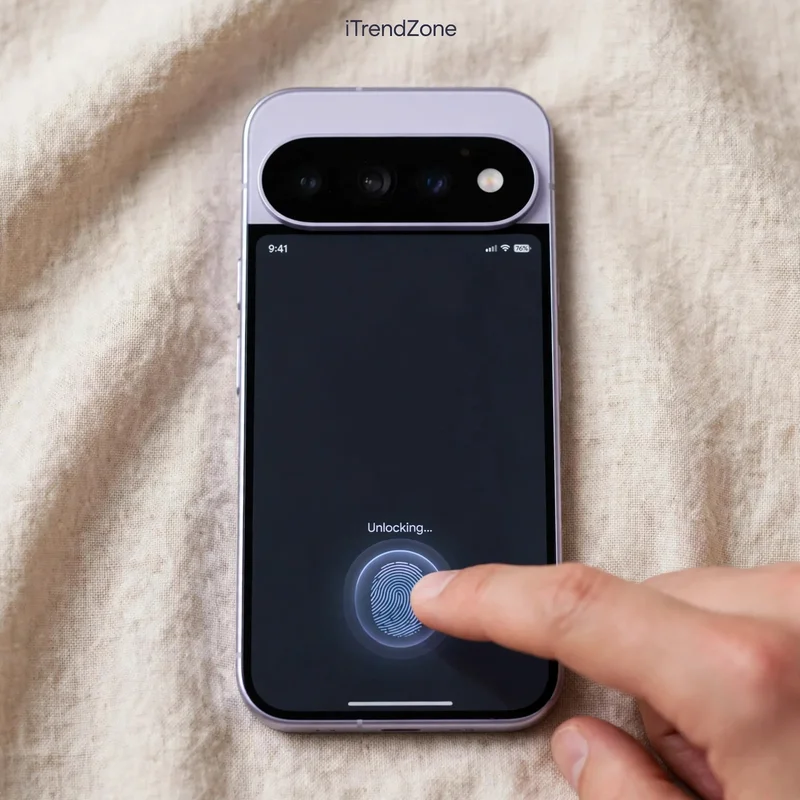
Everything starts here. If someone picks up your phone, the lock screen is the only thing between them and your life. So make it strong. Use a six-digit PIN at minimum. Four digits only give 10,000 combinations, and a thief with time and patience can work through those. Six digits give a million. That jump matters. Add the fingerprint reader as your daily unlock. The Pixel 11 has an ultrasonic reader under the display, and it is quick and reliable. Register the same finger twice, once straight on and once at an angle, so it works when your hands are dry or cold.
Now turn on lock screen notifications the smart way. Go to Settings, then Privacy, then Notifications on lock screen, and pick “hide sensitive content.” Your messages still show up, but the text stays hidden until you unlock. That stops the person next to you on the train from reading your bank code. Also, set the phone to lock the second you press the power button. The default delay gives a thief a window. Close it. And turn off the “show passwords” eye icon if you type passwords in public. It is a small thing, but shoulder surfing is real, and it costs you nothing to disable it.
Your Google Account Is the Real Target
Here is something people get wrong: thieves do not want your phone. They want your Google account. Your phone is worth a few hundred dollars. Your account is worth your email, your photos, your Drive files, and every password Chrome ever saved. So protect the account first. Turn on two-factor authentication today if you have not already. Go to myaccount.google.com, open Security, and switch on 2-Step Verification. Use an authenticator app or a security key, not SMS codes. SIM swapping is a real attack, and an SMS code can be stolen with it. An authenticator code cannot.
Next, run Google’s Security Checkup. It takes five minutes and it flags the stuff you forgot: old devices still signed in, third-party apps with access to your account, and passwords that leaked in a breach. Revoke access for any app you do not recognize. If you see a device you sold two years ago still listed, sign it out now. Then check your saved passwords in Chrome. Google flags weak and reused passwords. Change the important ones first: email, banking, and anything tied to money. A password manager makes this painless. The Pixel 11 works great with Google’s built-in manager, and it fills passwords for you. For the full first-day walkthrough, read our Google Pixel 11 setup guide alongside this one.
App Permissions: Say No More Often
Apps ask for far more than they need. A flashlight app does not need your location. A photo editor does not need your contacts. Yet people tap “Allow” without thinking, and then wonder why ads know where they had lunch. So audit your permissions. Open Settings, go to Privacy, then Permission manager. Work through the list one by one. Location, camera, microphone, and contacts are the four that matter most. For each app, ask one question: does this app need this permission to do its job? If the answer is no, change it to “Ask every time” or “Don’t allow.”
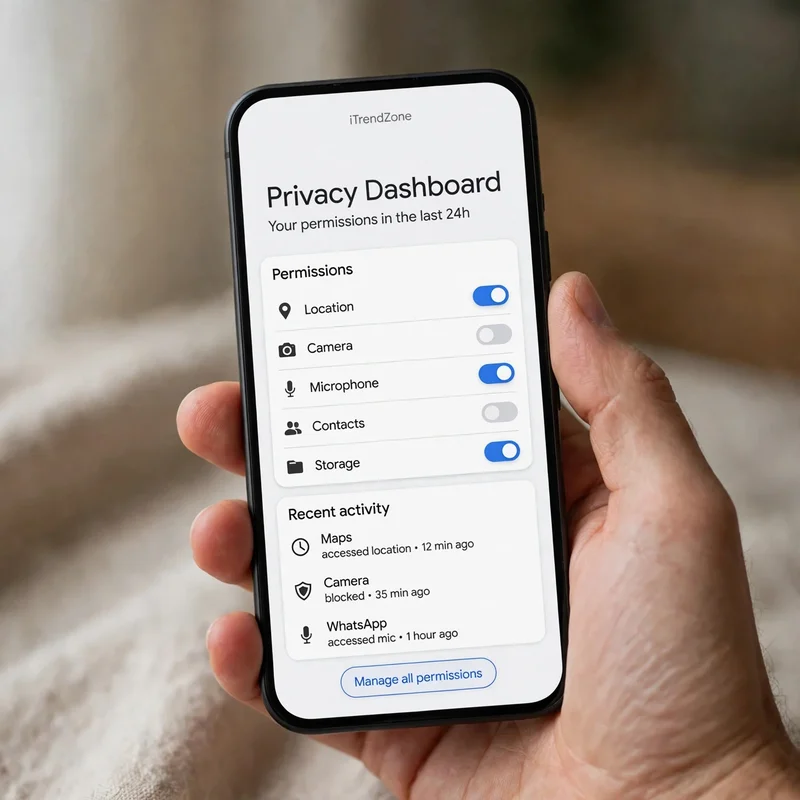
Pay special attention to location. Most apps work fine with “approximate location” instead of precise. Give a weather app your city, not your street address. Give a food delivery app precise location only while you use it, then switch it back. Android 17 also auto-resets permissions for apps you have not opened in a while, which is a nice safety net, but do not rely on it. Check the list yourself once a month. It takes ten minutes. Also, look at the Privacy dashboard in Settings. It shows which apps used your camera, mic, and location in the last 24 hours. If an app used your microphone at 3 a.m. and you have no idea why, uninstall it. Trust the dashboard, not the app’s promises.
What Gemini Knows, and What Stays on Your Phone
Gemini is the Pixel 11’s biggest feature, and it is also the one people ask the most privacy questions about. So here is the simple version. The Tensor G6 chip runs the latest Gemini Nano model right on the phone. That means a lot of Gemini’s work never leaves your device. Voice input, on-device summaries, and smart replies happen locally. That is private by design, and it is faster too. When Gemini needs the cloud for a bigger job, it sends only what that job needs. It does not upload your whole life.
You still control the rest. Open the Gemini app, tap your profile picture, and check the Gemini Apps Activity setting. You can turn off activity saving, or set it to auto-delete after three months. That is the setting I recommend. You keep the useful history, but nothing sits around forever. Also, review which apps Gemini can reach. Gemini can work across more than 40 apps, which is powerful, but you choose the list. If you do not want Gemini touching your banking app or your work email, remove those permissions. Gemini will still work fine for everything else. For the full feature tour, read our Google Pixel 11 Gemini AI features guide. Google’s Pixel 11 specs page confirms the on-device Gemini Nano setup and the Titan M3 security chip that guards it.
Calls, Texts, and Scams
Phone scams got smarter in 2026, and the Pixel 11 fights back with a few built-in tools. First, use the Phone app’s spam filter. It flags likely spam calls before you answer, and it gets better the more calls you report. Never answer a call from a number you do not know if you are not expecting one. Let it go to voicemail. A real caller leaves a message. A scammer does not. And never, ever read a verification code out loud to a caller. No bank, no carrier, and no government agency will ask you to do that. If someone does, hang up. It is a scam, every single time.
Second, be careful with links in texts. A text that says your package is stuck or your account is locked, with a link to click, is almost always fake. Do not tap it. Open the real app yourself and check. Third, turn on Live Translate if you get voice messages in other languages, but remember that translations happen on the device with Gemini, so your messages stay private. Last, check your messaging app’s spam folder once a week. Real messages sometimes land there, and scam messages sometimes slip through. A quick weekly check catches both. If a message asks for money, gift cards, or crypto, delete it. No honest business takes payment in gift cards.
Losing Your Phone: Plan for It Now
Nobody plans to lose a phone. That is the whole problem. So plan for it while the phone is still in your hand. First, make sure Find My Device is on. Open Settings, go to Security and privacy, then Find My Device, and check the toggle. This lets you locate, lock, or erase the phone from any browser. Test it once. Sign in on your laptop, find the phone on the map, and ring it. If the test works, you know the real thing will work too.
Second, turn on backup. Go to Settings, System, then Backup, and switch it on. Your photos, settings, and app data back up to your Google account. If the phone is gone for good, you can restore almost everything to a new one. Third, write down your IMEI number and keep it somewhere safe, like a note in your password manager. Your carrier needs it to block a stolen phone from the network. You can find it in Settings, under About phone. Fourth, set a lock screen message with an alternate contact number. If an honest person finds your phone, they can call you. If a thief finds it, the message costs you nothing. For the full picture on every model, our Google Pixel 11 tips complete guide covers the hardware and the prices in one place.
Updates: The Boring Shield That Works
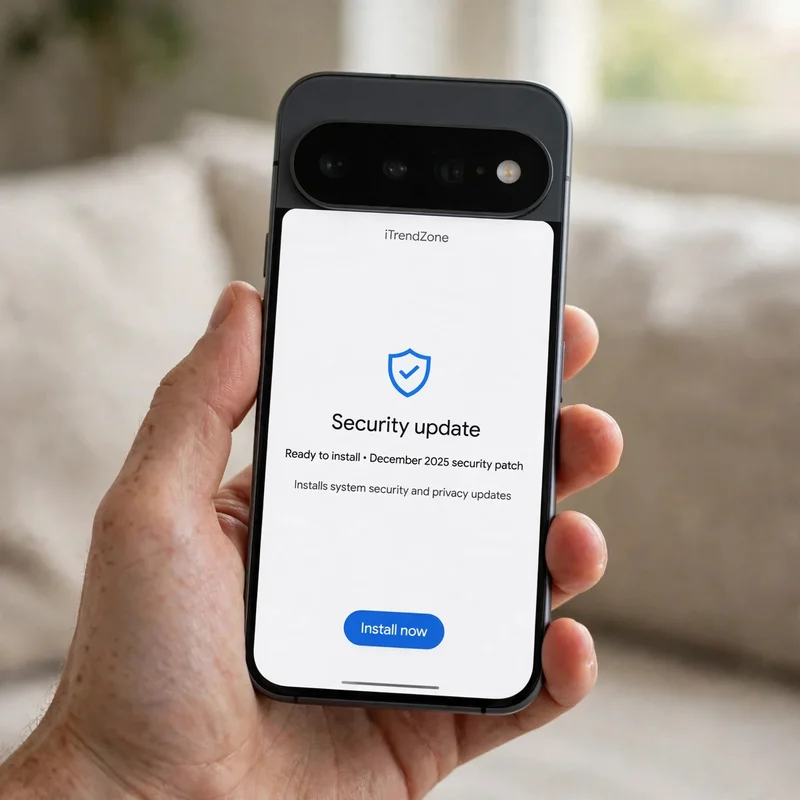
Updates are boring. Nobody gets excited about a security patch. But updates are the single most effective protection you have, and they are free. The Pixel 11 ships with Android 17, and Google promises seven years of OS, security, and Pixel Drop updates. That takes you to 2033. Most phones stop getting patches after three or four years, and after that, every new exploit works on them forever. Your Pixel 11 does not have that problem, as long as you install the updates.
So turn on automatic updates and stop tapping “later.” Open Settings, go to System, then Software updates, and switch on automatic installation. The phone will install patches overnight while it charges. You will wake up protected and you will not even notice. Also, update your apps. The Play Store can do this automatically too. Open the Play Store, tap your profile picture, go to Settings, then Network preferences, and turn on auto-update apps over Wi-Fi. Old apps carry old bugs, and old bugs are how attackers get in. GSMArena’s Pixel 11 review notes the seven-year update promise as one of the phone’s strongest selling points, and they are right.
Your Security Checklist at a Glance
The table below is your checklist. Work through it once, then repeat the monthly rows on the first of every month. If every row is done, your Pixel 11 is as locked down as it gets.
| Security step | Where to find it | How often |
|---|---|---|
| Six-digit PIN and fingerprint | Settings, Security and privacy | Once, at setup |
| Two-factor authentication | Google Account, Security | Once, then review yearly |
| Hide lock screen content | Settings, Privacy, Notifications | Once, at setup |
| App permission audit | Settings, Privacy, Permission manager | Monthly |
| Privacy dashboard check | Settings, Privacy, Privacy dashboard | Monthly |
| Gemini activity auto-delete | Gemini app, profile, activity | Once, at setup |
| Find My Device on | Settings, Security and privacy | Once, test it once |
| Install updates | Settings, System, Software updates | Automatic, check monthly |
Seven Years of Updates, Visualized
The chart below shows what Google’s update promise covers. Both bars run the full seven years, which is the point: your Pixel 11 gets new Android versions and security patches for the same long stretch.
Pixel 11 update support in years
OS updates: 7 years (Android 17 through 2033)
Security updates: 7 years
Pixel Drops: 7 years
Privacy Settings Worth Changing Today
A few settings are worth changing the moment you finish this article. First, turn off ad personalization. Go to Settings, then Privacy, then Ads, and delete your advertising ID. Advertisers use that ID to track you across apps. Deleting it does not remove ads, but it stops them from following you around. Your ads get less creepy, and your data stays yours.
Second, check your location history. Open Google Maps, tap your profile picture, then Your timeline, and turn off Location History if you do not want Google keeping a map of everywhere you have been. You lose the “where was I last Tuesday” feature, but you gain real privacy. Third, turn off “usage and diagnostics” sharing in Settings, under Privacy. It sends Google data about how you use the phone. It helps Google, not you. Fourth, review which apps can draw over other apps or install unknown apps. Both settings live under Settings, then Apps, then Special app access. If an app you do not trust has either permission, take it away. For more ideas on making the phone yours without giving up privacy, read our Google Pixel 11 customization tips guide.
What to Do If Something Feels Wrong
Trust your gut. If the battery drains fast for no reason, if the phone gets hot while idle, or if apps open by themselves, something is off. First, check the battery screen in Settings. It shows which apps used the most power. If an app you barely use is at the top, uninstall it. Second, run a Play Protect scan. Open the Play Store, tap your profile picture, then Play Protect, and tap Scan. It checks your apps for known malware. Third, check your Google account’s recent activity. If you see a sign-in from a place you have never been, change your password immediately and sign out all other sessions.
If the phone is truly compromised, back up your photos first, then factory reset it. A reset wipes everything, including malware. Set the phone up fresh afterwards, and restore only your photos and contacts, not a full backup. A full backup can restore the problem along with everything else. For deeper fixes, our Google Pixel 11 not working fix guide covers resets, crashes, and charging faults. And if you want the full spec sheet to check what your phone should be doing, PhoneArena’s Pixel 11 specs page lists the hardware in detail. Want to see what the phone can do beyond security? Our Google Pixel 11 hidden features guide is the fun next read.
Quiz: How Secure Is Your Pixel 11?
Five quick questions to check you caught the key points. Pick one answer for each, then check your score at the end.
1. What is the minimum PIN length recommended in this guide?
A) Four digits
B) Six digits
C) Two digits
D) No PIN at all
2. Which two-factor method is safer than SMS codes?
A) An authenticator app
B) Your birthdate
C) A sticky note on the fridge
D) Your pet’s name
3. How many years of OS and security updates does Google promise for the Pixel 11?
A) 3 years
B) 4 years
C) 5 years
D) 7 years
4. Where does Gemini Nano do most of its on-device work?
A) On a server overseas
B) On the phone itself, using the Tensor G6 chip
C) On your old phone
D) Nowhere, it does not work
5. What should you do first if you see a sign-in from a place you have never been?
A) Ignore it
B) Change your password immediately
C) Post about it online
D) Buy a new phone
Answers: 1-B, 2-A, 3-D, 4-B, 5-B