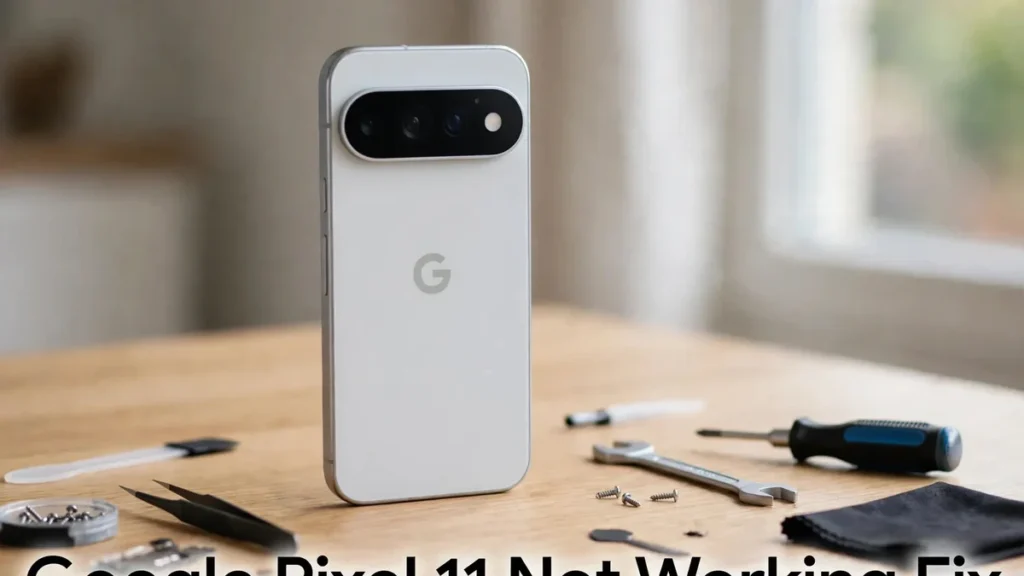

Google Pixel 11 Not Working Fix: Solve It Fast With These Steps
Google Pixel 11 not working fix guides exist because every phone has a bad day. Yours will not turn on, or it will not charge, or the camera freezes, or an app crashes every time you open it. It feels like a disaster, especially if you paid $899 for the Pixel 11, $1,099 for the Pro, or $1,299 for the Pro XL. Take a breath. Most Pixel 11 problems are simple, and most of them have a fix you can do at home in a few minutes. I have walked friends through these exact steps more times than I can count, and nine times out of ten the phone comes back to life without a repair shop.
TL;DR: Google Pixel 11 not working fix in short: first, force restart by holding the power button for 30 seconds; second, charge with a proper 30W USB-C PPS charger for at least 30 minutes; third, check for an Android 17 update and clear the cache of any crashing app; fourth, test in Safe Mode to find a bad app; and if nothing works, back up your data and factory reset.
First: The Force Restart That Fixes Most Problems
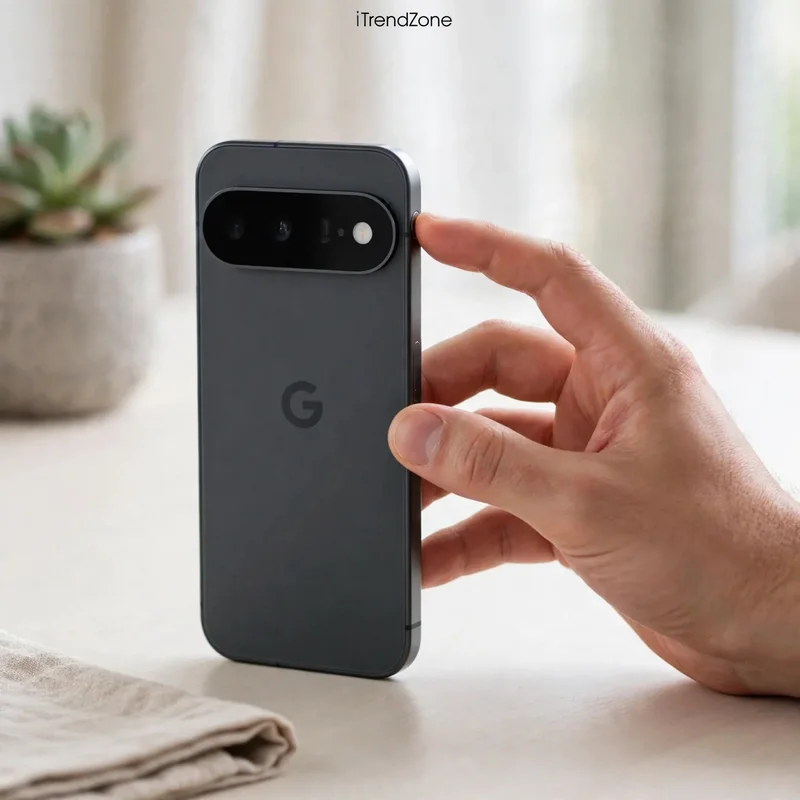
Before you do anything else, force restart the phone. This is the single most useful fix in this whole guide, and it solves a surprising number of problems. A frozen screen, an app that will not close, a camera that will not open: a force restart clears all of them. Press and hold the power button for about 30 seconds. Do not let go early. The screen will go black, the Google logo will appear, and the phone will boot up fresh. It takes a minute, and it costs nothing.
Why does this work? Because a phone is a small computer, and computers get stuck. An app can freeze in memory, a process can loop, or the system can lose track of itself. A restart clears all of that out. It does not delete your photos, your messages, or your apps. It just gives the phone a clean start. If the phone is completely dead, plug it in first, then try the force restart again.
Make this your first step for almost every problem in this guide. If the phone starts working again, you are done. If it does not, move on to the next section. But do not skip this step. I have seen people book a repair appointment for a phone that just needed a restart.
Phone Will Not Turn On or Charge
A phone that will not turn on is scary, but it is usually a charging problem, not a dead phone. Start with the charger. The Pixel 11 charges at 30W wired, and it needs a proper 30W USB-C PPS charger to reach 55% in about 30 minutes. The charger is sold separately, so check that yours is a real USB-C PPS charger, not an old 5W plug. A weak charger can take hours to wake a flat battery. Google’s Pixel support pages walk through charging checks too, if you want the official steps.
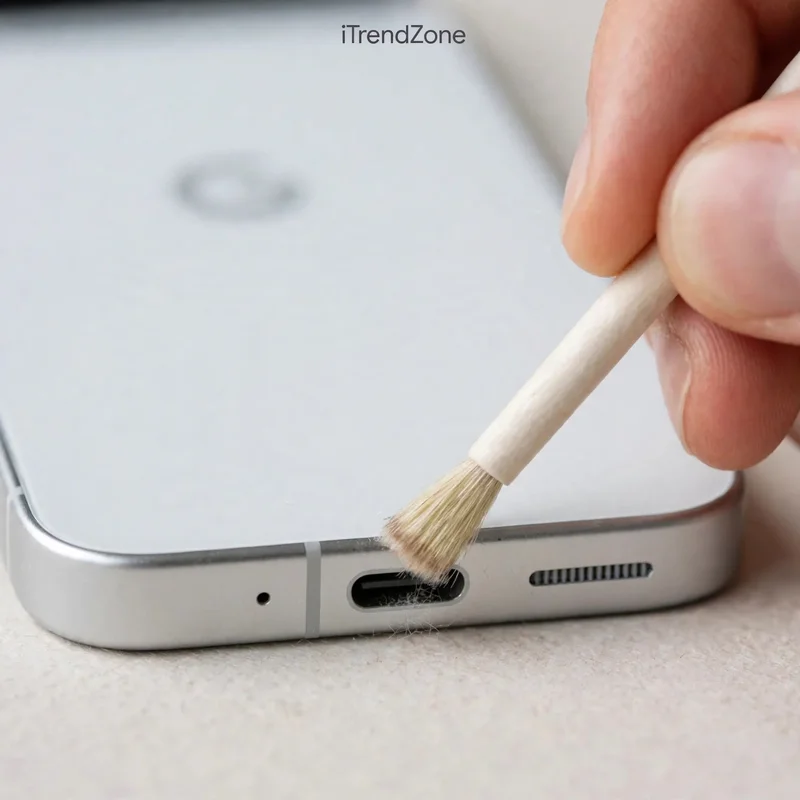
Next, check the cable. Swap it for a different USB-C cable if you have one. Cables fail quietly. They look fine on the outside and carry no power on the inside. Also, check the charging port. Pocket lint builds up in there, and it stops the cable from seating properly. Look inside with a torch. If you see lint, pick it out gently with a wooden toothpick. Do not use metal, and do not push hard. Then plug the phone in and leave it alone for at least 30 minutes.
Wireless charging is worth testing too. The Pixel 11 supports Pixelsnap, Google’s Qi2.2 magnetic system, with wireless charging up to 25W. If the wired port seems dead, try a Pixelsnap charger or any Qi wireless pad. When the phone charges wirelessly but not by cable, the port is the problem. When it charges by neither, the battery or the charging circuit may need a repair. But before you go to a shop, try a different wall socket.
Battery Draining Too Fast? Check This First
Sometimes the problem is not that the phone will not charge, but that the battery runs out too fast. The Pixel 11 has a 4,985mAh battery that lasts 30+ hours in normal use, and the Pro XL has a 5,115mAh battery. Expert Reviews measured 25 hours and 44 minutes of looping video on the Pro XL, so the battery is strong. If yours dies by lunch, something is wrong. GSMArena’s Pixel 11 specs page lists the same battery numbers, and the fix is usually one hungry app.
Go to Settings, then Battery, and look at the list of apps. One app near the top that you barely use is the culprit. Tap it, then Battery, then Restricted. That stops it running in the background all day. Also, check your screen brightness. The Pixel 11 display goes up to 2,000 nits in HDR and 3,000 nits at peak. That is bright enough to read in direct sunlight, but it eats battery if you leave it on full indoors. Turn on adaptive brightness and let the phone decide. Our Google Pixel 11 battery tips guide covers this in more depth.
Apps Crashing, Freezing, or Running Slow
An app that crashes every time you open it is frustrating, but the fix is usually quick. Start by clearing the app’s cache. Go to Settings, then Apps, pick the app, then Storage and cache, and tap Clear cache. This deletes temporary files, not your data. Your photos, messages, and login stay safe. Then open the app again. If it still crashes, tap Clear storage as well. That resets the app completely, so you will need to log in again.
If the app still crashes, uninstall it and reinstall it from the Play Store. A fresh install replaces any broken files. And if several apps are crashing at once, the problem is probably the phone, not the apps. Restart the phone first. Then check for an Android 17 update in Settings, then System, then System update. Google ships fixes for these problems regularly, and the Pixel 11 gets 7 years of OS and security updates. If the phone feels slow in general, check your storage. A phone with less than 10% free space slows down.
Camera Not Working or Photos Look Wrong
The camera is the Pixel 11’s best feature, so when it stops working, it hurts. The good news is that most camera problems are software. First, force restart the phone. That alone fixes a frozen camera app. Second, clear the camera app’s cache: Settings, Apps, Camera, Storage and cache, Clear cache. Third, check your storage. The camera needs free space to save photos. Our Google Pixel 11 camera tips guide covers every mode, including Super Zoom up to 30x.
If the photos look wrong instead of the app failing, check the lens. The 48MP main camera, the 13MP ultrawide, and the 10.8MP 5x telephoto with OIS all sit behind glass that collects fingerprints. Wipe the lenses with a soft, dry cloth. A smudged lens makes every photo look hazy, and it is the most common reason people think their camera is broken. Also, check that you have not left a Camera Look turned on that you do not like. If your photos suddenly look moody, set it back to Natural and try again.
One more camera tip: if the camera is slow to open, close other apps first. Magic Capture analyzes around 400 frames to build a better 12MP photo, and that takes processing power. If the phone is already busy with a game or a video edit, the camera will wait. Give it room, and it will be fast. If it still will not open, back up your photos and try a factory reset.
Wi-Fi, Bluetooth, and Mobile Data Problems
Connection problems feel like phone problems, but they are often network problems. So test carefully before you blame the phone. If Wi-Fi is slow or will not connect, first restart the phone. Then restart your router. Unplug it, wait thirty seconds, and plug it back in. That fixes more Wi-Fi problems than any phone setting. If it still will not connect, forget the network and reconnect with a fresh password.
Bluetooth is similar. If your headphones or car will not connect, turn Bluetooth off and on again. If that does not work, unpair the device and pair it again. Go to Settings, then Connected devices, tap the gear icon next to the device, and tap Forget. Then pair it fresh. For mobile data, toggle Airplane Mode on and off. That forces the phone to reconnect. If mobile data works in one place but not another, it is a coverage problem, not a phone problem.
Gemini and Voice Features Not Responding
Gemini is built into the Pixel 11, and when it stops responding, it is usually a simple fix. First, check your internet connection. Gemini needs data to work, and a weak signal can make it seem broken. Second, restart the phone. Third, check that Gemini is turned on in Settings. An update can sometimes reset a setting. Fourth, check for an app update. Our Google Pixel 11 Gemini AI features guide explains what each feature does and where to find it.
Some Gemini features have limits worth knowing. Multi-step tasks across 40+ apps work widely, but some agentic tasks are US-only, so a task that works for a friend in the US may not work for you yet. That is not a bug. It is a rollout limit. Live Translate works across videos, podcasts, and voice messages, but it needs the right languages downloaded. And Rambler, the voice input that strips filler words like “um” and “ah”, needs the microphone permission. Check that in Settings, then Apps, then Gboard, then Permissions. TechRepublic’s Pixel 11 Gemini AI features rundown explains what each feature does.
| Problem | First fix to try | If that fails |
|---|---|---|
| Phone will not turn on | Charge 30 minutes with a 30W USB-C PPS charger | Force restart, then try wireless Pixelsnap charging |
| Phone will not charge | Try a different cable and wall socket | Clean lint from the port, then test wireless charging |
| Battery drains too fast | Check Battery settings for a hungry app | Turn on adaptive brightness, then update Android 17 |
| App keeps crashing | Clear the app cache | Clear storage, then uninstall and reinstall the app |
| Camera will not open | Force restart the phone | Clear camera cache, free storage, then update the app |
| Wi-Fi will not connect | Restart phone and router | Forget the network and reconnect with a fresh password |
| Bluetooth will not pair | Turn Bluetooth off and on again | Unpair the device and pair it fresh |
| Gemini not responding | Check internet, then restart the phone | Clear the Google app cache, then check permissions |
Safe Mode: Finding the App That Breaks Everything
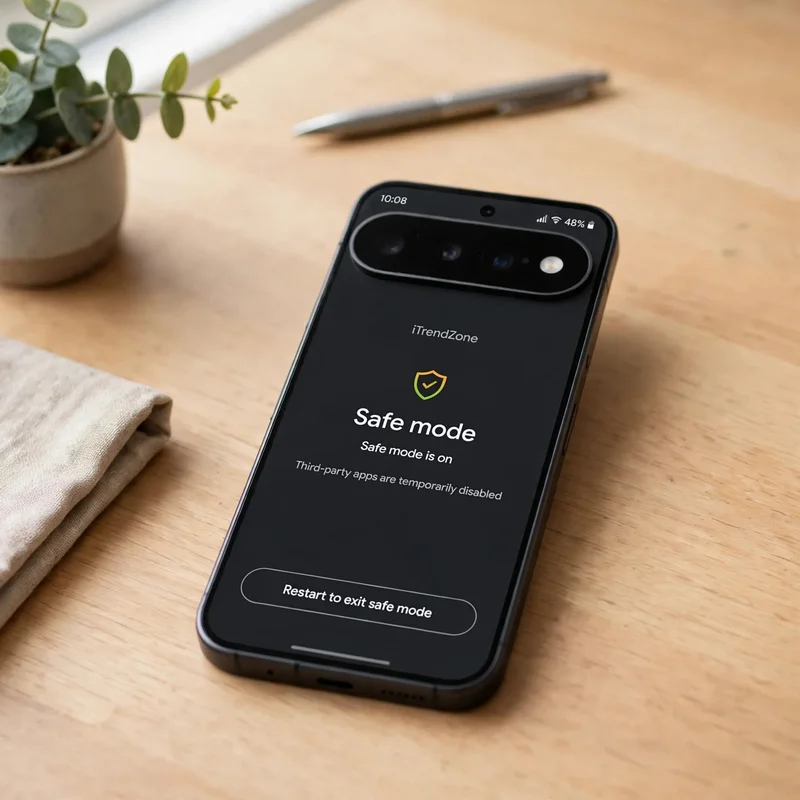
If your phone works fine sometimes and badly at other times, a third-party app is probably the cause. Safe Mode is how you find it. Safe Mode starts the phone with only the apps that came with it. All your downloaded apps are switched off. If the problem disappears in Safe Mode, one of your downloaded apps is the culprit. If the problem stays, it is the system, not an app.
Here is how to use it. Press and hold the power button, then long-press the Power off button on the screen until you see “Reboot to safe mode”. Tap OK. The phone will restart, and you will see “Safe mode” written at the bottom of the screen. Now use the phone normally for a few hours. If it works fine, restart to leave Safe Mode, then uninstall your most recently installed apps one at a time. Start with the last app you installed before the problem began.
The Factory Reset: Your Last Resort
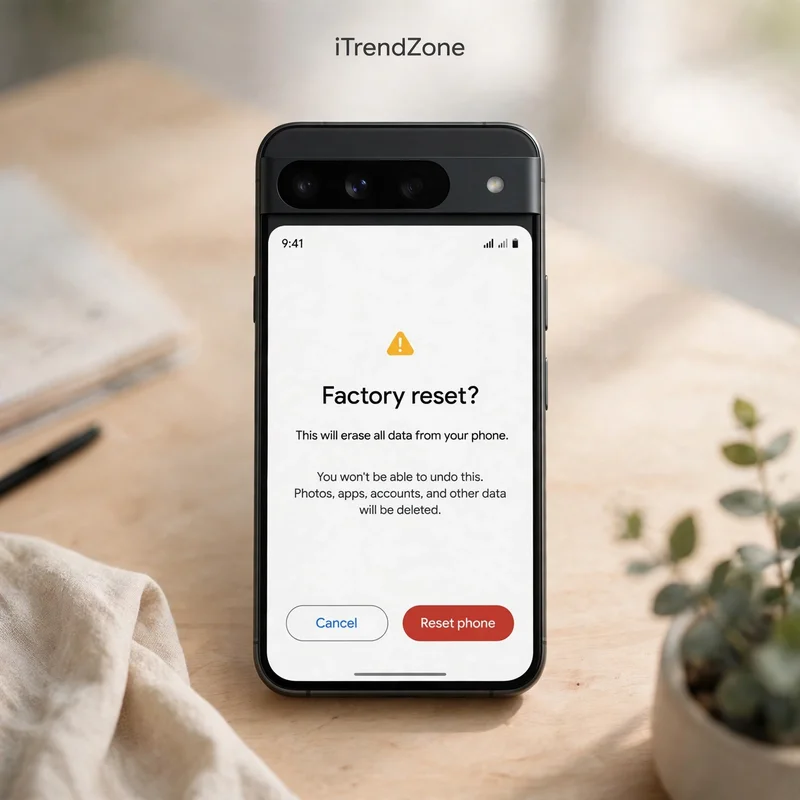
A factory reset wipes the phone clean and starts it fresh. It deletes your apps, your settings, and your data, so back up everything first. Go to Settings, then System, then Backup, and make sure a backup has run today. Check that your photos are in Google Photos and your contacts are synced. Then go to Settings, then System, then Reset options, and tap Erase all data. The phone will restart, and you will set it up like new.
Before you reset, try one more thing: check for an Android 17 update. A factory reset on an old version can bring the bug right back. Update first, then reset. And after the reset, install your apps one at a time instead of restoring them all at once. If a bad app caused the problem, restoring it will bring the problem back. Install the important apps first, use the phone for a day, then add the rest. Our Google Pixel 11 setup guide walks through a fresh setup step by step.
Pixel 11 Battery Capacity by Model
The table above is your quick reference for every common problem. The chart below shows the battery size of each model, because a phone that dies early is often just a phone with a smaller battery working hard.
Battery capacity in mAh by model
Base model: 4,985mAh
Pro: 4,850mAh
Pro XL: 5,115mAh
When to Stop Fixing and Get Help
Some problems need a repair shop, and knowing when to stop is part of fixing things well. Go for help if the phone has physical damage, like a cracked screen or a bent frame. Go if it got wet, even though the Pixel 11 has an IP68 rating. That rating means it can survive splashes and brief dunks, not swimming. Go if the phone overheats badly even when you are not using it. And go if a factory reset did not fix the problem. That is the clearest sign of a hardware fault.
Before you go, gather three things. First, your proof of purchase, because the phone is new and may still be under warranty. Second, a note of what you tried, so the repair person does not waste time repeating your steps. Third, a backup of your data, because a repair can wipe the phone. You can find official help through Google support, and our Google Pixel 11 tips complete guide has the full overview of the range, including the Pro Fold with its 8-inch Super Actua Flex display. The Pixel 11 went on sale on August 20, 2026, so it is a new phone with full support.
Google Pixel 11 Not Working Fix Quiz
Test what you learned. Pick one answer for each question.
1. What is the first fix to try for almost any Pixel 11 problem?
A) A factory reset
B) A force restart, holding power for 30 seconds
C) Buying a new charger
D) Removing the SIM card
2. How long should you charge a phone that will not turn on before trying again?
A) 1 minute
B) 5 minutes
C) At least 30 minutes
D) 24 hours
3. What does Safe Mode do?
A) It deletes all your apps
B) It starts the phone with only built-in apps, so you can find a bad app
C) It turns off the screen
D) It backs up your photos
4. What is the battery capacity of the Pixel 11 Pro XL?
A) 4,850mAh
B) 4,985mAh
C) 5,115mAh
D) 4,500mAh
5. What should you do before a factory reset?
A) Nothing, it saves everything
B) Back up your data first
C) Remove the battery
D) Turn off Wi-Fi forever
Quiz answers: 1-B, 2-C, 3-B, 4-C, 5-B.
Start with the restart, work through the list one step at a time, and most Pixel 11 problems will be gone before you reach the bottom of this page.