Android 17 Performance Tips: Make Your Phone Faster
I updated my Pixel 8 to Android 17 on June 17, 2026, the morning after the stable release landed. The first thing I noticed was not a new feature — it was the way the phone felt. Apps opened a beat quicker, and switching from Chrome to WhatsApp lost its half-second freeze. My phone had been getting slower for months, and I had blamed the battery and the storage — everything except the software. The update did more under the surface than any settings tweak I had tried all year.
TL;DR: Android 17 (codenamed Cinnamon Bun, released June 16, 2026) rebuilt how Android handles memory and background work. The biggest speed wins are free: install the update, let the new memory limits do their job, stop apps running wild in the background, keep 15 to 20 percent of storage free, and trim the animations. On my Pixel 8 the difference showed up within a day.
What Android 17 Changed Under the Hood
Most Android updates arrive with a shiny new feature you can point at. Android 17 is different — its biggest changes live underneath, in the plumbing, and three of them are why your phone feels faster after the update.
Generational Garbage Collection
Every Android app creates and throws away little pieces of memory all day, and garbage collection cleans them up. On older versions that cleanup sometimes paused everything for a beat — the tiny hitch you feel when scrolling. Android 17 brings generational garbage collection to the ART runtime: lots of small, cheap cleanups instead of one big sweep. Google says this cuts garbage collection CPU cost and shortens pause times, and it is coming to Android 12 and newer through Play System updates.
A Lock-Free MessageQueue
Apps talk to themselves through a message queue, and in Android 17 that queue is lock-free for apps targeting the new version. The result is concrete: fewer missed frames and faster app startup. I noticed it most in the apps I open fifty times a day — the camera, the gallery, my banking app. They just appear instead of appearing after a blink. An app poking around in the queue’s private internals can break, which is why some older apps needed updates after June.
App Memory Limits
This one matters most. Android 17 introduces app memory limits based on how much RAM your device has, and the system enforces them. An app that grabs more than its share gets shut down instead of dragging the phone down with it. Before this, one greedy app could eat RAM until everything else reloaded — you would switch back to a browser tab and find it refreshed. The limits are conservative, so normal apps never notice them. The hogs do.
| Android 17 change | What it does | What you will notice |
|---|---|---|
| Generational garbage collection | Small, frequent cleanups in ART | Less stutter when scrolling |
| Lock-free MessageQueue | No locking when apps process internal messages | Faster app startup and fewer missed frames |
| App memory limits | Per-app RAM caps based on total device memory | Greedy apps get closed instead of slowing the phone |
| Background audio restrictions | Background audio needs a foreground service | Fewer surprise drains |
| Free orientation and resizability | Orientation and resize limits ignored | Better apps on tablets and foldables |
Step Zero: Install the Update Properly
None of the tips below help if you are still running the old version. Android 17 was announced May 12, 2026 at The Android Show, and the stable release rolled out June 16, 2026, starting with Pixel 6 through Pixel 11, the Pixel Fold, and the Pixel Tablet. Samsung followed with One UI 9 on September 16, 2026 for the Galaxy S26, then the S25 on October 12, the S24 on October 21–22, and the S23 on October 22. The first phones to ship with Android 17 were the Galaxy Z Fold 8 and Z Flip 8, on sale August 7, 2026, and the Pixel 11 series, announced August 12, 2026, ships with it too. SamMobile has tracked the One UI 9 rollout phone by phone, and 9to5Google covered the stable release as it reached Pixels.
Check yours in Settings, then About phone, then Software updates, and install it on Wi-Fi with the battery above 50 percent, then restart the phone. That restart matters: the first boot rebuilds caches and finishes the garbage collection upgrade, and the phone can feel warm and sluggish for a few hours. Judge the speed the next day, not the first hour. My Android 17 new features guide walks through every headline addition, and the Android 17 tips complete guide covers the whole release in one place.
Let Android 17’s Memory Limits Work for You
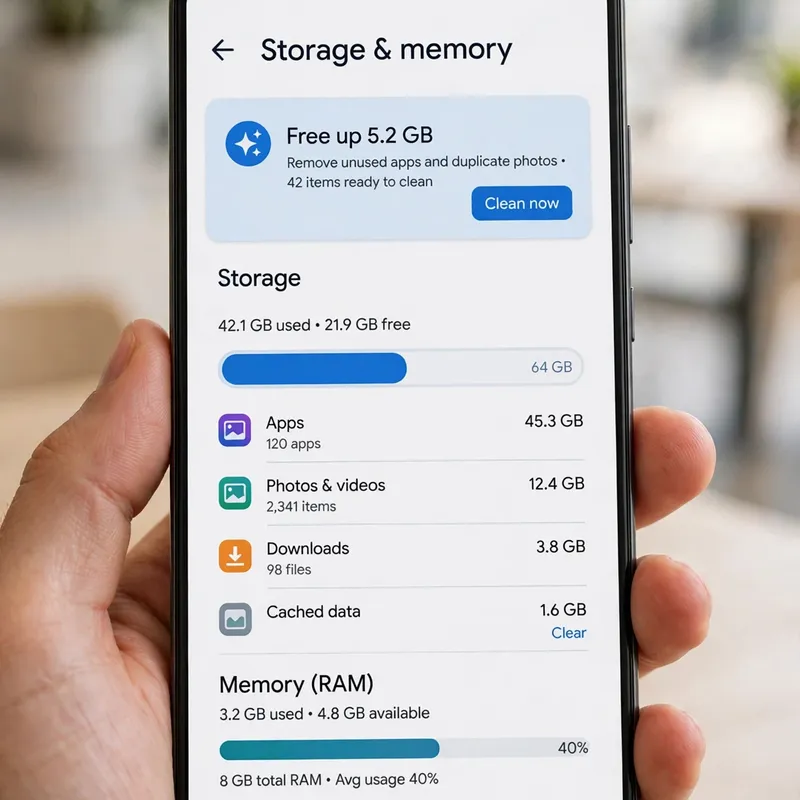
The memory limits only help if you stop fighting them. My worst habit was keeping thirty apps in my recent apps list like a collection. In reality I was keeping thirty apps warm in RAM, and every one was a candidate for the system to kill and reload later. Now I swipe away apps I am done with, especially the camera, maps, and games.
You can see which apps are actually using RAM. On a Pixel, check Running services under Developer options; on Samsung phones running One UI 9, Device care shows memory use per app. Look for anything using hundreds of megabytes. A social app holding 500 MB while you are not using it is a leak in your pocket. Restrict it or replace it. If an app keeps crashing since the update, the memory limiter may be doing its job — check the Play Store for a developer update first.

The chart above tells the adoption story. Android 17 reached 11.69 percent of all Android devices — the third most popular Android version — and it got there fast: stable release June 16, 2026; Samsung’s One UI 9 rollout started September 16 with the Galaxy S26 and reached the S25 on October 12, the S24 on October 21 and 22, and the S23 on October 22; the first phones shipping with Android 17 went on sale August 7, 2026. That quick spread is why developers are targeting the new version, so more of your apps get these improvements with every update.
Background Apps and Audio
Android 17 tightened the rules on background audio: an app that is not visible can no longer just play audio or change volume on a whim — it needs a proper foreground service, and alarms and a few specific services are exempt. That change was aimed at battery life, but it helps speed too — every background process is CPU time your foreground app does not get. In Settings, then Apps, look at the apps you barely open. If a shopping app or a game you played once in March can run in the background, turn it off.
Do not go overboard. Turning off background activity for messaging apps and email means messages arrive late, and that is a bad trade. Be strict with games, shopping apps, and social apps you check manually anyway — those are the ones that wake up, sync, and prefetch content you never asked for. I cut about a dozen apps this way and my Pixel 8 stopped getting warm in my pocket. A cool phone is a fast phone, because Android slows the processor when the chip gets hot. If battery life is your bigger worry, the Android 17 battery tips guide goes deeper.
Animations and Refresh Rate
This is the oldest speed trick in the book and it still works. Android’s window animations make the phone feel polished, but they add a small delay to everything you open. In Developer options, set the three animation scales to 0.5x, and the phone feels instantly snappier. Setting them to off entirely feels too abrupt, but 0.5x is the sweet spot. It does not make the processor faster; it removes the waiting.
Refresh rate is the other side of the same coin. A 120 Hz screen feels smoother, but it costs battery and a little performance headroom. On most phones the adaptive setting is right: 60 Hz when reading, 120 Hz when scrolling. If your phone stutters in heavy games, try forcing 60 Hz — a steady 60 frames beats a 120 Hz target the chip cannot hold. If you like making the phone look different, the Android 17 customization tips guide covers Material 3 Expressive and the new theming options.
Storage: The Speed Killer Nobody Checks
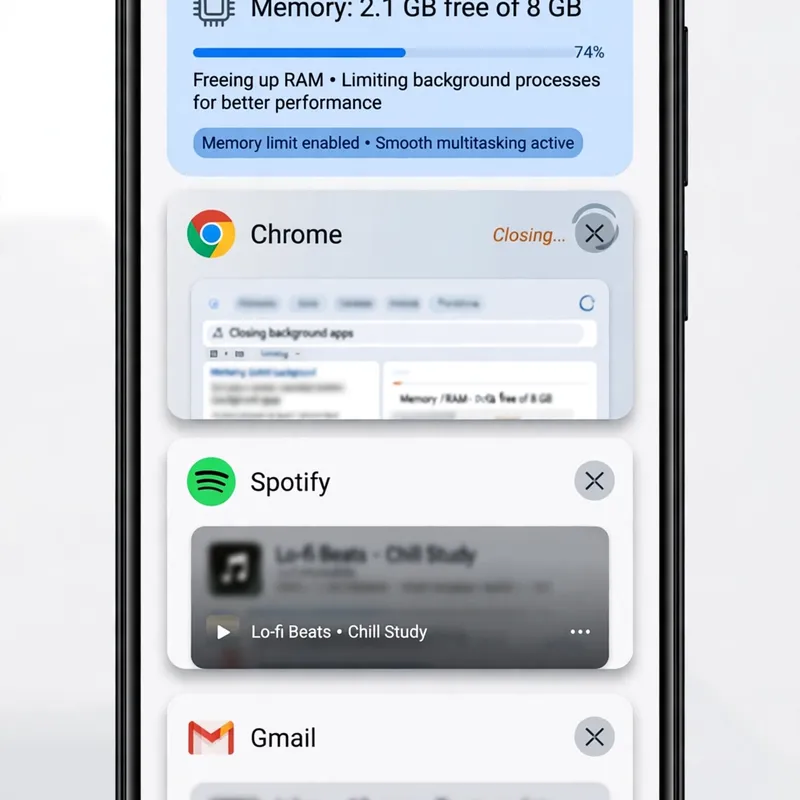
Here is the number most people never hear: Android starts slowing down when free storage drops below about 10 percent, and it gets noticeably worse below 5 percent. The system needs free space for caches, updates, and the swap file. My rule is simple — keep 15 to 20 percent free, roughly 40 to 50 GB on a 256 GB phone. Check yours in Settings, then Storage. If you are under that line, the Files app can find large videos and forgotten downloads fast.
Clear cached data the right way. In Android 17 there is no single “clear all cache” button anymore, so do it per app for the worst offenders: Chrome, Instagram, YouTube, and your maps app can each hold gigabytes. In Settings, then Apps, pick the app, then Storage and cache, then Clear cache. Do not tap Clear storage unless you are ready to sign in again — that wipes the app’s data entirely. Think twice before installing a “phone cleaner” app: most do less than the built-in tools, and some run constantly in the background — exactly the problem you are trying to fix. Move photos and videos to cloud backup — my gallery alone gave me back 22 GB.
Gemini Intelligence and RAM
Android 17’s flashiest addition is Gemini Intelligence, the multi-step AI agent that works across your apps — but it only runs on phones with 12 GB of RAM and Gemini Nano v3: the Pixel 10 series, the Pixel 11, the Galaxy S26, the OnePlus 15, and the OPPO Find X9 and X8. The Pixel 9 does not qualify because it has Nano v2. If your phone does qualify, the AI features are genuinely useful, but they are hungry: on-device AI models use the RAM your other apps need.
On my Pixel 8, which does not get the full Gemini Intelligence experience, that is not a problem. On a Pixel 10 or Galaxy S26, know which AI features you actually use. If you never ask the assistant to do multi-step tasks across apps, turning off the heaviest AI features frees memory for everything else. If you use them daily, keep them. The point is not to disable features for fun; it is to spend your RAM on the things you actually touch. The full rundown lives in my Android 17 AI features guide, and the Android 17 hidden features guide has more settings.
Gaming and Big Screens
Android 17 quietly made big screens faster to use. On tablets and foldables, the system now ignores app restrictions on orientation and resizability, so apps that used to lock themselves into portrait mode now fill the screen properly instead of restarting or letterboxing. Fewer restarts means fewer reloads, and on a foldable that adds up fast. If you own a Galaxy Z Fold 8 or a Pixel 11 Pro Fold, open a game, unfold the phone, and notice how much less the app complains.
Desktop Mode is the other half of this. Connect a compatible phone to a monitor and you get a desktop-style workspace, and because Android 17 handles window resizing natively, moving apps around feels less like a hack. For gaming, keep it simple: close other apps before a long session, turn on your phone’s game mode if it has one, and let the phone cool down between matches. A phone that is charging, hot, and running a game at full brightness will throttle itself. If your camera stutters when you switch to video mid-game, the Android 17 camera tips guide explains what changed.
When the Problem Is the Hardware
Some slow phones are not fixable with settings. The Pixel 6 and 6 Pro get Android 17 as their last major update, with support ending in October 2026, and a five-year-old battery will make even a clean install feel tired — batteries lose capacity with age, and Android slows the chip to protect the cell. If your phone is four or five years old, a battery replacement can do more than any tip in this article.
Do not write the phone off too fast. Pixel 8 and newer phones get seven years of updates, so a Pixel 8 bought in 2023 still has years of life left, and Android 17’s under-the-hood changes were designed exactly for phones like that. If the phone is still slow after the update, the storage cleanup, and the background-app trim, back up your data and factory reset it. It takes an afternoon, and it fixes problems no settings screen can reach. If even that does not help, the Android 17 not working fix guide walks through deeper troubleshooting, and the Android 17 privacy and security tips guide is worth reading before a repair.

My 10-Minute Speed Routine
This is the routine I run on my own phone every few weeks, and it takes about ten minutes. First, restart the phone — a fresh boot clears the memory properly. Second, swipe away the apps I am not using. Third, check storage and delete the biggest files I do not need. Fourth, open the battery settings and check which apps used the most power since the last charge; anything surprising gets its background activity restricted. Fifth, check for app updates in the Play Store — developers keep shipping fixes for the new limits. No cleaner apps, no magic settings, no rooting.
Android 17 will not make a 2021 phone feel like a 2026 flagship. What it does is stop your phone from getting in its own way — fewer memory hogs, less background noise, cleaner garbage collection, faster starts. On a phone a year or two old, that is the difference between a phone you tolerate and one you enjoy. Update it, clean it up, and give it a day to settle.
Android 17 Performance Tips Quiz
Question 1: What is Android 17’s internal codename?
A) Vanilla Ice Cream
B) Cinnamon Bun
C) Baklava
D) Upside Down Cake
Question 2: What do Android 17’s app memory limits do?
A) They delete old photos automatically
B) They compress all your apps
C) They stop apps from using mobile data
D) They cap each app’s RAM
Question 3: How much free storage should you keep?
A) 15 to 20 percent
B) 1 to 2 percent
C) 50 percent
D) None — storage does not affect speed
Question 4: Which phone does NOT qualify for Gemini Intelligence?
A) Pixel 10
B) Galaxy S26
C) Pixel 9
D) OnePlus 15
Question 5: When was Android 17 released?
A) February 13, 2026
B) June 16, 2026
C) September 16, 2026
D) May 12, 2026
Answers: 1-B, 2-D, 3-A, 4-C, 5-B