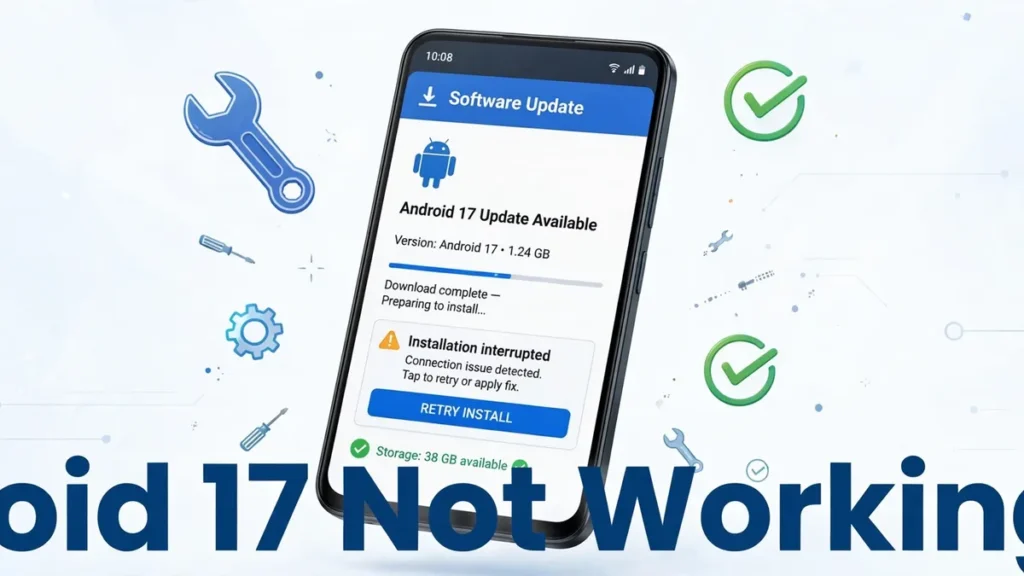

Android 17 Not Working Fix: Solve Every Update Problem
I updated my Pixel 8 to Android 17 on launch day, June 16, and by lunchtime I regretted it. The battery was dropping fast, my banking app crashed twice, and the new Gemini features were nowhere to be found.
TL;DR: Most Android 17 problems are not broken phones. If the update is not showing, your phone or carrier probably has not got it yet — wait a day. Battery drain for the first 48 hours is normal while Android optimises apps. Crashing apps usually need an update or a cleared cache. Gemini Intelligence needs 12GB of RAM and Gemini Nano v3, so a Pixel 9 will never get it. Try the fixes in order, and reset only as a last resort.

Before You Fix Anything: Is Android 17 Even Supposed to Be on Your Phone Yet?
Half the “Android 17 not working” panic online comes from people whose phones were never meant to get the update that day. Android 17, codenamed Cinnamon Bun, went stable on June 16, 2026, but Google only pushed it to Pixels first. Samsung’s One UI 9 followed in September 2026, in waves by model, region, and carrier. Before you try any fix, check what you are running: on a Pixel, Settings, then About phone, then Android version; on a Samsung, Settings, then About phone, then Software information.
Eligibility matters too. Google supports Pixel 6 through Pixel 11, the original Pixel Fold, and the Pixel Tablet. Pixel 6 and 6 Pro get Android 17 as their last major update, and Pixel 8 and newer get seven years of updates. If your phone is older than a Pixel 6, or a Samsung older than the Galaxy S23, no amount of tapping “check for update” will make Android 17 appear. Our complete Android 17 tips guide has the full list of supported phones and every headline feature.
Fix 1: The Android 17 Update Is Not Showing Up
This is the most common complaint, and most of the time the answer is boring: the update has not reached your phone yet. Rollouts are phased — Google and Samsung push the update to a small group first, watch for serious bugs, then widen it. Your neighbour’s identical phone can get it a week before yours.
First, check for it by hand. On a Pixel, connect to Wi-Fi, plug the phone in if the battery is under 50 percent, then open Settings, tap System, tap Software updates, and tap Check for update. On a Samsung Galaxy, open Settings, tap Software update, then tap Download and install. If the screen says your software is up to date, the rollout simply has not reached you — try again the next day. Next, check whether you are still in the Android beta program: phones enrolled in the beta keep receiving beta builds instead of the stable release. You leave the beta on Google’s website, and the stable update usually follows, Also check the basics: a major update needs several gigabytes of free space, solid Wi-Fi, and enough battery — Google recommends charging to at least 75 percent. If storage is tight, delete a few large videos or unused games. And if you are on a carrier-locked phone, the carrier has to approve the update too. Our Android 17 new features guide explains what you are actually waiting for.
Fix 2: The Download Is Stuck or the Install Keeps Failing
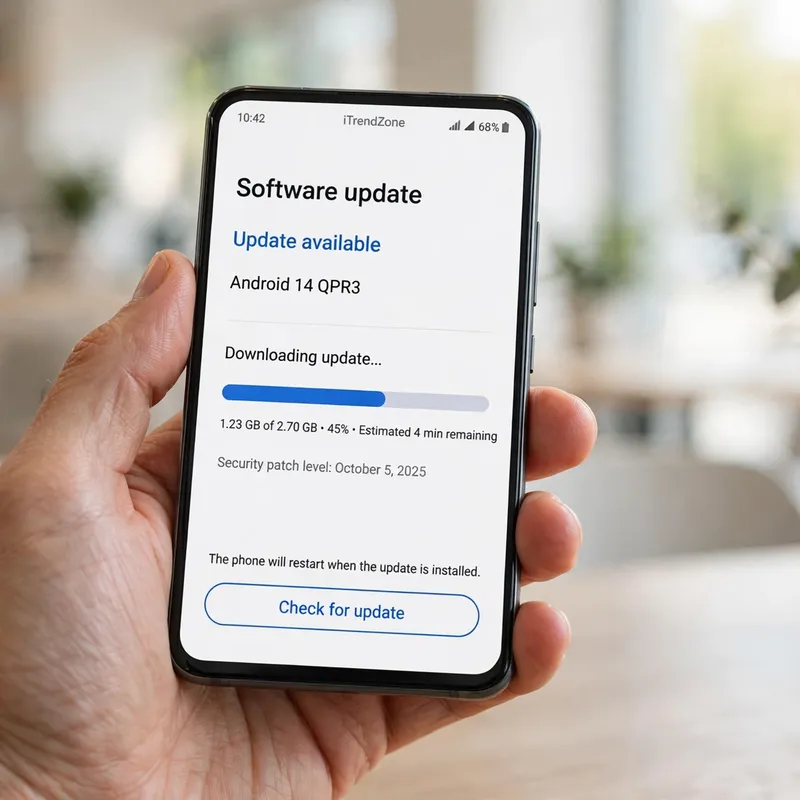
A download stuck at 47 percent is infuriating, but it is rarely a broken phone. Start simple: pause the download, switch Wi-Fi off and on again, and restart the phone.
If the download still will not move, free up space. Android needs room for the download and for the install, and a phone with less than 5GB free will often fail silently. Go to Settings, then Storage, and see what is eating the space — old downloads, WhatsApp videos, and games you have not opened in months are the usual suspects. You can also clear the cache of the update system itself: open Settings, tap Apps, find Google Play Services, tap Storage, then tap Clear cache. When the download finishes but the install fails, check the Google Play system update too: on a Pixel, go to Settings, then Security and privacy, then System and updates, then Google Play system update. Install whatever is waiting there, restart, and try again. Our Android 17 performance tips guide has more on keeping the phone fast while the update settles in.
Fix 3: Battery Draining Fast After the Update
This was my first problem, and it is the one that panics people the most. Here is the part nobody tells you: some extra drain for the first 48 hours is completely normal. After a major update, Android rebuilds app caches, re-optimises every app, and re-indexes your files in the background. If your update finished less than two days ago, charge overnight on Wi-Fi, use the phone normally, and judge the battery on day three, not day one.
If the drain is still bad after three days, find the culprit instead of guessing. Open Settings, then Battery, and look at battery usage since the last full charge. On a healthy phone the top entries are the screen and the apps you actually used. If an app you barely opened is sitting near the top, you found it. Force-stop it and clear its cache from Settings, then Apps, then the app name, then Storage, then Clear cache. On Samsung phones the same check lives in Settings, then Battery and device care, then Battery, where you can also put heavy apps to sleep under Background usage limits. And update every app first: in the Play Store, tap your profile icon, then Manage apps and device, then Update all, and do the same in the Galaxy Store. Our Android 17 battery tips guide has more battery-saving settings.
Fix 4: Apps Crashing or Freezing on Android 17
An app that worked fine on Android 16 and crashes on 17 is almost always an app problem, not a system problem. Developers need time to catch up with a new Android version, and the first weeks after a major release are when the mismatches show up.
Start in the Play Store and update the crashing app. If it still crashes, clear its cache: Settings, then Apps, then the app name, then Storage, then Clear cache. If the app still will not open, clear its storage as well, One component deserves special attention: Android System WebView. Many apps use it to show web pages inside the app, and a stale WebView has been linked to freezes on some Galaxy phones after the One UI 9 update. Search for Android System WebView in the Play Store, update it, then restart the phone. If several apps crash at once, boot into Safe Mode, which loads only the apps that came with the phone. On a Pixel, press and hold the power button, then long-press Power off and tap OK when it offers Safe Mode; on a Samsung, long-press Power off and tap the Safe Mode icon. If everything works fine there, a third-party app is the cause — restart normally and uninstall your most recent apps one at a time until the crashes stop. Our Android 17 hidden features guide covers the new tools that help you spot misbehaving apps faster.
Fix 5: Phone Stuck on the Logo or in a Boot Loop
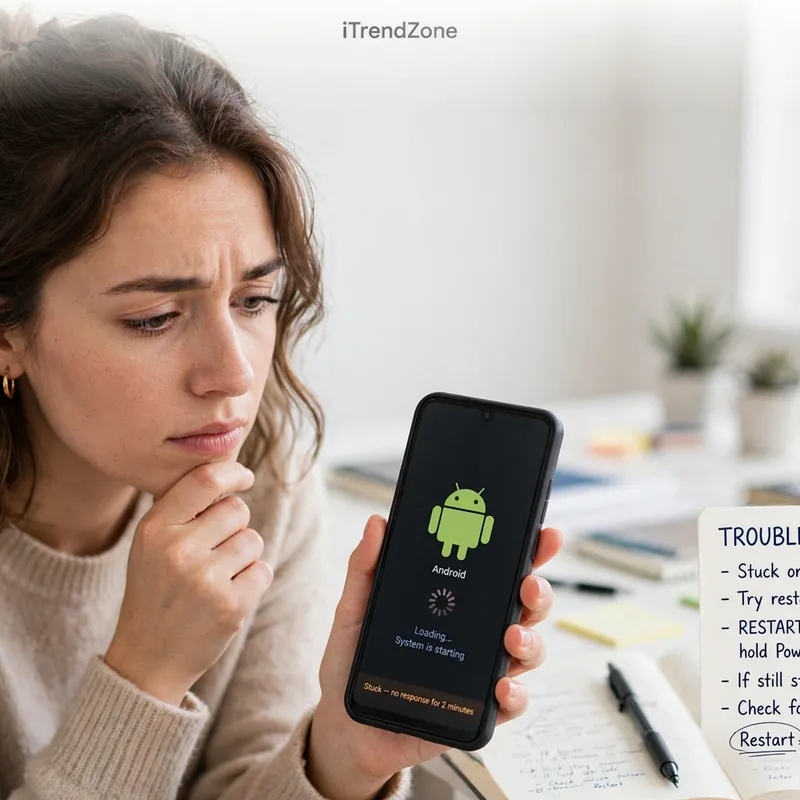
A phone that will not get past the logo is the scariest problem on this list. First, try a force restart. On a Pixel, press and hold the power button for about 30 seconds until the phone vibrates and restarts. On a Samsung, press and hold Volume Down and the side key together for seven to ten seconds.
If the phone still loops, the next step depends on your brand. On a Samsung, you can try wiping the cache partition from recovery mode, but there is a catch: reports from the Samsung community and PhoneArena say Samsung removed the wipe cache partition option from the recovery menu with the February 2026 security patch on some models. If your phone still lists it, power the phone off, hold Volume Up and the side key until the Samsung logo appears, use the volume keys to highlight wipe cache partition, press the side key to select it, confirm with Yes, then choose Reboot system now. If the option is not there, do not go near wipe data/factory reset in that menu unless you are ready to erase everything. On a Pixel, there is no cache partition option at all — boot into Safe Mode using the steps in Fix 4 and uninstall the most recent app updates. Our Android 17 privacy and security tips guide covers the backup settings worth setting up first.
How Fast Did Android 17 Actually Reach Each Phone?
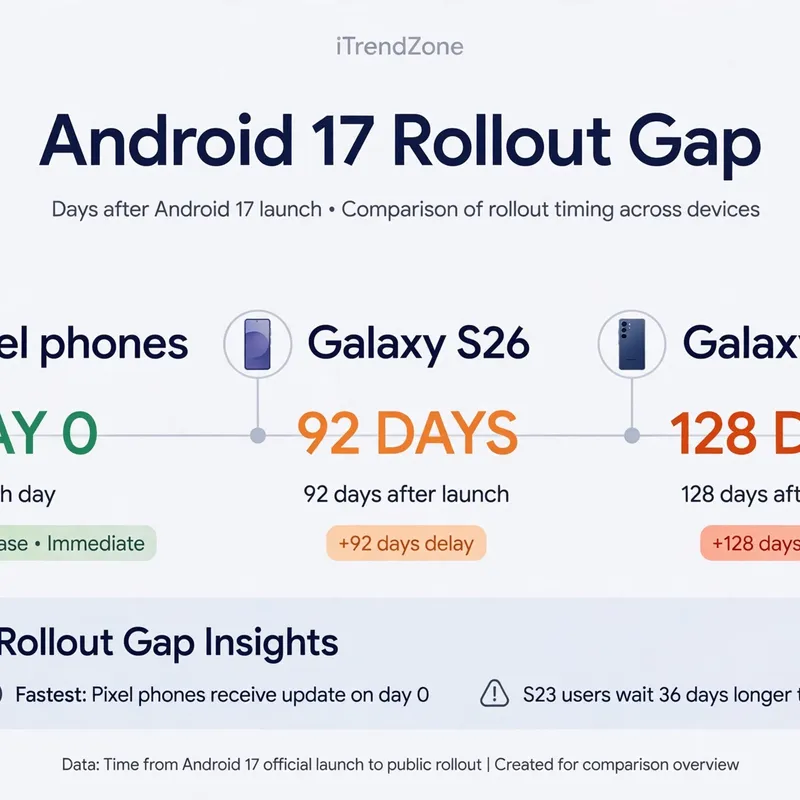
Part of the frustration with Android 17 is that the rollout felt uneven, and the numbers show why. Google gave every eligible Pixel the update on day one, June 16, 2026. The Galaxy S26 series got the stable One UI 9 update on September 16, a full 92 days after the Pixels. The Galaxy S25 followed on October 12, the S24 on October 21, and the S23 on October 22 — 118, 127, and 128 days after launch. Android 17 is now the third most popular Android version, with an 11.69 percent share, and that share keeps climbing.
| Phone | Android 17 arrival | Days after Pixel launch |
|---|---|---|
| Pixel 6 to Pixel 11, Pixel Fold, Pixel Tablet | June 16, 2026 | 0 |
| Galaxy Z Fold 8 and Z Flip 8 (shipped with it) | August 7, 2026 | 52 |
| Galaxy S26 series (One UI 9) | September 16, 2026 | 92 |
| Galaxy S25 series (One UI 9) | October 12, 2026 | 118 |
| Galaxy S24 series (One UI 9) | October 21, 2026 | 127 |
| Galaxy S23 series (One UI 9) | October 22, 2026 | 128 |
Fix 6: Gemini Intelligence Is Missing
This one is not a bug, and no settings change will fix it. Gemini Intelligence, the multi-step AI agent that works across your apps, needs 12GB of RAM and Gemini Nano v3 running on the phone itself. That limits it to the Pixel 10 series, Pixel 11, Galaxy S26, OnePlus 15, and OPPO Find X9 and X8. The Pixel 9 does not qualify — it has Nano v2, not v3 — and no update will change that, because the requirement is hardware, not software.
If your phone does qualify and Gemini Intelligence is still missing, check two things. First, make sure you are actually on Android 17 and not a beta build, since beta builds can lag behind on feature rollouts. Second, update the Gemini app and Google app from the Play Store, then restart. Our Android 17 AI features guide covers Gemini Intelligence and the rest of the AI tools.
Fix 7: A New Feature Does Not Work
Android 17 shipped with a long list of new features, and not all of them reach every phone. Native App Lock, Desktop Mode, Pause Point, App Bubbles, and Continue On all depend on your phone’s hardware and your maker’s software. Before you decide a feature is broken, check whether your phone is supposed to have it — the Android Developers release notes list what Android 17 itself includes, and your maker’s update notes say which parts made it to your model.
When a feature should be there and is not, the fix is usually an update. App Lock and Desktop Mode arrived with the stable release, but the quarterly updates — QPR1 in September 2026 and QPR2 in December 2026 — fixed early bugs in them. Check for a system update using the steps in Fix 1, and update the apps involved from the Play Store. For camera features, check our Android 17 camera tips guide, and for the new look, our Android 17 customization tips guide.
When Nothing Works: Reset and Get Help
If you have worked through every fix above and the phone is still misbehaving, a factory reset is the last software fix left. It erases everything — apps, accounts, photos, messages — so back up first. On a Pixel, go to Settings, then System, then Backup, and make sure Google One backup is on. On a Samsung, use Smart Switch or Samsung Cloud. Then go to Settings, then System, then Reset options, then Erase all data on a Pixel, or Settings, then General management, then Reset, then Factory data reset on a Samsung.
If a reset does not fix it either, the problem is probably hardware, and no guide can fix that. Take the phone to the maker: Google’s Pixel support and Samsung’s service centres both run free diagnostics, and a phone still under warranty should be repaired or replaced without a charge. And if the update itself bricked the phone during install, say so clearly — that is a warranty issue, not user damage. You can also compare notes with other owners on GSMArena, Android Authority, and 9to5Google.

Quick Quiz: Test What You Learned
Question 1: Your Pixel shows Android 16 and no update is available. What should you check first?
A) Your phone is still in the beta program
B) Your phone case is blocking the signal
C) Your Google account password is wrong
D) Your screen brightness is too low
Question 2: How long should you wait before judging battery life after an Android 17 update?
A) About 30 minutes
B) At least 48 hours, while Android optimises apps
C) A full month
D) Never — drain always means a fault
Question 3: Why does a Pixel 9 not get Gemini Intelligence?
A) It needs 12GB RAM and Gemini Nano v3; the Pixel 9 has Nano v2
B) Google forgot to include it
C) The Pixel 9 screen is too small
D) It only works on Samsung phones
Question 4: What is the safest first step when your phone is stuck on the logo?
A) Open the phone and remove the battery
B) Do a force restart by holding the power button
C) Install a firmware file from a random website
D) Throw the phone away and buy a new one
Question 5: Which of these is true about the Samsung cache partition option in 2026?
A) It is available on every Samsung phone forever
B) It was reported removed with the February 2026 security patch on some models
C) It deletes all your photos when you use it
D) It only works on Pixel phones
Answers: 1-A, 2-B, 3-A, 4-B, 5-B
Android 17 is a big update, and big updates always have a rough first week. Work through the fixes in order, give the battery two days, update your apps, and only reach for the factory reset when nothing else has worked.