
Google Pixel 11 Hidden Features Guide
Google Pixel 11 hidden features are the reason I stopped recommending this phone on specs alone. On paper, the Pixel 11 looks like a solid upgrade: Tensor G6 chip, a 6.3-inch screen, and a 4,985mAh battery. Fine. But the stuff that changes how you use the phone every day is buried in menus. It hides behind long-presses, or it sits switched off by default. I spent my first week thinking it was just a faster Pixel 10. Then I found the HiLight ring, the voice tools, and the camera tricks, and the phone started to feel different. This guide rounds up the best of them. Gemini tools, camera shortcuts, and the accessibility gems Google barely talks about.
TL;DR: Google Pixel 11 hidden features worth turning on first: the HiLight LED ring on the Pro models, Circle to Search inside the camera, and Gemini multi-step tasks across 40+ apps. Also try Rambler voice input, sign-to-text in Gboard, Live Translate, Magic Capture, and the nine Camera Looks. Most of these ship with Android 17 and the Tensor G6 chip. So update your phone before you hunt for them.
First, Update Everything Before You Hunt
Here is the boring tip that makes all the other tips work: update the phone. The Pixel 11 ships with Android 17, but Google rolls out features in waves. Some of the tools in this guide arrived in the first update after launch. A few only switch on once you sign in and open the Gemini app once. So check for a system update. Update the Google app and Gboard in the Play Store, and open Gemini at least once. Also, it takes five minutes.
Also, know which Pixel 11 you have. The regular Pixel 11 has a 6.3-inch 1080×2424 display and 12GB of RAM. Its main camera is 48MP, with a 10.8MP 5x telephoto beside it. The Pixel 11 Pro has a sharper 1280×2856 LTPO display. It also has a 50MP main camera, a 48MP 5x telephoto, and the HiLight LED ring. The Pro XL adds a 5,115mAh battery and 45W wired charging. A couple of features in this guide only exist on the Pro models. The HiLight ring and Pro Zoom up to 120x are two of them. I call those out as we go.
The HiLight LED Ring on the Pro Models
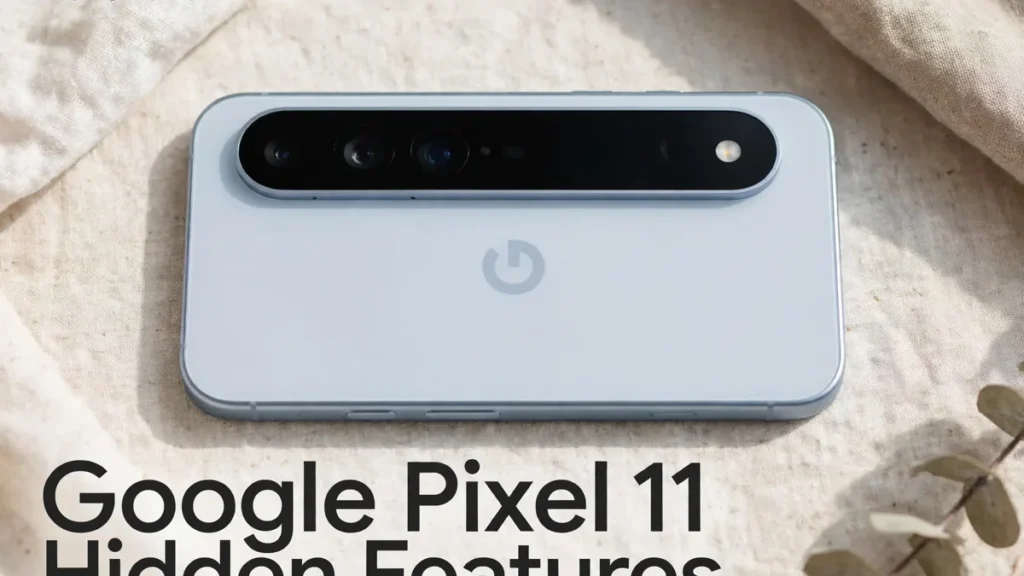
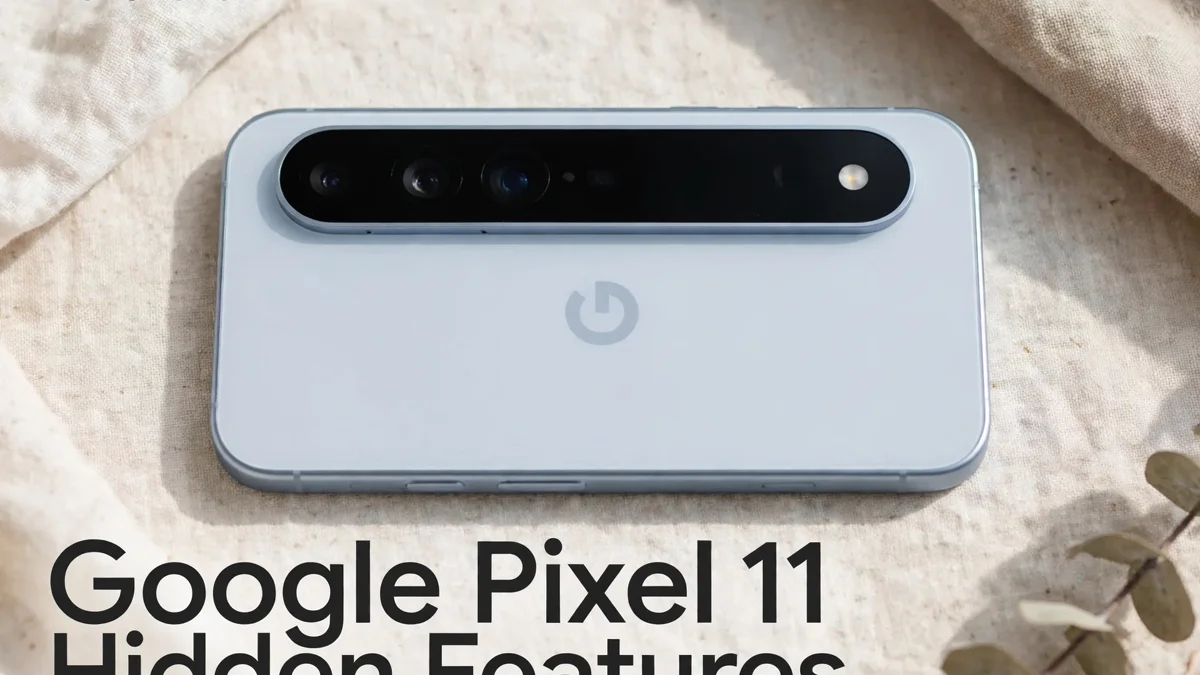
This is my favourite hidden feature, and it is also the easiest to miss. On the Pixel 11 Pro and Pro XL, a thin LED ring sits around the camera flash. Google calls it HiLight. It glows when Gemini is listening or processing. That gives you a quiet visual cue, instead of guessing whether the phone heard you. It is subtle, and honestly, that is the point.
But the fun part is the custom contact notifications. You can set the ring to light up in a colour you pick. Choose one colour per person, and it shows when they call or message you. So your partner gets blue, your mum gets green, and your boss gets… whatever colour says “maybe later”. It is a small thing. But it means you can tell who is calling from across the room, without picking the phone up. First, set it up in the phone settings under the HiLight options. Then pick your contacts and your colours, and test it by asking a friend to call you.
Circle to Search, Right Inside the Camera
You probably know Circle to Search from the home screen. Long-press the navigation bar, circle something, and Google finds it. What most people do not know is that it now works inside the Pixel Camera too. Point the camera at a plant, a poster, or a pair of shoes. Or try a sign in a language you do not read. Then circle it right there in the viewfinder. You get results without taking a photo first.
This is genuinely useful when you travel. I used it on a street sign in a market and got the translation in seconds. It also works on menus, shop windows, and that weird gadget in a store you cannot name. First, hold the phone steady for a second so the camera locks focus. Then circle. If it misses, try a tighter circle around the exact thing.
Gemini Does Multi-Step Tasks Across Your Apps
This is the big one. Gemini on the Pixel 11 can now handle multi-step tasks that jump across more than 40 apps. Ask it to order your usual takeaway and book a ride. Add milk to your grocery list too. It works through the steps, instead of making you open three apps yourself. Some of the agentic tasks are US-only for now, so check what works where you live. But the core idea is live: you describe the outcome, and Gemini does the tapping. You can check the full feature list on Google’s Pixel 11 specs page.
Here is how to get the most out of it. First, be specific. “Order food” is vague, and Gemini will ask you ten questions. “Order my usual from the Thai place for delivery at 7” is a real instruction, and it gets moving. Next, link the apps you actually use. Gemini can only work with apps you have signed into, so connect your food, ride, and shopping apps first. Then start small. Try one task, like ordering groceries, and watch what it does. You can stop it at any point, and it shows you each step before it confirms anything that costs money.
Let Gemini call businesses for you
Gemini can also dial businesses for you, with a live transcript on screen. Need to ask a restaurant if they have a table tonight? Gemini calls, asks, and you read the conversation as it happens. It feels strange the first time. Then you realise you just booked a table without waiting on hold. The transcript is the key part. If the call goes wrong, you can see exactly what happened, and you can jump in yourself.
Rambler: Voice Input That Cleans Up After You
Rambler is the voice input tool I did not know I needed. It lives in Gboard, and it does one simple job: it strips the filler words out of your speech. Say “um, so, I was thinking, ah, we should meet at, um, six.” Rambler types “I was thinking we should meet at six.” It cuts the ums, ahs, and false starts. It leaves the actual sentence.
This is a game changer for long messages. I dictate most of my texts now. Rambler makes the result sound like I wrote it carefully, instead of mumbling into my phone. It also works well in noisy places, because it focuses on the words, not the pauses. To use it, first open Gboard. Then tap the microphone, and start talking. You will see the cleaned-up text appear as you speak. If it cuts a word you wanted, just type it back in.
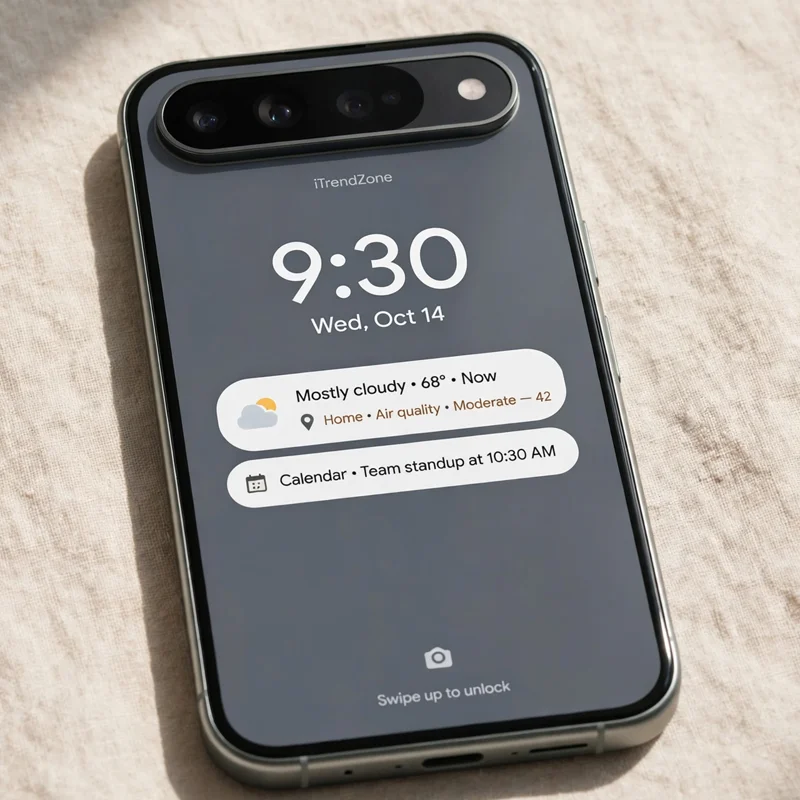
Sign-to-Text in Gboard and Live Transcribe
Here is a feature that deserves far more attention than it gets. The Pixel 11 can turn sign language into text, using a model Google calls SL2T. It works in Gboard and in Live Transcribe. Sign at the camera, and watch your words appear as text on screen. For deaf and hard-of-hearing users, and for anyone talking with someone who signs, this is a real bridge. It is not a party trick. It is a communication tool, and it runs on the phone itself thanks to the Tensor G6 chip.
To try it, open Live Transcribe and look for the sign-to-text option, or find it in Gboard settings. Point the front camera at the person signing, keep their hands in frame, and give it a second to lock on. It works best in good light, with a plain background behind the signer. Like all new tools, it is still improving. But it runs on-device, with no internet needed. That is a big deal. It is private, it is fast, and it works on a plane.
Live Translate for Videos, Podcasts, and Voice Messages
Live Translate used to be a phone-call feature. On the Pixel 11, it now works across videos, podcasts, and voice messages too. Watch a video in another language and get subtitles in yours. Listen to a podcast in Spanish and follow along in English. Get a voice message from a friend abroad and read the translation instead of guessing.
The trick is that it works on media playing on the phone, not just live calls. So open a video, turn on Live Translate, and the captions appear as the video plays. It is not flawless. Fast speech in slang can trip it up. But for everyday videos and messages, it is good enough to follow the story. I use it most on voice messages. Someone sends a two-minute voice note in a language I barely speak. Instead of playing it four times, I read the translation in seconds. Next, turn it on in Settings under the translation options. Then pick your languages, and download the language packs for offline use.
Magic Capture: Your Camera Thinks Before You Shoot
Magic Capture is one of those features that sounds like marketing until you see it work. When you take a photo, the camera analyses around 400 frames around the moment you press the shutter. Then it builds a 12MP photo from the best of them. It can auto-crop the shot, unblur a face, and even make a short video from the same burst. You press the shutter once, and the phone does the editing you used to do by hand.
Camera Looks: Nine Styles, No Editing App Needed
The Pixel 11 camera has nine built-in looks, and most people only ever see the default. The three defaults are Natural, Shadows, and Vanilla. Then there are six more: Digi, Black Tie, Minimal, Editorial, Classic, and Velvet. Each one changes the colour, contrast, and mood of the photo before you take it. Shoot a portrait in Velvet for a warm, soft feel. Or switch to Editorial for a punchy, magazine-style shot. For more hands-on impressions, read Android Authority’s Pixel 11 hands-on.
My advice is to pick one look and stick with it for a week. That way your photos start to feel consistent, like they came from the same camera, because they did. Digi is fun for a retro feel, and Black Tie is great for evenings out. But do not flip between looks every shot, or your photo library will look like nine different people took it. You can change looks in the camera app. You can also apply a different look after the fact, so a bad choice is never permanent.
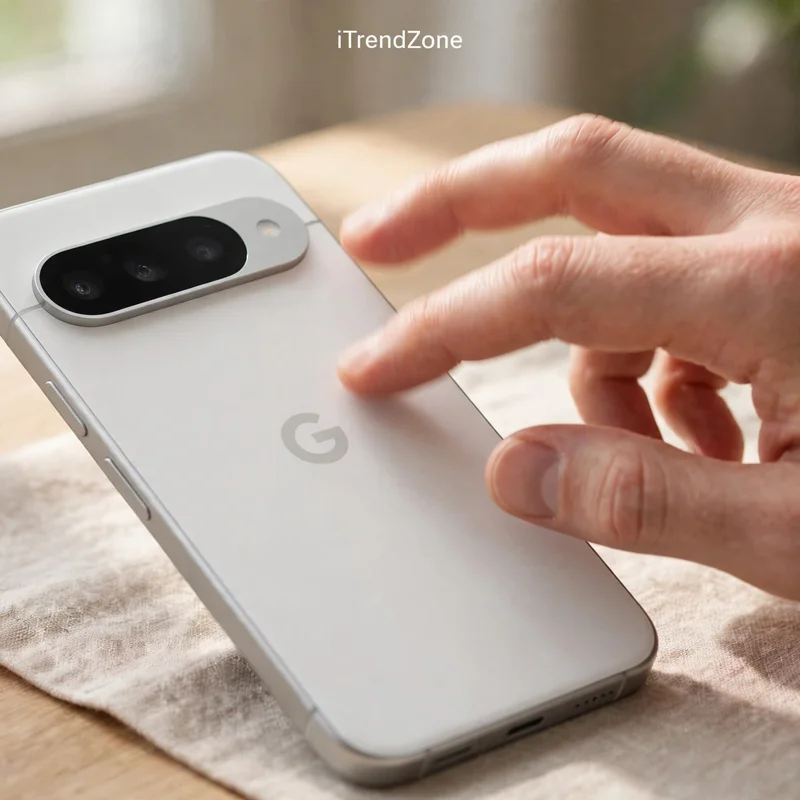
Instant Night Sight and the 30x Super Zoom
Night Sight on the Pixel 11 is much faster than before. Google calls it Instant Night Sight, and the difference is real. On older Pixels, a night shot meant holding still for several seconds while the phone gathered light. Now it is closer to a normal photo. You tap, you wait a moment, and you get a bright, clean shot. The Pro models are even faster, with Night Sight up to 4.5x faster than before.
Another camera trick worth knowing is Super Zoom. The Pixel 11 zooms up to 30x, and the Pro models go up to 120x with Pro Zoom. At 30x, you are not going to win awards. But you can read a sign across a field, or catch a bird on a fence. The trick is to hold the phone steady, or better yet, brace it against something solid. At high zoom, every tiny shake shows up. So use both hands, lean on a wall, and take two or three shots.
Pixel 11 Models at a Glance
The table below puts the three models side by side. It helps to know which features your model has. A few of the tricks in this guide only exist on the Pro models. The numbers here match GSMArena’s Pixel 11 review. That is a good second source if you want to double-check anything. And a quick note on the everyday stuff. The Pixel 11 gets seven years of OS and security updates. It is IP68 rated, and it ships with a 6-month Google AI Pro trial, so claim that early. It starts from setup day, not from when you remember to look for it. For the full battery story, read our Google Pixel 11 battery tips guide. And if you are still setting the phone up, our Google Pixel 11 setup guide walks through the first hour step by step.
| Feature | Pixel 11 | Pixel 11 Pro | Pixel 11 Pro XL |
|---|---|---|---|
| Price (US) | $899 (256GB) | $1,099 (256GB) | $1,299 (256GB) |
| Display | 6.3″ OLED, 1080×2424, 60-120Hz | 6.3″ LTPO OLED, 1280×2856, 1-120Hz | 6.3″ LTPO OLED, 1280×2856, 1-120Hz |
| Chip | Tensor G6 | Tensor G6 | Tensor G6 |
| Main camera | 48MP wide | 50MP main | 50MP main |
| Zoom | Super Zoom up to 30x | Pro Zoom up to 120x | Pro Zoom up to 120x |
| HiLight LED ring | No | Yes | Yes |
| Battery | 4,985mAh, 30W wired | 4,850mAh, 30W wired | 5,115mAh, 45W wired |
| RAM | 12GB | 12GB (16GB at 512GB/1TB) | 12GB (16GB at 512GB/1TB) |
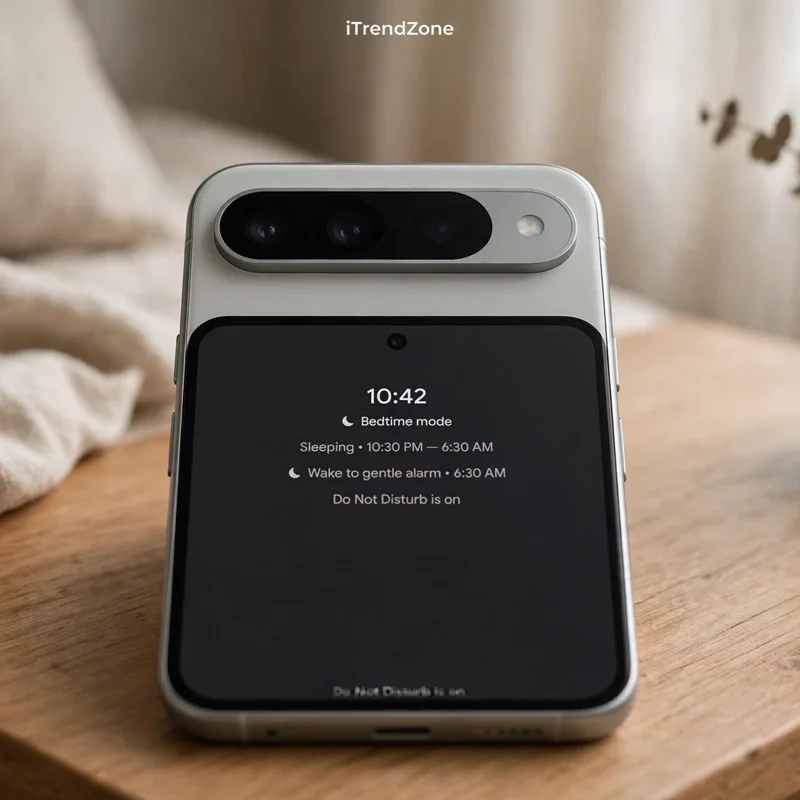
Hidden Features Worth Your Time, Ranked
Not all of these features matter equally, so here is how I would rank them by daily impact. Gemini multi-step tasks top the list, because they save real time. Rambler comes next, because it changes how you write messages. Magic Capture is third, because it rescues photos you would have deleted. Circle to Search in the camera is fourth, and Live Translate is fifth.
Daily impact of the top Pixel 11 hidden features
Gemini multi-step tasks: 9 out of 10
Rambler voice input: 8 out of 10
Magic Capture photo rescue: 8 out of 10
Circle to Search in camera: 7 out of 10
Live Translate on media: 7 out of 10
These scores are my own take, not a lab test. Your ranking will be different, and that is fine. So try all five. Keep the ones that fit your life, and turn off the ones that do not. A feature you never use is just clutter, even if it is clever. The best hidden features are the ones you forget are hidden. They just become part of how you use the phone.
Google Pixel 11 Hidden Features Quiz
Test what you learned. Pick one answer for each question.
1. Which Pixel 11 models have the HiLight LED ring?
A) Pixel 11 only
B) Pixel 11 Pro and Pro XL
C) All three models
D) Pixel 11 Pro Fold only
2. What does Rambler do?
A) It translates sign language
B) It zooms the camera to 120x
C) It charges the phone wirelessly
D) It strips filler words like “um” from voice input
3. How many frames does Magic Capture analyse around a shot?
A) Around 400 frames
B) Around 40 frames
C) Around 100 frames
D) Around 1,000 frames
4. Where does Circle to Search now work on the Pixel 11?
A) Only on the home screen
B) Only in the Chrome browser
C) Inside the Pixel Camera app
D) Only in Google Maps
5. How many years of OS and security updates does the Pixel 11 get?
A) 5 years
B) 7 years
C) 3 years
D) 10 years
Quiz answers: 1-B, 2-D, 3-A, 4-C, 5-B.
Turn on two or three of these tonight, and by next week you will wonder how you used a Pixel without them. For the bigger picture, start with our Google Pixel 11 tips complete guide. And if you want the full AI story, our Google Pixel 11 Gemini AI features guide goes deeper on everything Gemini can do.