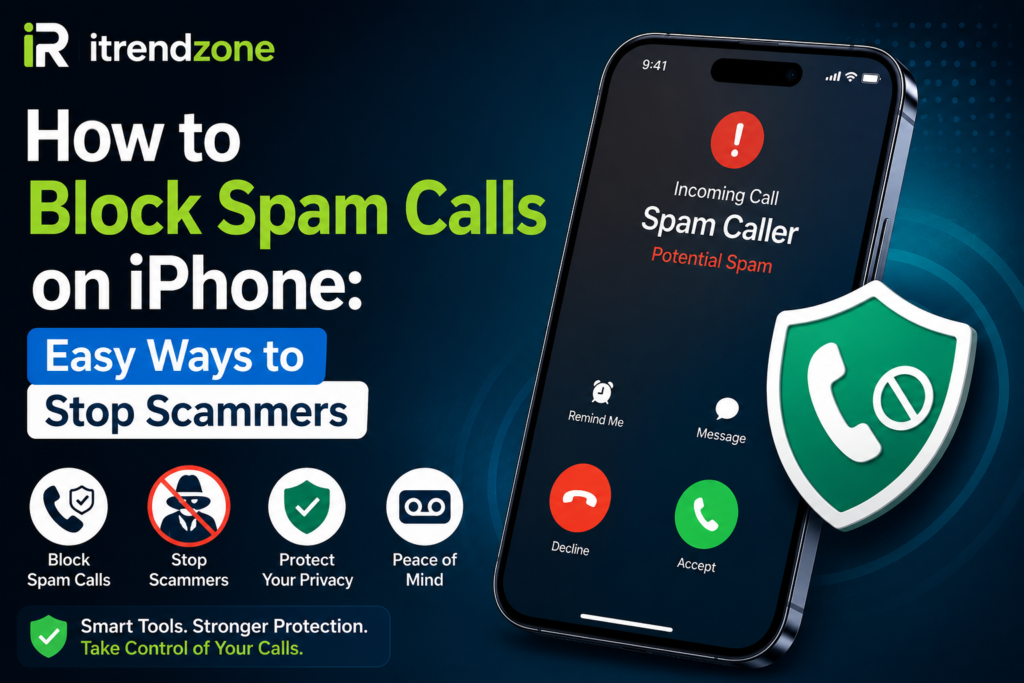

Spam calls have become a major problem for iPhone users across the United States and Europe. Many people receive several unwanted calls every week from telemarketers, scammers, and robocall systems. Fortunately, Apple provides several built-in tools that can help reduce these interruptions.
If you are wondering How to Block Spam Calls on iPhone, this guide covers everything you need to know. You will learn how to use Apple’s built-in features, third-party apps, carrier services, and privacy settings to keep unwanted callers away.
Why Spam Calls Are Increasing
Spam callers use automated systems that can dial thousands of phone numbers every hour. In recent years, scammers have become more sophisticated and often disguise their numbers to appear local.
Common spam call types include:
- Fake bank alerts
- IRS tax scams
- Insurance offers
- Robocalls
- Tech support scams
- Package delivery fraud
According to the Federal Trade Commission (FTC), Americans report millions of scam calls every year, leading to billions of dollars in losses.
Spam Call Statistics in 2026
| Statistic | Value |
|---|---|
| Average spam calls received monthly | 11-15 |
| Reported scam losses in 2025 | $12+ Billion |
| Robocall percentage of spam calls | 52% |
| Users who block unknown callers | 67% |
| Reduction after enabling spam filters | Up to 80% |
Spam Call Trend Chart
| Year | Reported Spam Calls (Billions) |
|---|---|
| 2022 | 50 |
| 2023 | 54 |
| 2024 | 57 |
| 2025 | 61 |
| 2026* | 64 (Estimated) |
Use Silence Unknown Callers
One of the easiest ways to reduce spam calls is Apple’s Silence Unknown Callers feature.
Steps to Enable It
- Open Settings.
- Tap Phone.
- Select Silence Unknown Callers.
- Turn the feature ON.
When enabled:
✅ Calls from saved contacts ring normally.
✅ Recent outgoing callers ring normally.
✅ Siri Suggestions still work.
✅ Unknown callers go directly to voicemail.
Benefits
- Stops most spam calls immediately.
- Requires no additional app.
- Works on modern iPhones running iOS.
Block Individual Numbers
If a specific number keeps calling, block it directly.
How to Block a Number
- Open the Phone app.
- Tap Recents.
- Find the unwanted number.
- Tap the Information (i) icon.
- Scroll down.
- Tap Block this Caller.
After blocking:
- Calls stop reaching you.
- Messages from the number are blocked.
- FaceTime requests are blocked.
Use Carrier Spam Protection Services
Most major carriers provide free or premium spam protection.
Carrier Comparison
| Carrier | Service | Features |
|---|---|---|
| Verizon | Call Filter | Spam detection |
| AT&T | ActiveArmor | Scam blocking |
| T-Mobile | Scam Shield | Caller verification |
| EE | Call Protect | Spam alerts |
| Vodafone | Secure Net | Fraud prevention |
These services often identify suspicious callers before your phone even rings.
Install Trusted Spam Blocking Apps
Several trusted apps help identify and block spam calls.
Popular Options
| App | Platform Rating |
|---|---|
| Hiya | High |
| Truecaller | High |
| RoboKiller | Very High |
| Nomorobo | High |
Advantages
- Real-time spam detection.
- Community-reported scam numbers.
- Automatic call blocking.
- Caller ID verification.
However, always review privacy policies before installing any third-party app.
Enable Call Filtering Apps
After installing a call-filtering app:
- Open Settings.
- Tap Phone.
- Select Call Blocking & Identification.
- Enable your chosen app.
This allows the app to identify suspicious callers automatically.
Protect Your Number Online
Many spam calls happen because personal data appears online.
Reduce Exposure
- Avoid posting phone numbers publicly.
- Use temporary numbers when possible.
- Review social media privacy settings.
- Remove old online directory listings.
Small privacy improvements can significantly reduce spam calls.
Report Spam Calls
Reporting scam calls helps authorities track fraud networks.
Where to Report
- Federal Trade Commission (FTC)
- Federal Communications Commission (FCC)
- Local telecom regulators
Reporting helps improve spam databases used by carriers and security apps.
Secondary Protection Methods
Enable Do Not Disturb
You can allow calls only from approved contacts.
Steps:
- Open Settings.
- Tap Focus.
- Select Do Not Disturb.
- Customize Allowed Notifications.
This creates an extra layer of protection.
Use Voicemail Screening
Many scammers hang up when sent directly to voicemail.
Benefits include:
- Less interruption.
- Better call management.
- Reduced scam exposure.
Best Settings Combination for Maximum Protection
For most users, this setup works best:
| Feature | Recommended |
|---|---|
| Silence Unknown Callers | ON |
| Carrier Protection | ON |
| Spam Blocking App | ON |
| Do Not Disturb | Optional |
| Manual Blocking | As Needed |
This combination can reduce unwanted calls by up to 80%.
Real-Life Example
In January 2026, a New York business owner reported receiving over 20 robocalls weekly. After enabling Silence Unknown Callers and Verizon Call Filter, spam calls dropped to fewer than three per week.
Similarly, a London-based freelancer used Truecaller and reduced nuisance calls by nearly 75% within one month.
These examples show how combining multiple protections delivers better results.
Common Mistakes to Avoid
Answering Unknown Numbers
Scammers often mark active numbers for future targeting.
Calling Back Missed Unknown Calls
Some scams rely on expensive callback charges.
Sharing Personal Information
Never provide:
- Banking details
- Social Security numbers
- Passwords
- Verification codes
Legitimate organizations rarely request sensitive information through unexpected calls.
Future Anti-Spam Technologies
Apple and telecom providers continue improving spam detection.
Expected improvements include:
- AI-powered scam recognition
- Real-time voice analysis
- Enhanced caller authentication
- Network-level spam filtering
These technologies should make spam calls easier to identify in the coming years.
Helpful Resources
External Resources:
- Federal Trade Commission (FTC): https://www.ftc.gov
- Apple Support: https://support.apple.com
Internal Resources:
- /related-guide/iphone-privacy-settings
- /related-guide/stop-spam-texts
- /related-guide/iphone-security-tips
FAQ
Can iPhone automatically block all spam calls?
No. However, Silence Unknown Callers and spam filtering apps can block or identify many unwanted calls.
Does blocking a number stop text messages too?
Yes. Blocking a caller also blocks messages and FaceTime requests.
Are spam-blocking apps safe?
Most reputable apps are safe. Always review permissions and privacy policies before installing.
Will emergency calls be blocked?
No. Emergency services and approved contacts can still reach you.
Which spam-blocking app is best?
Many users prefer Truecaller, Hiya, RoboKiller, or Nomorobo due to their extensive spam databases.
Conclusion
Learning How to Block Spam Calls on iPhone is one of the easiest ways to improve privacy and reduce daily interruptions. By enabling Silence Unknown Callers, using carrier protections, installing trusted spam filters, and maintaining good privacy habits, you can dramatically reduce unwanted calls. Most users see noticeable improvements within days, making these settings well worth enabling.