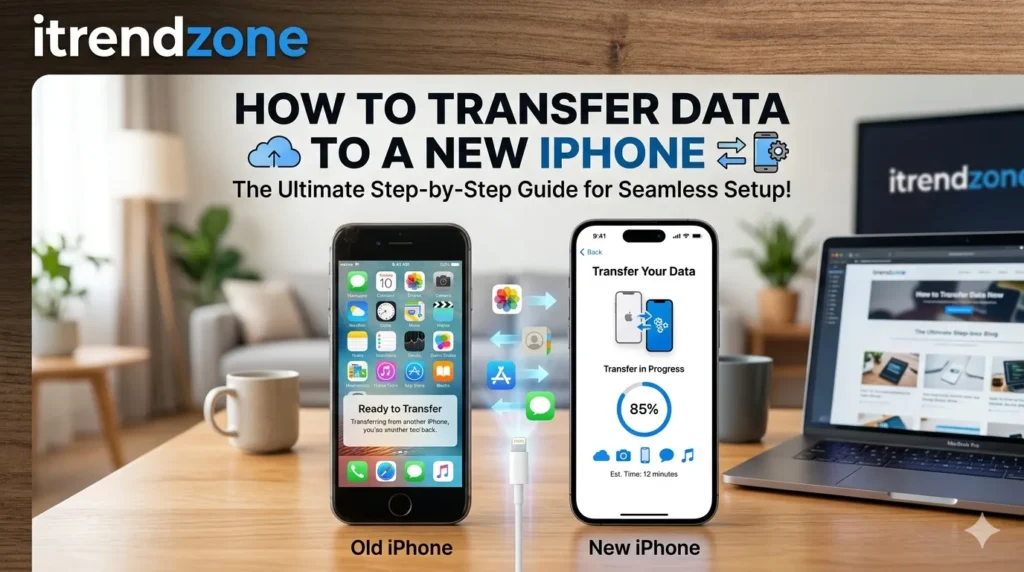

Buying a new iPhone brings exciting improvements in speed, camera quality, and battery life. However, many users worry about transferring important files from their old device. Fortunately, Apple provides several simple methods that make the process easy. As a result, photos, contacts, messages, and applications can move safely to the new phone.
During the past few years, Apple has improved its migration tools significantly. Consequently, transferring data now requires less technical knowledge than ever before. Whether you use Quick Start, iCloud, or a computer backup, the process remains straightforward. Most importantly, careful preparation helps prevent data loss.
For users upgrading from an older iPhone, selecting the right transfer method can save valuable time. Meanwhile, business professionals often prefer faster backup solutions for large amounts of data. Therefore, understanding each option allows you to choose the best approach for your needs.
Why Data Transfer Is Important
A successful transfer ensures that important information remains available immediately after setup. In addition, familiar settings help users feel comfortable with their new device. Without proper migration, valuable files may become difficult to recover. Therefore, investing a few minutes in preparation can prevent hours of frustration later.
Benefits of Proper Data Transfer
- Keeps contacts organized
- Preserves photos and videos
- Maintains app preferences
- Protects message history
- Saves passwords and settings
How to Transfer Data to a New iPhone with Quick Start
Quick Start remains the most popular transfer method in 2026. Because the process works wirelessly, users do not need additional software or cables. Furthermore, setup instructions appear automatically on the screen. Consequently, even first-time iPhone owners can complete the transfer successfully.
Step-by-Step Instructions
- Turn on the new iPhone.
- Place it near the old device.
- Wait for the Quick Start prompt.
- Scan the animation displayed on the new phone.
- Enter the old device passcode.
- Select Transfer from iPhone.
- Keep both devices connected until completion.
Why Quick Start Works Well
Unlike traditional backup methods, Quick Start copies information directly between devices. As a result, transfer times are often shorter. Moreover, settings, apps, and personal data move automatically. Therefore, most users consider it the easiest option available.
Using iCloud to Move Data
Some users prefer cloud-based transfers because they provide additional flexibility. For example, the old device does not need to remain nearby throughout the process. Instead, information restores from a previously created backup. Consequently, users can set up their new phone from almost any location.
Create an iCloud Backup
First, connect the old device to Wi-Fi. Next, open Settings and tap your Apple ID profile. After that, select iCloud Backup and choose Back Up Now. Once the backup finishes, your data becomes available for restoration.
Restore the Backup
During setup, select Restore from iCloud Backup. Then sign in using the same Apple ID. Afterward, choose the most recent backup. Within a short time, files begin downloading automatically.
Transfer Methods Comparison
| Method | Ease of Use | Speed | Best Choice For |
|---|---|---|---|
| Quick Start | Excellent | Fast | Most Users |
| iCloud Backup | Very Good | Medium | Wireless Setup |
| Mac Backup | Good | Fast | Large Libraries |
| PC Backup | Good | Fast | Windows Users |
Common Problems During Transfer
Although most transfers finish successfully, occasional issues can occur. Nevertheless, simple troubleshooting steps usually solve these problems quickly. Furthermore, understanding the causes helps reduce delays.
Transfer Process Stuck
Sometimes the progress bar appears frozen. In many cases, weak Wi-Fi signals cause the delay. Therefore, moving closer to the router may help. Alternatively, restarting both devices often resolves temporary software glitches.
Apple ID Verification Issues
Incorrect passwords frequently prevent successful verification. Before trying again, confirm that your internet connection remains stable. Additionally, check whether two-factor authentication requires approval. Once verification succeeds, the transfer typically continues normally.
Not Enough Storage
A new iPhone must have enough available capacity for incoming files. Consequently, users should compare storage requirements before beginning the migration process. If necessary, remove unnecessary content from the old device first.
What Transfers Automatically?
Most personal information transfers without additional effort.
Included Data
| Data Type | Transfers Automatically |
| Contacts | Yes |
| Photos | Yes |
| Videos | Yes |
| Messages | Yes |
| Notes | Yes |
| Settings | Yes |
| App Data | Usually |
| Health Information | Yes |
Items Requiring Login Again
- Banking apps
- Email services
- Corporate accounts
- Security applications
Therefore, keeping login credentials available can save time during setup.
Transfer Time Estimates
The amount of stored data directly affects transfer duration.
| Storage Amount | Average Time |
| 32GB | 10–20 Minutes |
| 64GB | 20–30 Minutes |
| 128GB | 30–60 Minutes |
| 256GB | 45–90 Minutes |
| 512GB | 1–3 Hours |
While modern Wi-Fi technology improves speed, larger photo libraries still require additional time. Nevertheless, most transfers finish within a few hours.
Security Tips During Migration
Protecting personal information should remain a top priority. Therefore, avoid public Wi-Fi networks whenever possible. Instead, use a trusted home or office connection. Additionally, verify Apple ID credentials carefully before entering sensitive information.
Recommended Practices
- Enable two-factor authentication.
- Install the latest iOS updates.
- Create a backup before transferring.
- Use secure networks.
- Confirm device ownership.
As a result, personal data remains protected throughout the process.
Helpful Internal Resources
- /related-guide
- /iphone-backup-guide
- /ios-tips-guide
Frequently Asked Questions
Can I transfer data without iCloud?
Yes. Quick Start, Mac backups, and Windows backups work without iCloud.
How long does the process take?
Transfer times range from 10 minutes to several hours depending on storage size.
Will photos move automatically?
Yes. Supported transfer methods include photos, videos, and related metadata.
Do applications transfer to the new device?
Most apps reinstall automatically. However, certain applications may require a new login.
Is Quick Start better than iCloud?
For most users, Quick Start provides the fastest and simplest experience.
Conclusion
Learning how to transfer data to a new iPhone has become much easier thanks to modern migration tools. Moreover, Apple continues to improve transfer speeds and reliability with every iOS update. Whether you choose Quick Start, iCloud, or a computer backup, each method can move important information safely. Consequently, careful preparation and a stable connection help ensure a smooth transition to your new device.