
iPhone Camera Not Working: Complete Fix Guide for iOS 26 and iPhone 16 and iPhone 17
When your iPhone camera not working problem appears at the worst moment, it rarely feels like a small glitch. You open the Camera app to capture a birthday, a receipt, or a sunset, and instead you see a black screen, a frozen viewfinder, or a blurry image that never sharpens. The good news is that most iPhone camera problems in 2026 are software problems, settings problems, or simple obstructions, and they can be fixed at home in a few minutes. A smaller number are hardware faults, and those need professional help, not a do-it-yourself repair. This guide walks you through every fix in the right order, from thirty-second checks to deeper resets and the point where you should contact Apple Support. It covers iOS 26, iPhone 17, iPhone 17 Pro, iPhone 16, iPhone 16 Pro, and older models that still run iOS 26, including the front camera, the rear cameras, the flash, Portrait mode, Night mode, and video recording.
TL;DR: If your iPhone camera is not working, first remove the case, clean the lens, force-quit the Camera app, and restart your iPhone. Then test the front and rear cameras separately, check for an iOS 26 update, free up storage, and check Camera permissions and restrictions. If the screen stays black, the app keeps crashing, or photos stay blurry after a clean lens and a restart, reset all settings. Do not open the phone yourself. If the camera still fails, or the lens is cracked, the phone has water damage, or the camera rattles, book authorised Apple service.
Why Your iPhone Camera Stops Working
An iPhone camera is not one part. It is a chain: the lens, the sensor, the stabilisation system, the flash, the Camera app, the iOS camera framework, your storage, and your settings. When any link fails, the whole camera can stop. A black screen often points to the app or to iOS. A blurry photo often points to the lens, the focus system, or a case that blocks part of the camera. A flash that will not fire often points to overheating, a setting, or Low Power Mode. A camera that works in one app but not another often points to permissions.
Quick Fixes to Try First in Two Minutes
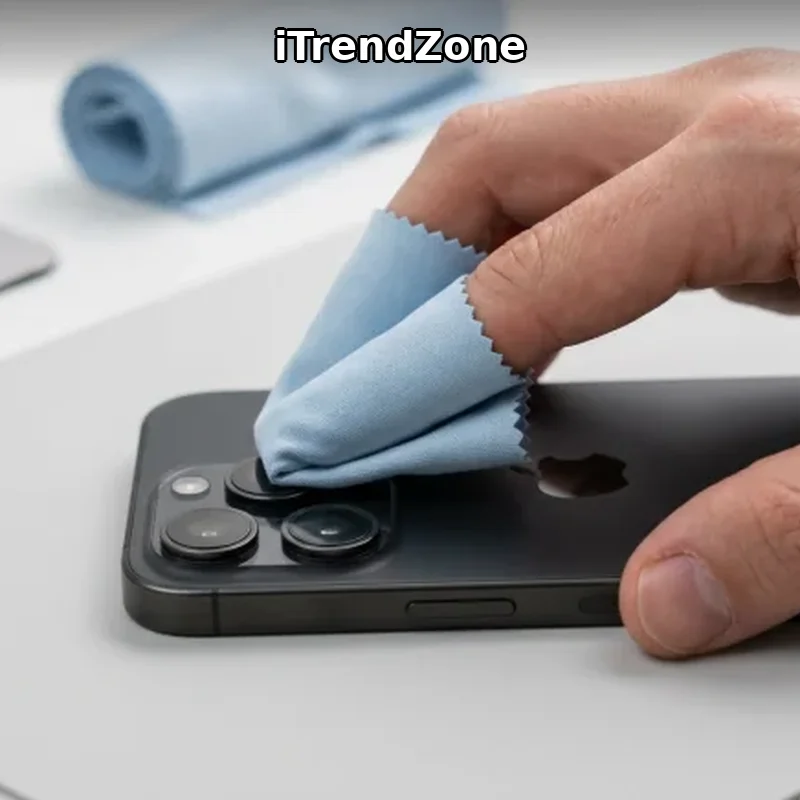
Try these quick fixes before you change any settings. First, remove your case and any lens protector, then clean the front and rear lenses with a soft, lint-free cloth. A fingerprint, sunscreen, or a misaligned lens protector is one of the most common causes of blurry photos, and a case that covers part of the lens can cause a dark corner or a failed focus. Second, force-quit the Camera app and open it again. Third, restart your iPhone. Fourth, switch between the front and rear cameras, and between Photo and Video, so you can see whether the fault affects one camera or every mode. Fifth, check that you have at least 2 GB of free storage, because an iPhone with almost no free space can refuse to save photos and can make the Camera app freeze.
Also check the simple things that are easy to miss in a hurry. Make sure nothing is covering the lens with a finger, a magnetic wallet, or a mount. Make sure the phone is not overheated from direct sunlight, a car dashboard, or a long video recording, because iOS can disable the flash and slow the camera when the phone is too hot. Make sure the camera is not being used by another app, such as a video call or a scanner, because only one app can control the camera at a time in most cases.
Test the Camera the Right Way
Test the camera in Photo mode, Video mode, and Portrait mode, with the front and rear cameras. Take a photo of a well-lit subject about one metre away, then a distant subject, then a short video. If the rear camera is black but the front camera works, the fault is probably specific to the rear camera module. If every mode is black, the fault is more likely in the Camera app, iOS, or a system-wide setting. If photos are sharp in bright light but blurry in low light, focus and Night mode are more likely than a broken sensor. For a full overview of each mode, read our iPhone Camera Complete Guide.
Diagnose the Problem: Symptoms and Most Likely Causes
Use the table below to match your symptom to the most likely cause and the first fix to try. This table reflects the iOS 26 and iPhone 16 and iPhone 17 era, including Camera Control and Photographic Styles. If your symptom matches more than one row, try the fixes in the order listed and test the camera after each one.
| Symptom on iOS 26 | Most likely cause | First fix to try | When to seek service |
|---|---|---|---|
| Black screen in Camera app | App crash, iOS bug, or blocked permission | Force-quit Camera, restart iPhone, update iOS 26 | Black in every app after restart and update |
| Camera freezes or closes | Low storage, corrupt data, or overheating | Free storage, close background apps, let phone cool | Freezing continues with 5 GB free and latest iOS |
| Blurry or out-of-focus photos | Dirty lens, case obstruction, or focus lock | Clean lens, remove case, tap to focus | Blur persists on both cameras after cleaning |
| Flash will not fire | Overheating, Low Power Mode, or flash off | Cool phone, turn off Low Power Mode, check flash | Flash fails when cool, charged, and enabled |
| Front camera only fails | Screen protector or app permission | Clean top of screen, test in Apple Camera app | Front camera black and Face ID also fails |
| Rear camera only fails | Lens damage or stabilisation fault | Clean lens, test each rear lens, restart iPhone | One rear lens black, rattling, or cracked glass |
| Photos will not save | Storage full or iCloud Photos problem | Free at least 2 GB, check iCloud storage | Photos vanish after freeing storage and restarting |
| Camera works in one app only | App permission or third-party app bug | Check Privacy camera access, update the app | Apple Camera also fails in the same way |
Chart: What Usually Causes an iPhone Camera to Stop Working
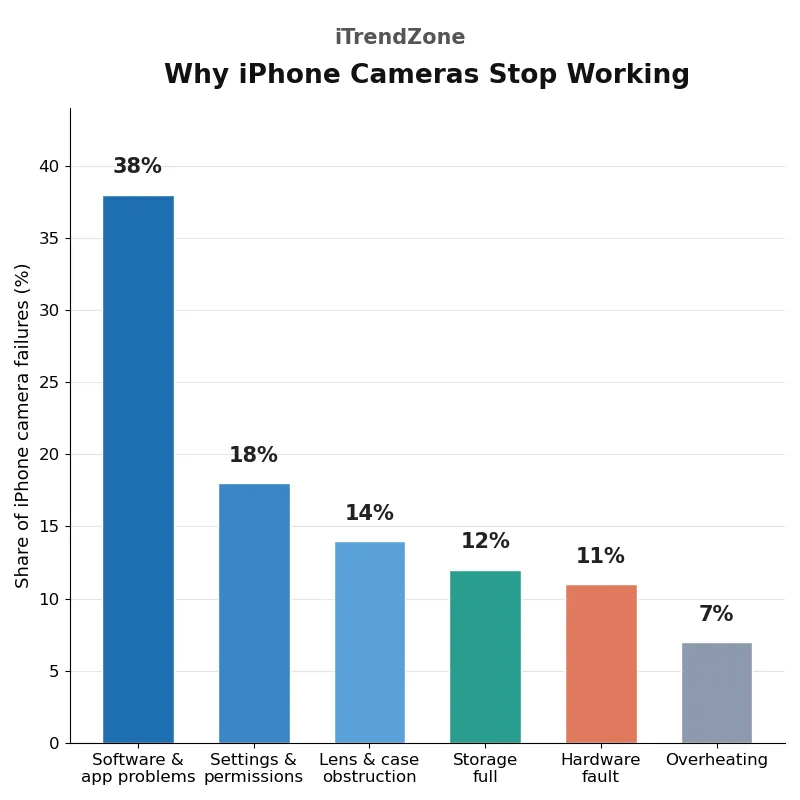
The chart below shows the approximate share of iPhone camera problems by cause, based on the pattern described across Apple Support troubleshooting pages, repair guidance, and common support reports for iOS 26 and iPhone 16 and iPhone 17 models in 2026. Software and app problems are the largest group, at about 38 percent. Settings and permission problems account for about 18 percent, including camera access turned off, a restriction, a Focus mode, or a flash setting that makes the camera behave unexpectedly. Lens, case, and obstruction problems account for about 14 percent, and storage problems for about 12 percent. True hardware faults, including a damaged lens or a failed stabilisation unit, account for about 11 percent. Overheating and battery-related limits account for the remaining 7 percent.
iPhone Camera Black Screen: How to Fix It
A black screen is the most worrying symptom, because it looks like the camera has died. In most cases it has not. A black viewfinder usually means the Camera app has not received a live image, and the most common reasons are a temporary app crash, an iOS camera process that has stalled, or a permission that blocks the camera. Force-quit the Camera app: on an iPhone with Face ID, swipe up from the bottom and pause, then swipe the Camera preview up; on an iPhone with a Home button, double-press the Home button and swipe the preview up. Open the Camera app again and wait three seconds. If the screen is still black, switch to the front camera, then back to the rear camera, because that forces iOS to restart the camera feed.
If the black screen continues, restart your iPhone. On iPhone 16 and iPhone 17 models, press and quickly release volume up, press and quickly release volume down, then press and hold the side button until the Apple logo appears. After the restart, open the Camera app before any other app, so no other app can claim the camera first. Next, test the camera in another app, such as FaceTime. If it works in FaceTime but not in the Camera app, the Camera app itself is the problem. If it is black in every app, the problem is system-wide. Also check for a software update, because Apple regularly fixes camera bugs in iOS updates. You can read the official advice in Apple Support guidance for an iPhone camera that is not working.
Black Screen After an iOS 26 Update
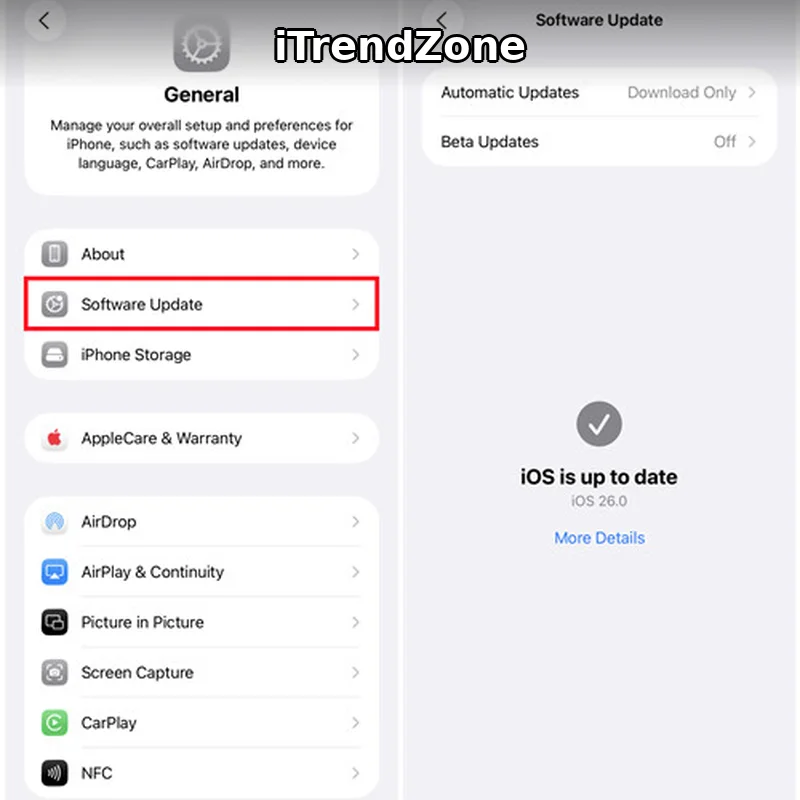
If the black screen started right after you installed iOS 26, restart the phone, then check Settings, General, and Software Update for a newer version, because Apple often releases a small fix within days of a major release. Update your apps as well, especially third-party camera and social media apps, because an old app can conflict with a new iOS camera framework. If the black screen affects only one third-party app, delete and reinstall that app, then check its camera permission again.
Camera App Freezes, Lags, or Keeps Crashing
A camera that opens but freezes or closes is usually struggling with resources. Close apps you do not need, especially video and navigation apps, then check Settings, General, and iPhone Storage. If you have less than 2 GB free, the Camera app may freeze when it tries to save a photo or video. Delete large videos you have backed up, remove unused apps, and aim for at least 5 GB free if you record video regularly, because a minute of 4K video can use hundreds of megabytes. Overheating is the second major cause: if the phone feels hot, move it out of sunlight, remove the case, stop recording, and let it cool for ten minutes. Our iPhone Camera Settings Guide explains these recording options.
Blurry Photos and Camera That Will Not Focus
Clean both lenses with a soft, lint-free cloth, using gentle circular movements. Do not use paper towels or your shirt, because they can scratch the lens coating, and do not spray cleaner directly onto the lens. If you use a screen or lens protector, check that it is aligned and not peeling, because a protector that covers part of the lens can cause a permanent soft spot. Remove the protector and the case for a test photo. Next, open the Camera app, point it at a subject about one metre away in good light, and tap the subject. You should see a yellow focus box and the image should sharpen. If the camera hunts for focus and never locks, move to a brighter place and move slightly further from the subject, because close subjects and very dark scenes are hard for any phone camera.
If photos are blurry on both cameras, in good light, after cleaning, check that you have not left a filter, a Photographic Style, or a Portrait depth effect that softens the image. Take a plain Photo mode picture with no filter and no zoom for comparison. For Portrait photos, a blurry background is intentional, but a blurry face is not, so read our iPhone Portrait Mode Guide if Portrait mode is the only mode that looks wrong. If the rear camera rattles when you shake the phone gently, or the image shakes even when the phone is still, the stabilisation unit may be damaged, and that is a hardware fault that needs authorised service.
Flash Not Working on iPhone
Check the setting first. Open the Camera app, tap the flash icon, and make sure it is set to Auto or On, not Off. If the flash is set to Auto, it will only fire when the scene is dark enough, so test it in a dim room, not in bright daylight. Check Low Power Mode in Settings, Battery, because it can limit the flash, and check whether the phone is hot, because iOS disables the flash when the phone overheats. If the flash works as a torch from Control Centre but not in the Camera app, the problem is in the app or its settings: force-quit the Camera app, restart the phone, and test again in Photo mode. If the torch does not work either, restart the phone and check for an iOS update. If the flash still fails when the phone is cool, charged above 20 percent, out of Low Power Mode, and running the latest iOS, the flash unit may be damaged, especially after a drop. Do not try to replace it yourself.
Front Camera Not Working but Rear Camera Works
Clean the top of the screen where the front camera and Face ID sensors sit. A dirty screen protector or a case that covers the top edge can block the front camera and make selfies dark or blurry. Remove the screen protector for a test if you suspect it. Test the front camera in the Apple Camera app, then in FaceTime, then in a third-party app. If it works in FaceTime but not in a social media app, that app has lost camera permission, and you can fix it in Settings, Privacy and Security, Camera. Also test Face ID in Settings, Face ID and Passcode. If Face ID also fails, the fault is more likely in the front sensor assembly than in a single app, and that needs professional diagnosis.
Rear Camera Not Working but Front Camera Works
Test each rear lens separately. On iPhone 16 Pro and iPhone 17 Pro models, tap 0.5x for ultra-wide, 1x for the main camera, and 2x or 5x for telephoto, and take a photo with each one. If only one lens is black or blurry, that lens or its stabilisation unit is the likely fault. If all rear lenses are black, the rear camera module, its connection, or iOS may be at fault. Check the rear lens glass in good light for a crack, a chip, or fog inside the lens. A cracked lens can let dust and moisture reach the sensor, so do not ignore a small crack. If you see moisture, do not use a hair dryer, do not put the phone in rice, and do not open the phone. Let it dry naturally, back up your data, and contact Apple Support if the fog does not clear. A rattling camera may have a damaged stabilisation unit and needs authorised service.
Force-Quit, Restart, and Update iOS 26
Force-quitting, restarting, and updating are the core software fixes, because they clear the temporary state that can keep the camera stuck. Force-quit the Camera app and any other app that was using the camera, then restart the iPhone normally by holding the side button and a volume button, dragging the power slider, waiting thirty seconds, and turning the phone on again. Use a force restart only if the phone is unresponsive. After a restart, check Settings, General, and Software Update, connect to Wi-Fi, plug the phone into power, and install any update. Do not interrupt an update. Apple regularly fixes camera bugs in iOS updates, and a black screen after a major update is often fixed by a follow-up release. You can check the official restart steps in Apple Support instructions for restarting your iPhone and the official update steps in Apple Support guidance on updating your iPhone software.
Free Up Storage and Reset Settings
A camera that takes a photo but does not save it is often a storage problem. Go to Settings, General, and iPhone Storage. If you have less than 2 GB free, delete videos you have backed up, remove unused apps, and aim for at least 5 GB free if you record video. Check iCloud storage too, in Settings, tap your name, then iCloud, because a full iCloud account can stop photos syncing. If storage does not help, reset all settings in Settings, General, Transfer or Reset iPhone, Reset, and Reset All Settings. This resets Wi-Fi passwords and system preferences but does not delete photos, apps, or messages. Test the camera before you change other settings. Do not choose Erase All Content and Settings unless you have a full backup, because it erases the phone. That step is a last resort, best done with Apple Support guidance.
Camera Permissions, Screen Time, and Third-Party Apps
A camera that works in one app but not another is almost always a permission problem. Go to Settings, Privacy and Security, Camera, and turn camera access on for the app that is failing, then force-quit that app and open it again. If the app is not listed, open it and try its camera, because iOS should then ask for permission. Screen Time can also block the camera: go to Settings, Screen Time, Content and Privacy Restrictions, and Allowed Apps, and make sure Camera is allowed. If Camera is turned off there, the app disappears from the Home Screen, which looks like a camera failure. A Focus mode can hide or limit the app too, so turn Focus off and test again. If a third-party camera app is the only one failing, update it, delete it, restart the phone, and reinstall it from the App Store. For more on how camera shortcuts and Focus interact, read our iPhone Shortcuts Focus Mode guide and our iPhone Shortcuts Photos and Camera guide. For video and low-light modes that can also be affected, see our iPhone Night Mode Guide and our iPhone Cinematic Mode Video Guide.
Hardware Checks: Drops, Water, Heat, and the Camera Control Button
Check the phone for physical damage before you assume the camera is broken. Look for a cracked lens, a dent near the camera, or a loose camera module. Check whether the phone was dropped, exposed to rain, or left in a humid bathroom. iPhone 16 and iPhone 17 models have water resistance, but that resistance can weaken after a drop or a repair, and it does not make the phone waterproof. If the phone was submerged, back up your data, do not charge it until it is dry, and seek service. On iPhone 16 and iPhone 17 models, test the Camera Control button too, because a stuck or damaged button can open the camera and change settings unexpectedly. Our iPhone Camera Control Button Guide explains its settings. Never open the phone yourself to check the camera, the battery, or a connector. Opening the phone can damage the camera, break water resistance, and void warranty or AppleCare cover.
When to Contact Apple Support
Contact Apple Support if the camera stays black in every app after a restart, an iOS update, and a settings reset, if photos stay blurry on both cameras after cleaning, if the flash fails when the phone is cool and charged, if the camera rattles or the image shakes, or if Face ID fails at the same time as the front camera. Also seek service if the lens is cracked, if you see moisture inside the lens, or if the phone was dropped or submerged. Before you contact support, note your iPhone model, your iOS version, and which cameras and modes fail, and back up your data. Apple can run remote diagnostics, guide you through a restore, or book a repair. You can check repair options in Apple iPhone repair service information, and you can compare current models in Apple iPhone 17 information if you are deciding whether a repair or a replacement makes more sense. For editing and saving the photos you do manage to take, see our iPhone Photo Editing Guide, and for Live Photos, see our iPhone Live Photos Tips Guide. If you use Siri voice commands with the camera, our iPhone Siri Shortcuts Voice Commands guide may help, and our iPhone Shortcuts Complete Guide covers automation that can open the camera hands-free.
How to Prevent iPhone Camera Problems
Prevent most camera problems with a few habits. Keep the lens clean, keep at least 5 GB of storage free, install iOS updates promptly, and use a case that does not cover the lens. Avoid leaving the phone in direct sunlight, on a car dashboard, or in a hot car, and avoid recording very long 4K videos without a break. Back up photos regularly, so a camera fault never risks your memories. Use only a soft cloth to clean the lens, and replace a peeling screen or lens protector promptly.
Frequently Asked Questions
Why is my iPhone camera showing a black screen?
A black screen is usually caused by a Camera app crash, a stalled iOS camera process, or a blocked permission. Force-quit the Camera app, restart the iPhone, and check for an iOS 26 update. If it stays black in every app after those steps, reset all settings, then contact Apple Support.
Why are my iPhone photos blurry all of a sudden?
Sudden blur is usually a dirty lens, a misaligned protector, a case blocking the lens, or a focus lock. Clean the lens, remove the case and protector, tap to focus, and test in good light. If blur persists on both cameras, the stabilisation unit or the lens may be damaged.
Will resetting all settings delete my photos?
No. Reset All Settings does not delete photos, apps, or messages, but it does reset Wi-Fi passwords and system preferences. Erase All Content and Settings is different: it erases the phone, so only use it after a full backup.
References
Apple Support. iPhone camera and flash troubleshooting guidance. Apple Support. Restart your iPhone. Apple Support. Update your iPhone software. Apple. iPhone 17 information. Apple. iPhone repair service information. Apple Developer Documentation. Camera capture setup with AVFoundation. iTrendZone. iPhone Camera Complete Guide.
Quiz: Test What You Learned
1. What is the first thing you should do when your iPhone camera shows a black screen?
A. Open the phone and check the camera cable
B. Force-quit the Camera app and restart the iPhone
C. Erase all content and settings immediately
D. Put the phone in rice overnight
2. How much free storage should you aim for before you record video regularly?
A. Less than 500 MB
B. About 1 GB
C. At least 2 GB, and ideally 5 GB
D. Storage does not affect the camera
3. Your rear camera is black but the front camera works. What does this most likely mean?
A. The fault is specific to the rear camera or its connection
B. Your Apple Account is locked
C. Your Wi-Fi password is wrong
D. Your screen brightness is too low
4. What should you do if the flash will not fire and the phone is hot?
A. Put the phone in a freezer
B. Keep recording video until it cools
C. Spray water on the phone
D. Let the phone cool naturally in the shade and turn off Low Power Mode
5. When should you contact Apple Support for a camera problem?
A. After a restart, update, and settings reset have all failed
B. Before you try any fix at all
C. Only if the phone is out of warranty
D. Only on a weekend
Quiz Answers: 1-B, 2-C, 3-A, 4-D, 5-A.