

iPhone Shortcuts Photos: Capture, Edit and Share Faster on iOS 26
Your iPhone camera is always in your pocket, yet most people still open the Camera app, hunt for the right mode, take a picture, open Photos, edit it, resize it, and then share it one slow step at a time. That familiar routine wastes seconds at the exact moment a photo matters most, and it turns simple jobs such as making a collage or backing up a weekend of pictures into a chore that never quite gets done.
TL;DR
- iPhone Shortcuts Photos workflows let you open the camera in Portrait, Night, Burst or Live Photo mode with one tap, one voice command, or one Action Button press.
- Build simple shortcuts first for quick capture, batch resize, format conversion, background removal, collages, albums, sharing, saving to Files, and wallpaper changes.
- Use Apple Photos actions inside Shortcuts for edits, and combine them with Camera Control on iPhone 16 and iPhone 17 for faster control before you shoot.
- Keep originals safe by backing up photos to iCloud Photos or Files before any shortcut deletes, converts, or overwrites an image.
- Test every shortcut with a small batch of duplicate photos first, then add it to your Home Screen, a widget, Siri, or an automation.
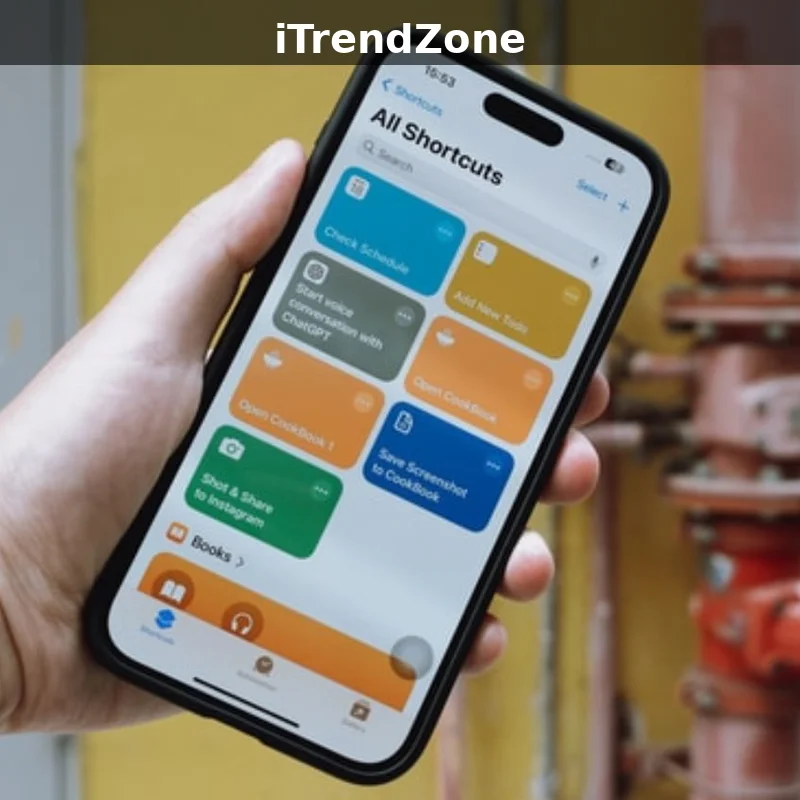
Why Photo Shortcuts Matter More in November 2026
The iPhone camera has become far more capable in recent years, and iOS 26 brings that capability together in a cleaner, more consistent system. Photographic Styles, improved Portrait controls, stronger Night mode, Live Photos that feel more alive, and a Photos app that is easier to search all mean that the quality ceiling is higher than ever.
There is also a practical benefit that is easy to overlook. A good photo shortcut is repeatable in a way that manual editing never is. This guide follows the same approach as our main iPhone Shortcuts complete guide, which explains the foundations of the Shortcuts app, and then applies those foundations specifically to photos and the camera.
What You Need Before You Start
Before you build your first photo shortcut, take five minutes to prepare your iPhone so that nothing surprises you later. First, make sure you are running iOS 26 and that the Shortcuts app is installed.
It also helps to understand the three building blocks that almost every photo shortcut uses. The first block is input, which is how the shortcut gets photos.
How the Shortcuts App Handles Photos on iOS 26
The Shortcuts app on iOS 26 groups photo actions in a way that is much easier to browse than it was in earlier versions. When you tap the plus button to create a new shortcut and search for Photos, you will see actions for selecting photos, taking a photo, saving to a photo album, and finding photos that match a search.
Permissions deserve attention here, because photo shortcuts touch your most personal content. The first time a shortcut accesses Photos, iOS 26 will ask whether it may access all photos, a limited selection, or none. Apple provides helpful documentation in its Shortcuts user guide, which explains how actions, triggers, and permissions work together on iPhone.
Camera Actions and Photo Actions Explained
Camera actions and photo actions sound similar, but they do different jobs, and mixing them up is a common beginner mistake. A camera action opens the Camera app or takes a photo, so it is about capturing a new image.
Another useful distinction is between actions that show you a preview and actions that run silently. A select photos action shows a picker so you can choose images by hand, which is ideal when every batch is different. Our companion ideas for a morning routine shortcut use the same pattern, gathering the day ahead first and then letting you choose what to act on.
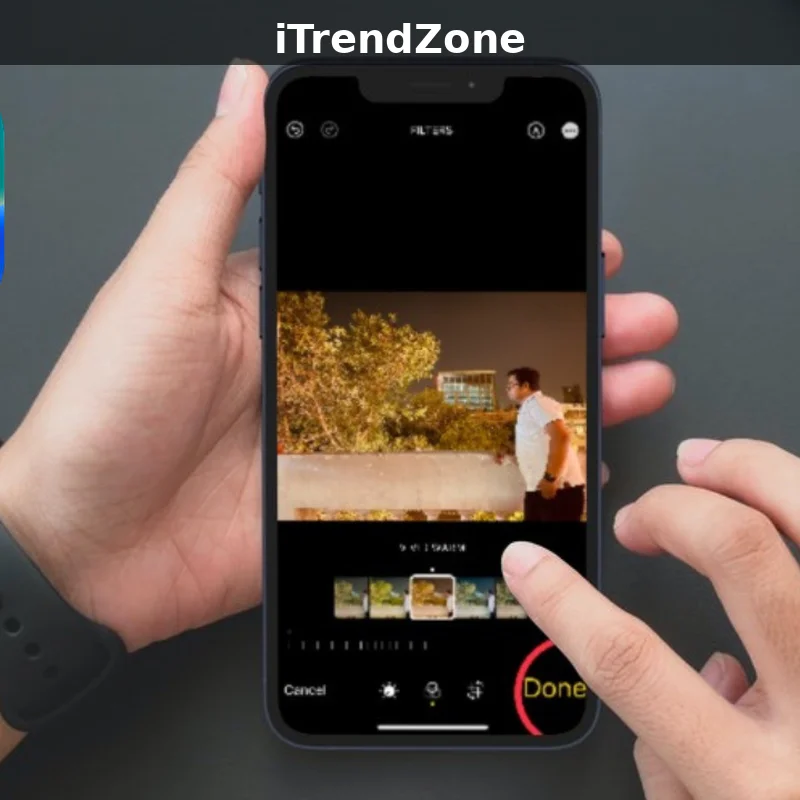
Quick Capture Shortcuts That Never Miss the Moment
The most valuable photo shortcut is often the simplest one: a shortcut that opens the camera in exactly the right mode, with no extra taps. To build it, open Shortcuts, tap the plus button, search for Open Camera, and choose the mode you want.
Quick capture becomes even more powerful when you add a small amount of preparation to the shortcut. For example, a shortcut called Street Photo could open the camera in Photo mode, set the volume buttons to act as a shutter, and then show a brief reminder to check the light.
Using Siri and Voice Commands for Hands-Free Photos
Voice control is the most underused way to trigger a photo shortcut, and it is the most useful when your hands are busy. Give every photo shortcut a short, distinct name that Siri can hear clearly, such as Take Portrait, Scan Receipt, or Photo Burst. You can also combine Siri with Siri shortcut ideas that chain several steps together, such as taking a photo and then sending it to a family member, so that one spoken phrase completes a task that would otherwise take a minute of tapping.
For even faster hands-free capture, combine a Siri phrase with a widget or a Lock Screen control. A widget gives you a visible button for your most used photo shortcut, while a Lock Screen control lets you trigger it without unlocking your phone. If you want more ideas for placing shortcuts where you can reach them, our guide to shortcut widgets shows how to build a photo widget stack that keeps capture, editing, and sharing within one swipe.
Burst Mode, Live Photos and Motion Shortcuts
Burst mode and Live Photos solve the same problem in different ways. Burst mode takes many still photos in rapid succession, so you can choose the sharpest frame later.
There are several practical shortcuts that make Burst and Live Photos more useful in everyday life. A Sports Burst shortcut is ideal for children playing football, pets running in a park, or friends jumping into a pool.
Motion also matters for memories. A Live Photo of a birthday candle being blown out or a first step across a room is more evocative than a still image, because it contains sound and movement. Apple explains how Live Photos work and how to change their key photo in its support pages for Live Photos on iPhone, which is a useful reference when you are designing these shortcuts.
Choosing the Best Frame Without the Scroll
Choosing the best frame from a burst can feel like work, but a shortcut can narrow the choice to two or three strong candidates. Start by opening the burst in Photos and marking the frames you like as favourites.
Portrait Mode Shortcuts for Better People Photos
Portrait mode remains one of the most popular reasons to pick up an iPhone, because it turns an ordinary snapshot into a photo that looks deliberate. The challenge is that Portrait mode has settings that are easy to miss. Our detailed guide to iPhone Portrait mode tips explains how depth and lighting interact, and it pairs well with the shortcuts in this section.
Portrait shortcuts are also useful after the photo is taken. A Portrait Polish shortcut can find your most recent Portrait photo, adjust its depth to blur the background a little more, apply your favourite Photographic Style, and save a copy to a Portraits album while keeping the original untouched.
Group portraits benefit from shortcuts too. A Family Portrait shortcut can open the camera in Portrait mode, set a three-second timer so you can join the group, take the photo, and then show it on screen so everyone can check it before you move on.
Depth, Lighting and Photographic Styles as Presets
Think of depth, lighting, and Photographic Styles as three dials that you can save as a preset inside a shortcut. Depth controls how blurred the background looks, and a little blur is often better than a lot, because too much blur can make hair and glasses look cut out.

Night Mode Shortcuts for Low Light Photos
Night mode is remarkable when it works, and frustrating when it does not, because it needs a steady hand and a few seconds of patience. A Night shortcut can help by preparing you and your iPhone before you shoot. For a deeper look at the camera settings behind these ideas, read our guide to iPhone Night mode photography.
There are several Night shortcuts worth building for different situations. A City Night shortcut is ideal for streets, skylines, and lit buildings.
Night mode also benefits from combining capture with editing. A Night Polish shortcut can find your most recent Night photo, reduce noise slightly, increase sharpness a little, and save a copy to a polished album.
Photo Editing Shortcuts Inside the Shortcuts App
Many people assume that serious photo editing needs a separate app, but the Shortcuts app already contains enough editing actions to handle most everyday jobs. You can crop, rotate, resize, convert, adjust, and combine images without leaving Shortcuts, and you can chain those actions together so that a photo passes through several edits in one run.
Editing shortcuts work best when they are built around a clear purpose. A Social Media Polish shortcut crops to a square, resizes to a standard size, and saves a copy ready for Instagram or another platform. Apple provides a useful overview of built-in editing in its support pages for editing photos on iPhone, and our guide to iPhone photo editing tools built into iOS explains those tools in more detail.
Build a One Tap Polish Shortcut Step by Step
To build a One Tap Polish shortcut, open Shortcuts and tap the plus button to start a new shortcut. Search for Select Photos and add that action first, then turn on Select Multiple so you can polish several photos at once.
A useful variation is to add a menu at the start of the shortcut that asks which polish you want. The menu can offer Gentle, Strong, and Black and White, and each choice can run a different set of edits.
Batch Resize, Convert and Rename Shortcuts
Batch work is where Shortcuts truly earns its place on your iPhone, because it turns a repetitive job that would take half an hour into a task that finishes in seconds. A Batch Resize shortcut starts by asking you to select photos, then loops through each one, resizes it to the size you chose, and saves the result to a new album or folder.
The most common mistake in batch shortcuts is forgetting to save the results in a new location. If a batch shortcut saves resized photos back to the same album as the originals, you will end up with duplicates that are hard to tell apart.
Batch shortcuts also help with storage. iPhone photos can be large, especially when you shoot in ProRAW or with high-resolution settings on iPhone 16 and iPhone 17. Pair that habit with a Focus mode shortcut that silences notifications while you sort photos, and the weekly tidy becomes a calm routine rather than a chore.
HEIC to JPEG, PNG and WebP Without Losing Quality
File format is a practical issue that affects every photo you share. HEIC, which Apple calls HEIF, produces excellent quality in a small file, but not every website or older device can open it.
Remove Background, Create Collages and Albums
Removing the background from a photo used to require a desktop app and careful manual selection, but on iOS 26 it is a single action inside Shortcuts. A Remove Background shortcut starts by asking you to select a photo, then uses the Remove Background action to separate the subject from its background, and then saves the result as a PNG with transparency.
Collages are another job that Shortcuts handles well. A Collage shortcut asks you to select two, four, or six photos, then uses the Combine Images action to arrange them in a grid, and then saves the result to Photos.
Albums turn a set of photos into a collection that is easy to find later. A Create Album shortcut can ask you to select photos, ask for an album name, and then save those photos to a new album with that name.
Product Photos and Stickers in Seconds
Small business owners can use background removal and collage shortcuts to create professional product photos without a studio. Start by photographing a product against a plain background in good natural light, using a Portrait or Photo shortcut that you have already built.
Stickers are a fun variation of the same idea. A Sticker shortcut removes the background from a photo of a pet, a child, or a favourite object, saves it as a transparent PNG, and then lets you share it in Messages.
Share Photos, Save to Files and Change Wallpaper
Sharing is the final step for most photos, and it is also the step where most time is lost. A Share shortcut can take the photos you select, resize them if needed, and send them to a specific person, group, or app without you opening Messages, Mail, or another app and choosing the same options again.
Saving to Files is a useful alternative to saving to Photos, especially when you need to organise images by project rather than by date. A Save to Files shortcut asks you to select photos, asks you to choose a folder, and then saves the photos there with a consistent name.
Wallpaper shortcuts are a delightful way to use your own photos every day. A Wallpaper shortcut can choose a photo from your favourites, resize it for your Lock Screen, and set it as wallpaper, or it can choose a random photo from an album each morning and change your wallpaper automatically.
AirDrop, Messages and Email Without the Repetition
AirDrop, Messages, and Email each have their own strengths, and a shortcut can choose the right one for the job. AirDrop is fastest for sharing with someone nearby, Messages is best for sharing with family and friends, and Email is best for sharing with work contacts or for sending photos as attachments that need a subject line.
Camera Control and Action Button Camera Shortcuts
Camera Control on iPhone 16 and iPhone 17 is a hardware feature that changes how you interact with the camera, and Shortcuts can extend it further. A light press on Camera Control opens the camera, a swipe changes settings such as exposure or depth, and a full press takes the photo.
The best way to use these hardware controls is to give each one a single, clear job and to practise using it until it feels natural. If Camera Control opens Portrait mode and the Action Button opens a quick photo, you will never have to think about which button to press. Apple provides an overview of iPhone models and their camera features on its iPhone pages, which can help you check which hardware controls your model supports. Our guide to Action Button shortcuts also explains how to assign different shortcuts to the Action Button for different times of day.
Back Tap, Lock Screen and Control Centre Triggers
Back Tap, Lock Screen controls, and Control Centre offer three more ways to trigger a photo shortcut without opening the Shortcuts app. Back Tap lets you double tap or triple tap the back of your iPhone to run a shortcut, and it works even when your phone is in a case, although a very thick case can make it less reliable.
To set up these triggers, open Settings and look for Accessibility for Back Tap, or open the Lock Screen editor for Lock Screen controls, or open Control Centre settings for Control Centre controls. In each case, choose Shortcuts as the action and then choose the specific shortcut you want to run.
Back Up Photos Before You Edit, Convert or Delete
Backup is the least exciting part of photo shortcuts, and it is the most important. Every editing shortcut in this guide creates a copy, converts a format, or organises photos, and each of those actions carries a small risk.
iCloud Photos is the simplest backup option for most people, because it syncs your library across your iPhone, iPad, and Mac automatically. To check that it is working, open Settings, then Photos, and confirm that iCloud Photos is turned on and that your phone has enough iCloud storage. Apple explains how iCloud Photos works in its support pages for iCloud Photos, which is a good reference when you are setting up backup shortcuts.
A Safe Backup Shortcut You Can Trust
To build a safe backup shortcut, start with a Find Photos action that looks for photos taken in the last seven days. Add a Save to Files action that saves those photos to a folder called Photo Backup, with a subfolder named for the current date.
What the Latest Data Shows
This section shares a small, clearly labelled example from the author own testing, not a laboratory study and not official Apple data. In November 2026, the author timed six common photo tasks on an iPhone 17 running iOS 26, comparing a manual method with a shortcut method, using duplicate photos so that no originals were at risk.
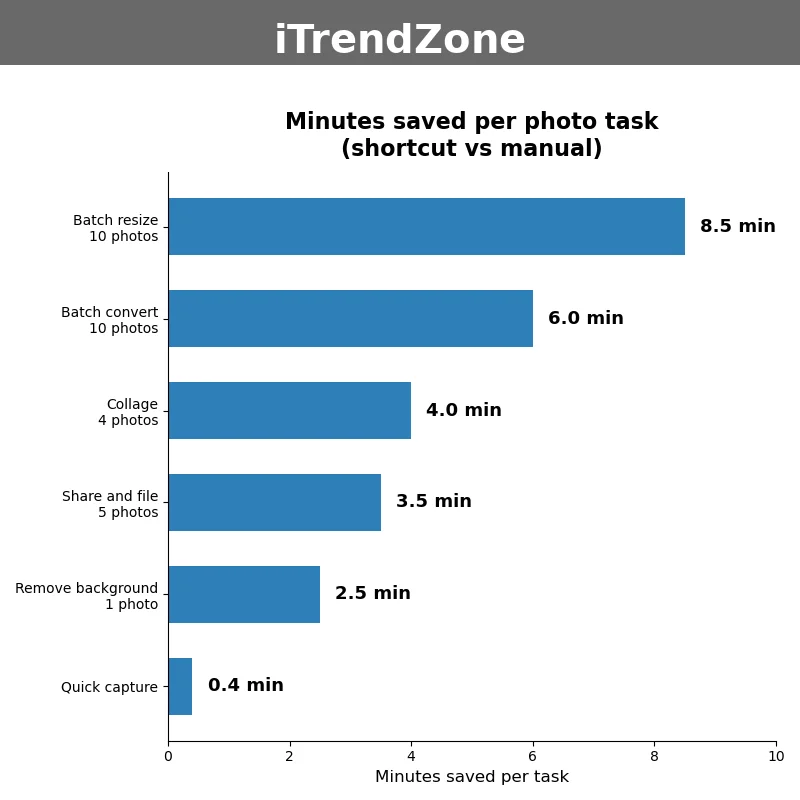
The lesson from this example is not the exact number of minutes, but the shape of the result. Shortcuts save the most time on repetitive batch jobs, a moderate amount on multi-step jobs such as collages and sharing, and a small amount on single quick jobs such as opening the camera.
It is also worth noting what this example does not show. It does not measure quality, and it does not measure how much you enjoy taking photos.
Photo Shortcut Comparison: Which Shortcut to Build First
With so many possible photo shortcuts, it helps to compare them side by side before you decide where to start. The table below summarises six common shortcuts, what each one does, how long it takes to build, and who it helps most.
| Shortcut | What It Does | Build Time | Best For |
|---|---|---|---|
| Quick Capture | Opens camera in chosen mode | 5 minutes | Parents and travellers |
| One Tap Polish | Crops and brightens a photo | 10 minutes | Everyday photos |
| Batch Resize | Resizes many photos at once | 10 minutes | Small business owners |
| Remove Background | Creates transparent cut-out | 5 minutes | Product listings |
| Collage Maker | Combines photos in a grid | 10 minutes | Family sharing |
| Daily Backup | Copies new photos to Files | 15 minutes | Everyone |
Source: Author summary of shortcuts in this guide, November 2026; build times are example estimates from the author own testing on iPhone 17, iOS 26.
Reading the table, a pattern emerges. The shortcuts that are quickest to build are also the ones that are easiest to test, because they have fewer actions and fewer places to go wrong.
Combining Photo Shortcuts with Focus, Widgets and Messages
Photo shortcuts become more powerful when they are combined with other iPhone features, because a photo rarely exists in isolation. A photo is often taken during a particular activity, shared with a particular person, or filed in a particular place, and Shortcuts can connect those contexts.
Focus mode is a particularly useful partner for photography. When you turn on a Do Not Disturb or a custom Focus mode, your iPhone can automatically show a different Home Screen with only photo shortcuts, hide distracting apps, and silence notifications from everyone except a few important contacts.
Widgets and Messages offer similar combinations. A photo widget stack can show Quick Capture, One Tap Polish, and Share with Family in a single widget, so you can swipe through them without opening the Shortcuts app. Our guide to health shortcuts explores that idea further, and our guide to Messages shortcuts shows how to combine photo sharing with text automation.
Travel Photos: A Complete Shortcut Workflow
Travel is the best test of a photo workflow, because it combines capture, editing, organisation, sharing, and backup in a single day. A travel workflow might start with a Quick Capture shortcut that opens the camera in Photo mode, continue with a Location Album shortcut that saves photos to an album named for the place you are visiting, and end with a Daily Backup shortcut that copies the day photos to Files. For more travel ideas, read our guide to travel shortcuts, which covers location, packing, and itinerary automation alongside photos.
To make a travel workflow work smoothly, prepare it before you leave home. Create the albums you will need, test each shortcut with duplicate photos, and make sure your iPhone has enough storage and iCloud space for the trip.
Troubleshooting Photo Shortcuts on iOS 26
Even a well-built photo shortcut can fail, and most failures have a simple cause. The first thing to check is permissions.
Other common problems are easier to fix once you know where to look. If a shortcut runs slowly, it may be processing full-resolution photos when a smaller size would be enough.
When a shortcut fails in a way you cannot explain, use the Shortcuts app built-in debugging tools. Open the shortcut, tap the play button to run it step by step, and watch which action fails.
Privacy, Storage and Battery: What to Watch
Photo shortcuts touch three resources that deserve care: privacy, storage, and battery. Privacy matters because photos are personal, and a shortcut that shares photos should always ask before it sends.
Battery use is often overlooked, but it is easy to manage. A shortcut that resizes ten photos uses far less battery than a shortcut that converts fifty ProRAW photos, because ProRAW files are much larger and need more processing.
Frequently Asked Questions About iPhone Shortcuts Photos
Do I Need a Paid App to Build Photo Shortcuts?
No, you do not need a paid app to build the photo shortcuts in this guide. The Shortcuts app is free and included with iOS 26, and it contains all the actions you need for capture, editing, batch work, collages, sharing, and backup.
Can Shortcuts Edit Photos Without Changing the Original?
Yes, Shortcuts can edit photos without changing the original, provided you save the edited result as a copy in a new album or folder. The key is to use a Save to Photo Album action that points to a new album, rather than overwriting the original.
Why Does My Shortcut Fail When I Select Many Photos?
A shortcut can fail when you select many photos for several reasons, and the most common is storage or memory. Processing fifty full-resolution photos at once uses a lot of memory, and your iPhone may stop the shortcut if it runs out of space or time.
How Do I Share a Photo Shortcut With Family?
You can share a shortcut with family by opening it in the Shortcuts app, tapping the share button, and choosing how to send it. You can send it by AirDrop, Messages, Mail, or a link, and the recipient can add it to their own Shortcuts app. For a broader introduction to sharing and building shortcuts, return to our main iPhone Shortcuts complete guide, which covers sharing in detail.
Your Next Steps: Build One Shortcut Today
You now have a complete map of photo shortcuts on iOS 26, from quick capture and Portrait presets to batch editing, collages, sharing, wallpaper, and backup. The next step is not to build all of them at once.
Keep your shortcuts simple, keep your originals safe, and keep testing with duplicate photos. Those three rules will protect your library while you learn, and they will help you build shortcuts that last. For more context on the camera modes themselves, our guide to iPhone camera modes explained is a useful companion to this guide, and the Apple Shortcuts developer pages offer a deeper look for readers who want to build more advanced automations.
Planning Your Photo Shortcut Library
A small library of well chosen photo shortcuts is more useful than a large collection that you never open. Start by listing the photo jobs that you repeat most often, such as capturing a portrait, resizing images for a website, sharing pictures with family, or backing up a day of travel photos. Rank that list by how often each job happens and by how much time it takes when you do it by hand. Build the shortcut at the top of the list first, test it for a week, and only then build the next one. This slow approach feels less exciting than building ten shortcuts in one evening, but it produces shortcuts that you actually use, because each one solves a real problem that you have already felt.
Give every shortcut a clear name that describes its purpose in plain words. Quick Capture, One Tap Polish, Batch Resize, Remove Background, Collage Maker, Share With Family, and Daily Backup are all good names, because you can understand each one without opening it. Avoid clever names that sound fun today but confuse you in six months, and avoid names that are so similar that Siri cannot tell them apart. Use the same naming pattern for related shortcuts, so that Portrait Indoor and Portrait Outdoor sit together in your library, and so that Product Photo and Product Collage are easy to find. A consistent naming system also helps when you share shortcuts, because the recipient can guess what each shortcut does from its name alone.
Keep Your Library Small and Organised
Shortcuts lets you organise shortcuts into folders, and using folders will keep a growing photo library easy to navigate. Create folders called Capture, Edit, Share, and Backup, and move each shortcut into the folder that matches its main job. A shortcut that takes a photo and then edits it belongs in Capture if capture is its main purpose, or in Edit if editing is its main purpose, so choose the folder that you will look in first. Review your folders once a month, delete shortcuts that you have not used in thirty days, and rename any shortcut whose name no longer matches what it does. A library with twelve useful shortcuts is better than a library with forty shortcuts that you cannot find.
Icons and colours also help you find a shortcut quickly, especially when it sits on your Home Screen or in a widget. Choose a camera icon for capture shortcuts, a paintbrush or wand icon for editing shortcuts, a share icon for sharing shortcuts, and a cloud or folder icon for backup shortcuts. Use the same colour for shortcuts in the same folder, so that all capture shortcuts are blue, all editing shortcuts are green, and all backup shortcuts are orange. Keep the Home Screen to your three most used photo shortcuts, and keep the rest in the Shortcuts app, so that your phone stays tidy.
Test, Review and Improve Every Month
Testing is not a one time task that ends when a shortcut first works. Your iPhone changes, your needs change, and iOS updates can change how an action behaves, so a shortcut that worked in November may need a small fix in January. Set a monthly reminder to test each photo shortcut with duplicate photos, check that it still saves to the right album, and confirm that it still shares with the right person. If a shortcut fails, fix it straight away, because a broken shortcut that you ignore will soon be a shortcut that you forget.
Ask family and friends how they use their photo shortcuts, because their ideas may solve a problem that you have not noticed yet. A friend who photographs products may have a clever way to name files, a parent may have a simple way to share school photos, and a traveller may have a backup routine that works well on slow hotel Wi-Fi. Try one new idea each month, test it with duplicate photos, and keep it only if it saves you time or improves your results.
Finally, remember that the best photo shortcut is the one that lets you enjoy photography more, not less. If a shortcut makes taking photos feel like a technical task, simplify it until it feels natural again. If a batch shortcut saves time but produces photos that you do not like, adjust its settings until the results look right. Photography should be fun, and Shortcuts should remove the boring parts so that you can focus on the creative parts. Build one shortcut today, use it tomorrow, improve it next week, and let your library grow slowly, one useful shortcut at a time.
Quiz: Test Your iPhone Shortcuts Photos Knowledge
Question 1: What should you do first before testing a new photo shortcut on your real library?
A) Run it on your full library straight away
B) Test it with duplicate photos in a small test album
C) Delete the originals to save space
Question 2: Which hardware control on iPhone 16 and iPhone 17 can open the camera with a press?
A) The volume down button only
B) Camera Control
C) The mute switch
Question 3: What is the safest way to save an edited photo in Shortcuts?
A) Overwrite the original immediately
B) Save a copy to a new album and keep the original
C) Delete the original before editing
Question 4: Which format opens on almost every device and is best for wide sharing?
A) JPEG
B) ProRAW only
C) A Live Photo file
Question 5: What should a backup shortcut do?
A) Copy photos to a safe place and never delete in the same run
B) Delete photos first and copy them later
C) Convert all photos and delete the originals
References
- Apple Shortcuts User Guide
- Apple Support: Live Photos on iPhone
- Apple Support: Edit Photos on iPhone
- Apple Support: iCloud Photos
- Apple iPhone
- Apple Developer: Shortcuts
Quiz Answers
Question 1: B — Test it with duplicate photos in a small test album. Question 2: B — Camera Control. Question 3: B — Save a copy to a new album and keep the original. Question 4: A — JPEG. Question 5: A — Copy photos to a safe place and never delete in the same run.