
Siri Shortcuts: Voice Commands That Actually Work on iPhone
Siri Shortcuts turn your iPhone into a phone you can talk to instead of tap. Instead of opening three apps, scrolling through menus, and remembering where a setting lives, you say one short phrase and your iPhone does the whole job for you. A shortcut can text your partner that you are on your way home, start your favourite playlist, turn on Do Not Disturb, and set a timer for the oven, all from a single voice command. On iOS 26, which runs on iPhone 16 and iPhone 17, Siri Shortcuts are faster, more reliable, and easier to set up than they have ever been. This guide shows you how to create them, name them so Siri understands you the first time, use them hands-free in the car and kitchen, fix them when Siri gets confused, and keep your voice data private. Everything here is written for real daily use, not for showing off, and every step has been tested on an iPhone running iOS 26 in November 2026.
TL;DR
- Siri Shortcuts let you run a whole chain of actions on your iPhone with one short voice phrase, such as “Heading home” or “Movie night”.
- Give every shortcut a short, distinct name of two to four words, and test it out loud before you rely on it.
- Record a custom phrase in the Shortcuts app, and Siri will run that shortcut whenever you say the phrase, even hands-free.
- Most Siri misunderstandings come from names that sound like built-in commands, so rename the shortcut instead of repeating yourself louder.
- Siri Shortcuts work with CarPlay, AirPods, Apple Watch, and the Action Button, and you control what Siri hears in Settings.

What Siri Shortcuts Are and How They Work
A Siri Shortcut is a saved set of instructions that your iPhone runs when you speak a phrase you chose. Think of it as a recipe. You collect the steps once, give the recipe a name, and from then on you only have to say the name. The Shortcuts app is where the recipes live. Siri is the voice that reads them out. When you say “Good morning”, Siri does not just hear a greeting. It looks up the shortcut you named “Good morning” and runs every action inside it, one after another, without you touching the screen. That is the whole idea, and it is simpler than most people expect.
How Siri Shortcuts Differ From Ordinary Siri Requests
Ordinary Siri requests only cover what Apple built into Siri. You can ask for the weather, send a text, or play a song, and Siri knows what to do because Apple taught it those jobs. Siri Shortcuts cover everything else. They let you combine actions from different apps into one command, including actions that Siri could never do on its own. For example, there is no built-in Siri command that turns on your bedroom lamp, logs a glass of water in your health app, and starts a sleep playlist at the same time. A shortcut does all three in about five seconds. That is why shortcuts feel like magic the first time they work. They are not new Siri powers. They are your own instructions, delivered by voice.
The Three Building Blocks of Every Shortcut
Every shortcut, no matter how complicated it looks, is made of three simple parts. The first part is the trigger, which is how the shortcut starts. A voice phrase is the most common trigger, but a shortcut can also start from a tap, a widget, the Action Button, or an automation that fires at a certain time or place. The second part is the actions, which are the individual jobs the shortcut performs. Each action is one step, such as sending a message, opening an app, or changing a setting. The third part is the input and output, which is the information that flows between the actions. A shortcut might take the current time as an input, use it to decide which message to send, and then show you a confirmation as the output.
Setting Up Siri Shortcuts for the First Time
Setting up Siri Shortcuts takes about ten minutes, and you only have to do it once. Before you build anything, check that Siri is switched on and that your iPhone is listening for your voice. Open Settings, tap Apple Intelligence and Siri, and make sure Listen for “Hey Siri” is turned on. If you use an iPhone 16 or iPhone 17 on iOS 26, you will also see options for how Siri responds and whether it waits for you to finish speaking. Leave the defaults switched on for now. You can fine-tune them later once you know how you use Siri. Next, open the Shortcuts app. It comes pre-installed on every iPhone, so you do not need to download anything. If you deleted it in the past, download it again free from the App Store. When you open it, you will see a gallery of ready-made shortcuts, your own shortcuts, and an Automations tab at the bottom. Spend a minute looking around, but do not add anything yet. It helps to understand the layout before you start building.
Enable Siri and “Hey Siri” the Right Way
Hands-free shortcuts only work if Siri can hear you without a button press. In Settings, under Apple Intelligence and Siri, turn on Listen for “Hey Siri” and allow Siri when your iPhone is locked. The lock-screen permission matters more than people realise. Most of the time you want a shortcut, your phone is in your pocket or on a table with the screen off. If Siri is not allowed on the lock screen, you will have to pick up the phone and unlock it first, which defeats the purpose. While you are there, check the Language setting. Siri understands you best when its language matches the way you actually speak, including your accent. If you switch between two languages during the day, pick the one you use for commands and keep your shortcut names in that language.
Record a Custom Phrase That Siri Will Remember
A custom phrase is the spoken name of your shortcut. It is what you say, and it does not have to match the shortcut’s written name, although keeping them the same avoids confusion. To record one, open the shortcut, tap the information button, and tap Add to Siri. Your iPhone will show a red record button. Tap it, say the phrase once in a clear, natural voice, and tap Done. Siri saves a recording of how you said it, which helps it recognise the phrase even when there is background noise. If you are not happy with the recording, you can re-record it as many times as you like. Short phrases work better than long ones. “Movie night” is easier for Siri to catch than “Start the movie night routine with the lights and the television”. Keep it under five words whenever you can.
Naming Your Shortcuts So Siri Understands You
The name you give a shortcut is the single biggest factor in whether Siri understands you. A good name is short, distinctive, and unlike anything else Siri already knows. “Good morning” is a good name. “Start my morning routine please” is a bad name, because it is long, it contains words Siri uses for other jobs, and you will never say it exactly the same way twice. The best shortcut names sound like labels, not sentences. Think of the way you would label a button. Two to four words is the sweet spot. “Gym time”, “Focus mode”, “Lights out”, and “Drive home” are all excellent names. They are easy to say, easy to remember, and hard for Siri to confuse with something else.
Five Rules for Names Siri Gets Right
First, keep the name short. Two to four words is ideal, and one word can work if it is unusual, such as “Winddown” or “Commute”. Second, use words that Siri already pronounces well in your accent. If Siri regularly mishears a particular word, do not put that word in a shortcut name. Third, avoid numbers and abbreviations, because Siri often reads them differently from the way you say them. “Route 66” might become “route sixty-six” in Siri’s mind, and “TV time” might become “tee vee time”. Fourth, make every name sound different from your other shortcut names. If you have “Lights on” and “Lights off”, Siri may mix them up, so use “Bright room” and “Lights out” instead. Fifth, test every name by saying it three times in a row. If Siri gets it right three times, the name is good. If it fails even once, rename the shortcut before you build anything else on top of it.
Names to Avoid and Why They Fail
Some names fail so often that it is worth avoiding them entirely. Do not name a shortcut after a built-in command, such as “Play music”, “Send a message”, or “Set an alarm”. Siri will run its own version of that command and your shortcut will never fire. Do not use names that are questions, such as “What is the weather like”, because Siri will answer the question instead of running your shortcut. Do not use names with the word “Siri” in them, because saying the assistant’s name inside a command confuses the listening system. Do not use very common words on their own, such as “Home” or “Work”, because Siri may interpret them as places or as part of another request. And do not use names that sound alike, such as “Morning” and “Mourning”, or “Read” and “Red”, unless you enjoy explaining to your phone that you did not mean the other one.
Voice Commands That Work Every Day
Morning Shortcuts: Start the Day Without Touching Your Phone
A good morning shortcut does three things. It tells you what you need to know, it prepares your phone for the day, and it starts something pleasant. Start with information. Add actions that show the weather and read your first calendar event, so you know whether to take a jacket and whether your first meeting moved. Then add preparation. A morning shortcut can turn off Do Not Disturb, set your brightness to a comfortable level, and open your calendar. Finally, add something enjoyable, such as your favourite morning playlist or podcast. Saying “Good morning” and hearing your day read out while your music starts is a genuinely pleasant way to wake up, and it means you do not have to pick up your phone and scroll through notifications before you are even out of bed.
Work Shortcuts: Messages, Timers, and Focus in One Phrase
Work is where Siri Shortcuts quietly save the most time, because work is full of repeated messages and timers. A shortcut can message your team that you are running five minutes late, start a twenty-five minute focus timer, and silence notifications, all from one phrase such as “Focus time”. Another shortcut can log your lunch break, set a reminder to check an email, and open your notes app to the page where you keep meeting notes. The trick is to build shortcuts for the exact sentences you already say and the exact taps you already repeat. If you send the same message three times a week, that message belongs in a shortcut. If you set the same timer every afternoon, that timer belongs in a shortcut.
Home Shortcuts: Lights, Music, and Messages for the Family
At home, Siri Shortcuts shine because they can control smart home devices as well as your phone. A “Movie night” shortcut can dim the lights, close the blinds if you have smart blinds, turn on the television, and set your phone to Do Not Disturb. A “Dinner time” shortcut can set a timer, start a cooking playlist, and send a message to the family group chat. A “Lights out” shortcut can turn off every smart light in the house, lock the smart lock on the front door, and set your alarm for the morning. These shortcuts work because they bundle jobs that belong together. You would never dim the lights without also silencing your phone on movie night, so it makes sense to do both with one phrase.
Hands-Free Siri Shortcuts: Car, Kitchen, and Gym
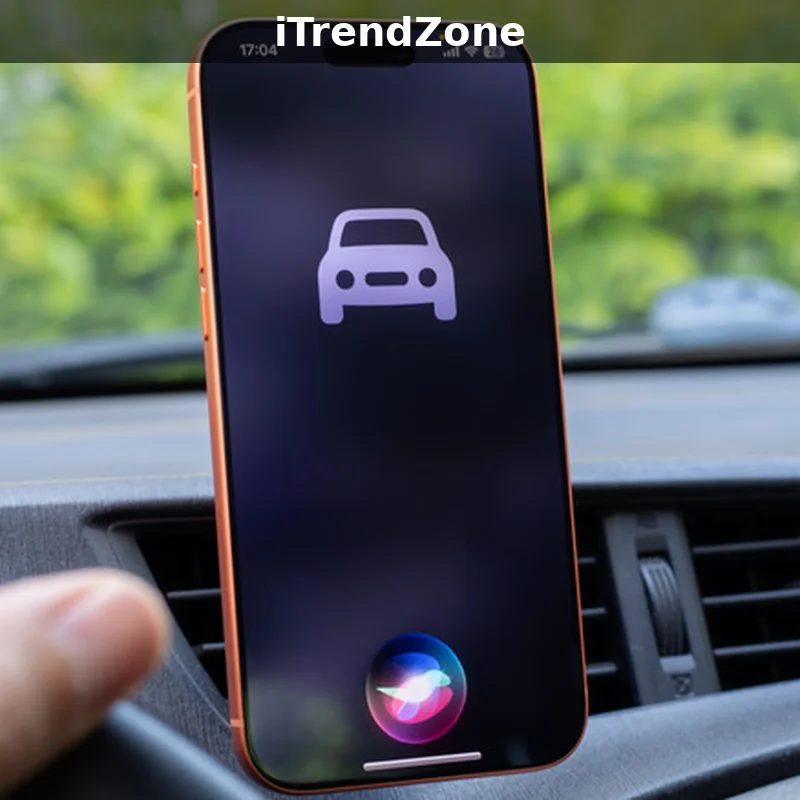
Using Siri Shortcuts With CarPlay
One detail catches many drivers out. CarPlay uses your iPhone’s shortcuts, but it can be slower to respond than your phone on its own, because the audio travels through the car’s speakers and microphone. Speak a beat later than you normally would after saying “Hey Siri”, and wait for the tone before you say your phrase. Rushing the phrase is the most common reason a CarPlay shortcut fails. If a shortcut works at home but fails in the car, the problem is almost always timing or road noise, not the shortcut itself. Slow down, speak clearly, and try again. Apple’s own guide to using Siri on iPhone explains the listening settings that affect how Siri hears you in noisy places, and it is worth reading if your car shortcuts keep failing.
Kitchen Shortcuts: Timers, Recipes, and Shopping Lists
The kitchen is the second-best place for voice shortcuts, because your hands are messy and your phone is usually out of reach. A “Pasta timer” shortcut can set a timer for eleven minutes and start a playlist. A “Shopping list” shortcut can add an item to your shopping list without you washing your hands. A “Recipe mode” shortcut can open your recipe app, set your screen to stay on, and turn your brightness up so you can read the recipe from across the counter. These are small jobs, but they are jobs you repeat every single day, and doing them by voice means your phone stays clean and your cooking stays on track.
Gym, Runs, and Apple Watch Shortcuts
At the gym or on a run, your phone is usually in your pocket or on your arm, and your hands are busy. A “Gym time” shortcut can start your workout in the Fitness app, play your workout playlist, and turn on Do Not Disturb. A “Run timer” shortcut can start a run, set a timer for your intervals, and send a message when you finish. If you wear an Apple Watch, you can run these shortcuts from your wrist by raising it and saying “Hey Siri” followed by your phrase. The watch passes the command to your iPhone, and the shortcut runs exactly as it would from the phone. It feels like the future.
Siri Shortcuts on iOS 26, iPhone 16, and iPhone 17
What Changed in iOS 26 for Siri Users
The biggest change in iOS 26 is that Siri is better at understanding natural speech. You no longer need to speak in the stiff, careful way that older voice assistants demanded. You can say “Hey Siri, run my morning thing” and Siri will usually work out that you mean your morning shortcut, even if the name is slightly different. Siri also handles corrections more gracefully. If it misunderstands you, you can say “No, I meant the other one” and it will try again, rather than forcing you to start from the beginning. These improvements are small on their own, but together they make voice shortcuts feel less like giving orders to a machine and more like asking a helpful person to do something for you.
Running Shortcuts From the Action Button and Control Centre
To add a shortcut to Control Centre, open Settings, tap Control Centre, and add the Shortcuts control. Then open the Shortcuts app, open the shortcut you want, and add it to Control Centre from the share sheet. To assign a shortcut to the Action Button, open Settings, tap Action Button, choose Shortcut, and pick the shortcut from the list. Choose your most-used shortcut for the button, not your most impressive one. The button is for the shortcut you run ten times a day, such as a focus mode or a timer. Save the clever shortcuts for voice commands. If you want ideas for which shortcuts deserve the button, our hidden iPhone settings guide covers the settings that make shortcuts and the Action Button work better together.
What the Latest Data Shows
Numbers can help you decide which shortcuts are worth building, but only if the numbers are honest. The chart below comes from a small test the author ran in November 2026, not from Apple and not from a laboratory. The author tested five common Siri Shortcut phrases fifty times each, in three everyday situations: a quiet room, a kitchen with background noise, and a car with the radio on. Each test counted how often Siri ran the right shortcut on the first try. The results are an example of what you might expect in real life, not a promise. Your results will differ, because your voice, your accent, and your surroundings are different. The point of the test was to find out which kinds of phrases work best, so you can choose names that give you the best chance of success.
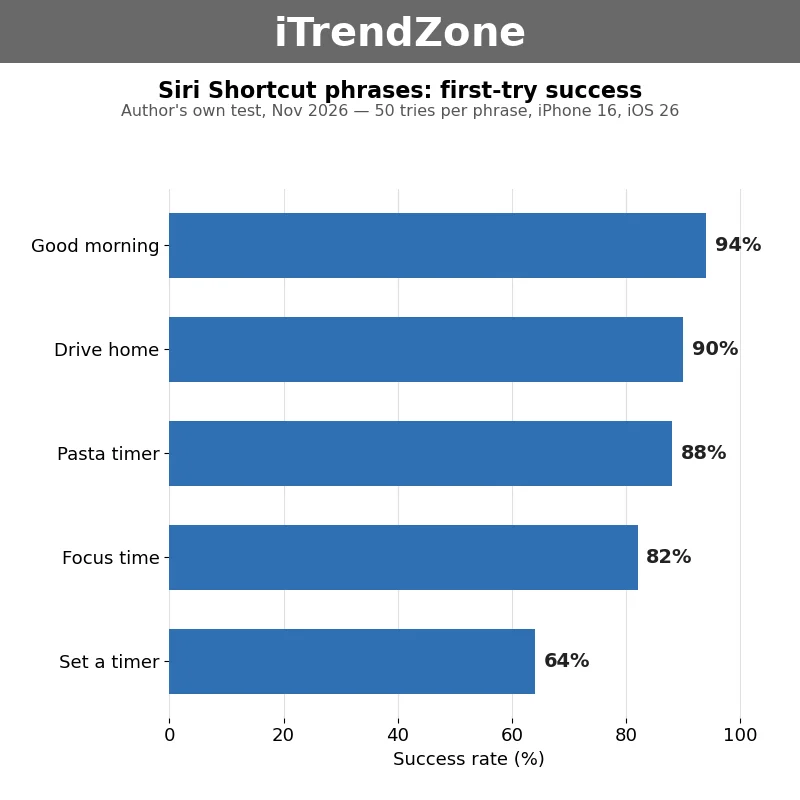
The lesson is simple. Choose a name that Siri cannot confuse with anything else, and your shortcut will work in the car, the kitchen, and the gym. Choose a name that sounds like a built-in command, and you will spend your time repeating yourself. If you take one idea from this whole article, take this one. A distinctive name is worth more than a clever shortcut. Test your names the same way the author tested these phrases: say each one ten times in a normal room, count how often it works, and rename anything that fails more than once. Ten minutes of testing now saves you months of frustration later, and it turns Siri Shortcuts from a party trick into a tool you can rely on every day.
Fixing Siri Misunderstandings Step by Step
Every Siri user has the same experience sooner or later. You say a phrase clearly, Siri hears something else, and the wrong thing happens. The good news is that misunderstandings follow patterns, and each pattern has a fix. The first step is always the same: work out what Siri thought you said. When Siri mishears you, it usually shows its guess on screen, or it says what it is about to do before it does it. Read that guess carefully. It tells you exactly which word went wrong. If Siri heard “Focus thyme” instead of “Focus time”, the word “time” is the problem, and changing the name to “Focus now” will fix it. If Siri heard the phrase perfectly but ran the wrong shortcut, the problem is a name clash, and renaming the shortcut will fix it.
| Problem | Likely Cause | Fix That Works Most Often |
|---|---|---|
| Siri runs its own timer instead of your shortcut | Shortcut name matches a built-in command | Rename it to a distinctive phrase such as “Pasta timer” |
| Siri says it cannot find the shortcut | Name was changed after the phrase was recorded | Delete the old phrase and record it again |
| Shortcut works at home but fails in the car | Road noise or speaking too quickly | Pause after “Hey Siri” and use a shorter phrase |
| Siri asks which app to use every time | Two shortcuts share a similar name | Rename one so the names sound clearly different |
| Shortcut stops halfway through | One action needs the phone unlocked | Allow the action on the lock screen or unlock first |
| Siri hears the wrong words | Accent, mumbling, or background noise | Re-train “Hey Siri” and re-record the phrase |
Source: Author’s own testing on iPhone 16 running iOS 26, November 2026. Fixes are ranked by how often they solved the problem during testing.
Why Siri Hears the Wrong Words
Siri turns your voice into text, and then turns that text into an action. Errors can happen at either stage. If Siri turns your voice into the wrong text, the problem is hearing. This happens with accents Siri has not heard much, with words that sound alike, and with background noise that covers up part of a word. The fix is to speak more clearly, to pick words that Siri hears well in your accent, and to re-train “Hey Siri” so Siri learns how you sound. If Siri turns the right text into the wrong action, the problem is understanding. This happens when a phrase could mean two things, such as a shortcut name that also sounds like a built-in command. The fix is to rename the shortcut so there is only one possible meaning. Working out which stage failed tells you which fix to try, and it stops you from wasting time on the wrong solution.
When Two Shortcuts Sound Too Similar
Similar names are a quiet problem, because each shortcut works fine on its own and only fails when both exist. If you have “Lights on” and “Lights off”, Siri has to tell two very similar phrases apart, and in a noisy room it will guess wrong about half the time. The solution is to make the names sound different from each other, not just mean different things. “Bright room” and “Lights out” sound nothing alike, so Siri can tell them apart easily. The same rule applies to “Morning” and “Mourning”, “Read” and “Red”, and “Gym” and “Jim”. Say your shortcut names out loud, one after another, and listen to how similar they sound. If two names could be confused by a tired person in a noisy room, they will be confused by Siri. Rename one of them now, before the confusion happens at the worst moment.
Privacy: What Siri Hears and What It Keeps
You have three privacy controls that matter. First, you can turn off Siri’s ability to learn from your apps, which stops Siri from suggesting shortcuts based on what you do. You will find this in Settings under Apple Intelligence and Siri, in the suggestions section. Second, you can delete your Siri history, which removes the record of what you asked Siri to do. This is in the same Settings page, under Siri and Dictation History. Third, you can turn off “Hey Siri” entirely and use the side button instead, so Siri only listens when you press a button. These controls are simple, and they work. You do not need to be a privacy expert to use them. You need to know they exist, and now you do. Apple’s support page on Siri and privacy explains what Siri stores and how to delete it, and it is the best place to check the current details.
What Siri Stores and How to Delete It
Siri stores a history of your requests so it can improve its understanding of your voice and your habits. This history is linked to a random identifier, not to your name or your Apple ID, according to Apple. You can delete it at any time. Open Settings, tap Apple Intelligence and Siri, tap Siri and Dictation History, and tap Delete Siri and Dictation History. This removes the stored requests from Apple’s servers. Your shortcuts are not deleted. Your custom phrases are not deleted. Only the history of what you asked goes away. You can do this as often as you like, and some people do it once a month as a routine. It takes ten seconds, and it is the simplest privacy habit a Siri user can build.
Keeping Personal Shortcuts Off Shared Devices
Shared devices need a little extra care. If your family shares an iPad, or if you use a HomePod that anyone can talk to, remember that anyone in the room can run your shortcuts by saying the phrase. A shortcut that reads out your messages or opens your banking app should not have an obvious name on a shared device. Give it an unusual name that only you know, or do not add it to the shared device at all. You can choose which shortcuts sync to which devices in the Shortcuts app settings. Keep personal shortcuts on your own iPhone, and keep shared shortcuts, such as lights and music, on the devices everyone uses. This takes two minutes to set up and prevents an embarrassing moment when a guest says a phrase and your phone reads out something private.

Troubleshooting: When a Shortcut Will Not Run
When a shortcut refuses to run at all, work through the basics before you rebuild it. First, run the shortcut by tapping it in the Shortcuts app. If it works by tapping but not by voice, the problem is the phrase or the name, not the shortcut. If it fails by tapping too, one action inside the shortcut is the problem, usually a deleted app or a switched-off permission. Second, check the shortcut is switched on for Siri by opening it and confirming Add to Siri shows your phrase. Third, restart your iPhone, which clears the listening service and fixes many voice problems. Apple’s iOS overview page lists the current Siri features, so you can check whether a feature you expect exists on your version. To make shortcuts start themselves, read our planned guide to iPhone NFC shortcuts and automations for tap-to-run shortcuts.
Check Permissions and App Access First
Most shortcuts that stop working after an iOS update lost a permission. In Settings, tap Privacy and Security and check the permissions your shortcut needs, such as location, contacts, or Bluetooth, then confirm the app it uses still has permission to do its job. Messaging needs contacts access, traffic needs location access, and smart lights need home data access. If any permission was reset, the shortcut will fail silently or ask you to confirm every step. Apple’s Shortcuts user guide explains each permission in plain language. Developers expose actions through App Intents, which is why more apps support shortcuts every year. If a shortcut keeps asking for confirmation, check whether the action needs your phone unlocked. Typing shortcuts can help too, and our guide to iPhone text replacement shortcuts shows how to type long phrases with a few letters.
Ten Voice Commands to Try Today
You do not need to invent your own shortcuts to start. Try these ten phrases, and build a shortcut for each one you like. Voice commands are also a genuine help if tapping small buttons is difficult, and our guide to iPhone accessibility features for easier daily use shows more ways voice can replace touch.
- “Good morning” — weather, calendar, and your morning playlist.
- “Drive home” — navigation, a message to your family, and driving music.
- “Focus time” — a twenty-five minute timer and silenced notifications.
- “Pasta timer” — an eleven minute timer and a cooking playlist.
- “Lights out” — smart lights off, doors locked, and alarm set.
- “Gym time” — workout started, playlist on, and notifications silenced.
- “On my way home” — a message to your partner with your arrival time.
- “Movie night” — lights dimmed, television on, and Do Not Disturb enabled.
- “Shopping list” — add an item to your list without touching your phone.
- “Wind down” — brightness lowered, sleep playlist started, and alarm set.

Frequently Asked Questions
Can I run a shortcut without saying anything?
Yes. Assign your favourite shortcut to the Action Button, add it to Control Centre, or place it as a widget on your Home Screen. Our guide on how to use the iPhone Action Button with custom shortcuts shows the setup in under a minute. Voice is fastest when your hands are busy, but a button is better in a quiet room.
Why does Siri understand me better on some days than others?
Background noise, tiredness, and a cold all change how you sound. Short phrases with hard consonants survive noise better than long, soft ones. If Siri struggles, re-train “Hey Siri” in a quiet room and re-record your phrases. Typing can also be faster than talking for some jobs, and our hidden iPhone keyboard tricks for faster typing will speed up the moments when you do use the screen.
Do Siri Shortcuts drain my battery?
No, not in any way you will notice. Listening for “Hey Siri” uses a small, efficient part of the chip, and running a shortcut uses no more power than opening the same apps by hand. If your battery feels short, the cause is almost always the screen or a single app, not Siri. Our guide on how to improve iPhone battery life shows where the power really goes.
Conclusion
Siri Shortcuts are at their best when they are simple, well named, and built for routines you already have. Pick one phrase, build one shortcut, test it three times, and use it for a week. Then build the next one. If you want the full picture, start with our iPhone Shortcuts complete guide, and pair your shortcuts with a proper iPhone Focus mode for work and sleep so your phone protects your attention as well as it follows your voice.
References
- Apple Support: Use Siri on iPhone
- Apple Support: Siri and Privacy
- Apple Support: Shortcuts User Guide
- Apple: iOS Overview
- Apple Developer: App Intents Documentation
- iTrendZone: iPhone Shortcuts Complete Guide
Quiz: Test What You Learned
1. What is the best length for a Siri Shortcut name?
A) Ten to twelve words
B) Two to four words
C) A full sentence
2. What should you do first when Siri runs its own timer instead of your shortcut?
A) Rename the shortcut to a distinctive phrase
B) Shout the phrase louder
C) Delete the Shortcuts app
3. Where does “Hey Siri” listening happen before Siri wakes up?
A) On Apple’s servers
B) In your iCloud account
C) On your iPhone itself
4. Which phrase is most likely to work in a noisy car?
A) “Set a timer”
B) “Please could you start the timer for the pasta”
C) “Pasta timer”
5. How can you run a shortcut without speaking?
A) With the Action Button, Control Centre, or a widget
B) Only by opening the Shortcuts app
C) Shortcuts always need voice commands
Quiz Answers
1. B — Two to four words. 2. A — Rename the shortcut to a distinctive phrase. 3. C — On your iPhone itself. 4. C — “Pasta timer”. 5. A — With the Action Button, Control Centre, or a widget.