
Android 17 Battery Tips: Make Your Phone Last All Day
I used to carry a charger everywhere — my Pixel would hit 20 percent by dinner. I blamed the battery, the apps, the weather, everything except the settings I had never touched. Then Android 17 arrived, and I spent a week testing what actually helps. Most of the drain comes from a handful of things you can fix in ten minutes.
TL;DR: Start with the screen — adaptive brightness, a 30-second timeout, and 60 Hz when you need hours, not smoothness. Then turn on Adaptive Battery, restrict the two or three apps that top your Battery usage list, and use Battery Saver before you hit 10 percent. Android 17’s App Memory Limits and background audio hardening quietly cut background drain on top of that. Charge to 80–90 percent overnight with Adaptive Charging, and your phone will comfortably last a full day.
What Android 17 Actually Changes for Battery Life
Two Android 17 changes are genuinely useful. The first is App Memory Limits: caps on how much memory an app can grab, based on how much RAM your phone has in total. The limits target the worst offenders — apps with memory leaks and runaway background work that used to cause stuttering, higher battery drain, and apps getting killed at random. Google says it plainly in its own Android 17 behavior changes documentation — a lighter memory footprint means smoother performance and longer battery life. You do not toggle this on anywhere. On my Pixel 10, idle drain overnight dropped from around 8 percent to about 4 percent.
The second change is background audio hardening. Starting in Android 17, apps can no longer start audio playback, grab audio focus, or change the volume from the background unless you started the action yourself. If an app tries, the call simply fails quietly. That kills a whole class of sneaky drain: the podcast app that kept its audio session alive, the game that kept a silent audio track running. Adaptive Battery and Battery Saver are still the core tools — Android 17 just makes them work a little better. The Android 17 new features guide covers the headline additions, and the Android 17 tips complete guide pulls the whole update together.
First, Find Out What Is Actually Draining Your Battery
The right move is to look at the numbers first, because the culprit is almost never the app you suspect. Open Settings, then Battery, then Battery usage. You will see a ranked list of what has used power since your last full charge, with a short summary at the top on newer Pixels. On my phone the top three were the screen itself, a social app I open twice a day, and a shopping app I had forgotten I installed — it was syncing in the background every hour. Restricting it took thirty seconds.
Battery diagnostics (Settings, then Battery) runs a check and suggests changes. If your phone is draining fast after the update itself, the Android 17 not working fix guide walks through the post-update problems.
The Screen Eats More Battery Than Everything Else
Start with adaptive brightness. On a Pixel it lives under Settings, then Display and touch, then Adaptive brightness. On a Samsung it is under Settings, then Display. It learns the levels you set and keeps the screen as dim as you will tolerate.
Next, the screen timeout. Thirty seconds or one minute is the sweet spot — Pixels add Screen attention, which keeps the screen on while you are looking at it. Then the refresh rate. A 120 Hz screen redraws twice as often as a 60 Hz one, and in PhoneArena’s browsing tests that cost roughly 10 to 20 percent of battery life. If you need the hours more than the smoothness, turn Smooth Display off under Settings, then Display and touch. On Samsung, the same switch is Settings, then Display, then Motion smoothness, then Standard.
Dark mode helps too, with realistic expectations. On an OLED screen — which every flagship and most mid-range phones have had since around 2020 — black pixels are switched off, so dark interfaces draw less power. Researchers at Purdue University measured savings of 39 to 47 percent at full brightness, but only 3 to 9 percent at the indoor brightness most people use. Turn it on and treat the gain as a bonus, not a strategy. Finally, the always-on display: it is a screen that never sleeps, so turn it off or set it to show only on tap.
The Chart: How Much Battery Each Fix Can Actually Save
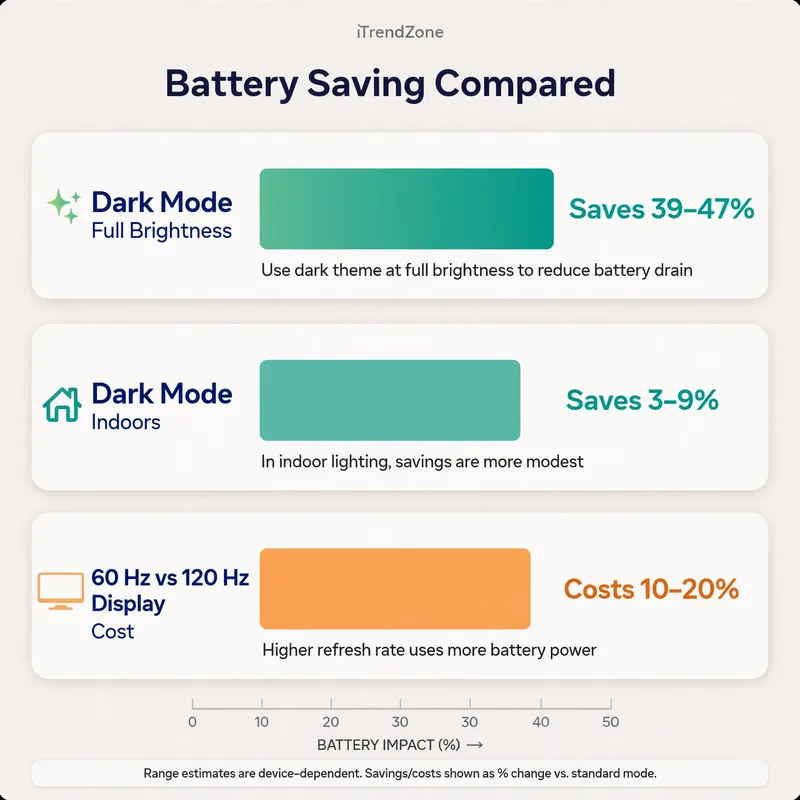
The chart above puts the savings side by side. Dark mode on an OLED screen at full brightness saves 39 to 47 percent (Purdue University), but at indoor brightness that drops to just 3 to 9 percent — a bonus, not a plan. Switching from 120 Hz to 60 Hz saves roughly 10 to 20 percent in browsing tests. A shorter screen timeout plus adaptive brightness is worth about 5 to 15 percent over a day, and restricting the worst background apps is in the same range. Battery Saver is different: it stretches whatever is left — on a Pixel, Extreme Battery Saver can push the last stretch of charge across many hours, and Google rates it at up to 72 hours of total runtime. The screen settings are the big wins, the app limits are the steady wins, and everything else is a small top-up.
Let Adaptive Battery and Background Limits Do Their Job
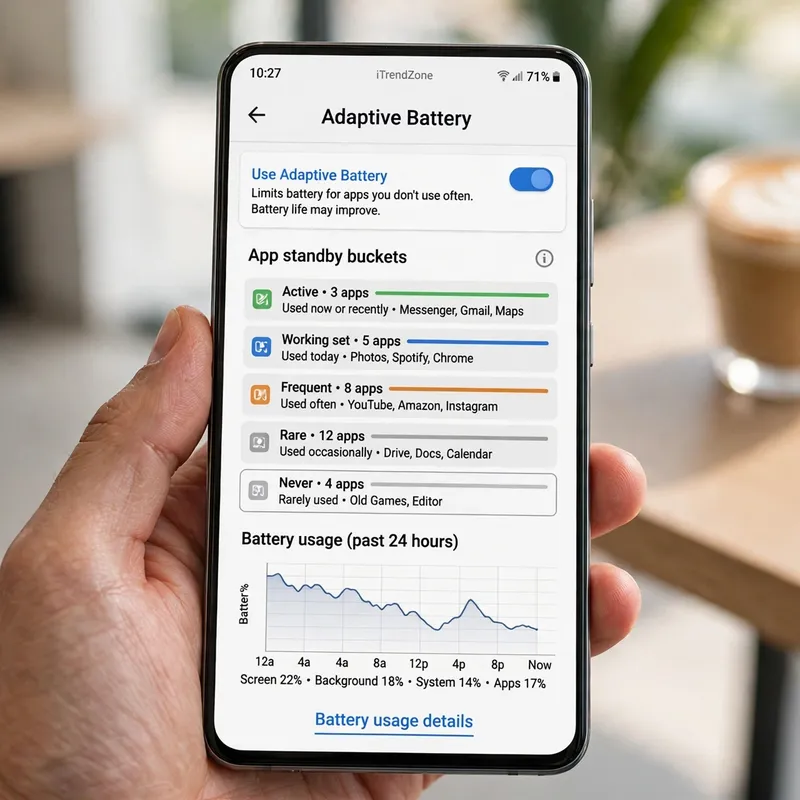
Adaptive Battery has been around since Android 9, and it is still the smartest battery tool on the phone. It learns which apps you open and limits background activity for the ones you ignore. You will find it under Settings, then Battery, then Battery Saver, then Adaptive Battery. Make sure it is on. It needs a few days to learn your routine.
For individual apps, open Settings, then Battery, then Battery usage. If an app you rarely use sits near the top, tap it and set its background usage to Restricted. Leave everything else on Optimised. Restricted means the app cannot run in the background at all — you get its updates only when you open it — so do not restrict your messaging apps, your email, or anything that needs to notify you. I restricted three apps — a shopping app, a food delivery app, and a game I play twice a month — and standby drain fell. Android 17 adds one more layer here: App Memory Limits cap what a misbehaving app can hold in RAM, so the worst background hogs get throttled before they can chew through your battery.
Battery Saver and Extreme Battery Saver: Your Safety Net
Battery Saver is the setting to reach for when the day is going long. On a Pixel, swipe down from the top of the screen and tap Battery Saver, or find it under Settings, then Battery. When it is on, the phone limits background activity, turns on Dark theme, and tones down visual effects.
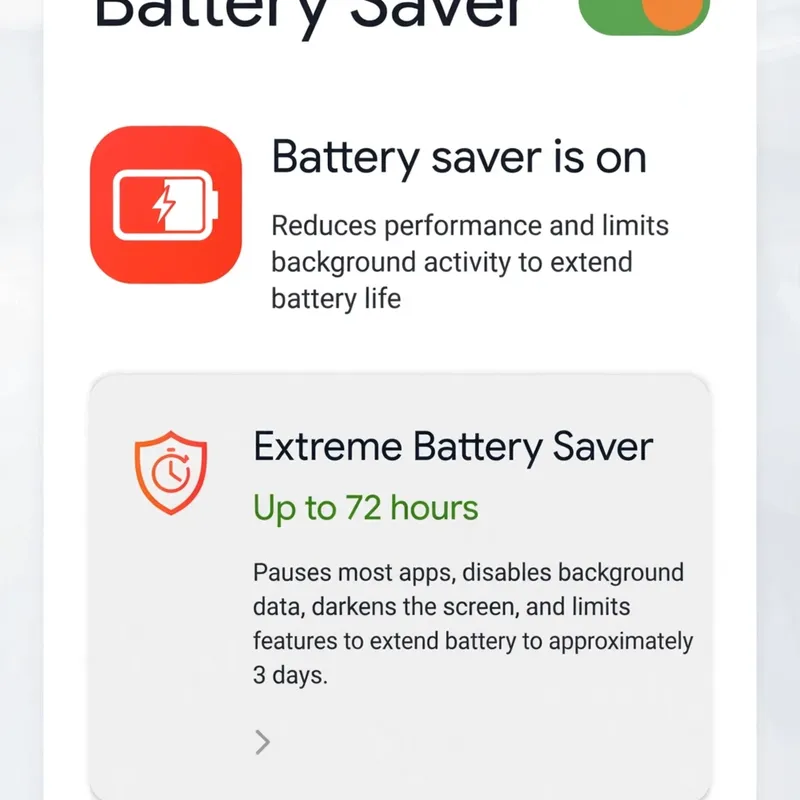
The smarter move is to schedule it. Set Battery Saver to switch on automatically at 20 or 25 percent, so you never have to think about it in the moment. Extreme Battery Saver is the bigger hammer. Turn it on under Settings, then Battery, then Battery Saver, then Extreme Battery Saver, and the phone pauses almost every app except the ones you mark as essential. Google rates it at up to 72 hours of total runtime, and the last 20 percent of your battery can stretch across an entire evening. Pick your essential apps ahead of time — Phone, Messages, Maps, your banking app — so you are not setting them up in a panic at 8 percent.
Charge Smarter, Not Just Longer
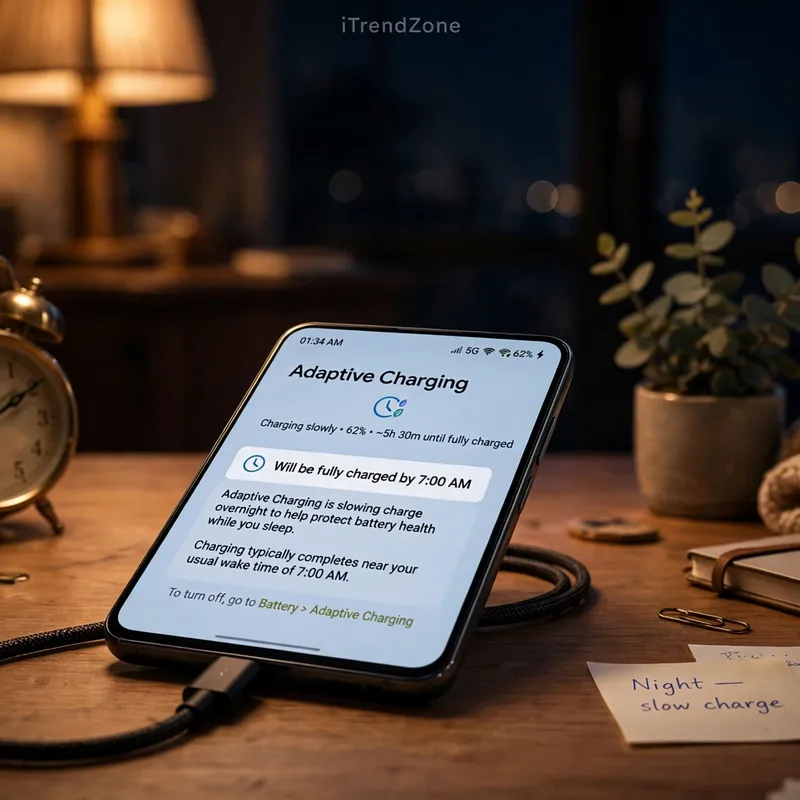
How you charge matters as much as how you use the phone. A battery kept at 100 percent all night, every night, wears out faster than one charged with a little care. Turn on Adaptive Charging (Settings, then Battery, then Adaptive Charging). It charges steadily overnight and only tops up shortly before you wake, so the battery spends less time at 100 percent. Samsung’s version is Battery protection, under Settings, then Battery, where you can cap the charge at 80 percent.
The 80 percent cap is worth using if you charge every night. Lithium batteries age fastest at the extremes, so keeping the charge between 20 and 80 percent most of the time is the single best thing you can do for long-term battery health. I charge to 100 percent only on travel days. Avoid cheap chargers and cables: a bad cable charges slowly and heats the phone up, and heat is the enemy of every battery.
Cut the Connectivity Drain: 5G, Wi-Fi, Bluetooth and Location
Radios are the second-biggest drain after the screen. A phone hunting for a weak 5G signal in a basement burns more battery in an hour than a phone sitting on strong Wi-Fi all afternoon. If you are somewhere with poor 5G coverage, switch to 4G for the day. On a Pixel, that is Settings, then Network and internet, then SIMs, then Preferred network type. On Samsung, it is Settings, then Connections, then Mobile networks, then Network mode. I switch to 4G whenever I am indoors for a long stretch.
Wi-Fi is cheaper than mobile data, so use it when it is available — but turn Wi-Fi off when you leave the house, and switch Bluetooth off when you are not wearing headphones or a watch. Location is the quiet one. Apps that poll your location in the background add up, so go to Settings, then Location, then App location permissions, and set anything that does not need your location to “Ask every time” or “Don’t allow.” The Android 17 privacy and security tips guide covers the rest of these permission changes in detail.
Android 17’s New Toys Have a Battery Cost Too
Android 17 is full of features that are genuinely fun, and a few of them sip battery in ways that add up. Custom widgets are the big one. Android 17 lets you describe the widget you want in plain language and builds it for you, but every live widget is a tiny app refreshing in the background. One weather widget is fine; six live widgets will cost you standby time. Keep the ones you actually look at — the Android 17 customization tips guide has more ideas.
Gemini Intelligence is the headline AI feature, covered in full in the Android 17 AI features guide. It needs 12 GB of RAM and Gemini Nano v3, so it runs on the Pixel 10 series, Pixel 11, Galaxy S26, OnePlus 15, and OPPO Find X9 and X8 — the Pixel 9 does not qualify, because it has Nano v2. Heavy AI work uses the chip hard, so use it when it saves you real time. App Bubbles are the same story: a bubble is an app kept alive on purpose, so close bubbles when you are done with them. Pause Point, the 10-second countdown splash that appears when you open a distracting app, saves battery by accident, because it makes you open those apps less. The Android 17 hidden features guide shows where to find it.
On a Samsung? One UI 9 Has Its Own Battery Tools
If your Android 17 phone is a Samsung, most of this guide still applies — but the menus have different names, and Samsung adds a few tools of its own. One UI 9, Samsung’s version of Android 17, reached the Galaxy S26 first in September 2026. Samsung’s Power saving mode (Settings, then Battery, then Power saving) lets you pick what gets restricted: CPU speed, background network use, always-on display, and more. Deep sleeping apps is Samsung’s version of background restriction. Under Settings, then Battery, then Background usage limits, you will find Sleeping apps and Deep sleeping apps. Apps in the deep list never run in the background until you open them. I put every shopping app, every food app, and every game I do not play daily into the deep list, and I have never missed one of them.
My daily routine is simple: charge to 80 percent, check Battery usage over coffee, keep the screen timeout at 30 seconds, and let Battery Saver kick in at 25 percent. Overnight drain is now 3 to 5 percent, down from 8 to 10 percent. If something still drains fast, check the Android 17 performance tips — a slow phone and a thirsty phone usually have the same cause. The camera is one of the thirstiest apps on the phone, so the Android 17 camera tips guide is worth a look too.
Android 17 Battery Tips: The Table
| Setting | Where to find it | What it does | Typical saving |
|---|---|---|---|
| Adaptive brightness | Settings > Display | Keeps the screen as dim as you will tolerate | 5–15% a day |
| Screen timeout 30 seconds | Settings > Display & touch | Turns the screen off sooner | 5–10% a day |
| 60 Hz refresh rate | Settings > Display > Smooth Display | Halves how often the screen redraws | 10–20% in browsing |
| Adaptive Battery | Settings > Battery | Limits background work for apps you ignore | 10–15% a day |
| Restrict background apps | Settings > Battery > Battery usage | Stops chosen apps running in the background | 5–15% a day |
| Battery Saver at 25% | Settings > Battery > Battery Saver | Limits background activity and effects | Stretches the last 25% |
| Extreme Battery Saver | Settings > Battery > Battery Saver | Pauses almost all apps | Up to 72 hours total |
| Adaptive Charging | Settings > Battery | Slows overnight charging to protect the battery | Longer battery lifespan |
The table above is the cheat sheet for this whole guide: screen first, apps second, saver third, charging fourth.
Quiz: Test What You Learned
Question 1: What does Android 17’s App Memory Limits feature do?
A) It deletes apps you do not use
B) It caps how much memory an app can hold
C) It turns off your Wi-Fi automatically
D) It limits how many photos you can store
Question 2: Which setting gives the biggest single battery saving on most phones?
A) Turning off Bluetooth
B) Closing all apps from the recents screen
C) Restricting one shopping app
D) Screen settings — adaptive brightness, a short timeout, and 60 Hz
Question 3: What happens with background audio hardening in Android 17?
A) Apps cannot start audio or grab audio focus from the background unless you started the action
B) All audio stops working when the screen is off
C) Music apps use twice as much battery
D) The phone mutes all notifications
Question 4: How long can Extreme Battery Saver stretch a Pixel’s battery, according to Google?
A) Up to 12 hours
B) Up to 24 hours
C) Up to 72 hours
D) Up to 7 days
Question 5: What is the best overnight charging habit?
A) Charge to 100 percent and leave it plugged in all day
B) Use Adaptive Charging, and cap the charge at 80 percent
C) Never charge overnight at all
D) Use the cheapest cable you can find
Answers: 1-B, 2-D, 3-A, 4-C, 5-B