
Android 17 Hidden Features: Secret Tricks You Didn’t Know About
I put Android 17 on my Pixel the week it landed in June 2026, and at first I thought Google had barely changed anything. Same home screen, same apps, same routine. Then I started poking around in menus I never open and talking to people who’d run the beta since February. Turns out Android 17 is full of quiet tricks Google never shouted about — and some changed how I use my phone every day.
TL;DR: Android 17 (Cinnamon Bun) hides its best stuff: Gemini Intelligence, an AI agent that does multi-step jobs across your apps; custom widgets you describe in plain words; Rambler, dictation that strips the “ums” from your speech; Pause Point, a 10-second countdown before distracting apps; App Bubbles, App Lock, and Desktop Mode. Most work on Pixel 6 to 11 and recent Galaxy phones — but Gemini Intelligence needs 12GB of RAM, so the Pixel 9 misses out.
First, the basics: what you’re actually running
Android 17 — codename Cinnamon Bun — was announced on May 12, 2026 at The Android Show, and the stable version arrived on June 16, 2026. The first beta landed February 13, 2026, QPR1 arrived around September, and QPR2 is expected in December. It’s already the third most popular Android version, on 11.69% of devices. Samsung’s Galaxy Z Fold 8 and Z Flip 8 shipped with it first (Unpacked July 22, 2026; in stores August 7), and the Pixel 11 series, announced August 12, 2026, ships with it too. If you want the headline features rather than the hidden ones, my new features in Android 17 guide covers those — this one is about what Google barely mentioned.
1. Gemini Intelligence does the work for you
This is the big one, and the feature I now use more than any other. Gemini Intelligence isn’t a chatbot in an app — it’s an agent that works across your apps and does multi-step jobs. The example that sold me: running late for dinner, I typed, “Tell Sarah I’ll be 20 minutes late, check traffic, and find a parking garage nearby.” My phone messaged Sarah, checked the route, and pulled up parking. I didn’t open a single app.
It chains tasks because it understands context across Gmail, Calendar, Maps, and Messages — find a hotel confirmation, add check-in to your calendar, remind me to pack. I use it most for boring admin: summarising long email threads, or turning a messy chat into a to-do list.
Now the catch: it needs 12GB of RAM and Gemini Nano v3. So it runs on the Pixel 10 series, Pixel 11, Galaxy S26, OnePlus 15, and OPPO Find X9 and X8 — but not the Pixel 9, which has Nano v2. Check your phone first. For the full breakdown, see my Android 17 AI features guide.

2. Custom widgets you describe in plain words
I’d stopped caring about widgets years ago. Android 17 gave me a reason to care again. Instead of picking a widget from a list, you describe what you want in plain language and the phone builds it. I typed “a small widget showing my next calendar event and the weather at that location” and got exactly that — a card that updates itself.
I’ve made a few since: one showing unread messages from two specific people, and one tracking my steps against my January goal. They use the Material 3 Expressive frosted-glass design, so they match the home screen. For more on themes, icons, and layouts, see my Android 17 customization tips.
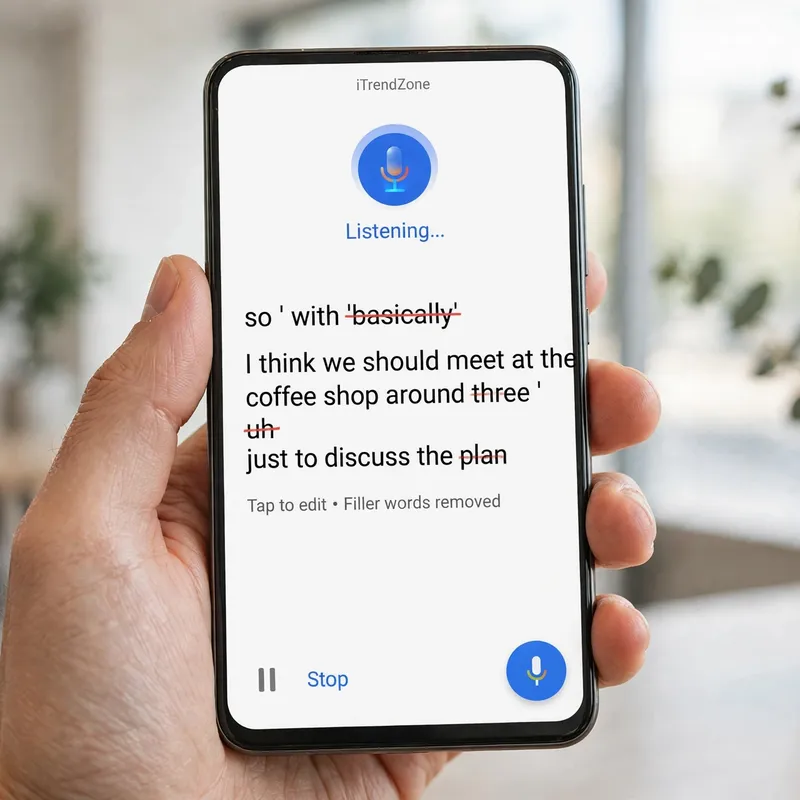
3. Rambler turns rambling into clean text
I dictate a lot of messages while walking, and they always read like someone thinking out loud: “Um, can you, uh, pick up the — wait, no, I meant the oat milk.” Android 17’s Rambler fixes that. It’s the AI dictation tool inside Gboard, and it strips out filler words and handles self-corrections before the text reaches the message box. What I said above comes out as: “Can you pick up the oat milk?” Clean, readable, no trace of the false start.
Rambler understands self-corrections — say “Tuesday — no, Wednesday” and it writes Wednesday — and it tidies grammar without changing what you meant. I’ve started dictating longer things because of it: emails, journal entries, even a dinner-party shopping list. It only works in Gboard, and it improves over a week as it learns your words and names.
4. Pause Point makes you think twice
This one is small, and it might be my favourite. Pause Point is a 10-second countdown splash screen that appears when you open an app you’ve flagged as distracting. You tap the social media icon out of habit, and instead of the feed you get a full-screen pause counting down from ten. Ten seconds doesn’t sound like much, but it’s enough — most of the time I realise I opened the app without a reason and close it again.
I set it up on the two apps I open when I’m bored, and my screen time on them dropped by about a third in the first week — not through discipline, but because the pause broke the autopilot. Pick the right apps: not messaging or email. Put it on the apps you open and then wonder why. Mine is active in the evenings, when aimless scrolling is worst. Less scrolling also helps the battery — my Android 17 battery tips guide has more on taming power-hungry apps.
5. App Bubbles keep anything floating
Chat heads were a Messenger thing for years. Android 17 takes the idea and applies it to every app: App Bubbles lets you shrink any app into a small floating bubble that hovers over whatever else you’re doing. Tap it to open the app in a small window; tap again and it shrinks back. Following a recipe, the timer lives in a bubble while a video plays. On a call, my notes app floats over the screen so I can jot down a reference number without switching away.
It works best with apps you dip in and out of — calculator, notes, timer, translation when travelling. The bubble drags anywhere; flick it to the bottom to dismiss it. If your phone feels slow while juggling apps, my Android 17 performance tips article explains how App Memory Limits stop background apps hogging RAM.
6. Continue On hands your task to another device
I have a phone, a tablet, and a laptop, and until Android 17 the handoff between them was always slightly broken — I’d start an article on my phone on the train and have to find it again on my tablet at home. Continue On fixes that: start something on one Android device and a prompt appears on your others, offering to pick up exactly where you left off — same article, same document, same video at the same timestamp.
Last week I moved a half-written email from my phone to my tablet to finish it with the keyboard attached, and the draft was just there, cursor in the same place. It needs your devices on the same Google account and nearby — a fair trade for how seamless it feels.
7. Screen Reactions: your own picture-in-picture studio
Screen Reactions has the silliest name and one of the most practical uses. It’s a picture-in-picture creator tool: record your reaction — your face in a small floating window — while you record or share your screen. I used it to help my dad change a setting, recording my screen with my face in the corner, talking through each step. He watched it twice and did it himself. Before this, that would have been a 20-minute phone call with both of us frustrated.
The floating window resizes and moves, and you can switch the camera off and just narrate. It’s handy for game clips, video replies, and app demos. Recordings save straight to your gallery. For more on your phone’s camera, see my Android 17 camera tips guide.
8. App Lock finally comes built in
For years, locking individual apps meant a third-party app locker, and most were full of ads or asked for uncomfortable permissions. Android 17 builds App Lock into the system. Protect any app with a password, PIN, or fingerprint — and when it’s locked, the app won’t open, its notifications won’t show content on the lock screen, and it won’t appear in recent apps.
I lock three apps: banking, photos, and messaging. Setup takes about a minute per app — long-press the icon, tap App Lock, choose your method. Fingerprint is the one I’d recommend. For the full privacy picture — including the contacts picker that shares only specific contacts for one session — read my Android 17 privacy and security tips guide.
9. Desktop Mode turns your phone into a PC
Plug your Android 17 phone into a monitor with a USB-C cable and it becomes a desktop computer: draggable windows, a taskbar, apps in proper windows. Samsung’s DeX did this for years; Android 17 brings it to the whole platform. I’ve used it twice for real: once when my laptop battery died mid-meeting and I finished a presentation on the conference room display, and once at a hotel, answering emails on the TV with a Bluetooth keyboard.
It’s no laptop replacement — don’t expect to edit video — but for documents, email, and browsing it’s genuinely usable, best with a Bluetooth keyboard and mouse. Samsung users will find it familiar: One UI 9 builds on the same idea. Its stable rollout began September 16, 2026 with the Galaxy S26, then the S25 on October 12, the S24 on October 21–22, and the S23 on October 22. SamMobile has tracked the rollout device by device.
10. The small ones that add up
Not every hidden feature deserves its own section, but a few smaller ones fix daily annoyances.
Live Updates keep the important stuff visible
Live Updates put changing information — a delivery, a taxi arriving, a match score — right on your lock screen, updating in real time. You glance at it a hundred times a day without thinking, and it means fewer unlocks just to check whether the driver is close.
Contacts picker: share one contact, not your whole address book
Apps used to ask for your entire contacts list or nothing at all. Android 17’s contacts picker lets you share just the specific contacts an app needs, for that session only. The permission expires when you close the app — a small change that closes one of the creepiest gaps in Android permissions.
VVC video and App Memory Limits
Two under-the-hood additions round things out. VVC video playback means better quality at smaller file sizes, most noticeable on streaming apps that support it. App Memory Limits cap how much RAM one app can use, stopping a badly behaved app from slowing everything else down. Both are invisible, and neither got a mention on stage. Underneath it all is the Material 3 Expressive redesign — frosted glass, springier animations, bigger touch targets. For the big picture, start with my Android 17 tips complete guide.

Which phones get these features?
Not every Android 17 phone gets every feature: Gemini Intelligence needs 12GB of RAM, so it skips the Pixel 9, and Desktop Mode needs video out over USB-C. Here’s how the main devices line up, based on Google’s and Samsung’s rollout announcements, covered in detail by 9to5Google and GSMArena.
| Phone | Android 17 status | Gets Gemini Intelligence? | Notes |
|---|---|---|---|
| Pixel 11 series | Ships with Android 17 | Yes | Announced Aug 12, 2026; Pro Fold arrived in October |
| Pixel 10 series | Updated to Android 17 | Yes | 12GB RAM and Gemini Nano v3 on board |
| Pixel 9 series | Updated to Android 17 | No | Has Nano v2; misses the full agent features |
| Pixel 6, 6 Pro | Updated to Android 17 | No | Last major update; support ends Oct 2026 |
| Galaxy Z Fold 8 / Flip 8 | Ships with Android 17 | Yes | First phones to ship with it; in stores Aug 7, 2026 |
| Galaxy S26 series | One UI 9 from Sep 16, 2026 | Yes | First Samsung phones to get the stable update |
| Galaxy S25 / S24 / S23 | One UI 9 from Oct 2026 | S26 only in this group | S25 Oct 12; S24 Oct 21–22; S23 Oct 22 |
If your phone isn’t listed, check the update page in your settings — Android 17 is reaching more models through the end of the year, and Pixel 8 and newer get seven years of updates. If the update hasn’t arrived or something goes wrong, my Android 17 not working fix guide walks through the common problems and fixes.
How fast Android 17 is spreading

The chart above tells a story Google will be quietly pleased with. Android 17 launched in June 2026, and in less than six months it is already the third most popular Android version, on 11.69% of devices. The rollout explains it: Samsung pushed One UI 9 to the S26 in mid-September and worked through the S25, S24, and S23 through October, while the Pixel 11 launch in August and the Galaxy Z Fold 8 and Flip 8 in stores from August 7 put Android 17 in people’s hands from day one. The curve rises steeply through summer, jumps again with the September and October Samsung updates, and settles at 11.69% — with QPR2 in December 2026 likely to push it higher still.
Quiz: how well do you know Android 17’s hidden features?
Q1. Which Android 17 feature strips filler words and fixes self-corrections in your dictation?
A) Rambler
B) Pause Point
C) App Bubbles
D) Continue On
Q2. How much RAM does Gemini Intelligence need to run?
A) 8GB
B) 10GB
C) 12GB
D) 16GB
Q3. Which Pixel phone gets Android 17 as its last major update?
A) Pixel 8
B) Pixel 6
C) Pixel 9
D) Pixel 10
Q4. What does Pause Point do when you open a distracting app?
A) It locks the app with a password
B) It shows a 10-second countdown before the app opens
C) It shrinks the app into a floating bubble
D) It moves your task to another device
Q5. When was the stable version of Android 17 released?
A) May 12, 2026
B) February 13, 2026
C) June 16, 2026
D) September 16, 2026
My take: start with three
If you only try three, make it these: Gemini Intelligence if your phone supports it, because it saves real time every day. Pause Point on the one app that eats your evenings. And dictate a message with Rambler — once you’ve sent a clean message dictated while walking, you won’t go back to typing with your thumbs. The rest are there when you need them. Android 17’s best ideas aren’t on the poster; they’re the small fixes hiding in menus most people never open. The official Android site lists the headline features, and my complete Android 17 guide ties everything together.
Answers: Q1 — A, Q2 — C, Q3 — B, Q4 — B, Q5 — C