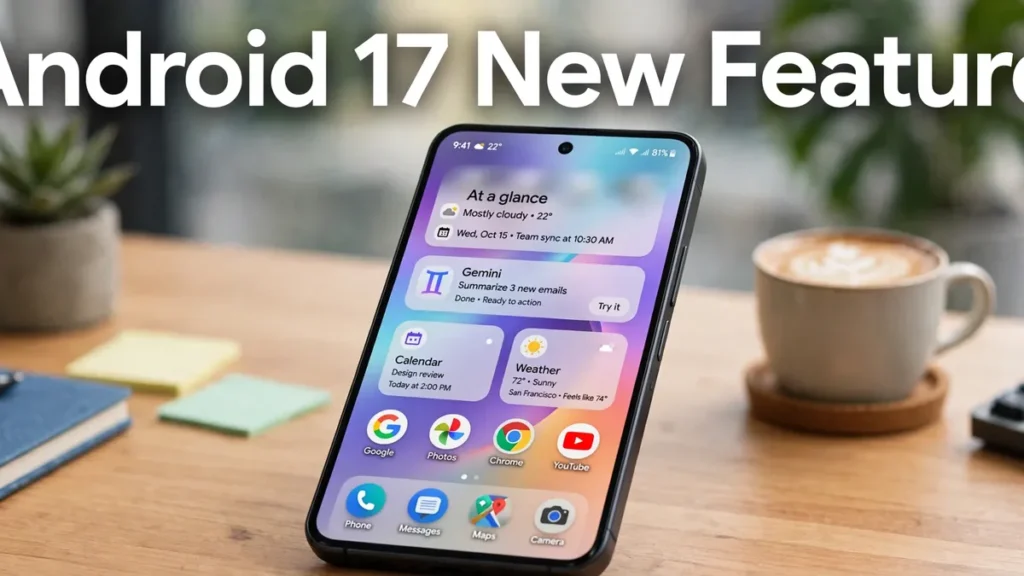

Android 17 New Features: Everything New in Android 17
I installed Android 17 on my Pixel 10 the morning it went stable, and the first thing I noticed was my phone finishing a task I had only half-described. I asked it to sort my weekend trip photos and send the best ones to my sister, and it picked the shots, opened the right apps, and asked me once before sending. Google announced Android 17, codenamed Cinnamon Bun, on May 12, 2026 at The Android Show, and the stable version landed on June 16, 2026. This guide covers every feature that actually matters, which phones get it, and what is still missing.
TL;DR: Android 17 launched stable on June 16, 2026 with Gemini Intelligence — a multi-step AI agent that works across your apps — plus custom widgets, Rambler AI dictation, Pause Point, App Bubbles, Continue On, Material 3 Expressive, native App Lock, and Desktop Mode. Pixel 6 through Pixel 11 get it, and Samsung’s One UI 9 rollout started September 16, 2026 with the Galaxy S26.
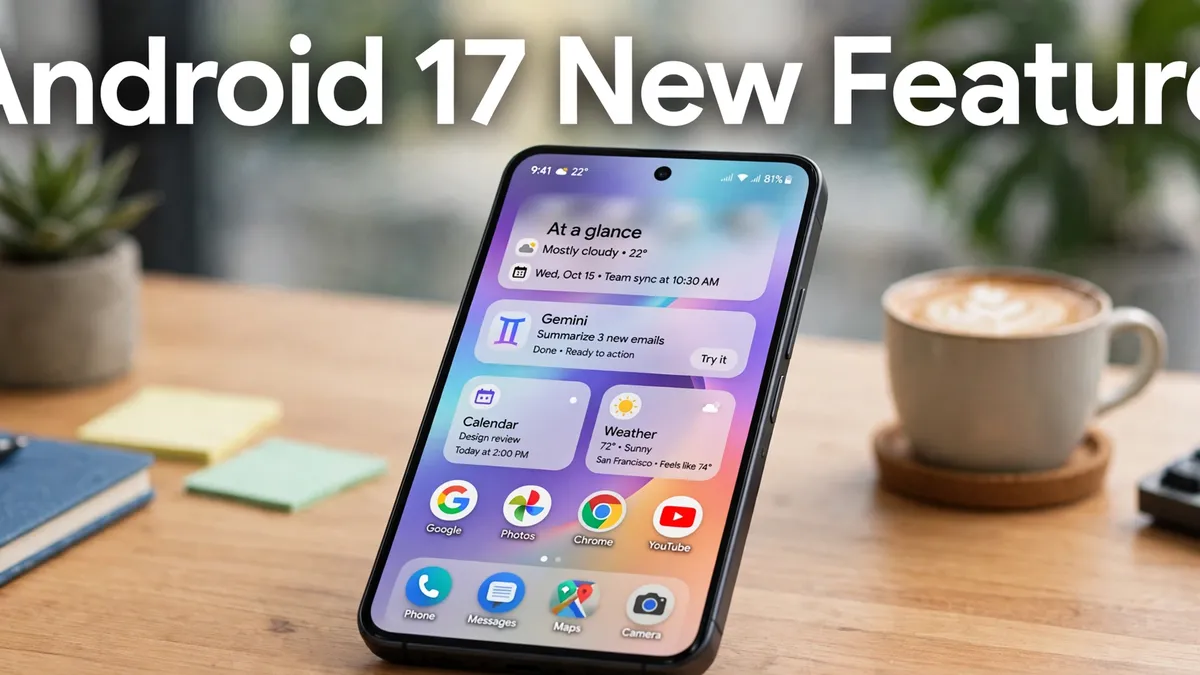
What Is Android 17?
Android 17 is the 2026 major release, API level 37, and the successor to Android 16. The beta program opened on February 13, 2026, and the stable version arrived on June 16, 2026 after four beta builds. QPR1 arrived around September 2026 and QPR2 is expected around December 2026 — you can read the release notes on the Android 17 developer page. For the set overview, start with the Android 17 complete guide.
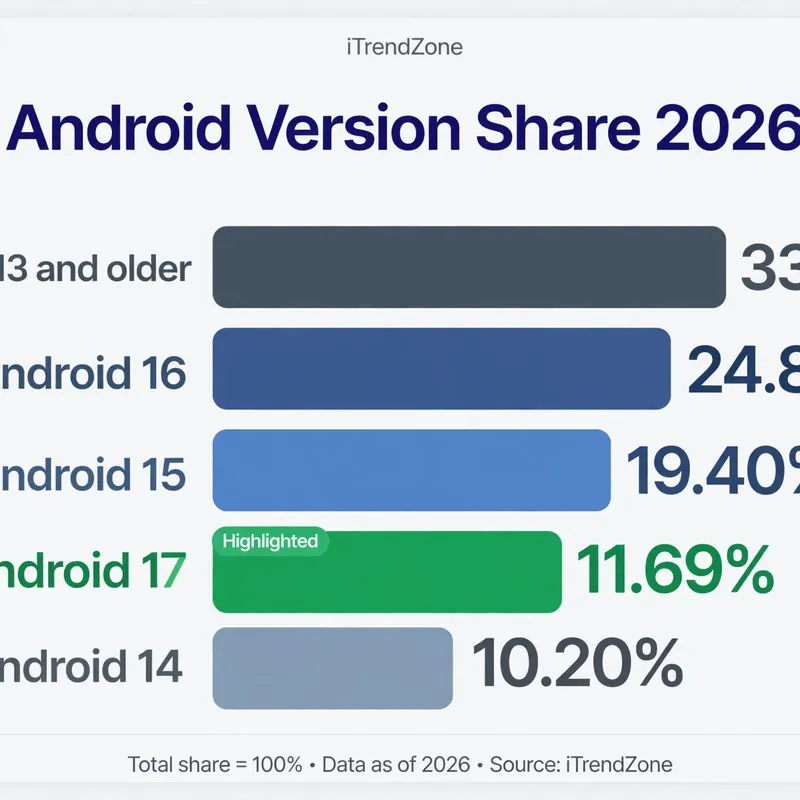
The version is already the third most popular Android release, running on 11.69% of active Android devices, and the rollout is still spreading through Samsung, OnePlus, OPPO, and the rest of the ecosystem.
Gemini Intelligence: The AI Agent That Does the Work
Gemini Intelligence is the headline feature, and it earns the billing. It is a multi-step agent that plans and carries out tasks across several apps at once. I asked it to find a free evening next week, book a table at the restaurant my wife mentioned in a message, and add it to my calendar — it checked my calendar, read the thread, and came back with two time slots. I tapped one and it was done.
The catch: Gemini Intelligence needs 12GB of RAM and the on-device Gemini Nano v3 model, which limits it to the Pixel 10 and 11 series, the Galaxy S26 family, the OnePlus 15, and the OPPO Find X9 and X8. My friend’s Pixel 9 does not qualify — it runs Gemini Nano v2. With less than 12GB of RAM you still get Gemini, but not the cross-app agent. The Android 17 AI features guide has the full list of what works on which phone.
What I like most is how it handles corrections: I said “actually, make it Friday instead” halfway through a task, and it re-planned without starting over. Before it sends a message or books anything, it shows you exactly what it is about to do.
Custom Widgets: Describe It, Get It
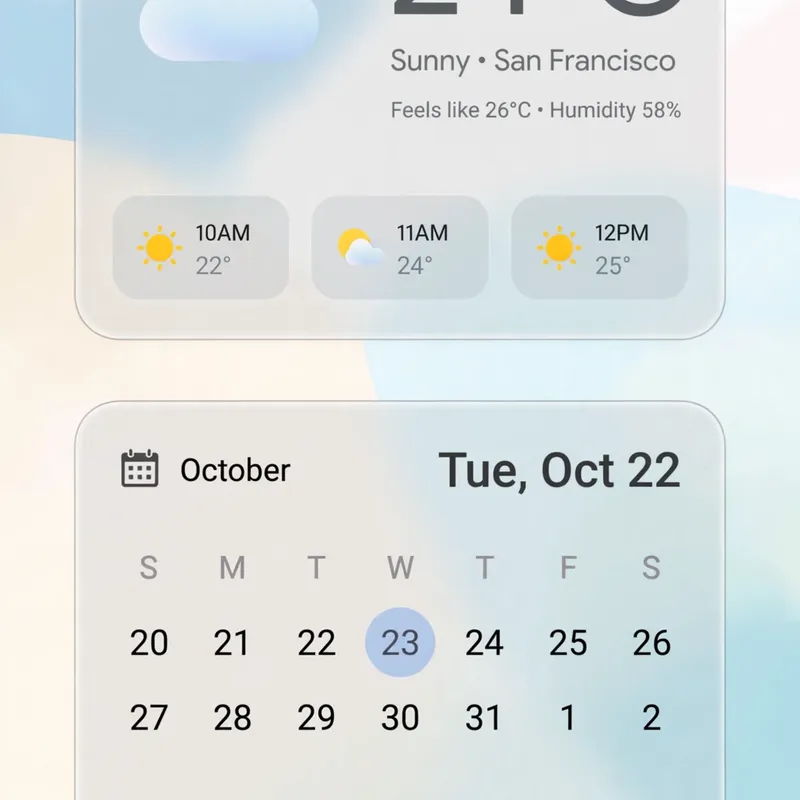
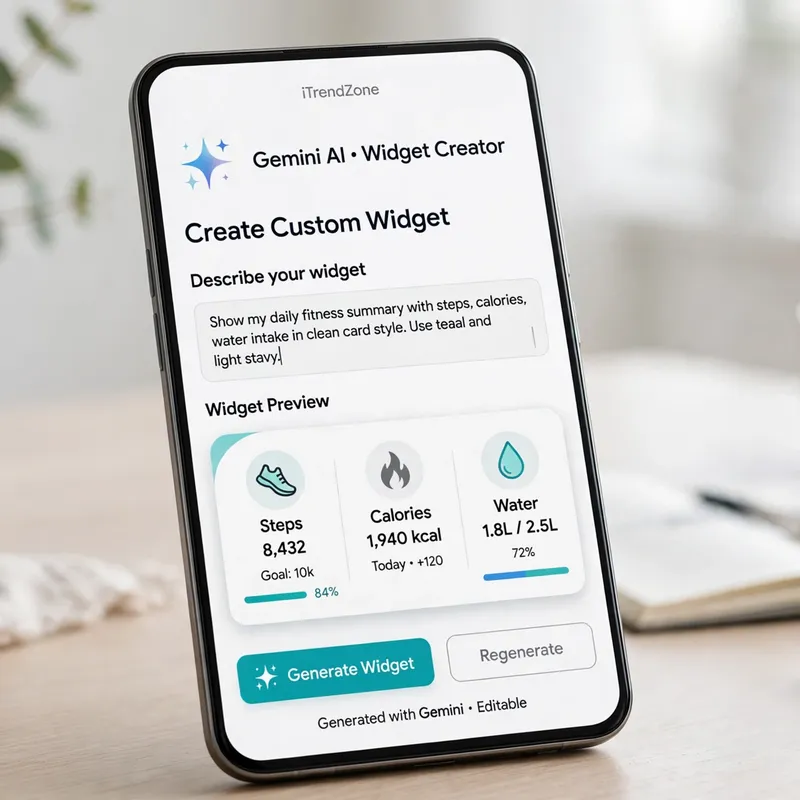
Widgets have been stuck in the same template for a decade. Android 17 lets you describe the widget you want in plain language and builds it for you. I typed “a widget that shows my next three calendar events and the weather at each location” and got exactly that, sized the way I wanted, with my calendar colours. It took about ten seconds.
The widgets are live, not screenshots — they update when your data changes, and you can ask for a different layout in the same plain language. I made one that shows my step count, sleep score, and earbud battery in a single card. The Android 17 customization tips have more widget ideas I have tried.
Rambler: Dictation That Cleans Up After You
Rambler is Google’s new name for AI dictation in Gboard, and it fixes the two things that always made dictation embarrassing: filler words and mid-sentence changes of mind. The “um,” “uh,” and “like” never make it into the text, and when I say “no wait, I meant Tuesday, not Wednesday,” it understands the second part replaces the first.
The difference shows up most in long messages. I dictated a three-paragraph email to my landlord while walking to the train — two corrections, one pause to check a date — and it needed exactly one edit before I sent it. It runs on-device, so it works in airplane mode.
Pause Point: A Ten-Second Speed Bump for Distracting Apps
Pause Point is the feature I did not know I needed. When you open an app you have marked as distracting — for me, that is two social apps and one news app — Android 17 shows a ten-second countdown splash screen before the app opens. Ten seconds is not long, but it is long enough to ask yourself whether you actually meant to open it. Most mornings, I close the splash and go back to what I was doing.
You pick the apps and the times yourself — mine only runs before 9 a.m. and after 9 p.m., when I scroll without thinking. It has cut my accidental scrolling roughly in half. The Android 17 hidden features guide has more tricks in the same spirit.
App Bubbles: Any App, Floating
Chat bubbles used to be for messaging apps only. Android 17 opens the idea up to any app: shrink a maps route, a timer, or a note into a small floating bubble on top of whatever else you are doing. I keep my grocery list in a bubble while cooking. Tap it and the app expands; tap again and it shrinks back.
The bubbles remember where you left them, and you can drag them to the edge of the screen when you want them out of the way.
Continue On: Switch Devices Without Losing Your Place
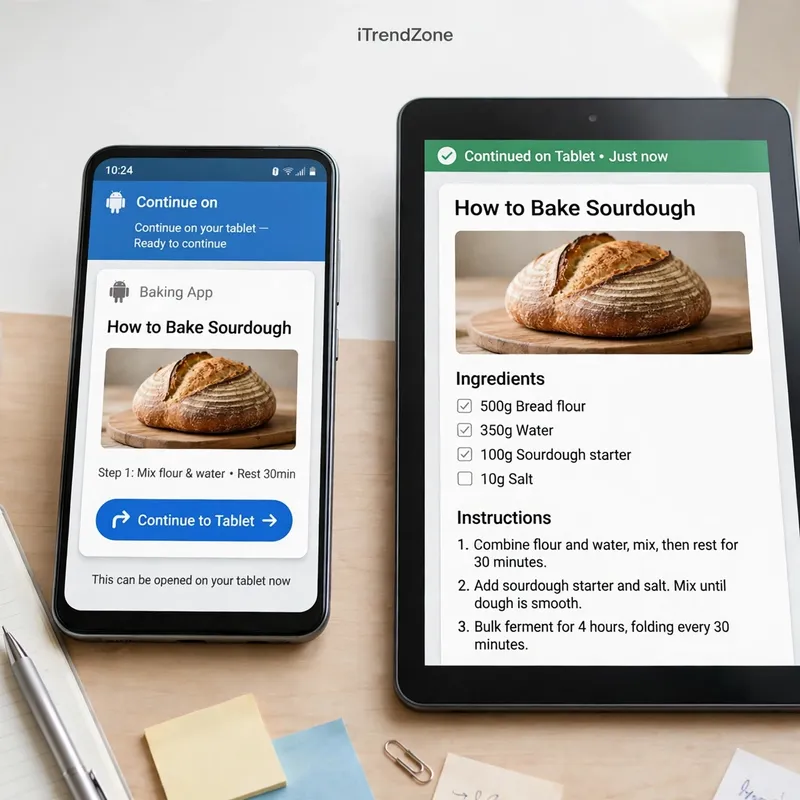
Continue On is Google’s answer to the handoff features Apple users have bragged about for years. Start an email on your phone, pick up your tablet, and the draft is right there — the same works for browsing, notes, and some media apps. It uses the same account sign-in and a nearby-device handshake, so there is nothing to set up.
I tested it between my Pixel 10 and my Pixel Tablet while writing this article, and each time the document opened at the exact line where I had stopped. The one gap is third-party app support — Google’s own apps work perfectly, but some popular apps have not added the handoff hooks yet.
Screen Reactions: A Picture-in-Picture Creator
Screen Reactions is a small creative tool inside the screen recording flow. When you record your screen, you can add a live picture-in-picture video of yourself in a corner — a circle, a rounded square, or a full-width strip at the bottom. It is aimed at people who make tutorials and game clips, and I used it for a quick how-to video for my dad.
You can also pause the reaction cam independently of the recording. It is not a full video editor, but for quick explainers it removes the need for a separate app entirely.
Material 3 Expressive: The Frosted-Glass Redesign
Material 3 Expressive is the new design language across Android 17, and the first word that comes to mind is frosted glass. Panels, notifications, and quick settings tiles have a soft translucent blur, with springier animations when you tap or swipe. The quick settings panel shows it most — larger tiles, clearer labels, and a blur that lets a hint of your wallpaper show through.
I was worried it would drain battery or be hard to read in sunlight. After a month of daily use, neither fear has come true — the blur renders efficiently and text contrast stays high. If you do not like the look, you can tone it down in display settings. The Android 17 performance tips explain how the animations stay smooth even on older Pixel 6 hardware.
Native App Lock: Lock Any App With a Password
For years, locking a single app meant installing a third-party locker. Android 17 builds it in: long-press any app icon, tap App Lock, and that app needs your fingerprint, PIN, or password to open. I locked my banking app, my photo gallery, and my work email, so handing my phone to my nephew no longer comes with a quiet worry about what else he might tap.
Locked apps also hide their notifications on the lock screen, and their content does not appear in the recent-apps overview. The Android 17 privacy and security tips cover App Lock alongside the other security changes in this release.
Desktop Mode: Your Phone Becomes a Computer
Desktop Mode turns your phone into a desktop computer when you plug it into an external display: a taskbar, resizable windows, a proper file manager, and your phone screen as a trackpad. I tried it with a USB-C monitor at a hotel and wrote half of this article on it with a Bluetooth keyboard. Not a laptop replacement for heavy work, but genuinely usable for documents, email, and browsing.
Samsung’s DeX did this first, and Google’s version borrows the good ideas: windows snap to halves and quarters, and notifications appear as desktop-style banners. The catch is hardware — you need video output over USB-C, which covers the Pixel 8 and newer, the Galaxy S series, and most 2025 and 2026 flagships.
Live Updates and the New Contacts Picker
Live Updates bring ongoing activities — a food delivery, a ride, a timer — into a persistent chip in the status bar and on the lock screen. Instead of a notification that vanishes, you get a small live progress bar: my delivery shows the rider’s progress, my timer shows the countdown. Tapping the chip opens the app at the right screen.
The contacts picker is a quieter change with a bigger privacy payoff. When an app asks for your contacts, Android 17 can grant access to just the contacts you pick, for that session only. The app never sees your full address book, and the permission expires when you close the app.
Under the Hood: VVC Video and App Memory Limits
Two technical changes matter even though you will never see a settings toggle for them. The first is VVC video playback — the successor to HEVC — which delivers the same quality at roughly half the file size, so less mobile data and more storage room. The second is App Memory Limits, which caps how much memory background apps can claim, keeping foreground apps smoother and reducing random reloads when you switch back to a game or the camera.
On my Pixel 10, apps stay in memory longer, and the phone rarely reloads the camera when I switch away for a minute. If your phone feels sluggish after the update, the Android 17 battery tips guide explains how to tune these background changes.
Android 17 Adoption and Rollout: The Numbers
The chart above shows where Android 17 stands a few months after launch: the third most popular Android version at 11.69% of active devices. Samsung’s rollout is doing most of the heavy lifting — the Galaxy S26 got One UI 9 on September 16, 2026, the S25 on October 12, the S24 on October 21 and 22, and the S23 on October 22. Pixel phones got it on day one. You can follow Samsung’s rollout news on SamMobile.
| Android Version | Share of Devices | Status in November 2026 |
|---|---|---|
| Android 16 | 24.80% | Most popular version |
| Android 15 | 19.40% | Second most popular |
| Android 17 | 11.69% | Third, still rolling out |
| Android 14 | 10.20% | Declining as users upgrade |
| Android 13 and older | 33.91% | Long tail of older devices |
Which Phones Get Android 17?
The first phones to ship with Android 17 were the Galaxy Z Fold 8 and Z Flip 8, announced at Unpacked on July 22, 2026 and in stores on August 7, 2026. The Pixel 11 series, announced August 12, 2026, also ships with Android 17, with the Pro Fold following in October. GSMArena keeps a running list of which models have received the update.
For existing phones, Google supports Pixel 6 through Pixel 11, the Pixel Fold, and the Pixel Tablet. The Pixel 6 and 6 Pro get Android 17 as their last major update — support ends in October 2026. Pixel 8 and newer get seven years of updates, so a Pixel 8 bought in 2023 will still get Android versions in 2030. Samsung’s One UI 9 rollout covered the S26 first, then the S25, S24, and S23 families through October 2026. OnePlus 15 and OPPO Find X9 and X8 also ship with Android 17 including Gemini Intelligence, thanks to their 12GB-plus RAM.
If your phone has not received the update yet, check Settings, then System, then Software update — carriers and regions roll out in waves. The Android 17 not working fix guide covers what to do when the update will not download or install.
Camera Changes Worth Knowing
Android 17 quietly improves the camera stack too: the new camera APIs give apps more of the sensor’s capability, night mode processing is faster, and the Pixel camera app has a cleaner layout with quicker Night Sight access and a new long-exposure mode. Full rundown in the Android 17 camera tips guide.
What Is Still Missing?
No update is perfect. Gemini Intelligence needs 12GB of RAM and Nano v3, which leaves the Pixel 9 and most mid-range phones out. Continue On works best with Google’s own apps, and third-party support is still catching up. Desktop Mode needs video output over USB-C, so older Pixels cannot use it at all.
Even so, this is the most useful Android update in years. The features are tools I use every day, from Rambler dictation to Pause Point to the app lock on my banking app. If your phone is eligible, install it — and if you want the full AI agent experience, make sure your next phone has 12GB of RAM.
Android 17 New Features Quiz
Question 1: When was the stable version of Android 17 released?
A) May 12, 2026
B) June 16, 2026
C) September 16, 2026
D) February 13, 2026
Question 2: Which of these phones does NOT qualify for Gemini Intelligence?
A) Pixel 10
B) Galaxy S26
C) Pixel 9
D) OnePlus 15
Question 3: What does Pause Point do when you open a distracting app?
A) It shows a ten-second countdown splash screen
B) It locks the app for one hour
C) It deletes the app’s notifications
D) It switches the phone to silent mode
Question 4: Which Android version is the third most popular, and what is its share?
A) Android 16 at 24.80%
B) Android 15 at 19.40%
C) Android 14 at 10.20%
D) Android 17 at 11.69%
Question 5: Which Pixel phones get Android 17 as their last major update?
A) Pixel 8 and 8 Pro
B) Pixel 7 and 7 Pro
C) Pixel 6 and 6 Pro
D) Pixel 9 and 9 Pro
Answers: 1-B, 2-C, 3-A, 4-D, 5-C