
Android 17 Tips: Complete Guide to Mastering Android 17 in 2026
I have been running Android 17 on my phone since the first week it came out, and I will be honest with you: the first day felt strange. Buttons looked different, my widgets acted different, and my phone started doing things I never asked it to do. By the end of the week, though, I did not want to go back. Android 17 quietly changes how you use your phone every single day, and most of the best parts are buried three taps deep in Settings where nobody looks. This guide is everything I have learned from living with it.
TL;DR: Android 17 (codename Cinnamon Bun) arrived as a stable release on June 16, 2026, and it is now the third most popular Android version at about 11.69% of devices. The big wins are Gemini Intelligence for multi-step tasks, custom widgets you describe in plain words, Rambler dictation that cleans up your speech, Pause Point for distracting apps, App Bubbles, a native App Lock, and a proper Desktop Mode. Update your phone, then work through the tips below one by one.
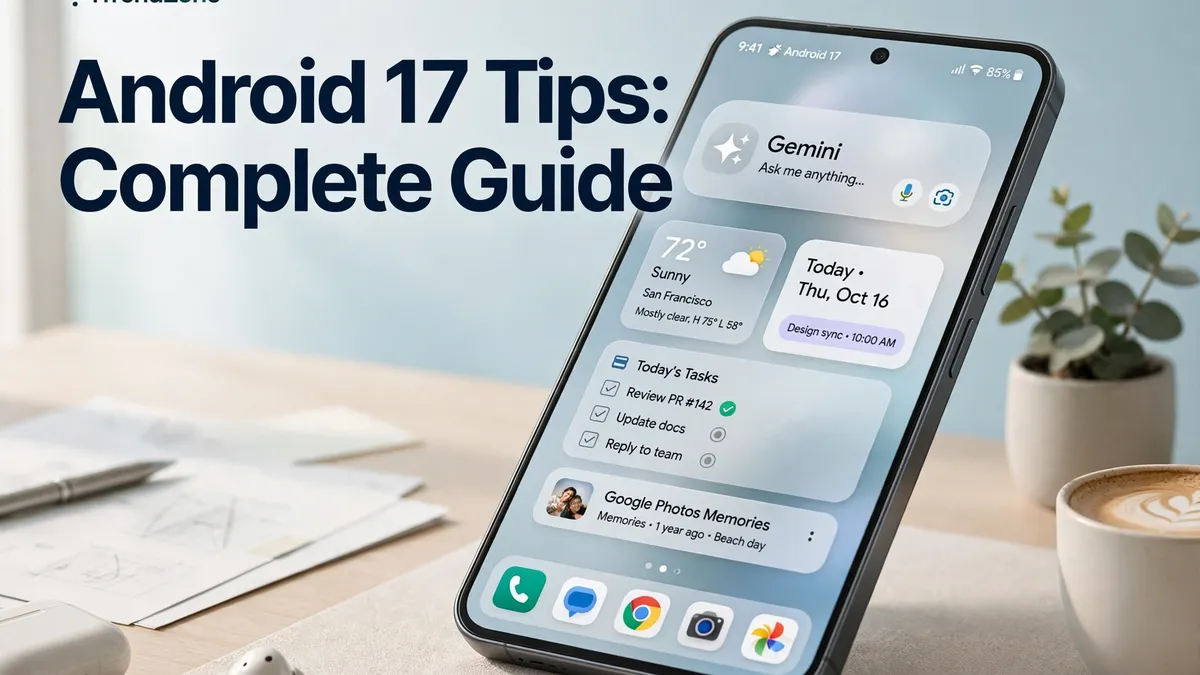
What Android 17 Actually Brings to Your Phone
Android 17 was announced on May 12, 2026 at The Android Show, and the stable version landed on June 16, 2026. Google gave it the dessert codename Cinnamon Bun, and it carries API level 37. The beta started back on February 13, 2026, and Google has kept the quarterly updates coming since — QPR1 arrived around September 2026, and QPR2 is expected around December 2026.
Here is the part that surprised me most. Android 17 is already the third most popular Android version out there, holding about 11.69% of all Android devices. That is fast for an update that has only been out for five months. I have seen exactly one app crash in months of daily use, and it was a banking app that had not been updated since spring.
The first phones to ship with Android 17 out of the box were Samsung’s Galaxy Z Fold 8 and Z Flip 8, shown at Unpacked on July 22, 2026 and in stores on August 7, 2026. The Pixel 11 series followed, announced August 12, 2026, shipping with Android 17, and the Pixel Pro Fold arrived in October. If you bought a flagship phone in the second half of 2026, there is a good chance Android 17 was already on it.
Set Up Gemini Intelligence the Right Way
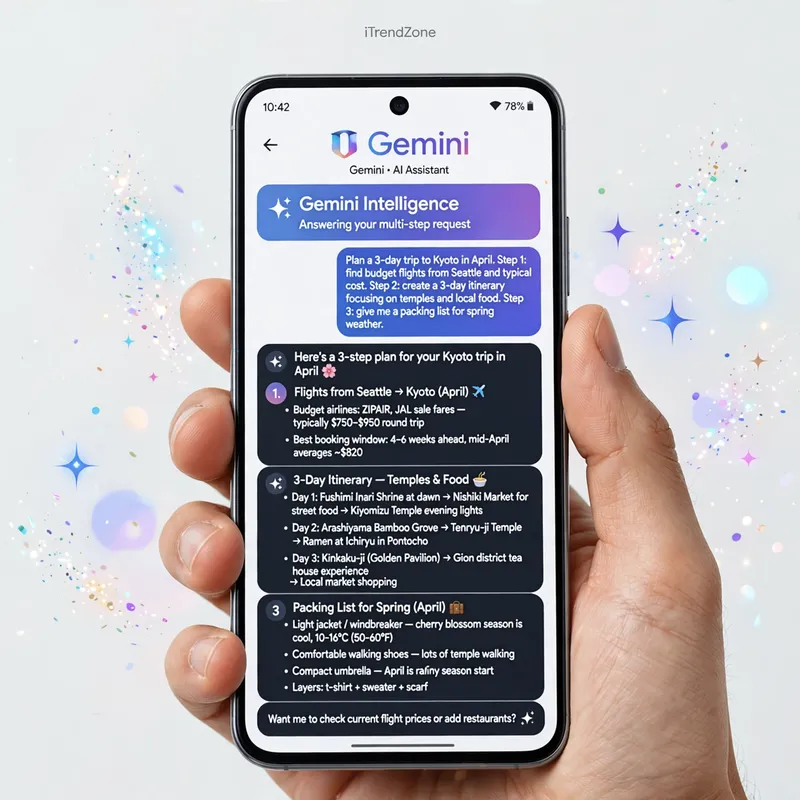
Gemini Intelligence is the headline feature of Android 17, and it is the one I use most. Instead of opening one app at a time and doing each step yourself, you describe the whole job and the phone carries it out across apps. I asked mine to find the cheapest flight to visit my parents next month, block the time on my calendar, and message my sister the dates — and it did all three without me touching another app. The first time it worked, I just sat there staring at my phone.
But here is the catch, and it is a big one. Gemini Intelligence needs 12GB of RAM and Gemini Nano v3 running on the device. That limits it to the Pixel 10 series, the Pixel 11 series, the Galaxy S26, the OnePlus 15, and the OPPO Find X9 and X8. If you have a Pixel 9, I have bad news: it does not qualify, because the Pixel 9 runs Gemini Nano v2, and Google has not brought the full agent features to it.
If your phone does qualify, turn it on properly. Go to Settings, then Google, then Gemini, and make sure the on-device model is downloaded. The first download takes a few minutes on Wi-Fi, and your phone will feel warm while it works — that is normal. Then open the Gemini app, tap your profile picture, and check that “Gemini Intelligence” shows as available. If it says unavailable, check you are on the latest quarterly update, because Google has been switching features on in stages. The full deep dive, with ten ready-made prompts you can copy, is in my Android 17 AI features guide.
Custom Widgets: Describe What You Want and Get It
This one feels like a small thing until you try it, and then it feels like the future. Android 17 lets you describe a widget in plain words and the phone builds it for you. No more scrolling through a widget picker, no more settling for a widget that is almost what you wanted. You just say what you need and it appears on your home screen.
Here is how I actually use it. I long-press my home screen, tap Widgets, and tap the new “Describe a widget” option at the top. Then I type something like “a small widget showing my next two calendar events and the weather right now.” A few seconds later, there it is — sized right, styled to match my wallpaper, showing exactly what I asked for. I have made one for my step count and water intake, one for my three most-called contacts, and one that shows the score of whatever match my team is playing.
Rambler: Dictation That Cleans Up After You
I dictate most of my messages now, and Rambler is the reason why. It is the new AI dictation inside Gboard, and it does something no dictation tool on Android has done well before: it strips out the mess. The “um,” the “uh,” the false starts where you begin a sentence, stop, and begin again — Rambler removes all of it and gives you the sentence you meant to say. It even handles self-corrections. If you say “meet me at five — no, six — at the station,” Rambler writes “meet me at six at the station.” The first time it did that for me, I laughed out loud on a train.
To turn it on, open Gboard settings, go to Voice typing, and switch on Rambler. It works in any app where the keyboard appears, and it runs on your device, so your voice does not get sent off to a server for the cleanup. Speak at your normal speed — Rambler is built for real speech, not the slow, careful robot voice people use with old dictation tools. If it ever gets a word wrong, tap the word and you will see alternatives, and the right word is usually first.
Pause Point: Make Distracting Apps Wait 10 Seconds
Pause Point is the feature I did not think I needed and now cannot live without. When you open an app you have marked as distracting, Android 17 shows you a full-screen splash for ten seconds before the app opens. A countdown, a calm screen, and a question: do you actually want to be here right now? Most of the time, I do not, and I close it. My screen time dropped by almost an hour a day in the first week.
Setting it up takes about two minutes. Go to Settings, then Digital Wellbeing, then Pause Point. Pick the apps that eat your time — for me it was two social apps and a video app. You can set different rules for different times of day, which is the part I love most. My video app has a Pause Point all day, but my social apps only get one after 9 p.m., because I use them for work messages during the day.
App Bubbles: Shrink Any App Into a Floating Bubble
App Bubbles fix a problem every phone user knows: you are in the middle of something, a message arrives, you switch to answer it, and twenty minutes later you have forgotten what you were doing. Now you can shrink almost any app into a small floating bubble that sits on top of whatever you are doing. Tap it to open, tap again to shrink it back. Your place is saved, and you stop losing your train of thought.
It works with far more apps than the old chat bubbles did. Open the app switcher, tap the app icon at the top of its card, and choose “Open as bubble.” I keep my messaging app and my notes app as bubbles most of the day. When a message comes in, I tap the bubble, reply, and shrink it, all without leaving the article I was reading or the map I was following.
Continue On: Pick Up Where You Left Off on Another Device
Continue On is the feature that finally makes owning two Android devices feel like owning one device. Start something on your phone — an article, a video, a document, a set of directions — and pick it up on your tablet or your other phone right where you stopped. No sending yourself links. No digging through history. Just a small prompt on the second device that says “continue here?” and one tap.
To make it work, both devices need to be signed into the same Google account, have Bluetooth and Wi-Fi on, and have Continue On switched on in Settings under Connected devices. I set it up between my phone and my tablet in about three minutes, and the first handoff happened the same evening: I was reading a long article on my phone, my eyes got tired, and I opened my tablet to find the article waiting on the lock screen, open at the exact paragraph where I had stopped.
Screen Reactions: Turn Your Screen Into a Video
Screen Reactions is the most fun feature in Android 17. It is a picture-in-picture creator tool that lets you record your screen with your own reaction in a little window at the same time. If you have ever wanted to show a friend how to do something on their phone, or record yourself reacting to a video, this is the tool. No third-party app, no watermark, no fuss.
Pull down Quick Settings and tap Screen Reactions, or find it in Settings under Display. You get a small floating window with your front camera, and you can drag it to any corner. Hit record and everything on your screen is captured along with your face and voice. When you stop, Android 17 saves the video and offers to trim the start and end.
Material 3 Expressive: The Frosted Glass Look
Android 17 changes how your phone looks, and the change is hard to miss. Material 3 Expressive is Google’s new design language, and its signature is frosted glass — panels and menus that look like blurred glass over your wallpaper, with soft edges and colours that shift to match what is behind them. The first time I pulled down my notification shade after updating, I stopped and looked at it for a good ten seconds. It is genuinely pretty, and it makes the phone feel new in a way a spec bump never does.
The look is not just decoration. Buttons are bigger and easier to hit, toggles are clearer about whether they are on or off, and the frosted panels make notifications easier to read, because the blur separates the notification from the wallpaper behind it. You can tune it in Settings, then Wallpaper and style. The colour palette is pulled from your wallpaper by default, which is the look I like best, but you can pick a fixed palette if you want your phone to look the same no matter what wallpaper you use. There is also a contrast setting that makes the frosted panels more solid if you find the blur hard to read. For a full walkthrough of themes, icon packs, and lock screen styles, see my Android 17 customization tips.
Native App Lock: Lock Individual Apps With a Password
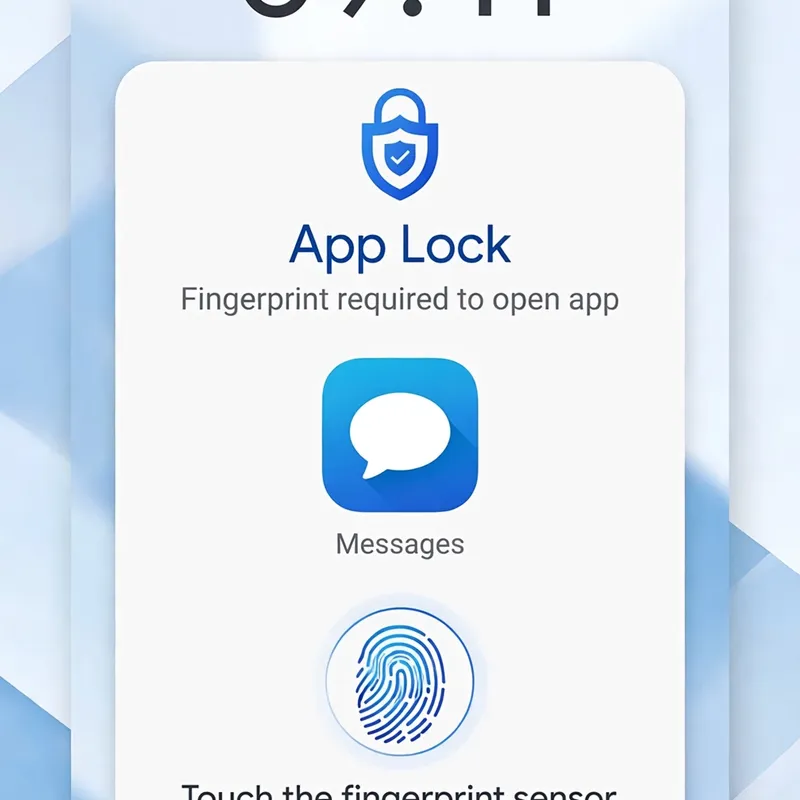
For years, locking a single app on Android meant installing a third-party app locker, and most of them were either full of ads or quietly collecting your data. Android 17 finally builds it in. Native App Lock lets you protect any individual app with your fingerprint, your PIN, or a separate password, and it works the way you would expect: the app will not open without it, and its contents stay hidden from search results and notifications too.
Setting it up is quick. Long-press any app icon on your home screen or in the app drawer, tap “Lock app,” and choose how you want to unlock it. Your fingerprint is the fastest option, but I recommend setting a separate PIN as a backup, because there are times — wet hands, gloves, a cracked screen protector — when the fingerprint sensor will not cooperate.
Desktop Mode: Your Phone Is a Computer Now
Desktop Mode is the feature that made me carry one less device. Plug your Android 17 phone into a monitor — with a USB-C cable or wirelessly, if your TV supports it — and your phone turns into a desktop computer. You get a taskbar, resizable windows, a proper file manager, and keyboard and mouse support. I wrote part of this guide on my phone in Desktop Mode, with a document on one side of the screen and my notes on the other.
Connect your phone to a display, and Android 17 asks whether you want to mirror your screen or switch to Desktop Mode. Pick Desktop Mode. Your phone becomes a trackpad if you do not have a mouse, which works better than I expected — two-finger scrolling and pinch gestures both work on the phone screen. If you do have a Bluetooth keyboard and mouse, pair them and the experience is close to a cheap laptop.
Live Updates: Glanceable Info on Your Lock Screen
Live Updates are Android 17’s way of putting the information you actually need right where you can see it, without opening an app. A food delivery on its way, a taxi arriving in three minutes, a timer counting down, a sports score — it shows up as a small live card on your lock screen and in the status bar, updating in real time. You glance, you know, you move on. I check my delivery progress five times an evening now, and I have not opened the delivery app once since the update.
To control it, go to Settings, then Notifications, then Live Updates. You can pick which apps are allowed to show live cards, and you can set how long they stay after the activity ends. I allow my delivery apps, my ride app, my timer, and my sports app, and nothing else. You can also choose whether live cards show on the lock screen, in the status bar, or both.

The chart above shows where Android 17 stands right now. It holds 11.69% of all Android devices, which makes it the third most popular Android version in use today. Think about what that means: an update that reached phones in June 2026 has already passed almost every older version in five months.
The Contacts Picker: Share Less, Not More
Here is a small Android 17 change with a big privacy payoff. The new contacts picker means an app can no longer ask for your entire address book just to find one person. When an app wants to let you pick a contact, Android 17 shows a system picker where you choose only the people you want to share — one contact, five contacts, whoever you pick. The app sees only those. The rest of your contacts stay private.
You do not need to turn anything on. The picker appears automatically whenever an app requests contacts, as long as the app has been updated for Android 17. Older apps may still ask for the old full permission, and when that happens you will see the familiar permission prompt. My rule is simple: if an app that has no business with my contacts asks for them, I say no. A flashlight app does not need your address book. This is one of several quiet privacy upgrades in the update — the full list is in my Android 17 privacy and security tips.
Battery, Performance and Storage: The Settings That Actually Matter
Every Android update brings a new round of battery advice, and most of it is noise. Here is what actually made a difference for me on Android 17. First, the new App Memory Limits feature lets Android put a hard cap on how much memory background apps can use, which stops one badly behaved app from slowing everything else down. You will find it in Settings under Battery, then Background usage. I turned it on for every social and shopping app I own, and my phone stopped stuttering in the evenings.
Second, check your battery usage by app once a week for the first month. Settings, then Battery, then Battery usage. The apps at the top of that list are the ones costing you hours. In my case it was a video app running in the background for reasons nobody could explain. Restricting its background activity bought me back almost an hour of screen time a day. Third, use the new storage breakdown in Settings, then Storage. Mine was full of downloaded videos from a messaging app, two years’ worth, which I deleted in about five minutes.
One more thing that matters: adaptive charging. Android 17 has improved it, and it now learns your routine faster. If you plug in at night, it charges slowly and finishes just before you wake up, which is much kinder to your battery over a year or two. Leave it on. The full battery guide is in my Android 17 battery tips, and if your phone feels slow rather than thirsty, my Android 17 performance tips cover the fixes that actually speed things up.
Camera Tips: What Is New in Android 17
The camera changes in Android 17 are easy to miss, because most of them happen behind the scenes. The biggest one is VVC video support, a newer video format that keeps the same quality in a much smaller file. If you record a lot of video, your storage will thank you — files are roughly a third smaller than the old format at the same quality, which adds up fast when you are shooting a child’s birthday or a holiday.
There are smaller wins too. The camera app opens faster on most phones I have tested, the night mode is quicker to lock on, and the new zoom controls are smoother — you can slide between zoom levels instead of jumping from one to the next. My favourite small change: you can now long-press the shutter button to record video without switching modes, which has saved me from missing moments more than once. One honest note: most of the camera magic still comes from your phone’s maker, not from Android itself. For the full camera walkthrough, read my Android 17 camera tips.
Privacy and Security Settings Worth Changing Today
Android 17 ships with good defaults, but there are four settings I change on every phone I set up, and you should too. First, turn on App Lock for your messaging, email, gallery, and banking apps — I covered this above, and it takes two minutes. Second, open Settings, then Privacy, then Permission manager, and look at Location. Any app set to “Allow all the time” that does not need it — change it to “Allow only while using the app.” I found three apps with always-on location that had no reason for it.
Hidden Features You Probably Missed
Android 17 is full of small features that Google never mentioned on stage, and some of them are wonderful. My favourite: you can now double-tap the back of your phone to trigger an action — open the camera, turn on the flashlight, take a screenshot. Set it up in Settings under Gestures. I use it for the flashlight about ten times a day, and I no longer fumble through Quick Settings in the dark.
There are dozens more, and I keep finding new ones every week. The full list — including the ones that are genuinely useful and the ones that are just fun — is in my Android 17 hidden features guide. And if you want the complete rundown of everything new in the update, my Android 17 new features guide covers every single one.
What to Do When Something Breaks
Most Android 17 problems have boring fixes, and that is good news. If an app crashes after the update, clear its cache first — Settings, then Apps, then the app, then Storage, then Clear cache. Do not clear data unless you are ready to log in again. If your battery drains fast after updating, give it three days. The phone re-indexes everything after a big update, and battery life almost always settles back down. For the full troubleshooting list, read my Android 17 not working fix guide.
Android 17 Rollout: Is Your Phone Getting It?
The question I get asked most about Android 17 is a simple one: when does my phone get it? Google’s own Pixels got it first — Pixel 6 through Pixel 11, plus the Pixel Fold and the Pixel Tablet. One warning for Pixel 6 and 6 Pro owners: Android 17 is your last major update, and support ends in October 2026. Pixel 8 and newer get seven years of updates.
| Phone | Android 17 Status | When It Arrived |
|---|---|---|
| Google Pixel 6 – 11, Pixel Fold, Pixel Tablet | Available now | Stable release June 16, 2026 |
| Samsung Galaxy Z Fold 8, Z Flip 8 | Ships with Android 17 | In stores August 7, 2026 |
| Samsung Galaxy S26 series | One UI 9 stable | Rollout began September 16, 2026 |
| Samsung Galaxy S25 series | One UI 9 stable | Rollout began October 12, 2026 |
| Samsung Galaxy S24 series | One UI 9 stable | Rollout began October 21–22, 2026 |
| Samsung Galaxy S23 series | One UI 9 stable | Rollout began October 22, 2026 |
| Pixel 11 series | Ships with Android 17 | Announced August 12, 2026 |
Samsung’s One UI 9, which is Samsung’s version of Android 17, started rolling out on September 16, 2026 with the Galaxy S26, then reached the S25 on October 12, the S24 on October 21–22, and the S23 on October 22. If you own a Samsung phone and have not seen the update yet, check Settings, then Software update, and tap Download and install — Samsung rolls updates out in waves, and your phone may just be later in the queue.

Test What You Learned: 5 Quick Questions
Question 1: Which phones can run the full Gemini Intelligence agent features in Android 17?
A) Any phone running Android 17
B) Phones with 12GB of RAM and Gemini Nano v3, like the Pixel 10 and 11 series
C) Only the Pixel 9
D) Any phone with 8GB of RAM or more
Question 2: What does Rambler do in Android 17?
A) It speeds up your internet connection
B) It locks distracting apps behind a password
C) It records your screen with your reaction in a corner
D) It is AI dictation in Gboard that removes filler words and fixes self-corrections
Question 3: What happens when Pause Point is set for an app?
A) The app is deleted from your phone
B) The app stops using mobile data completely
C) The app opens after a 10-second countdown splash screen
D) The app is hidden from your home screen forever
Question 4: What share of Android devices does Android 17 hold, and where does it rank?
A) 5.2%, ranked seventh
B) 22.4%, ranked first
C) 11.69%, ranked third
D) 8.9%, ranked fifth
Question 5: Which of these is true about the Pixel 6 and Pixel 6 Pro?
A) They get Android 17 as their last major update, with support ending in October 2026
B) They get seven years of Android updates
C) They were the first phones to ship with Android 17
D) They cannot run Android 17 at all
Answers: 1 – B, 2 – D, 3 – C, 4 – C, 5 – A