
Android 17 Privacy Tips: Keep Your Phone Safe in 2026
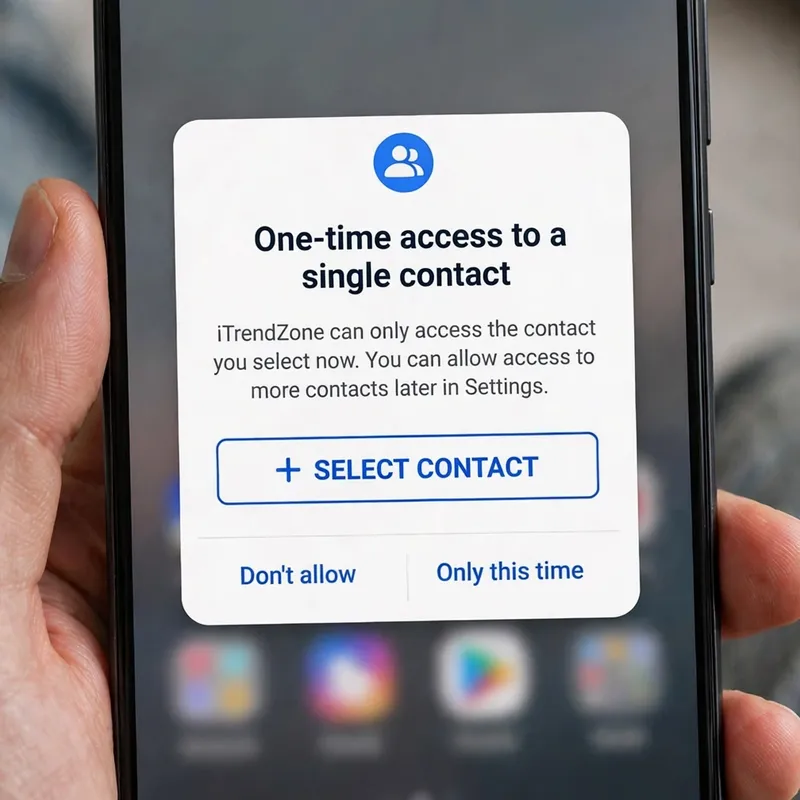
I updated my Pixel 8 to Android 17 the week it went stable in June, and the first thing I noticed wasn’t the frosted-glass look or the new widgets. It was a small prompt I had never seen before: an app asked for one contact, and my phone asked me to pick exactly which one. No all-or-nothing permission, no digging through settings. That one moment told me what this update is really about. Android 17, codenamed Cinnamon Bun, quietly gives you more control over your own data than any Android version before it — if you actually turn the new tools on. Most people won’t. They’ll update, admire the new design for a day, and leave every privacy switch exactly where it was.
TL;DR: Android 17 adds a native App Lock and a contacts picker that shares only the contacts you choose, one session at a time. This guide walks through the ten-minute permission audit I do on every phone, the lock-screen settings that stop notifications leaking, and the background switches that cut tracking without breaking apps. Do the checklist at the end once, and your phone stays private by default.
Why Android 17 Changes the Privacy Game
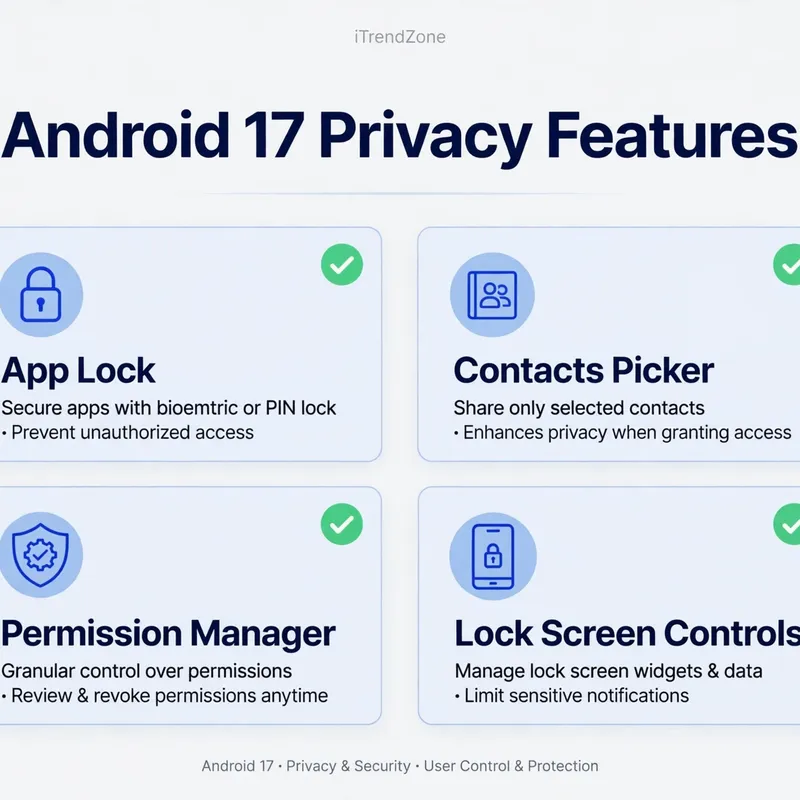
Let me be straight with you: Android 17 is not a privacy revolution. It is a privacy clean-up. The update, released in its stable form on June 16, 2026, fixes the two things that annoyed me most about older versions. First, apps used to demand your entire address book just to find one friend. Second, if someone borrowed your phone, every app on it was wide open unless you installed a third-party locker that showed ads of its own. Android 17 fixes both, and it does it with tools built into the system itself.
Android 17 is already the third most popular Android version, running on 11.69% of Android devices. Samsung’s One UI 9 rollout, built on Android 17, began September 16, 2026 with the Galaxy S26, then the S25, S24 and S23 in October. Pixel 6 owners should know Android 17 is their last major update, with support ending in October 2026. If you want the full picture of what else arrived with this version, my Android 17 complete guide covers every headline feature, and the Android 17 new features guide goes deeper on the ones people keep asking me about.
Google’s Android 17 release notes cover the same headline changes, but the strongest settings are still off by default because they ask you to make a choice. That is what this guide is for — I spent a week living with these settings on my own phone, breaking a few things along the way, so you don’t have to.
Lock Any App With Android 17’s Native App Lock
This is the single best privacy feature in Android 17. Native App Lock protects individual apps with a password, PIN, or fingerprint — no third-party app, no ads, no subscription. Your banking app, your gallery, your messages: locked behind a second gate even when your phone itself is unlocked.
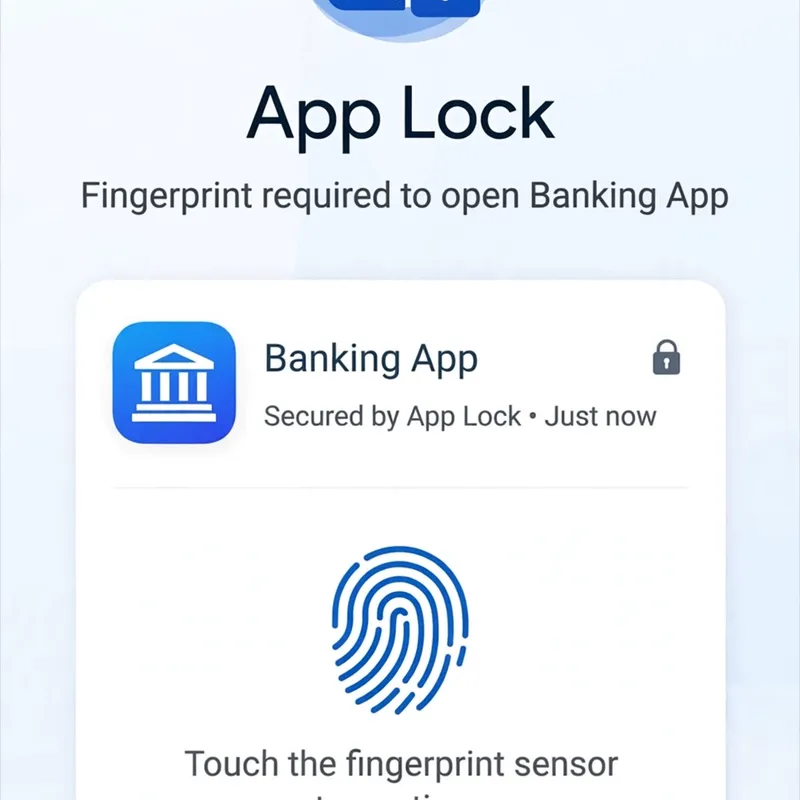
Setting it up takes two minutes
Open Settings, head to Security and privacy, and look for App Lock. Pick the apps you want to protect, choose your unlock method, and you’re done. I use my fingerprint because it’s fast. One detail worth knowing: when an app is locked, its notifications stop showing previews too. Your banking alerts and private messages stay hidden until you unlock the app itself.
Which apps deserve a lock first
Start with the obvious three: your banking apps, your email, and your photo gallery. Then add your messaging apps — WhatsApp, Telegram, whatever you use — because a borrowed phone and an open chat app is how most private conversations leak. I also locked my notes app, since mine holds passwords and addresses I never meant to share. Don’t lock everything, though — lock your phone app or maps and you’ll hate the friction within a day. Lock the sensitive stuff and leave the rest alone. If you want to see how App Lock sits alongside the rest of the update, the Android 17 hidden features guide has a few more quiet additions like this one that Google barely mentioned.
The Contacts Picker: Share Two Contacts, Not Two Thousand
Here’s a question nobody asks out loud: why does a food delivery app need your grandmother’s phone number? Until Android 17, your choices were ugly — hand over your whole address book or refuse and lose the feature. The new contacts picker ends that deal. When an app asks for a contact, you choose exactly which contacts to share, and only the fields you select. The permission is temporary and session-only, so the app doesn’t keep your address book on its servers forever.
I tested this the first day. A messaging app asked to find friends, I picked three contacts, and that was it. The app worked fine and never saw the other four hundred people in my phone. This is how permissions should have worked all along.
Audit Your Permissions in Ten Minutes
Every phone I’ve ever checked has an app with permissions it has no business holding — a torch app with location access, a wallpaper app reading your files. It happens because we tap “allow” while doing something else, and then forget. Android 17 doesn’t fix human nature, but its privacy dashboard makes the clean-up painless. Give yourself ten minutes, a cup of tea, and go through it once.
Open Settings, then Security and privacy, then Privacy dashboard. You’ll see which apps used your location, camera, and microphone in the last 24 hours. I found a shopping app that had checked my location twelve times in a day. Twelve. It didn’t need it once. I switched it to “only while using the app” and nothing broke. That’s the pattern: most apps ask for more than they need, and most work fine with less.
While you’re there, use one-time permissions wherever you can. If an app needs your camera once — to scan a code, say — give it access just that once and let Android take it back. My rule is simple — if an app breaks without a permission, it probably needed it. If it works fine without it, it never did. For the apps that feel slower or heavier after all this, the Android 17 performance tips guide covers what the new App Memory Limits do and how to keep things smooth.
Stop Your Lock Screen From Spilling Secrets
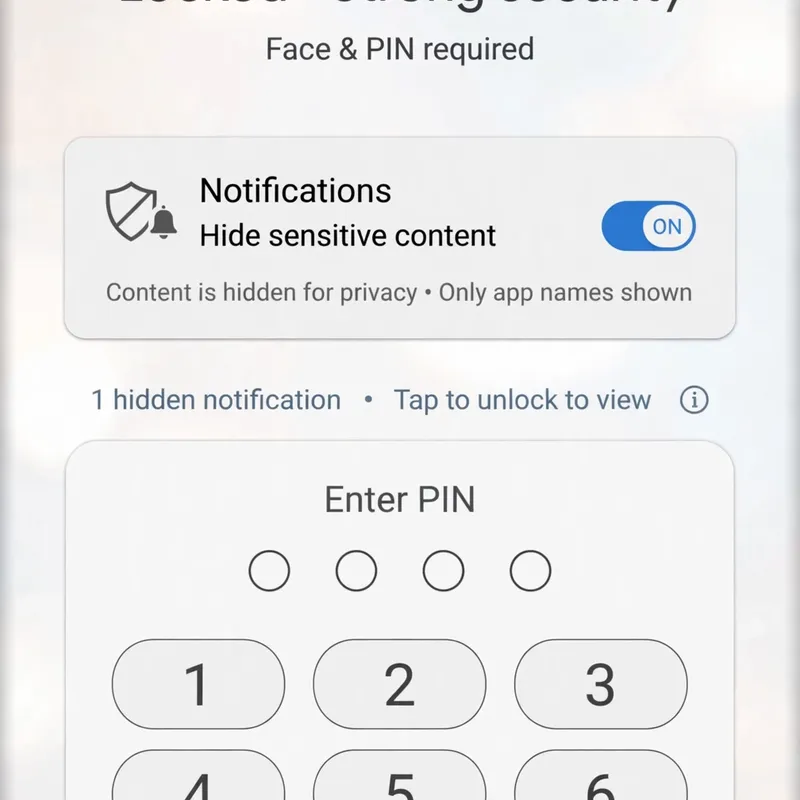
Your lock screen is the most public part of your phone — it sits on tables and desks, and by default it shows the first two lines of every message you receive. I once watched a friend’s banking alert flash across a café table while he was in the bathroom. Don’t be that person.
Go to Settings, then Notifications, then Lock screen notifications, and switch them to hide sensitive content. Your phone will still tell you a message arrived, and from whom — but not what it says. You lose nothing. Turn off notification previews for banking and email apps too — App Lock hides these when you lock the app, but this setting covers the rest.
Check your most private apps individually too — it takes thirty seconds per app and it’s worth it. Your lock screen should be a doorbell, not an open window.
Background Tracking: What to Switch Off
The chart above shows how fast Android 17 spread — stable on June 16, 2026, already on 11.69% of Android devices and the third most popular version, with Samsung’s One UI 9 rollout following from September 16, 2026 and quarterly updates landing in September and December. If your phone is still waiting for the update, check the Android 17 not working fix guide — a stuck update is usually a storage or battery-saver problem, not a broken phone.
Apps don’t need to know where you are at 3 a.m., but many check anyway. Open your location settings and switch apps you don’t fully trust to “only while using the app” or, better, to approximate location — good enough for weather, useless for tracking your street. Weather, news and shopping apps don’t need your exact address. Only navigation and ride apps earn precise location, and only while you’re using them.
Watch for the little green dot in your status bar. Android shows it whenever an app uses your camera or microphone. If it lights up and you’re not on a call or taking a photo, something is wrong. Swipe down, tap the indicator, and Android tells you exactly which app is responsible. I caught a social app accessing my microphone in the background once. I revoked the permission on the spot and the app never missed it. And if you use the new AI features a lot, the Android 17 AI features guide explains what Gemini Intelligence does with your data across apps, including which phones it even runs on.
Photos, Files and the Stuff You Forget About
Photos are the most personal thing on most phones, and the thing people protect least. Android’s photo picker helps: when an app asks for a photo, you choose exactly which pictures to share instead of handing over your whole gallery. Never grant an app full photo access unless it genuinely needs it — a gallery or backup app, for example. A chat app that wants one picture does not need ten thousand.
Then there’s your downloads folder — old boarding passes, scanned documents, screenshots of passwords. I found a photo of my ID card in mine from two years ago. Delete what you don’t need, and move anything sensitive into your locked folder or a locked app. A phone that gets stolen with your ID and banking screenshots in it is a much bigger problem than a phone that just gets stolen. Speaking of photos, the camera itself collects location data in every shot unless you stop it. If you post pictures online, that data can travel with them. The Android 17 camera tips guide shows where that switch lives, along with the other camera settings worth changing.
Lost Phone? Public Wi-Fi? Here’s the Plan
Most privacy disasters aren’t hackers in hoodies. They’re a phone left in a taxi, or a public Wi-Fi network in a hotel lobby. So let’s make a plan for both.
First, the lost phone. Make sure Find My Device is on — Settings, then Security and privacy, then Find My Device. Test it once from your computer so you know it works before you need it. Set a strong lock screen: a six-digit PIN at minimum, not a pattern you can guess from the smudge on your screen. And turn on theft protection, which locks your phone automatically if it detects a snatch-and-run motion. I had a friend jog away with my phone once. It locked within seconds.
Second, public Wi-Fi. Hotel, airport, café — assume the network is watching. Don’t log into your bank on it, don’t enter passwords you care about, and use a VPN if you have one. If you don’t have one, at least make sure the sites you visit use HTTPS, which your browser shows with a small lock icon. And turn off auto-join for open networks, or your phone will happily connect to a network called “Free WiFi” that belongs to nobody you know. Your battery will thank you for fewer background connections too — the Android 17 battery tips guide has the rest of the settings that help with that.
Android 17 Privacy Features at a Glance
Here’s the whole picture in one place.
| Feature | What it does | Where to find it |
|---|---|---|
| App Lock (new in Android 17) | Locks individual apps behind a password, PIN or fingerprint | Settings > Security and privacy > App Lock |
| Contacts picker (new in Android 17) | Shares only the contacts and fields you pick, session-only | Appears automatically when an app asks for contacts |
| Privacy dashboard | Shows which apps used location, camera and mic in the last 24 hours | Settings > Security and privacy > Privacy dashboard |
| One-time permissions | Grants camera, mic or location access once, then takes it back | Permission prompt when an app asks |
| Approximate location | Gives apps a rough area instead of your exact address | App permissions > Location |
| Photo picker | Lets you share chosen photos instead of your whole gallery | Appears automatically when an app asks for photos |
| Theft protection | Locks the phone automatically if it detects a snatch-and-run | Settings > Security and privacy > Theft protection |
| Hide lock screen content | Stops notifications showing message text on the lock screen | Settings > Notifications > Lock screen notifications |
My Day-One Privacy Checklist
Do these once, in order. Fifteen minutes, and you’re covered.
One, turn on App Lock for banking, email, gallery and messaging. Two, hide sensitive lock screen content. Three, run the permission audit and revoke anything silly. Four, set location to approximate except for navigation and rides. Five, turn off ad personalization. Six, switch on Find My Device and theft protection, and test it from your computer. Seven, delete password screenshots and old ID photos from downloads. Eight, make the phone look like yours — the Android 17 customization tips guide covers the new Material 3 Expressive look and custom widgets, genuinely fun once the serious stuff is done.
Privacy on Android 17 isn’t about being paranoid. It’s about deciding once what your phone may share — and letting the system enforce it. The tools are already on your phone. Use them.
Test What You Learned
Five quick questions to check what stuck. Answers are at the end.
Q1. What does Android 17’s contacts picker let you do?
A) Share your whole address book faster
B) Share only the contacts and fields you choose, for one session
C) Block all apps from ever asking for contacts
D) Delete contacts automatically after a week
Q2. Which of these should you lock with App Lock first?
A) Your torch app and calculator
B) Your maps and phone apps
C) Your weather app
D) Your banking, email, gallery and messaging apps
Q3. What does the green dot in your status bar mean?
A) An app is using your camera or microphone right now
B) Your battery is charging
C) You have a software update waiting
D) Your phone is connected to Wi-Fi
Q4. When should you give an app your precise location?
A) Always — apps work better with it
B) Never — location should always be off
C) Only for navigation and ride apps, while you’re using them
D) Only at night when fewer people are around
Q5. What is the fastest way to find apps misusing permissions?
A) Uninstall every app you don’t recognize
B) Check the Privacy dashboard for the last 24 hours
C) Turn off all permissions and start again
D) Factory reset your phone once a month
Answers: Q1 — B, Q2 — D, Q3 — A, Q4 — C, Q5 — B