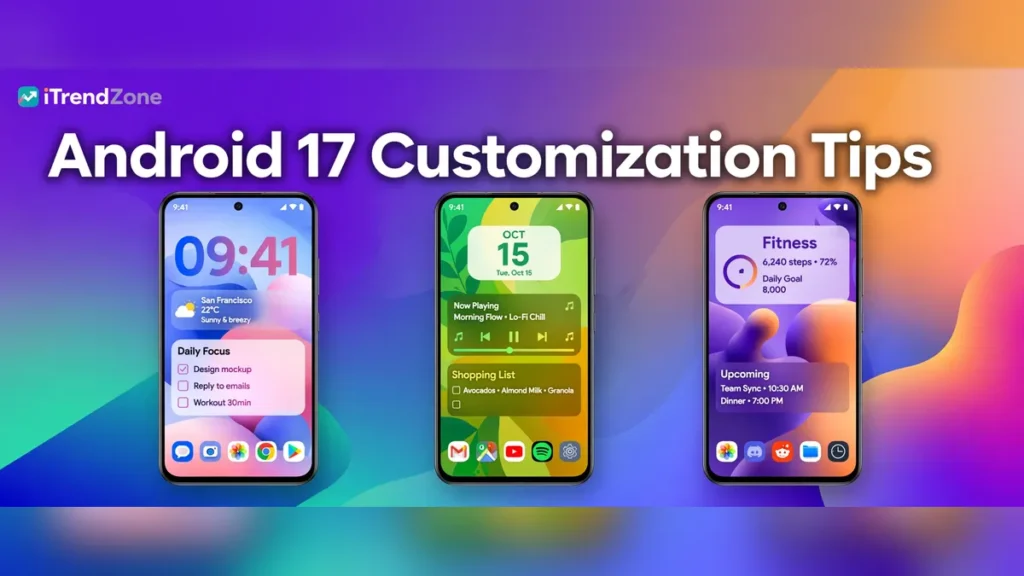

Android 17 Customization Tips: Make Your Phone Truly Yours
I’ve spent the last few months living with Android 17 on my Pixel, and I keep coming back to the same thought: this is the first Android version where the phone genuinely feels like it was set up for me. Not because of one big feature, but because of dozens of small ones that stack up.
TL;DR: Android 17’s best customization tools are custom widgets you describe in plain words, Material 3 Expressive themes with frosted glass and your own colors, App Bubbles that float any app on screen, a native App Lock for private apps, and Desktop Mode. Most works on any Android 17 phone; Gemini features need 12GB of RAM and a supported device (Pixel 10/11, Galaxy S26).
What Actually Changed in Android 17
Android 17, codenamed Cinnamon Bun, was announced on May 12, 2026 at The Android Show and reached stable release on June 16, 2026. It runs on API level 37, and the beta started on February 13, 2026. By now it’s the third most popular Android version, running on about 11.69% of Android phones.
The headline for people who like to make a phone their own is simple: Google stopped treating customization as a settings menu and started treating it as a conversation. You describe what you want, and the phone builds it. The Android 17 complete guide walks through every new feature in one place.
Custom Widgets: Just Describe What You Want
This is the feature that changed my home screen the most. Custom widgets let you describe what you want in plain language — “a widget that shows my next three calendar events and the weather” — and Gemini designs it for you. No dragging boxes around a grid, no hunting through a widget picker.
Here’s how I use it. My morning widget shows the weather, my first meeting, and my commute time. My evening widget shows the podcast I’m halfway through and a button to resume it. Neither existed in any widget gallery I ever browsed. The trick is to be specific: name the apps and the information you want.
There is one catch. Custom widgets are part of Gemini Intelligence, the multi-step AI agent that works across your apps, and it needs 12GB of RAM plus Gemini Nano v3. That means the Pixel 10 series, Pixel 11, Galaxy S26, OnePlus 15, and OPPO Find X9 and X8. The Pixel 9 does not qualify — it runs Nano v2. The Android 17 AI features guide lists what Gemini Intelligence can and can’t do on each phone.
A practical tip: start with one widget, not five. I built a whole home screen of custom widgets in one sitting, and half of them overlapped in what they showed. One widget you actually check daily beats four clever ones you ignore.
Material 3 Expressive: Frosted Glass and Your Colors
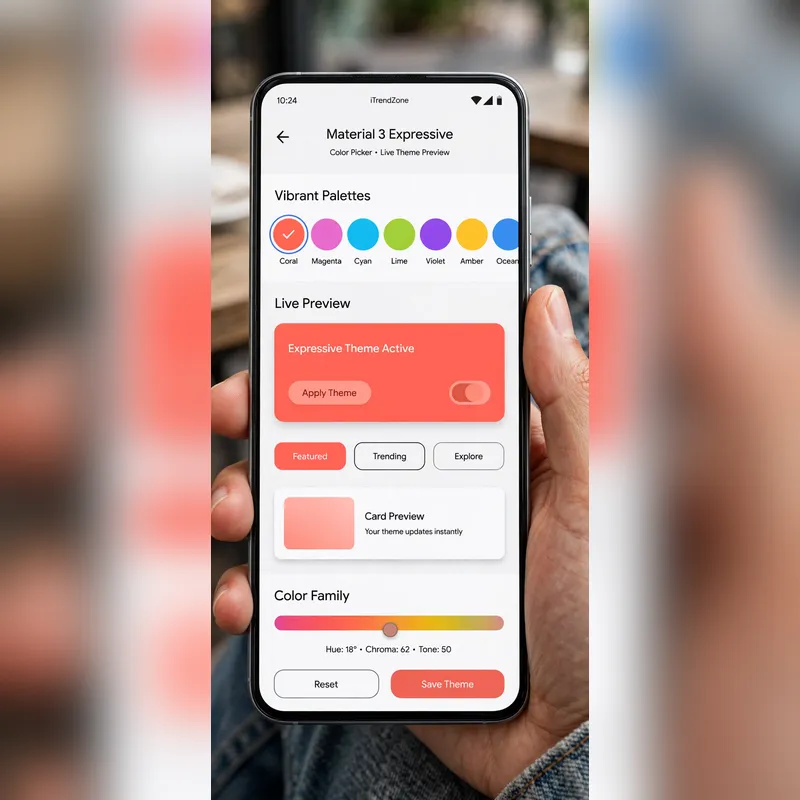
Material 3 Expressive is Google’s new design language, and on Android 17 it spreads further across the system. The frosted glass look now reaches more panels, including the volume slider, so the whole phone feels designed in one pass. It sounds cosmetic, but the effect is real: everything looks calmer, and text is easier to read.
The part I spent time on is the color system. Android 17 gives you a color picker with four presets, according to a report from 9to5Google, and those presets pull from your wallpaper to build a palette for your quick settings, widgets, and menus. Pick your wallpaper first, then let the system build the colors around it — I once forced a blue theme onto a sunset photo, and it looked like two phones arguing.
If you like a darker look, the frosted glass panels work especially well with dark mode — the blur softens the contrast instead of fighting it. Change the wallpaper and the whole phone shifts with it — I do it four times a year.
App Bubbles: Shrink Any App to a Floating Bubble
App Bubbles are one of those features that sounds like a gimmick until the day you need it. Any app can shrink to a floating bubble, so you can keep a conversation, a map, or a timer visible while you do something else. I use it most with messaging: a chat bubble floats in the corner while I check a train time.
The trick is to be picky about which apps get the privilege. I allow bubbles for messaging and my music player, and nothing else. The moment I let my email app bubble, my screen turned into a cluster of floating circles. You control this per app in notification settings. Bubbles for people, not for inboxes.
Bubbles also pair well with split screen. Float the chat, split the browser and the notes app, and you’ve got a small workspace on a phone. If your phone feels sluggish with bubbles running, the Android 17 performance tips explain how to keep things smooth, including the new App Memory Limits.
Lock Screen and Home Screen: Make It Yours
Your lock screen is what you see most on your phone, and Android 17 finally treats it that way. Live Updates put the information you need — a delivery on its way, a timer counting down, a rideshare arriving — right on the lock screen, in a glanceable card. I set mine to show deliveries and timers only. The first week I had everything on, my lock screen looked like a news feed.
The home screen deserves the same discipline. My rule is one screen, no swiping. Everything I use daily fits on a single page: a custom widget at the top, four most-used apps, and a folder for everything else. It felt bare at first. A week later, I’d stopped hunting for apps entirely. The Android 17 hidden features guide has a few more lock screen tricks I didn’t have room for here.
One more small thing: match your lock screen shortcuts to your hands. I put the camera on the right and the flashlight on the left, because that’s how I hold the phone. You press those buttons dozens of times a week, and the half-second you save each time adds up.
App Lock: Lock the Apps You Want Private
Android 17 finally ships a native App Lock, so you can protect individual apps with a password, a PIN, or your fingerprint — no third-party app required. This is the feature I set up the same day I updated, and it’s the one I’d tell any parent or anyone who hands their phone to a friend to set up first.
Here’s my setup: banking, messages, photos, and email are locked, and everything else is open. The point isn’t to lock the whole phone — it’s to draw a line around the four or five apps where your private life lives. I use my fingerprint for all of them, so unlocking takes less than a second.
A word of warning from my own mistake: don’t lock an app you open fifty times a day unless you genuinely need to. I locked my notes app for a week, and the extra check every time I wanted to jot something down was enough friction that I stopped taking notes. The Android 17 privacy and security guide goes deeper into App Lock and the new contacts picker.
Desktop Mode: Your Phone as a Computer
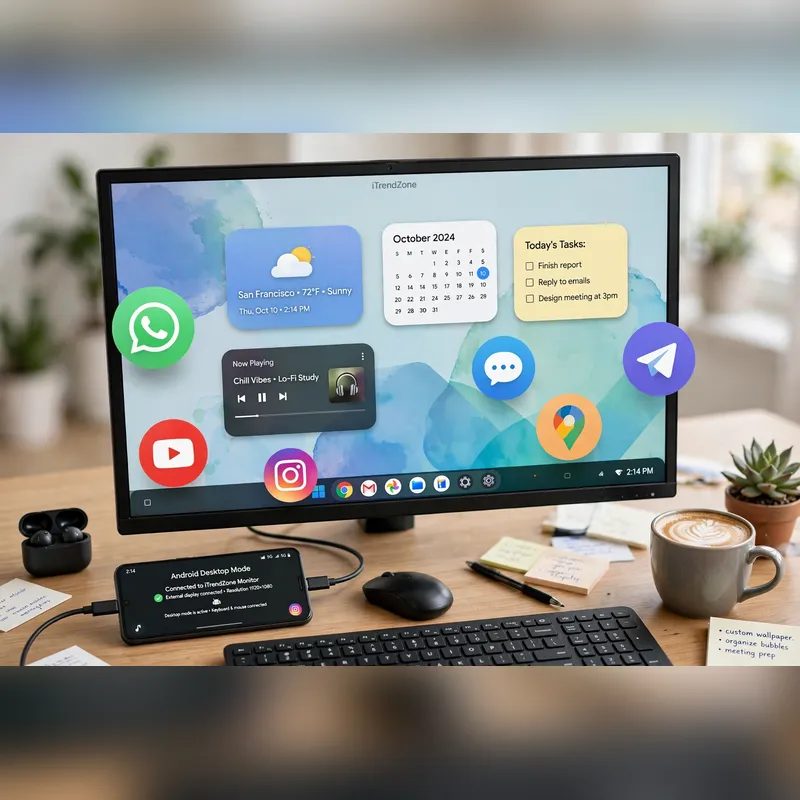
Desktop Mode is the feature I didn’t expect to love. Connect your Android 17 phone to a monitor, and it opens a desktop-style workspace: windows you can move and resize, a taskbar, and apps running side by side like on a laptop. The first time I tried it, I wrote an entire afternoon’s work on a borrowed monitor in a hotel room.
For customization, Desktop Mode is a second canvas. Set a different wallpaper for the desktop view, arrange your windows the way you like, and pin your most-used apps to the taskbar. My setup is simple: browser on the left, notes on the right, music floating in a corner. A USB-C hub and a portable monitor turn your phone into a computer that fits in a jacket pocket.
Desktop Mode also pairs with Continue On, which lets you switch seamlessly between Android devices — start on your phone, pick it up on your tablet, nothing gets lost.
Live Updates and Pause Point
Live Updates also appear in your notification shade and in a small chip at the top of the screen — the same delivery or timer, following you wherever you are. I like the chip most: there when I want it, gone when the timer ends.
Pause Point is the opposite idea: instead of showing you more, it shows you less. Open an app you’ve flagged as distracting, and Android 17 shows a ten-second countdown splash first — a small moment to ask yourself whether you actually meant to open it. I set it up for one social app, and about half the time I watched that countdown, I backed out. It’s not a parental control, but ten seconds is often enough to break the habit loop. The Android 17 new features guide covers it too.
What Works on Your Phone: A Quick Comparison
Not every Android 17 feature works on every phone, and the differences matter when you’re planning your setup. Gemini Intelligence is the big one — it needs 12GB of RAM and Gemini Nano v3, so it runs on the Pixel 10 series, Pixel 11, Galaxy S26, OnePlus 15, and OPPO Find X9 and X8, while the Pixel 9 sits out. Everything else here — Material 3 Expressive, App Bubbles, App Lock, Desktop Mode, Live Updates, Pause Point — is part of Android 17 itself and works on any phone that gets the update. Samsung’s One UI 9 started rolling out on September 16, 2026 with the Galaxy S26, then reached the S25 on October 12, the S24 around October 21 to 22, and the S23 on October 22.
| Customization feature | Pixel (Android 17) | Samsung One UI 9 | Other Android 17 phones |
|---|---|---|---|
| Custom widgets (Gemini) | Pixel 10 and 11 only | Galaxy S26 only | OnePlus 15, OPPO Find X9 and X8 |
| Material 3 Expressive | Yes | Yes | Yes |
| App Bubbles | Yes | Yes | Yes |
| Native App Lock | Yes | Yes | Yes |
| Desktop Mode | Yes | Yes | Yes |
| Live Updates | Yes | Yes | Yes |
| Pause Point | Yes | Yes | Yes |
The Rollout in Numbers
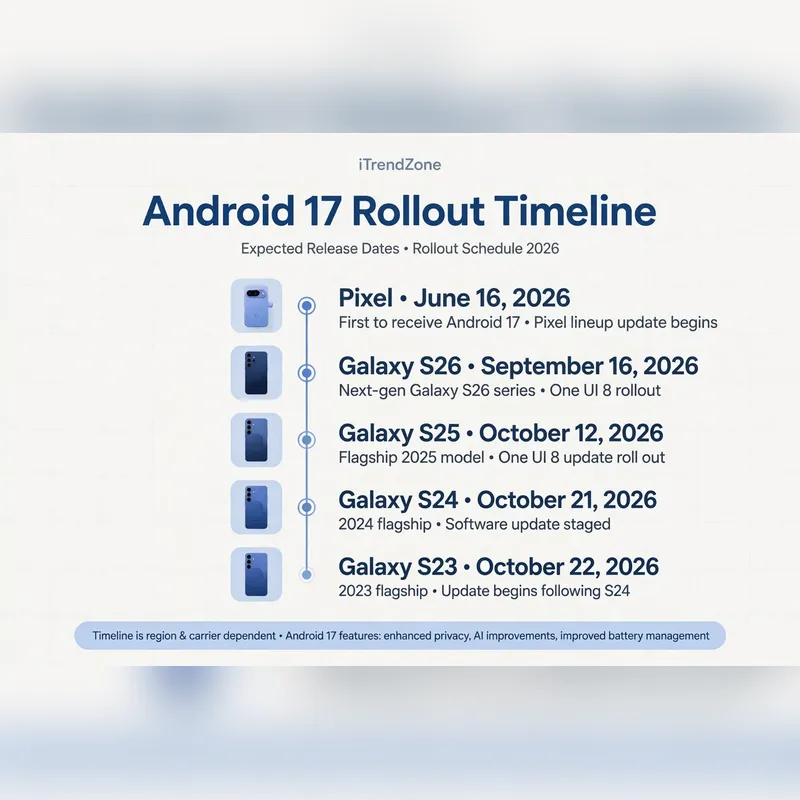
The chart above shows how Android 17 reached phones in 2026. Google’s own Pixels got it first, with the stable release on June 16, 2026 — the same day Pixel 6 through Pixel 11, the Pixel Fold, and the Pixel Tablet started receiving it. Samsung followed with One UI 9 on September 16, 2026 for the Galaxy S26, then the S25 on October 12, the S24 on October 21 to 22, and the S23 on October 22. The Galaxy Z Fold 8 and Z Flip 8 were the first phones to ship with Android 17 installed, on sale August 7, 2026, while the Pixel 11 series, announced August 12, 2026, also shipped with it. By late 2026, Android 17 had reached about 11.69% of all Android phones, making it the third most popular Android version.
My Setup: What I Actually Use Every Day
After months of tweaking, here’s the setup that stuck. One home screen: a custom Gemini widget at the top showing weather, my next meeting, and my commute time. Below it, four apps — messages, browser, camera, and notes. A folder in the dock for everything else. The lock screen shows Live Updates for deliveries and timers. Banking, messages, photos, and email sit behind App Lock with my fingerprint.
What I dropped along the way: a second home screen full of widgets I never looked at, bubbles for email, themed icons in a color that clashed with my wallpaper, and App Lock on my notes app. Every one of those seemed like a good idea on day one and quietly got in my way by day seven. The lesson: customization works best when you remove things, not when you add them.
For camera setup, the Android 17 camera tips cover the new shooting modes, and if anything here misbehaves, the Android 17 not working fix guide walks through the most common problems.
Common Mistakes to Avoid
The first mistake is turning everything on at once. Android 17 gives you a lot of new switches, and the temptation is to flip them all on the first day. Don’t. Turn on one feature, live with it for a few days, and then decide. I did the opposite, then spent a week turning things off one by one.
The second mistake is buying a phone for a feature it can’t run. Gemini Intelligence, custom widgets included, needs 12GB of RAM and Nano v3. The Pixel 9 doesn’t qualify. If custom widgets are the reason you want Android 17, check the device list first — Pixel 10 or 11, Galaxy S26, OnePlus 15, OPPO Find X9 or X8. The Android 17 battery tips are worth reading too — widgets, Live Updates, and bubbles all use battery.
The third mistake is forgetting that updates change things. Android 17 gets quarterly updates — QPR1 arrived around September 2026 and QPR2 is expected around December 2026 — and features can move, gain options, or occasionally disappear from the settings menu where you found them. If a feature stops working after an update, check the settings before assuming it’s broken — more than once, I’ve found a toggle that simply moved.
One last thing: back up your home screen layout before a big change. Some launchers let you export it, and some don’t — if yours doesn’t, take a screenshot. I learned this after a reset wiped a layout I’d spent an evening perfecting. A screenshot takes two seconds; rebuilding from memory takes an hour.


Quiz: Test Your Android 17 Customization Knowledge
Question 1: What do you need to create custom widgets with Gemini on Android 17?
A) Any Android phone running Android 17
B) 12GB of RAM and Gemini Nano v3 on a supported device
C) A Samsung account and Good Lock
D) A paid Google One subscription
Question 2: Which phone does NOT qualify for Gemini Intelligence?
A) Pixel 11
B) Galaxy S26
C) OnePlus 15
D) Pixel 9
Question 3: What does Pause Point do when you open a distracting app?
A) It shows a 10-second countdown splash before the app opens
B) It locks the app until the next morning
C) It deletes the app from your home screen
D) It turns off your mobile data
Question 4: When did the stable release of Android 17 arrive?
A) February 13, 2026
B) May 12, 2026
C) June 16, 2026
D) September 16, 2026
Question 5: Which of these works on every Android 17 phone, not just supported models?
A) Custom Gemini widgets
B) Native App Lock
C) Gemini multi-step agent tasks
D) Rambler dictation in Gboard
Answers: 1-B, 2-D, 3-A, 4-C, 5-B