
Google Pixel 11 Camera Tips Guide
Google Pixel 11 camera tips are worth your time because this camera is smarter than it looks. The Pixel 11 has a 48MP main camera, a 13MP ultrawide, and a 10.8MP 5x telephoto. The Pro models step up to a 50MP main, a 48MP ultrawide, and a 48MP 5x telephoto. Good hardware, sure. But the real story is the software. Magic Capture fixes your shots after you take them. Instant Night Sight turns night into something you can actually photograph. And the nine Camera Looks change the mood of a photo before you press the shutter. Here is the thing, though. None of that helps if you leave the camera on its defaults and hope for the best. This guide shows you how to use what you paid for.
TL;DR: Google Pixel 11 camera tips in short: use the 48MP main camera most of the time, save the 5x telephoto for real distance, lean on Super Zoom up to 30x (120x Pro Zoom on the Pro models), trust Instant Night Sight in the dark, let Magic Capture rescue soft shots, pick one Camera Look and stick with it, and shoot video in 4K at 30fps for everyday clips. Clean the lens before anything important.
The Three Lenses: Know What You Are Shooting With
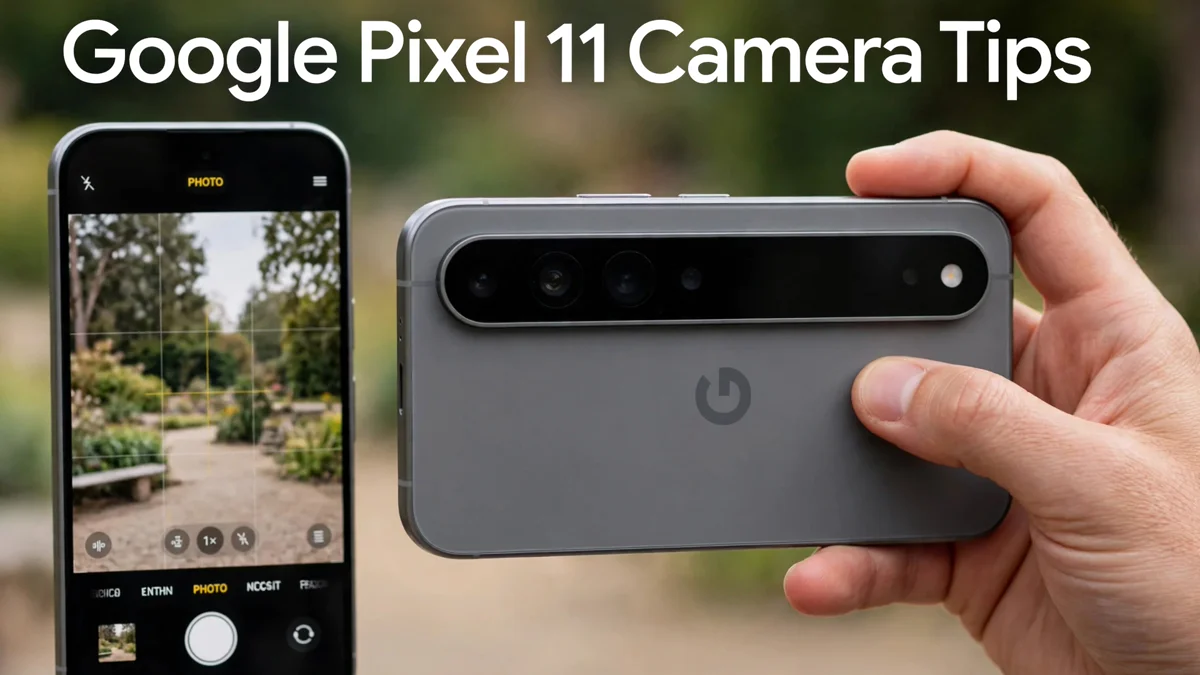
First, learn the three lenses. The main camera is a 48MP wide lens with a larger sensor. Also, it takes in 56% more light than the last generation. That is the one to use most of the time. It is sharp, fast, and strong in low light. Next, the ultrawide is 13MP. It is for tight rooms, big landscapes, and group shots where you cannot step back far enough. Finally, the telephoto is 10.8MP with 5x optical zoom and OIS. That steadies the lens while you shoot.
Here is the rule that matters. So use the main camera by default. Also, switch to the ultrawide when you need more in the frame. Then switch to the telephoto when the subject is far away. But do not pinch-zoom to 8x or 10x on the main camera and expect a clean shot. That is digital zoom, and it softens the image. Tap the 5x button instead, and let the real telephoto lens do the work. In fact, your photos will look sharper, and you will stop wondering why some shots look mushy.
Meanwhile, the Pro models change the math a bit. The Pixel 11 Pro has a 50MP main camera, a 48MP ultrawide with Macro Focus, and a 48MP 5x telephoto. It also gets Pro Zoom up to 120x, a 42MP front camera, and 8K Video Boost. So if you shoot a lot of close-ups or far-away subjects, the Pro earns its price. But if you mostly shoot friends, food, and holidays, the regular Pixel 11 is plenty.
Super Zoom and Pro Zoom: How Far Can You Actually Go?
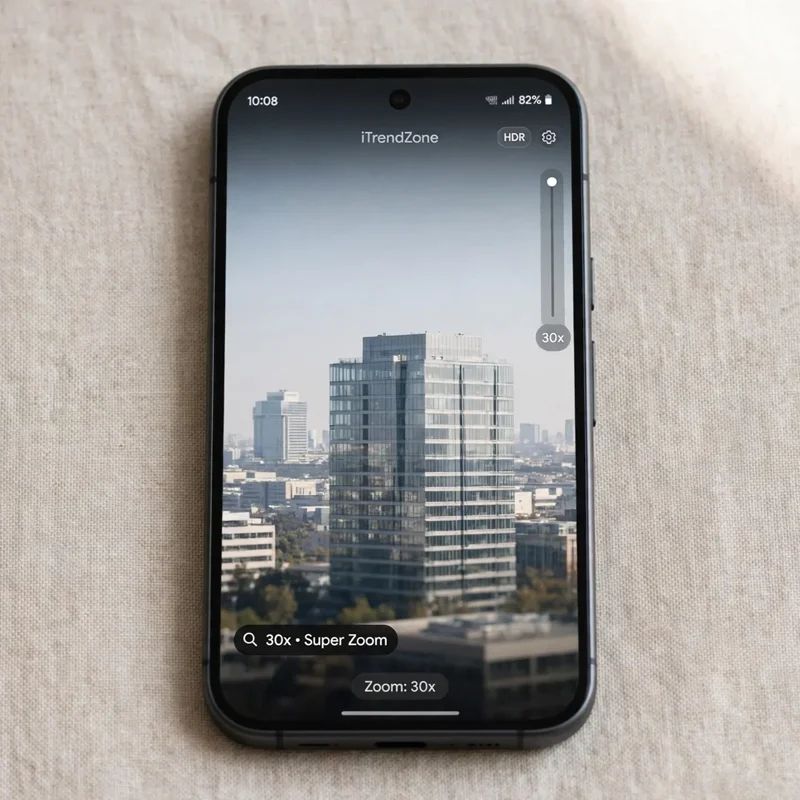
First, the Pixel 11 zooms up to 30x with Super Zoom. Also, the Pro models go up to 120x with Pro Zoom. Those numbers sound wild. In real life, they come with a catch. At 30x, every tiny shake of your hand shows up in the photo. At 120x, even your heartbeat moves the frame. So the zoom is real, but only if you hold still.
So here is how to use it well. First, brace yourself. For example, lean against a wall, rest your elbows on a table, or prop the phone on something solid. Next, use both hands. In fact, one hand holds the phone, and the other steadies it from below. Then take three or four shots in a row. So one of them will be sharper than the rest, and that is the keeper. Also, zoom in steps. Go to 5x first, check the framing, then push to 10x or 30x. But jumping straight to 30x means you will spend a minute hunting for your subject in a tiny window.
What is zoom actually good for? For example, reading a sign across a field. Catching a bird on a fence. Getting a closer shot of a stage from the back of a crowd. But it is not for portraits, and it is not for anything moving fast. Instead, walk closer. In fact, your feet are still the best zoom lens ever made. For more on the phone behind the camera, read our Google Pixel 11 tips complete guide.
Instant Night Sight: Low Light Without the Wait
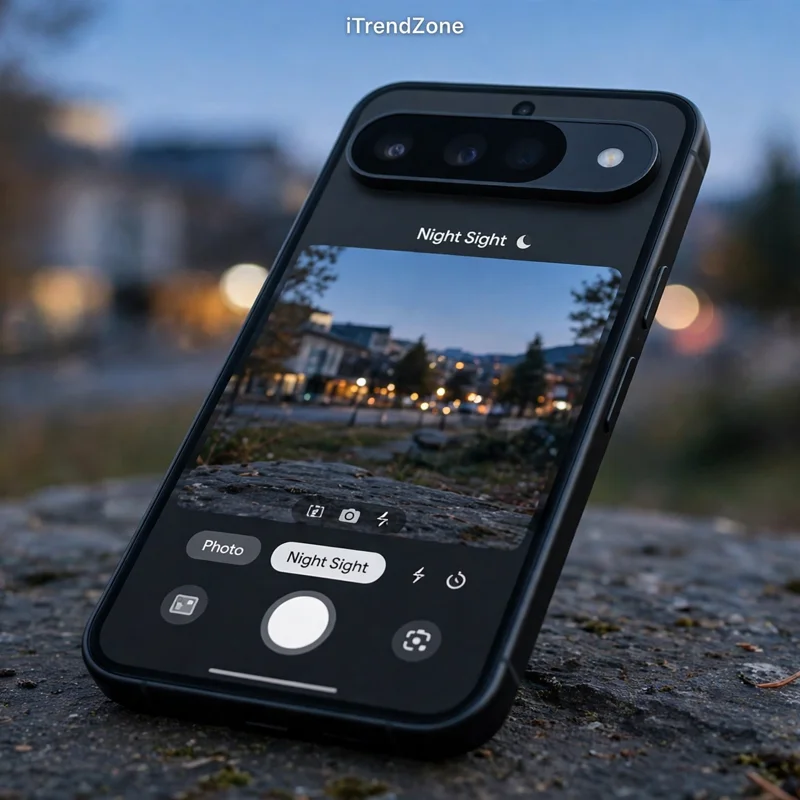
Night Sight used to mean holding still for several seconds while the phone gathered light. But on the Pixel 11, it is much faster. In fact, Google calls it Instant Night Sight, and the name fits. So you tap the shutter, wait a moment, and you get a bright, clean shot. Also, the Pro models are even quicker, with Night Sight up to 4.5x faster than before. But the regular Pixel 11 is fast too, and the difference from older Pixels is easy to feel.
So here is how to get the best night shots. First, hold still for half a second after you tap. In fact, the phone is still working, even if it feels instant. Next, find some light. For example, a street lamp, a shop window, or a neon sign gives Night Sight something to work with. But a pitch-black field gives it nothing, and no software fixes that. Then check the result before you move on. Night shots can look great on the small screen and soft when you zoom in, so pinch in and check the details.
One more thing. Night Sight works on the main camera best, so use that after dark. Meanwhile, the ultrawide struggles in low light, and the telephoto needs more light than the main lens gets. So if a night shot looks grainy, switch to the main camera and step closer. In fact, that one change fixes most bad night photos. For the hidden tricks beyond the camera, read our Google Pixel 11 hidden features guide.
Magic Capture: The Camera Fixes Your Mistakes
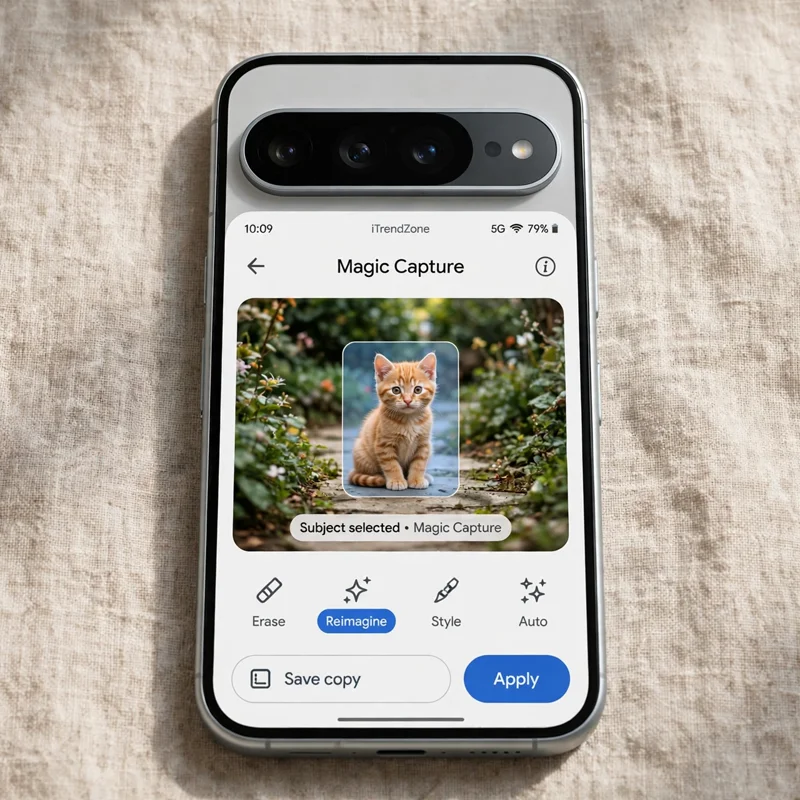
Magic Capture is the feature that sounds too good to be true. When you take a photo, the camera looks at around 400 frames around the moment you press the shutter. Then it builds a 12MP photo from the best of them. It can auto-crop the shot, unblur a face, and even make a short video from the same burst. You press the shutter once. The phone does the rest.
The unblur part is the one that saves real photos. Kids move. Pets move. People blink. Magic Capture looks at the frames before and after, finds a sharp version of that face, and fixes it. It will not save a truly awful shot. But it rescues far more than you would expect. The auto-crop is smart too. It straightens a tilted horizon and tightens the framing without cutting anyone out.
Here is my advice. After you take a shot you care about, check the Magic Capture versions before you delete anything. The edited photo sits next to the original in your gallery. Compare them. Keep the better one. And if you want the full story on the AI behind this, our Google Pixel 11 Gemini AI features guide covers it in depth.
Camera Looks: Nine Styles, Pick One
The Pixel 11 camera has nine built-in looks. Three are defaults: Natural, Shadows, and Vanilla. Then there are six more: Digi, Black Tie, Minimal, Editorial, Classic, and Velvet. Each one changes the colour, contrast, and mood of the photo before you take it. Velvet is warm and soft. Editorial is punchy, like a magazine cover. Digi has a retro feel. Black Tie suits evenings out.
Here is the mistake most people make. They flip between looks every shot. Then their photo library looks like nine different people took it. Pick one look and use it for a week. That gives your photos a consistent feel, like they came from the same camera. Because they did. My pick is Natural for everyday shots and Velvet for people. But yours might be different, and that is fine. The point is to choose, not to keep switching.
You can also change the look after the fact. So a bad choice is never permanent. Open the photo, pick a different look, and save it. Spend ten minutes playing with them on a walk. You will find your favourite fast.
Video: 8K Boost, Creator Suite, and the New Default
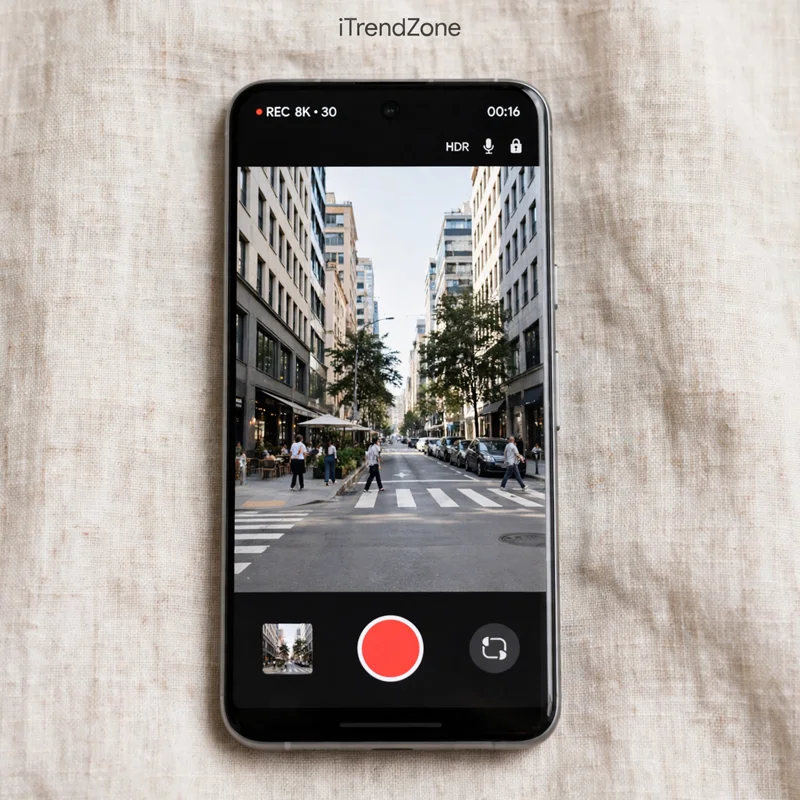
Here is a change that says a lot about where phones are going. On the Pixel 11, video is the default camera mode. Open the camera, and you are ready to film. Photo mode is one tap away. Google clearly expects you to shoot more video than stills. And the Creator Suite sits right in the camera app, with stabilisation and framing tools in one place.
The Pro models get 8K Video Boost. That is serious resolution, and it makes a real difference if you watch footage on a big TV or crop into it later. The regular Pixel 11 shoots 4K, which is plenty for phones, social media, and most TVs. My rule is simple. Shoot 4K at 30 frames per second for everyday clips. It looks great, edits easily, and does not fill your storage as fast as 60fps. Save 60fps for sport, kids, and pets. Anything that moves fast needs the extra frames.
Stabilisation matters more than resolution, though. A shaky 8K clip looks worse than a steady 4K clip. So hold the phone with both hands, walk slowly, and let the stabilisation do its job. For long clips, the battery takes a hit, so check our Google Pixel 11 battery tips guide before a big shoot. And if you want the full spec sheet, Google’s Pixel 11 specs page lists every video mode.
Macro Focus on the Pro: Tiny Subjects, Big Detail
The Pixel 11 Pro ultrawide has Macro Focus. That means you can get very close to a small subject and still get a sharp shot. Flowers, insects, food, jewellery, the texture of fabric. Move close, and the camera switches to macro on its own. If it flickers in and out, tap the flower icon to lock it on.
Here is the trick with macro. Light matters more than anything. A macro shot in shade looks dull. The same shot in sunlight looks stunning. So shoot near a window or outside, and keep your shadow out of the frame. Also, hold still. At macro distance, a millimetre of movement blurs the shot. Rest your hand on the table, or prop the phone against something. Take three shots. One will be sharp.
The Front Camera: Selfies and Video Calls
The regular Pixel 11 has a 10.5MP front camera with autofocus. The Pro models jump to 42MP. That is a big gap on paper. In real life, it matters most for cropping. With 42MP, you can crop a selfie hard and still have detail left. With 10.5MP, you get one good framing, so get it right when you shoot.
For better selfies, face the light. Stand near a window, or turn so the sun is in front of you, not behind you. Light from behind turns you into a silhouette. Light from the front makes your face clear. Also, hold the phone slightly above eye level. It is a flattering angle, and it keeps double chins out of the shot.
Circle to Search Inside the Camera
Here is a trick most people miss. Circle to Search now works inside the Pixel Camera. Point the camera at something, circle it in the viewfinder, and Google finds it. A plant, a poster, a pair of shoes, a sign in another language. You get results without taking a photo first.
This is gold when you travel. Point at a menu and get the translation. Then point at a landmark and get its name. Or point at a gadget in a shop and find out what it costs online. Hold the phone steady for a second first, so the camera locks focus. Then circle tight around the exact thing. A loose circle gives loose results.
Settings to Change on Day One
Open the camera settings and change five things. First, turn on the grid. It helps you line up horizons and place people using the rule of thirds. Next, set video to 4K at 30 frames per second, as above. Then turn on the level indicator if you shoot landscapes. It is a small line that tells you when the phone is straight, and it saves a lot of cropping later.
Fourth, leave the auto modes alone. The Pixel does a good job with exposure and colour on its own. Fiddling with everything at once makes things worse, not better. Fifth, turn on location tagging if you want your photos sorted by place. It is handy for trips, and you can turn it off any time.
And the cheapest photo upgrade of all: clean the lens. The cameras sit on the back of a phone that lives in your pocket. They collect fingerprints fast. A quick wipe with a soft cloth before an important shot makes a real difference. It fixes more blurry photos than any setting ever will.
Pixel 11 Camera Specs by Model
The table below puts the camera numbers side by side. Use it when you are choosing between models, or when you want to know what your phone can actually do. The specs match what GSMArena’s Pixel 11 review lists.
| Camera feature | Pixel 11 | Pixel 11 Pro | Pixel 11 Pro XL |
|---|---|---|---|
| Main camera | 48MP wide, larger sensor, 56% more light-sensitive | 50MP main | 50MP main |
| Ultrawide | 13MP | 48MP with Macro Focus | 48MP with Macro Focus |
| Telephoto | 10.8MP 5x with OIS | 48MP 5x with OIS | 48MP 5x with OIS |
| Max zoom | Super Zoom up to 30x | Pro Zoom up to 120x | Pro Zoom up to 120x |
| Front camera | 10.5MP with autofocus | 42MP | 42MP |
| Video | 4K recording | 8K Video Boost | 8K Video Boost |
| Night Sight | Instant Night Sight | Up to 4.5x faster | Up to 4.5x faster |
| Display | 6.3″ OLED, 1080×2424, up to 3,000 nits peak | 6.3″ LTPO OLED, 1280×2856, 3,600 nits peak | 6.3″ LTPO OLED, 1280×2856, 3,600 nits peak |
Max Zoom by Model
Zoom is where the models differ most. The chart below shows it plainly.
Maximum zoom reach by model
Base model Super Zoom: 30x
Pro Pro Zoom: 120x
Pro XL Pro Zoom: 120x
That 120x number looks amazing, and it is, for the right subject. But remember the rule from earlier. At high zoom, brace the phone and take several shots. The zoom is only as good as your hands. For a second opinion on the cameras, PhoneArena’s Pixel 11 specs page lists the full camera setup too.
Google Pixel 11 Camera Tips Quiz
Test what you learned. Pick one answer for each question.
1. What is the main camera on the regular Pixel 11?
A) 50MP
B) 48MP wide
C) 13MP
D) 42MP
2. How far does Super Zoom go on the regular Pixel 11?
A) Up to 5x
B) Up to 10x
C) Up to 30x
D) Up to 120x
3. How many frames does Magic Capture analyse around a shot?
A) Around 40 frames
B) Around 100 frames
C) Around 400 frames
D) Around 1,000 frames
4. Which Pixel 11 models have Macro Focus?
A) Pixel 11 only
B) Pixel 11 Pro and Pro XL
C) All three models
D) None of them
5. What video setting is best for everyday clips?
A) 8K at 60fps
B) 1080p at 240fps
C) 4K at 120fps
D) 4K at 30fps
Quiz answers: 1-B, 2-C, 3-C, 4-B, 5-D.
Clean the lens, pick your look, and let the phone do the hard part. That is the whole secret.