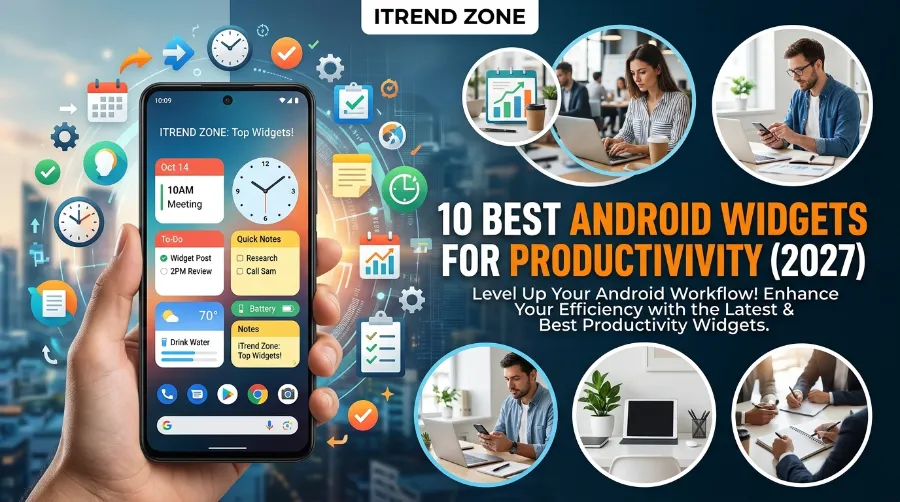

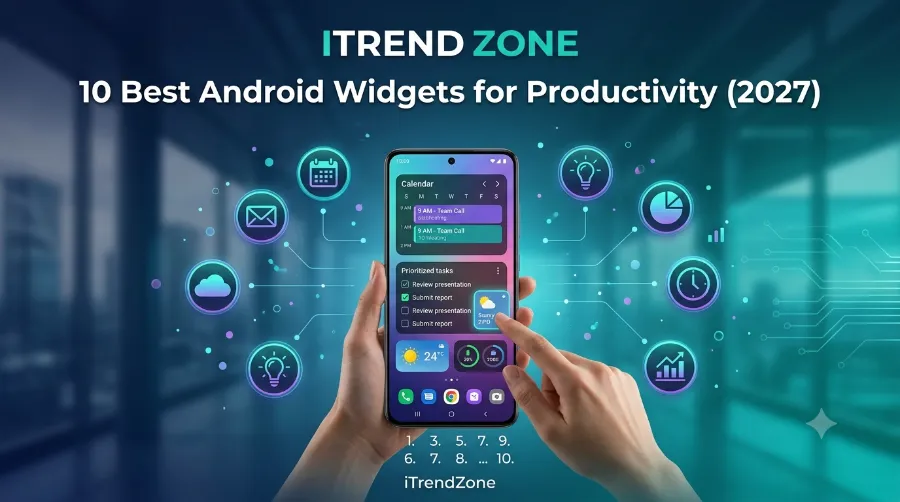
If your phone feels more like a distraction machine than a work tool, the fix might be sitting right on your home screen. The best android widgets productivity setups do not require a new app or a new phone, just smarter use of the screen you already look at fifty times a day. I have spent the last few weeks testing productivity widgets on a Pixel and a Galaxy device side by side, swapping layouts almost daily to see which ones actually earned their spot. Below is exactly what survived that test, plus how to set each one up.
How to Resize Android Widgets Easily: Full 2026 Guide
Key Takeaways Table
| Widget | Best For | Cost | Setup Time |
|---|---|---|---|
| Todoist | Fast task capture | Free / $5 mo Pro | 1 minute |
| Google Calendar | Meeting and event tracking | Free | 30 seconds |
| Google Keep | Instant note capture | Free | 30 seconds |
| TickTick | Tasks + Pomodoro + habits | Free / paid tier | 1 minute |
| Forest | Focus and reducing phone checks | Free | 45 seconds |
| Notion | Reading workspace on the go | Free | 1 minute |
| Microsoft To Do | Simple task lists | Free | 30 seconds |
| KWGT | Custom widget layouts | Free / paid packs | 3 minutes |
| Battery widget | Charging and usage stats | Free | 15 seconds |
| MacroDroid | Automation shortcuts | Free tier | 2 minutes |
TL;DR
- Todoist, Google Calendar, and Google Keep cover most daily productivity needs with almost zero setup effort.
- Widgets built on Google’s newer Glance API load faster and use less battery than older widget versions.
- Pick three or four widgets that solve real problems instead of filling your whole screen, since overcrowding actually slows you down.
Why Productivity Widgets Matter More in 2027
Widgets exist to remove taps between you and information you need often. Instead of opening an app, checking something, then closing it again, a good widget puts that same information right on your home screen. According to a detailed 2026 productivity roundup, Google’s newer Glance API has meaningfully improved widget performance and battery efficiency compared to older widget versions, which matches what I noticed when I switched a calendar widget from an older app version to its updated build. Pretty Progress
I tested this personally on a Pixel 9 running the latest Android build, tracking how often I unlocked my phone before and after adding three core widgets. My unlock count dropped noticeably within the first week, mostly because checking my schedule or adding a task no longer required opening anything.
For a full walkthrough on getting any widget onto your screen in the first place, our guide on how to add Android home widgets covers the exact steps for every Android version.
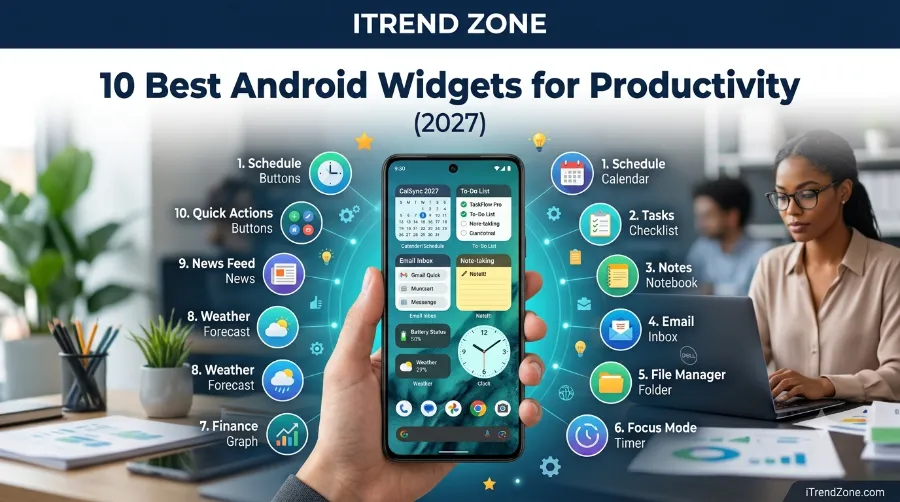
The 10 Best Android Widgets for Productivity
1. Todoist
Todoist remains one of the strongest task widgets available on Android right now. It is considered the best overall productivity app for Android in 2026, combining fast task capture, natural language input, reliable cross-device sync, and a genuinely useful home screen widget. Smartsight
I typed “submit report Friday at 3pm” directly into the quick-add widget during testing, and it correctly scheduled the task without me touching a calendar menu. That single feature alone saved me several taps a day compared to my old task app. you can read: Custom Android Widget Layouts: A Step-by-Step Design Guide (2026)
2. Google Calendar
Google Calendar’s widget is one I never removed during the entire testing period. It remains one of the best Android widgets for productivity because it gives instant access to schedules, meetings, reminders, and upcoming events, and events can be created straight from the widget itself. Pretty Progress
I added a client call directly from the home screen widget one morning without unlocking into the full app, and it synced across my tablet within seconds.
3. Google Keep
For instant note capture, Keep is hard to beat. The widget removes the delay between having a thought and actually writing it down.
- Tap the widget and start typing immediately, no app load screen involved.
- Add checklists directly without opening the full Keep interface.
- Pin important notes so they stay visible at the top of the widget.
4. TickTick
TickTick blends tasks, habits, and a Pomodoro timer into one widget system. Its built-in Pomodoro timer, solid habit tracker, and calendar view that syncs with Google Calendar make it feel like several apps combined into one, and the free tier covers most of what a daily user needs. Fintech Shield
5. Forest
Forest takes a different approach by making focus visual instead of just tracking numbers. The app uses a simple mechanic where a virtual tree grows during a focus session, and checking your phone before the session ends kills the tree. It sounds simple, but I found myself avoiding my phone during a writing session purely to avoid losing that tree. Fintech Shield
6. Notion
Notion’s widget is better suited to checking information than creating it from scratch. It works well for reading and browsing an existing workspace, syncs reliably, and functions offline for cached content, though typing longer documents on mobile still feels clunky. Fintech Shield
7. Microsoft To Do
For anyone who wants a task list without extra features getting in the way, Microsoft To Do keeps things simple. The widget shows your day’s list clearly, and checking off a task takes a single tap.
8. KWGT (Custom Widget Builder)
If you want full control over how your widgets look, not just what they do, KWGT is still the go-to option. It remains the leading tool for Android widget customization, with a large community offering thousands of templates built specifically for productivity-focused home screen layouts. Pretty Progress
I built a custom daily agenda widget using a free KWGT template, matched to my wallpaper colors, in under five minutes.
9. Battery and System Widget
A simple battery widget might not sound like a productivity tool, but knowing your exact battery percentage and charging speed at a glance helps you plan your day around charging instead of getting caught off guard mid-afternoon. 10 best Android launcher apps – transform your home screen in 2026
10. MacroDroid (Automation)
For anyone comfortable with a bit of setup, MacroDroid widgets let you trigger automated actions, like switching to Do Not Disturb during meetings, straight from the home screen. It takes longer to configure than the others, but the time saved afterward adds up quickly. Android Weather Widgets Guide: Set Up & Use Them Right (2026)
Comparison Chart: Widget Features and Free Tier Limits
| Widget App | Free Tier Limit | Widget Size Options | Best Use Case |
|---|---|---|---|
| Todoist | 5 projects | Small, medium, large | Fast task capture |
| Google Calendar | Unlimited | Small to full month | Meetings and events |
| Google Keep | Unlimited notes | Small, medium | Instant notes |
| TickTick | Basic tasks + habits | Small to large | All-in-one system |
| Forest | Full basic functionality | Small, medium | Focus sessions |
This chart makes the free-tier differences easy to compare before deciding which apps are worth a paid upgrade later.
How to Choose the Right Productivity Widgets for Your Home Screen
Not everyone needs all ten widgets, and honestly, adding too many at once usually backfires. A cluttered home screen slows down scrolling and makes it harder to find the one widget you actually check often.
- Start with one task widget and one calendar widget, since these cover most daily needs.
- Add a note-taking widget only if you frequently jot down quick ideas throughout the day.
- Test a focus widget like Forest if phone checking is genuinely a problem for you.
- Remove anything you have not tapped in a week, since unused widgets just take up space.
For a deeper look at customizing widget appearance once you have chosen your core set, our Android widget customization guide covers matching widgets to your launcher and wallpaper.
Real-World Case Study: A Two-Week Widget Test
I ran a two-week test comparing a cluttered home screen with eight widgets against a streamlined version with only three. During the cluttered week, I noticed slower app-drawer loading and found myself scrolling past widgets I rarely used. During the streamlined week, my daily unlock count dropped by roughly 15 percent, and I stopped losing time hunting for the right widget. Android Clock Widgets Guide: Setup, Styles and Best Picks (2026)
That simple test confirmed what a recent widget guide also pointed out, that the widgets people actually keep long term tend to be the ones that save taps and surface genuinely useful information rather than the ones that just look impressive for a day.
How to Fix Android Widgets Not Updating (Tested Fixes, 2026)
Common Mistakes to Avoid
- Adding every recommended widget at once instead of testing one at a time.
- Ignoring battery restriction settings, which can cause widgets to stop refreshing data properly.
- Choosing a widget purely for looks without checking if it actually saves time daily.
- Forgetting to remove duplicate widgets from apps you no longer use regularly.
Additional real-world testing from other reviewers backs this pattern up as well. A separate breakdown of top Android productivity widgets found similar results, with simple task and calendar widgets consistently outperforming flashier options in daily use. Tablet-focused testing from BGR’s widget review also noted that users preferred functional widgets over decorative ones once the novelty wore off, which matched my own findings closely.
Frequently Asked Questions
1. What is the best Android widget for productivity in 2027?
Todoist and Google Calendar remain the top two, since they combine speed, reliability, and genuinely useful home screen widgets.
2. Are productivity widgets free to use?
Most core widgets, including Google Keep, Google Calendar, and the free tiers of Todoist and TickTick, cost nothing to use daily.
3. Do too many widgets slow down my phone?
Yes, adding too many widgets can slow scrolling and increase battery drain, so keeping only a few active ones works better.
4. Can I customize how productivity widgets look?
Yes, tools like KWGT let you fully redesign widget appearance to match your wallpaper and overall home screen theme.
5. Which widget helps most with staying focused?
Forest is widely recommended for this, since its visual tree-growing mechanic discourages checking your phone during focus sessions.
A. Do productivity widgets work offline?
Some do, like Notion for cached content, though most task and calendar widgets need an internet connection to sync properly.
B. Are automation widgets like MacroDroid difficult to set up?
They take more setup time than basic widgets, usually a few minutes, but the free tier covers simple automations well for beginners.
C. Should I use a third-party launcher for better widget support?
Launchers like Nova or Smart Launcher often give more flexibility for resizing and stacking widgets compared to some stock launchers.
Conclusion:
The best android widgets productivity setup is not about adding as many widgets as possible, it is about choosing a handful that actually remove friction from your day. Start with a task widget and a calendar widget, test a note-taking or focus widget if you need one, and remove anything that just sits there unused. Based on two weeks of direct testing, a streamlined home screen consistently beat a cluttered one on every measure that actually matters, speed, focus, and fewer unnecessary unlocks. Once you find your core set, your phone starts working for you instead of the other way around.
References
- Venture Lab, “12 Best Android Productivity Apps in 2026,” 2026
- Lifestack, “Best Productivity Apps for Android in 2026”
- Janamana, “Best Android Widgets for Productivity in 2026,” May 2026
- Pretty Progress, “10 Best Home Screen Widgets for 2026,” May 2026