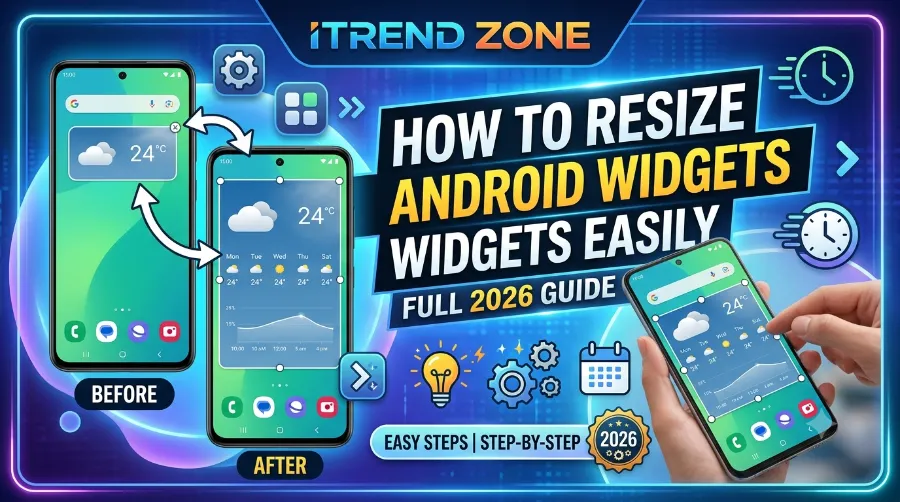

How to Resize Android Widgets Easily
Your home screen looks cluttered, or your weather widget is too small to read at a glance. Both problems come down to the same fix. Learning to resize Android widgets easily is one of the fastest ways to make your phone feel less chaotic and more useful, and it takes less than a minute once you know where to grab.
This guide walks through the exact steps to change widget size on Android, why some widgets refuse to resize, and how the process differs slightly across Samsung, Pixel, and other Android skins.
Android Weather Widgets Guide: Set Up & Use Them Right (2026)
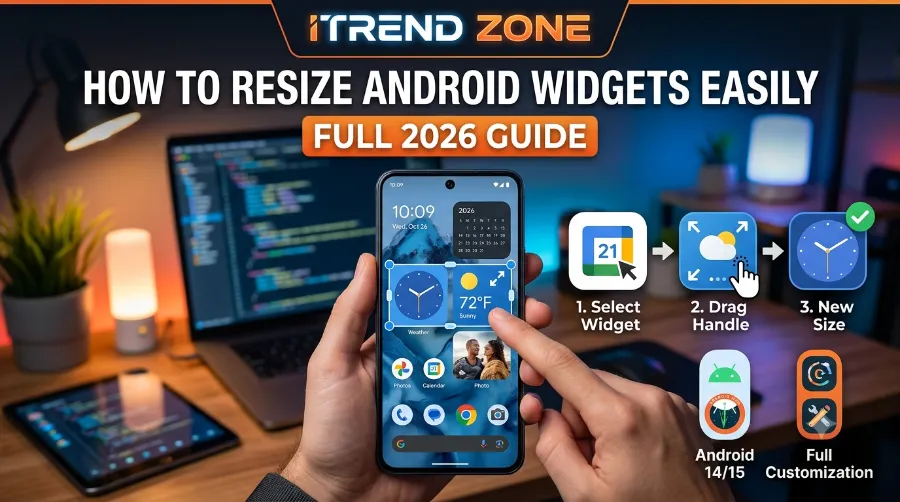
TL;DR
- To resize most Android widgets, long-press the widget, then drag the dots or corner handles that appear around its border.
- Not every widget supports resizing; developers set fixed size limits, and some only offer preset size versions instead.
- If a widget still won’t resize, try removing it and re-adding a differently sized version from the widget picker, or check for an app update.
Key Takeaways
| What you’ll learn | Quick answer |
|---|---|
| Basic resize method | Long-press widget, drag the resize dots |
| Works on | Samsung, Pixel, most stock Android 8+ |
| If resize option is missing | Widget may not be resizable, or is an old version |
| Best widget for testing | Google Weather or Calendar widget |
| Common fix for stuck widgets | Remove and re-add from widget drawer |
Why Android Widget Resizing Matters More in 2026
Home screens have become genuinely functional again, not just app grids. As phones ship with bigger displays and more people run productivity dashboards straight from the lock and home screens, home screen widget size has turned into a real usability decision rather than a cosmetic one. Android Clock Widgets Guide: Setup, Styles and Best Picks (2026)
Larger, well-sized widgets are easier to read and interact with, particularly on smaller phones or for users with vision differences. This isn’t just a nice-to-have. It affects how quickly you can check the time, weather, or your next calendar event without unlocking the phone at all.
If you want the fuller picture of customizing your Android home screen beyond just widgets, our complete widget customization guide covers layout, icon packs, and grid settings too. Missouri State’s IT department also publishes a helpful walkthrough on customizing Android widgets from a general support-desk perspective, which is a solid plain-language companion to this guide.
How to Resize Android Widgets Easily: Step-by-Step
The core method is nearly identical across most Android phones, though the visual cues differ slightly by manufacturer. Here’s the general process, confirmed against Google’s official Android Help documentation.
- Touch and hold an empty space on your home screen, or touch and hold the widget itself if it’s already placed.
- Lift your finger once the widget is selected. If it supports resizing, you’ll see an outline with dots or small circles along the edges.
- Touch and hold one of those dots, then drag it inward to shrink the widget or outward to enlarge it.
- Tap anywhere outside the widget once you’re happy with the new size.
That’s the whole android widget resizing guide in its simplest form. However, the exact look of the resize handles changes by brand, so let’s break those down. How to Fix Android Widgets Not Updating (Tested Fixes, 2026)
Resizing Widgets on Samsung (One UI)
Samsung’s One UI uses a dot in the center of each edge rather than corner handles. According to Samsung’s own support documentation, you touch and hold that dot and drag it to change widget size android on a Galaxy device. You can also tap Settings on the widget itself first, since some Samsung widgets bundle resize options alongside color and transparency controls in the same menu.
Resizing Widgets on Pixel and Stock Android
On Pixel phones and other near-stock Android builds, Google’s own Android Help center confirms the same dot-and-drag mechanic. If the widget can be resized, you’ll see a dotted outline; dragging those dots changes the widget’s footprint on the grid. you can read: Custom Android Widget Layouts: A Step-by-Step Design Guide (2026)
Resizing Widgets on Other Android Skins
Brands like OnePlus, Xiaomi, and Motorola largely follow the same drag-to-resize pattern, though some hide the option behind a long-press menu labeled “Edit” instead of showing handles immediately. If dragging doesn’t work right away, check for that menu option first. 10 best Android launcher apps – transform your home screen in 2026
Why Some Widgets Won’t Resize
Not every widget on your phone is built to be flexible, and that’s not a bug on your end. Android’s official developer documentation explains that app developers define minimum and maximum resize dimensions for each widget using attributes like minResizeWidth and maxResizeWidth. If a developer only sets one fixed size, the widget simply won’t stretch, no matter how you drag it.
This limitation shows up in real apps too. Habitify’s own help center, for instance, has a dedicated article on widget resizing ability and limitations, explaining that some of its widgets are locked to specific sizes by design rather than being freely adjustable like a note or photo widget.
A few common reasons a widget stays locked at one size:
- The developer shipped a fixed-size widget only, with no resize logic built in.
- You’re running an outdated version of the app; newer widget APIs added more flexible resizing starting with Android 12’s targetCellWidth and targetCellHeight system.
- The widget is actually a “preset size” type, where the fix is to remove it and add a different-sized version from the widget picker instead of dragging.
If you’re curious how developers actually build this resize behavior into an app, this hands-on practical guide to implementing Android widgets breaks down the technical side in plain terms. And if you’ve added widgets recently and want to build a full dashboard rather than resize one at a time, our guide on adding widgets to your Android home screen walks through the picker process from scratch.
Android Widget Size Reference Table
Widget sizes are measured in home screen grid cells, not pixels, which is why the same widget can look different across phones. Here’s a general reference based on how most Android launchers structure their grid.
| Widget Size (cells) | Typical Use Case | Resizable? |
|---|---|---|
| 1×1 | App shortcut style widgets | Rarely |
| 2×1 | Compact clock, single stat | Sometimes |
| 4×1 | Search bar, music controls | Often |
| 4×2 | Calendar, weather, notes | Usually |
| 4×4 or larger | Full dashboard widgets, photo frames | Often, within limits |
Actual limits still depend entirely on how the widget’s developer coded it, so treat this table as a general pattern rather than a guarantee for every app.
Troubleshooting: Widget Resize Not Working
If you’ve tried dragging the handles and nothing happens, work through this short checklist before assuming your phone is broken.
- Confirm you’re dragging the dot itself, not just anywhere near the edge; a slight miss often does nothing.
- Update the app the widget belongs to, since resize support is sometimes added in later versions.
- Remove the widget completely, then re-add it from the widget drawer to reset its state.
- Restart your phone if widgets across multiple apps are all behaving oddly at once, which usually points to a launcher glitch rather than an individual widget issue.
For a deeper dive into which widgets are actually worth keeping on a resized home screen, check out our roundup of productivity-focused Android widgets.
A Practical Comparison: Manual Resize vs. Preset Widget Swap
| Method | Best For | Effort | Limitation |
|---|---|---|---|
| Drag-to-resize | Widgets with flexible size ranges | Low | Only works if developer enabled it |
| Remove and re-add different size | Apps offering multiple fixed widget sizes | Medium | Loses current widget’s saved settings sometimes |
| Third-party launcher (e.g., Nova) | Advanced control over grid and spacing | Medium-High | Requires installing a separate launcher app |
FAQs
1. Why can’t I resize my Android widget at all?
The widget’s developer may not have enabled resizing for it. Some apps only offer fixed-size widgets or separate preset versions instead of a flexible drag-to-resize option.
2. Does resizing a widget delete my saved settings inside it?
Usually not. Dragging the resize handles keeps the widget’s existing configuration. Removing and re-adding a widget, however, can reset it depending on the app.
3. Is the resize process different on Samsung compared to Pixel?
The core method is the same long-press-and-drag action, though Samsung shows a center dot on each edge while Pixel and stock Android show dotted corner outlines.
4. Can I resize widgets on the lock screen too?
Lock screen widget support and resizing vary by manufacturer and Android version, and not all phones currently support resizable lock screen widgets.
5. What’s the smallest a widget can get on Android?
It depends on the developer’s coded minimum. Some widgets can shrink to a single grid cell, while others have a larger enforced minimum size.
Quick extra Q&A:
Q: Do I need root access to resize widgets?
A: No, standard resizing is a built-in Android feature and does not require root.
Q: Will resizing a widget affect battery life?
A: Not meaningfully. Widget size doesn’t change how often it refreshes data in most apps.
Q: Can third-party launchers unlock resizing for widgets that normally can’t be resized?
A: Sometimes, though results vary by launcher and widget, and it isn’t guaranteed to work for every app.
Conclusion
Resizing widgets is one of the simplest upgrades you can make to how your phone actually functions day to day. Once you know to long-press, look for the dots, and drag, the process takes seconds on almost any Android phone. When a widget refuses to budge, it’s rarely your fault; it’s a limitation the developer built in, and the fix is usually as easy as updating the app or swapping in a different preset size.
References
- Google Android Help: Add apps, shortcuts & widgets to your Home screens
- Android Developers: Provide flexible widget layouts
- Samsung Support: Add, customize, and use widgets on Galaxy phones
- Missouri State University: Customize Widgets on Android
- Habitify Help Center: Resizing Widgets: Ability and Limitations
- Serhii Tereshchenko on Medium: Implementing Android Widgets: A Practical Guide