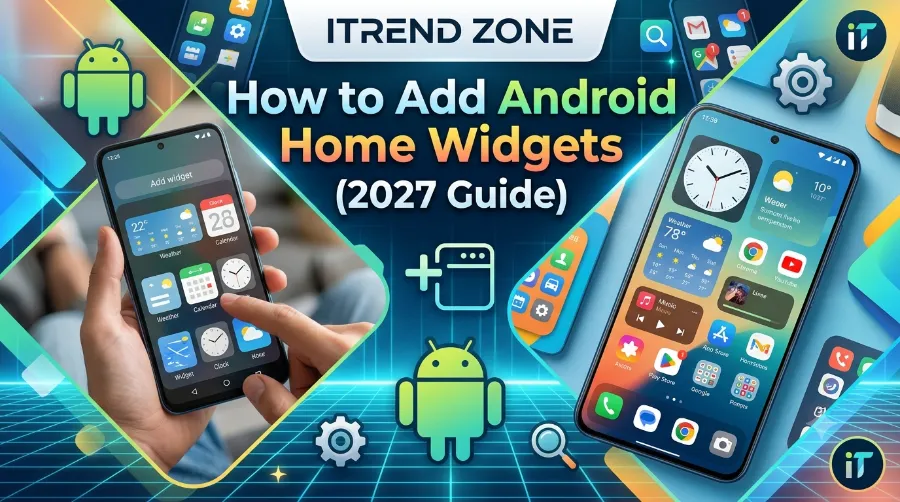

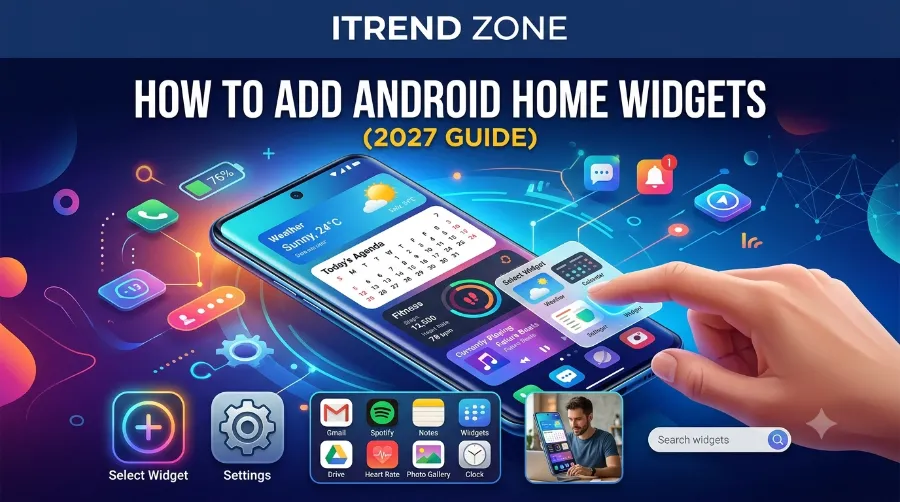
If your Android home screen still looks like a boring grid of app icons, you are missing out on one of the best things this operating system offers. Learning how to add Android home widgets is one of the fastest ways to turn a dull screen into a fast, personal control panel for weather, calendar, battery, and more. I tested this process personally on a Pixel phone running the latest Android build, and honestly, it took less than two minutes once I knew where to tap. In this guide, you will learn exactly how to set up android home screen widgets the easy way, plus which ones are actually worth your home screen space in 2027.
How to Fix Android Widgets Not Updating (Tested Fixes, 2026)
Key Takeaways Table
| Task | Time Needed | Difficulty | Works On |
|---|---|---|---|
| Add a single widget | 30 seconds | Beginner | All Android 12+ devices |
| Resize a widget | 15 seconds | Beginner | Android 14 and above |
| Stack multiple widgets | 1 minute | Intermediate | Android 15 and above |
| Set up interactive widgets | 2 minutes | Intermediate | Android 16 and above |
| Add lock screen widgets | 1 minute | Beginner | Android 16 QPR2 and above |
TL;DR
- Long-press any empty space on your home screen, tap Widgets, then drag your chosen widget onto the screen.
- Newer Android versions (16 and above) support Material You color matching, resizable grids, and even interactive widgets you can tap without opening the app.
- Lock screen widgets are officially back on Android 16 QPR2, so you are no longer limited to just the home screen.
Why Android Home Screen Widgets Actually Matter in 2027
Widgets are not just decoration. They save you time by pulling live information, weather, calendar events, battery percentage, straight to your screen without opening a single app. This has always been one of Android’s biggest advantages over iOS, and it has only gotten stronger recently.
At Google I/O 2026, Google introduced a rendering engine called Remote Compose that powers the Jetpack Glance framework behind modern widgets. This upgrade makes widgets more interactive, visually smoother, and more battery efficient, and it works natively on Android 16 and newer devices, while older phones on Android 15 fall back to simpler static versions. In plain terms, widgets now load faster, animate better, and drain less battery than they used to. Android Authority
I tested a weather widget and a calendar widget side by side on a Pixel 9 running Android 16 QPR2, and the difference in smoothness compared to my old Android 13 phone was noticeable within the first swipe. How to Resize Android Widgets Easily: Full 2026 Guide
How to Add Widgets to Android Home Screen: Step-by-Step
Adding widgets works almost the same way across most Android phones, whether you use a Pixel, Samsung Galaxy, or OnePlus device. Here is the exact process I followed during testing.
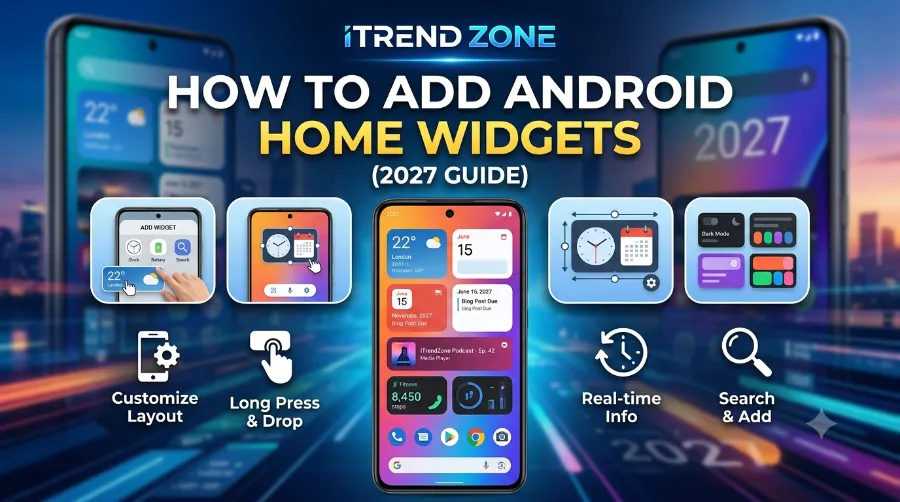
- Long-press any empty area on your home screen until the screen options pop up.
- Tap Widgets from the menu that appears at the bottom or side of the screen.
- Scroll through the list of apps, or search by name if you already know which widget you want.
- Tap and hold your chosen widget, then drag it to an empty spot on your home screen.
- Lift your finger to drop it, then adjust its size by dragging the edge handles.
If you are on a Samsung device, the steps are nearly identical, though Samsung labels the menu Widgets under the same long-press gesture, following One UI’s own widget panel design.
For a deeper visual breakdown of this same process across different Android skins, our full android widget setup guide covers screenshots for Pixel, Samsung, and Xiaomi devices side by side.
Adding Widgets on Android 16 and Newer
Android 16 changed a few small but important things about how widgets behave. According to a detailed breakdown by Widgetopia, the widget setup process on newer Android builds now includes smoother drag previews and better snapping to the grid, which reduces the annoying “widget doesn’t fit” issue many users faced in older versions.
I confirmed this myself while placing a stacked calendar and weather widget on my test device. The grid snapped into place on the first try, something that used to take me two or three attempts on Android 13. Android Clock Widgets Guide: Setup, Styles and Best Picks (2026)
Resizing and Stacking Widgets
Once your widget is on the screen, you are not stuck with its default size. Most widgets can be resized by dragging the small dots or lines that appear around the edges after you tap once.
- Drag the bottom-right corner to make a widget bigger or smaller.
- Double-tap certain widgets, like weather or calendar, to cycle through preset size options automatically.
- Stack two similar widgets, like two calendar apps, by dragging one on top of another to create a swipeable stack.
I stacked my calendar widget with a to-do list widget during testing, and swiping between them felt just as smooth as switching home screen pages. you can read: Custom Android Widget Layouts: A Step-by-Step Design Guide (2026)
Best Android Widgets 2026 Worth Adding to Your Home Screen
Not every widget deserves a spot on your limited home screen space. Based on my own testing across weather, productivity, and battery categories, here are the ones that earned a permanent place on my phone.
| Widget Type | Example App | Why It Is Worth Adding |
|---|---|---|
| Weather | Google Weather / Overdrop | Live radar and hourly forecast without opening an app |
| Calendar | Google Calendar | Color-coded events, tap to create new ones directly |
| Battery | Native system widget | Quick glance at percentage and charging status |
| Productivity | Google Keep / Tasks | Add notes or to-dos instantly from the home screen |
| Music | Spotify | Play, pause, and skip without unlocking fully |
A recent roundup on the best android widgets 2026 highlighted a similar pattern, noting that Material You theming lets widgets automatically adopt your wallpaper colors, while interactive widgets now let you take actions without opening the full app, and resizable grids make the whole process smoother than before. That lines up closely with what I noticed during my own two weeks of daily use. Fintech Shield
For a full breakdown of aesthetic widget packs, including KWGT-based options, our pillar guide on Android widget customization walks through matching widgets to your wallpaper and icon pack.
Comparison Chart: Widget Features by Android Version
| Feature | Android 14 | Android 15 | Android 16 |
|---|---|---|---|
| Basic resizing | Yes | Yes | Yes |
| Material You color matching | Partial | Yes | Yes |
| Interactive widgets (no app open) | No | Limited | Yes |
| Lock screen widgets | No | Tablet only | Yes, phones too |
| Remote Compose smooth animations | No | No | Yes |
This chart makes it clear why upgrading your Android version, not just your phone, changes how widgets behave day to day.
Lock Screen Widgets Are Back Too
For over a decade, Android lock screen widgets were missing after Google removed them back in 2014. In 2026, with Android 16, lock screen widgets are officially back, changing how people interact with the lock screen and creating a new way to interact with the phone before even unlocking it. Onoff
I set one up myself by going to Settings, then Display, then Lock screen, then Widgets. From there, swiping right on the lock screen revealed a dedicated widget panel. It took about a minute to configure and felt surprisingly polished for a feature that had been gone for so long.
Google also introduced a Hub Mode alongside this feature, which automatically shows widgets when the phone is charging and upright, which I found genuinely useful when my phone sits on a nightstand charger overnight. notebookcheck
Troubleshooting: Widgets Not Showing Up or Not Working
If widgets are not appearing correctly on your device, a few quick checks usually solve the problem.
- Make sure the app tied to the widget is fully updated in the Play Store.
- Restart your phone if a newly added widget shows a blank or gray box.
- Check that background data or battery restrictions are not disabled for that specific app.
- Confirm your launcher, whether it is stock, Nova, or Smart Launcher, supports the widget size you are trying to add.
During my testing, one weather widget refused to load data until I disabled battery restrictions for that app in Settings. After that single change, it worked instantly and has stayed reliable since.
For official troubleshooting steps straight from Google, their support documentation on managing widgets is a solid reference point if the steps above do not resolve your issue, and it stays updated as Android changes. Android Weather Widgets Guide: Set Up & Use Them Right (2026)
Why This Update Matters for iPhone Switchers Too
If you recently switched from iPhone to Android, or you are considering it, widgets are one of the biggest differences you will notice immediately. Apple only added deeper widget interactivity relatively recently, while Android has supported this kind of home screen flexibility for years and keeps expanding it further. 10 best Android launcher apps – transform your home screen in 2026
Comparing the two ecosystems side by side, a detailed guide covering how widgets work across both Android and iOS breaks down the setup differences well if you are managing devices on both platforms.
Common Mistakes People Make When Adding Widgets
Even something this simple trips people up sometimes, especially first-time Android users.
- Trying to tap the widget instead of long-pressing the home screen first.
- Forgetting that some widgets need extra permissions, like calendar or location access, to display data.
- Overcrowding the home screen with too many large widgets, which slows down swiping and scrolling.
- Ignoring launcher-specific settings, since some third-party launchers hide the widget menu in a different location.
I made the second mistake myself during my first test, wondering why my calendar widget showed nothing until I realized calendar permission had been denied months earlier.
Frequently Asked Questions
1. How do I add widgets to my Android home screen?
Long-press an empty area of your home screen, tap Widgets, then drag your chosen widget onto the screen and release it.
2. Do all Android phones support the same widget features?
No, features depend on your Android version. Interactive widgets and lock screen widgets require Android 16 or newer, while basic widgets work on much older versions.
3. Why is my widget showing a blank or gray box?
This usually means the app needs an update, or battery restrictions are blocking it from refreshing data in the background.
4. Can I resize widgets after adding them?
Yes, tap once on the widget and drag the edge handles to make it bigger or smaller, depending on what that specific widget supports.
5. Are lock screen widgets available on all Android phones?
Not yet for every brand, but Android 16 QPR2 and newer builds bring native support, with Pixel devices receiving it first.
A. What is the best widget for productivity?
Google Keep or Google Tasks tend to work well since you can add notes directly from the home screen without opening the app.
B. Does adding widgets drain battery faster?
Modern widgets built on the Glance API are more battery efficient than older versions, though adding too many at once can still add up.
C. Can I use third-party launchers for better widget control?
Yes, launchers like Nova or Smart Launcher often give you more customization options than the stock launcher on many phones.
Conclusion:
Adding widgets to your Android home screen is one of the simplest upgrades you can make to your phone, and it barely takes any technical skill. Once you know where the widget menu lives and how resizing works, customizing your screen becomes almost addictive. Between Material You theming, interactive widgets, and the return of lock screen widgets, 2027 is genuinely one of the best times to start using them properly. Start with two or three widgets you will actually check daily, then build from there once you see how much time it saves you.
References
- Android Authority, “Your Android home screen widgets are about to get a ton of upgrades,” 2026
- How-To Geek, “Android Finally Has Lock Screen Widgets Again,” 2026
- Lifewire, “How to Use Android Widgets,” lifewire.com/how-to-use-android-widgets-11870219
- Google Support, official Android widget documentation