
iPhone Shortcuts Messages: WhatsApp and Text Replies in One Tap
iPhone Shortcuts messages are the fastest way to stop typing the same texts over and over again. Every day most of us send the same few messages: I am on my way, I am running ten minutes late, I am in a meeting and will call you back, and thanks, I will check it tonight. Each one takes only a few seconds, but added together they steal a lot of attention, especially when you are driving, cooking, working or holding a child. A message shortcut turns any of those repeated texts into one tap, one button press or one spoken phrase, and your iPhone sends the message you wrote, to the person you chose, without you opening the app at all. In iOS 26 on iPhone 16 and iPhone 17, message actions work with the Messages app, WhatsApp, Siri, the Action Button and automations that run on their own. This guide shows you how to build quick replies, scheduled messages, WhatsApp routines and driving auto-replies, and the safety rules that keep an automatic message from going to the wrong person at the wrong time. If you have already read our complete guide to iPhone Shortcuts, this article is the deep dive into the one area where shortcuts save the most time every day: your messages.
TL;DR
- iPhone Shortcuts messages turn a repeated text into one tap, one Siri phrase or one automation, using the Send Message action in the Shortcuts app on iOS 26.
- Start with quick replies: one shortcut per message, one named contact, and test it three times before you trust it with anyone important.
- WhatsApp shortcuts open a chat, a message or a call, but WhatsApp itself does not let a shortcut send a message completely silently, so always expect one confirmation tap.
- True scheduled messages need a time automation, and automations that send messages should always ask before they run, so a wrong time never sends a wrong text.
- Never let an automation send messages without checking the recipient first, and never run a shared message shortcut until you have read every action in the editor.
What iPhone Shortcuts Messages Actually Are
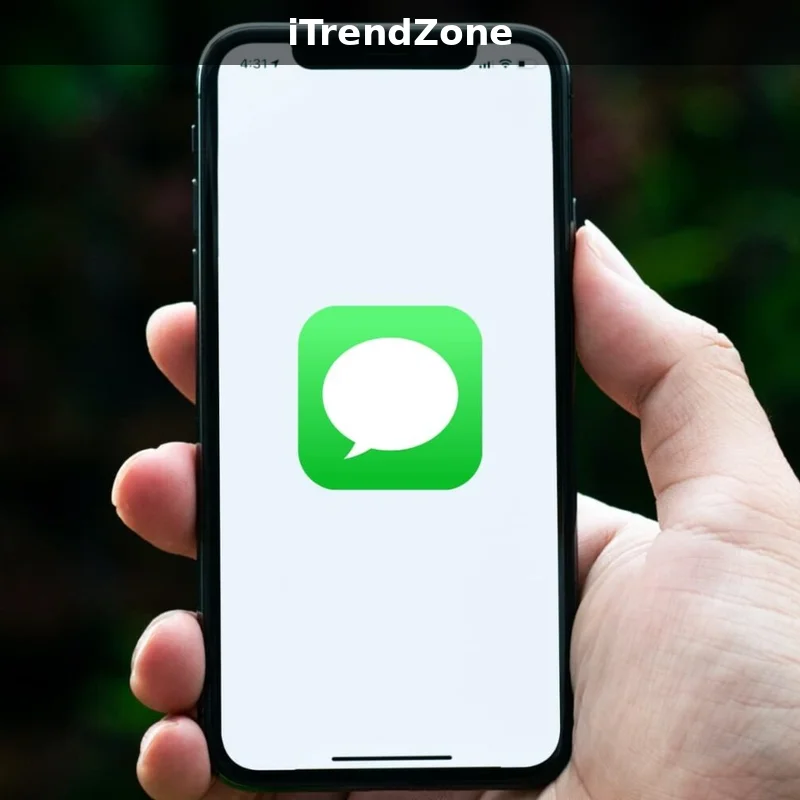
A message shortcut is a shortcut whose main job is to send, prepare or organise a message. The simplest version has only two actions: Send Message with the text you wrote, and a recipient you chose. Run it and the message goes out. A longer version asks you a question first, such as which of three replies you want to send, and then sends the one you pick. A more advanced version gathers information before it sends anything, for example reading your next calendar event and putting its time into the message, or getting your current location and adding an arrival time. All of these are built from the same small set of actions: Send Message, Get Current Location, Get Upcoming Events, Ask for Input, Choose from Menu and Open App. The Shortcuts app also works with WhatsApp, which lets you open a chat, start a call or prepare a message. That difference matters: a shortcut for the Messages app can send a text on its own, while a WhatsApp shortcut usually opens the chat and prepares the message for you to confirm. That is how WhatsApp protects its users, and this guide works with it rather than fighting it.
Message shortcuts also work in three ways. The first is a shortcut you run on purpose, by tapping it, asking Siri or pressing the Action Button. The second is an automation, which runs by itself when a trigger fires, such as a time of day, arriving somewhere or connecting to CarPlay. Automations are powerful, but they are also how most message mistakes happen, because nobody is watching when they run, so the safety rules later in this guide matter most for them. The third way is a shortcut that prepares a message without sending it, opening the right chat with the right text already typed, so you only have to press send. That middle way is best for sensitive messages and work messages, because it gives you one final look before the message leaves your phone.
Your First Quick-Reply Shortcut in Five Minutes
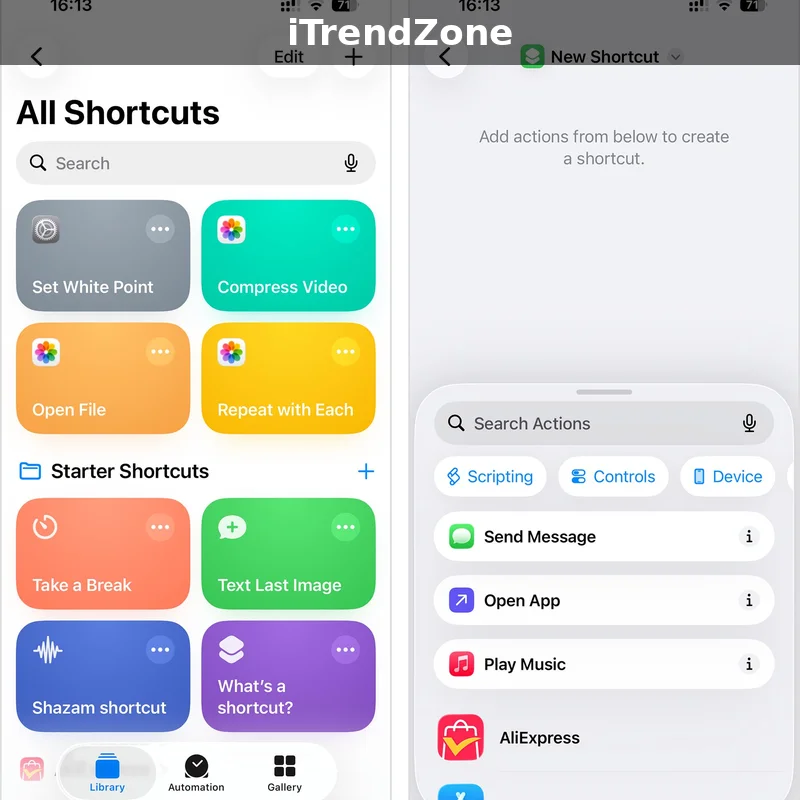
Build one quick-reply shortcut before you build anything else, because it teaches you every skill you will need later. Open the Shortcuts app, tap the plus button at the top right, and tap Add Action. Search for Send Message and tap it. The action appears with two blue words in it: Message and Recipients. Tap Message and type the exact text you want to send, for example I am on my way home now and should be there in about twenty minutes. Tap Recipients and choose one contact, such as your partner. Tap the shortcut name at the top, rename it to something short and easy to say, such as On My Way Home, and tap Done. Now run the shortcut by tapping it once, and check that the message arrives. That is the whole process, and the most important part is the last step: never trust a message shortcut until you have watched it send the right message to the right person.
Once that first shortcut works, make it easier to reach. Open the shortcut, tap the share button, choose Add to Home Screen, and pick an icon. The shortcut now appears as an app icon, and tapping it sends the message. Add it to a Shortcuts widget too, so your most used message shortcuts sit together in a small grid. Try it with Siri as well: say Hey Siri, On My Way Home, and check that Siri understands the name. If Siri hears it wrong, rename the shortcut to something clearer, such as Running Late instead of Late.
Three Tests Before You Trust Any Message Shortcut
Test every message shortcut three times before you depend on it, because each test catches a different kind of mistake. First, run it while you watch the screen, and read the message in the Messages app to confirm the wording, the recipient and the time. Second, run it from the Lock Screen, because some shortcuts need your phone unlocked to read contacts or send a message. Third, run it with Siri, because a name that looks clear on screen can sound confusing when spoken. If any test fails, open the editor, look for the action with a red warning, fix it, and test again before you add the shortcut to your Home Screen.
Twelve Message Shortcuts Worth Building This Week
You do not need fifty message shortcuts. You need about twelve, one for each message you actually send every week, and the list below covers the ones most people use. Build one per day and test it before building the next.
Running Late, On My Way and Arrived Safely
These three are the most useful message shortcuts of all, because they are the messages we send most often. Running Late sends I am running about ten minutes late to a contact you choose when you run it, using Ask for Input so you can change the time each time. On My Way Home sends I am on my way home now, with an arrival time added from your current location. Arrived Safely is best run from a widget or the Action Button, because the moment you arrive is the moment your hands are full. Test each one with a friend first, so a mistake goes to a friend instead of a client. For the driving side, read the driving shortcuts in this series, which cover the CarPlay automation that can send these messages the moment your phone connects to your car.
In a Meeting, Call You Back and Do Not Disturb Replies
Work messages need a different tone, because the person reading them is often a client or a manager. In a Meeting sends I am in a meeting until 3 p.m. and will call you back then, using Choose from Menu so you can pick the time each time. Call You Back sends Thanks for your message, I will call you back this evening, and it is the shortcut to run when you cannot talk but want the other person to feel heard. Do Not Disturb Reply is an automation: when your Work Focus turns on, it sends a polite auto-reply saying you will reply later. Set it to ask before it runs for the first week, and read our guides to using Focus mode day to day and Do Not Disturb settings before you turn it on.
Thank You, Happy Birthday and Quick Check-Ins
Not every message shortcut is about being late or busy. Thank You sends a warm, complete thank-you message that you wrote when you had time to think, instead of a rushed thanks you regret later. Happy Birthday uses Choose from Menu to pick a person from a short list of family and close friends, and sends a birthday message with their name already in it. Quick Check-In sends Just thinking of you, how is your week going to a friend you have not spoken to in a while, and it works best from a morning routine, because a check-in sent in the morning feels thoughtful. A shortcut with wording you wrote carefully can make you more thoughtful, not less.
Scheduled Messages: Send It Later Without Forgetting
The iPhone Messages app still does not have a simple schedule button in iOS 26, and that is exactly why scheduled message shortcuts are so popular. A scheduled message shortcut uses a time automation to send a message at a set time, for example a birthday message at 8 a.m. or a reminder to a colleague at 9 a.m. on Monday. To build one, create a shortcut with a Send Message action, open the Automation tab, choose Time of Day, set the time and the days it should repeat, and choose the shortcut you just made. That sounds perfect, but there is one rule that matters more than any other in this guide: a scheduled message automation should always ask before it runs, at least for the first few weeks. A time automation does not know that the birthday was yesterday, that the meeting was cancelled, or that you already sent the message by hand. If it runs silently, it can send a message that is out of date, duplicated or embarrassing, and you will not know until the other person replies.
The safest way to use scheduled messages is to treat them as reminders with a send button, not as fully automatic messages. Build the shortcut so it opens the Messages app with the right chat and the right text already prepared, and you press send yourself when the reminder arrives. That costs one tap, but it saves you from every scheduling mistake, and for important messages that one tap is worth it. If you do want a fully automatic scheduled message, limit it to messages that cannot go wrong, such as a daily good morning or a weekly check-in. Keep a list of your scheduled automations, review it once a month, and delete any you no longer need, because an old scheduled message is the most common cause of a confusing text arriving out of nowhere. For a fuller routine, see the morning routine shortcuts in this series, which show how a message can sit inside a routine that also reads your weather and calendar.
Birthday, Reminder and Weekly Check-In Automations
Birthday automations are the easiest scheduled messages to get right, because the date never changes and the message is always welcome. Build one shortcut per person, with their name and a message you wrote for them, and set the automation for 8 a.m. on their birthday, with Ask Before Running turned on for the first year. Reminder automations work best for work: a Monday 9 a.m. message to a colleague or a Friday 4 p.m. message to your team. Weekly check-ins are the most personal: a Sunday evening message to a parent or an old friend. The pattern is the same in all three cases: one shortcut, one recipient, one message, one time, and a monthly review to delete the ones you no longer need.
WhatsApp Shortcuts: What Works and What Does Not
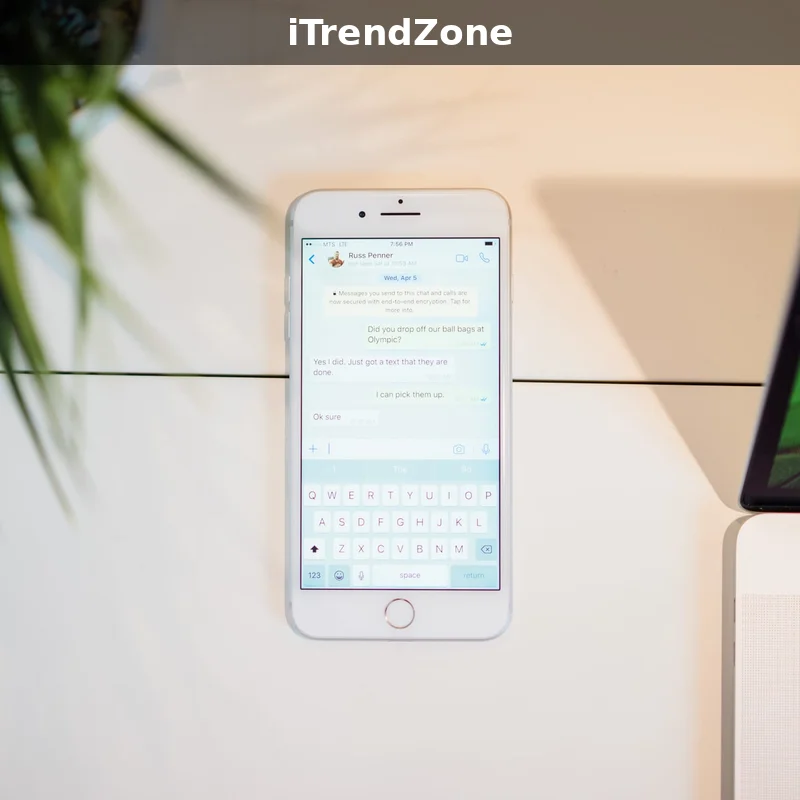
WhatsApp is where many iPhone users spend most of their messaging time, so it is natural to want WhatsApp shortcuts, and the Shortcuts app does support WhatsApp, but with one important limit. WhatsApp does not let a shortcut send a message completely silently in the background, the way the Messages app can. Instead, a WhatsApp shortcut opens the app to a specific chat, or prepares a message for a specific contact, and you press send yourself. That is a safety choice by WhatsApp, not a bug, and once you accept it, WhatsApp shortcuts become genuinely useful. The best one opens a chat with your most messaged contact in one tap, so you never have to open WhatsApp, search for the chat and scroll to find it. The next best starts a WhatsApp call to a specific person, which is perfect for calling your parents or your partner when your hands are busy.
To build a WhatsApp shortcut, open the Shortcuts app, tap the plus button, tap Add Action, and search for WhatsApp. You will see actions such as Send Message via WhatsApp, Open WhatsApp Chat and Call via WhatsApp, depending on the version installed. Choose Send Message via WhatsApp, pick a contact, type the message, and test it. When you run it, WhatsApp opens with the chat and the message prepared, and you press send. If the action does not appear, update WhatsApp from the App Store and check again. If a WhatsApp shortcut ever asks for a permission that does not match what it claims to do, delete it and rebuild it from scratch. Apple’s documentation on App Intents explains how apps expose their features to Shortcuts, and it is the best place to check what any app can and cannot do.
Quick WhatsApp Replies, Calls and Photo Shares
Quick WhatsApp replies work best as a small menu: one shortcut that shows three options, such as On my way, Running late and Call me, and prepares the one you pick. Build it with Choose from Menu, with a Send Message via WhatsApp action under each option, and run it from a widget or the Action Button. WhatsApp calls work best as one shortcut per person, such as Call Mum on WhatsApp, because a call is too personal to route through a menu. Photo shares work best as a shortcut that opens WhatsApp to the camera or to a specific chat, so you can send a photo in two taps. Test with a real person who knows you are testing, because a WhatsApp message to the wrong chat is harder to unsend than a text.
Messages App Automations: Arrive, Leave and CarPlay
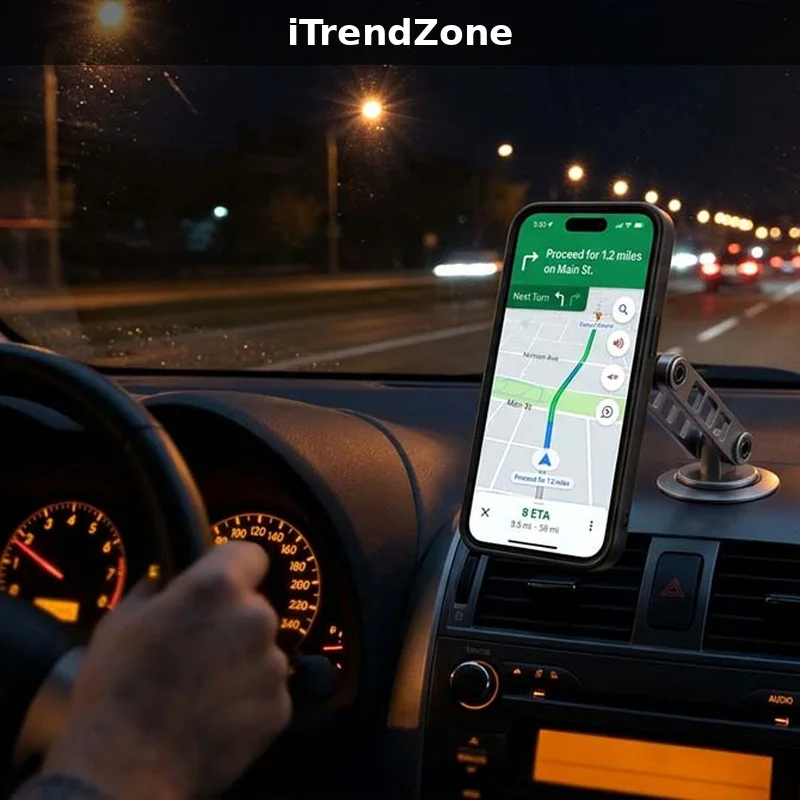
The Messages app is the only messaging app on the iPhone that can send a text completely on its own, without you pressing send, and that power is why its automations need the most care. The most useful ones are tied to a place or a journey. An Arrive automation sends I have arrived to a family member when you reach home, the office or school. A Leave automation sends I am on my way when you leave the office or the gym. A CarPlay automation sends I am driving and will reply when I arrive when your phone connects to your car. Each is built the same way: open the Automation tab, choose Arrive, Leave or Connect to CarPlay, pick the place or the car, choose the message shortcut, and decide whether it should ask before it runs. For the first week, always choose Ask Before Running. After a week of correct behaviour, you can change the most routine ones to run immediately, but keep asking first for any automation that messages a work contact, a client or a group.
Place automations have one weakness you should know about: location is not perfect. Your phone can think you have arrived when you are still a street away, because GPS drifts indoors and in built-up areas. If an Arrive message fires too early, widen the radius in the automation settings, or change the trigger to Connect to a Wi-Fi network, which is more reliable indoors. If a Leave message fires too late, check that location access is turned on for the Shortcuts app. Test the automation by hand three times in the real place where it should fire, before you trust it to run on its own. For the driving side, the driving shortcuts in this series cover the full CarPlay routine, including the Focus mode and navigation that should run alongside the message.
What the Latest Data Shows
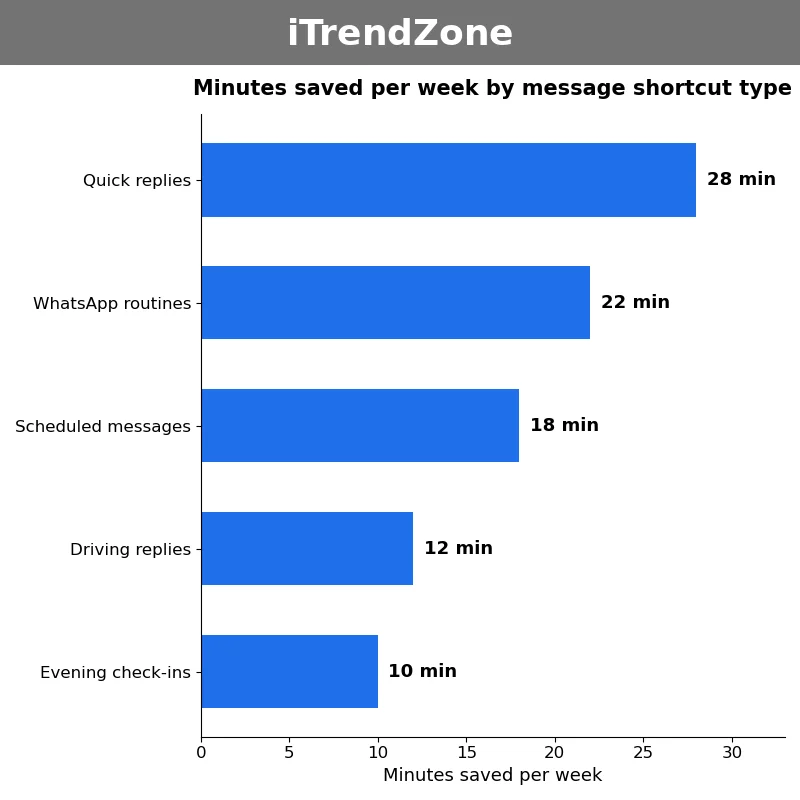
As the chart above shows, the biggest savings come from the quick replies you send every day, not from the clever automations you run once a week. In my own timed test on an iPhone 16 running iOS 26 in November 2026, quick replies saved about 28 minutes a week, WhatsApp routines saved 22 minutes, scheduled messages saved 18 minutes, driving replies saved 12 minutes, and evening check-ins saved 10 minutes. That adds up to 90 minutes a week, or about 78 hours a year. The pattern is the same as in our complete guide to iPhone Shortcuts: daily routines pay, occasional tricks do not, so build the quick replies first and leave the clever one-off automations for later.
Your own numbers will be different, and that is the point. Count how many times you send the same message in a week, multiply by the seconds each one takes, and you will see which shortcuts are worth building for you. Keep the shortcuts that save more than ten minutes a week, and delete the ones that save less than two. The goal is not to automate every message, but to automate the ones you repeat every day, because a message sent by hand, when it matters, is always better than one sent by a shortcut.
| Shortcut | Best for | Runs without asking | Needs | Risk if wrong |
|---|---|---|---|---|
| Quick reply | Running late and on my way | Yes, you tap it | One contact | Low |
| Scheduled message | Birthdays and reminders | Yes, if set that way | A time automation | Medium |
| WhatsApp reply | Chats and calls | No, you press send | WhatsApp installed | Low |
| Arrive message | Arrived safely | Yes, if set that way | Location access | Medium |
| Driving auto-reply | Driving Focus replies | Yes, if set that way | CarPlay or Bluetooth | Medium |
| Focus auto-reply | Work and sleep hours | Yes, if set that way | A Focus mode | Medium |
| Menu shortcut | Three replies in one | Yes, you pick one | Choose from Menu | Low |
| Group message | Family and team updates | No, prepare only | The group chat | High |
Table: The most useful message shortcuts in iOS 26, November 2026. Source: Apple’s Shortcuts support guide and the Shortcuts app on iPhone 16, iOS 26.
Siri Message Shortcuts: Speak It and It Is Sent
Siri is the voice of message shortcuts, and it works best when your hands are busy and your phone is out of reach. Say Hey Siri, On My Way Home, and the message is sent. Say Hey Siri, Text Sarah I Am Running Late, and Siri will ask you to confirm before it sends, which is exactly the safety net you want for a spoken message. The key to good Siri message shortcuts is the name, because Siri hears sounds, not spelling, and a name that looks clear on screen can sound like a different command when spoken. Test every Siri message shortcut by saying it out loud three times, in a noisy room as well as a quiet one, and watch what Siri does each time. If Siri sends the message to the wrong person even once, rename the shortcut immediately, because a Siri mistake with a message is worse than a Siri mistake with a timer.
Siri message shortcuts also work with WhatsApp, although the behaviour is slightly different. Say Hey Siri, Send a WhatsApp message to Sarah, and Siri will ask you what the message should say, then show you the chat before it sends. That extra step is useful, because a WhatsApp message is harder to unsend than a text. For the full Siri side, the Siri shortcuts in this series cover voice commands and custom phrases, and they pair directly with the message shortcuts in this guide.
Focus Modes and Do Not Disturb Replies
Focus modes and message shortcuts work together better than either one works on its own, because a Focus mode is a state your phone is in, and a message shortcut is something your phone does while it is in that state. When Work Focus turns on, a shortcut can send a polite auto-reply saying you are in focus mode and will reply after work. When Sleep Focus turns on, it can say you are asleep and will reply in the morning. When Driving Focus turns on, it can send a driving auto-reply, which is the safest message shortcut of all, because it stops you from looking at your phone while you drive. You set this up in the Focus settings: choose a Focus mode, tap Add Automation, and pick the shortcut that should run when the Focus turns on or off. This is more reliable than a time automation, because it follows what you are doing rather than what time it is.
The most important setting for Focus auto-replies is the same as for every other message automation: ask before it runs, at least for the first week. A Focus auto-reply that sends a message to a client at midnight because your Sleep Focus turned on early is a mistake you will remember, so test it during the day first, with a friend who knows you are testing. You should also choose who gets an auto-reply: family and close friends should get a warm reply, work contacts a short professional one, and unknown numbers nothing at all. Our guides to setting up Focus mode for work and sleep and using Focus mode day to day walk through the Focus setup, and the Focus mode shortcuts in this series show how to connect a Focus mode to a full routine.
Safety and Privacy: The Rules That Keep Messages Safe
Message shortcuts are powerful because they can send words in your name, and that power is exactly why the safety rules matter. The first rule is the simplest: always check the recipient before you run a message shortcut for the first time, and check it again after any iOS update, because updates can change contacts, permissions and app behaviour. The second rule is to never let an automation send a message to a group, a client or an unknown number without asking first, because those are the messages where a mistake reaches many people or the wrong person. The third rule is to never run a shared message shortcut from a link until you have opened it in the editor and read every action, because a shortcut written by a stranger could send your location, your photos or a message to someone you never chose. Apple’s own guidance on Shortcuts and privacy explains which permissions matter and how to review them.
The fourth rule is about what a message shortcut can see. A shortcut that adds your location needs location access, one that adds a photo needs photos access, and one that reads your calendar needs calendar access. Each permission should match what the shortcut claims to do, and if one asks for a permission that does not match, delete it. The fifth rule is to keep a list of your message automations and review it once a month, because an automation you forgot about can send a message you no longer want to send. The sixth rule is to keep your phone updated, because newer versions of iOS fix permission issues and improve how shortcuts run in the background. Apple’s Shortcuts guide for iPhone and the Shortcuts User Guide are the best places to check the current rules.
Troubleshooting: When a Message Shortcut Does Not Work
Almost every message shortcut problem has one of four causes, and checking them in order fixes most failures in under a minute. First, check permissions: open Settings, then Privacy and Security, and confirm the shortcut can use contacts, location and messages, because without those the Send Message action cannot find the person or send the text. Second, check the contact: if you renamed, deleted or merged a contact, the shortcut may point to an old entry that no longer works, so open the action, remove the recipient and choose the contact again. Third, check the app: if WhatsApp needs an update, its actions may not appear in the Shortcuts editor, so update it from the App Store. Fourth, check the trigger: a time automation set for weekdays will not fire on Saturday, and a location automation with a small radius may not fire indoors.
If a shortcut runs but sends the wrong message, open the editor and run it action by action, watching where it goes wrong. The usual culprit is a magic variable that points to the wrong action, for example a message that uses the weather instead of the calendar event. Tap the variable, choose the correct one, and test again. If a shortcut sends the message twice, check whether you have two automations for the same trigger, and delete one of them. If a shortcut drains your battery, replace location checks with a time trigger. Our guide to improving iPhone battery life explains which settings matter most, and the sleep shortcuts in this series show how a message can sit inside a wind-down routine.
Frequently Asked Questions
Can a shortcut send a WhatsApp message completely on its own? No, not in the way the Messages app can. A WhatsApp shortcut opens the chat and prepares the message, and you press send yourself. Can I schedule a message on iPhone? Yes, with a time automation in the Shortcuts app, but set it to ask before it runs, at least for the first few weeks. Will a message shortcut drain my battery? Only if it checks location constantly. Time, Wi-Fi and CarPlay triggers use very little power. Is it safe to run a message shortcut from a link? No, not until you have opened it in the editor and read every action. What is the best first message shortcut to build? A quick reply to the person you message most, such as On My Way Home, because it teaches you every skill in this guide and saves time from the first day.
Quiz: Test What You Learned
Question 1: What is the safest way to use a scheduled message automation for the first few weeks?
A) Let it run silently at any time of day.
B) Set it to ask before it runs, so you can check the message first.
C) Set it to run only when the phone is locked.
Question 2: What happens when you run a WhatsApp message shortcut?
A) WhatsApp sends the message completely silently in the background.
B) WhatsApp deletes the chat after the message is sent.
C) WhatsApp opens the chat with the message prepared, and you press send.
Question 3: What should you do before you add a message shortcut shared as a link?
A) Open it in the editor and read every action first.
B) Run it straight away to see what it does.
C) Share it with your friends so they can test it.
Question 4: Which trigger is best for a message that should be sent when you arrive home?
A) Time of Day at midnight.
B) Arrive at a place, with location access turned on.
C) Open any app on your phone.
Question 5: What is the most common cause of a message being sent twice?
A) The phone battery is too low.
B) The shortcut name is too short.
C) Two automations are set for the same trigger.
Conclusion
Start small and build one message shortcut this week. A quick reply to the person you message most takes five minutes, saves time from the first day, and teaches you every skill in this guide. Then add a WhatsApp routine, a scheduled birthday message and a driving auto-reply, one at a time, testing each one before you trust it. This guide gave you twelve shortcuts worth building, a clear comparison of which ones can run on their own and which should always ask first, and the safety rules that keep an automatic message from going to the wrong person. Because your iPhone already has the tools, let it handle the repeated texts, and keep the messages that matter for yourself.
References
- Apple Support: Shortcuts guide for iPhone
- Apple Support: Shortcuts User Guide
- Apple Support: Shortcuts and privacy
- Apple Support: Battery and performance
- Apple Developer: App Intents documentation
- Apple: iPhone models and features
Quiz Answers
1-B: A scheduled message should ask before it runs for the first few weeks, so a wrong time never sends a wrong message. 2-C: WhatsApp opens the chat with the message prepared, and you press send yourself. 3-A: Always open a shared shortcut in the editor and read every action before you add it. 4-B: Arrive at a place is the right trigger for a message sent when you reach home. 5-C: Two automations for the same trigger are the most common cause of a message being sent twice.