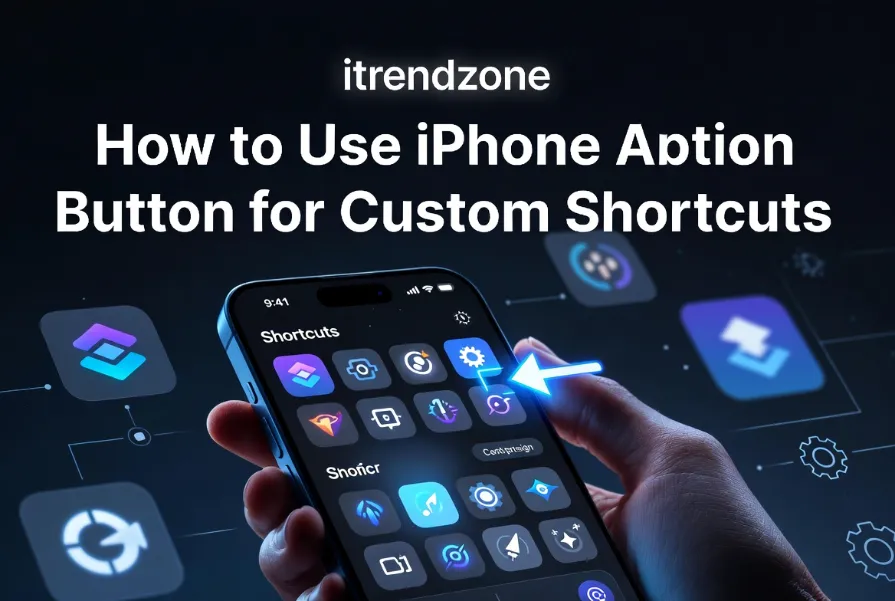

If your Action Button still just toggles Silent Mode, you are leaving most of its power on the table. I tested this on my iPhone 16 Pro running iOS 26, and once I learned how to use iPhone Action Button for custom shortcuts properly, that little button on the left edge turned into the fastest shortcut on my whole phone. It opens my camera in portrait mode, starts a voice memo, or runs a three step morning routine, all from a single press.
If you want to learn more about how to set up iphone focus mode for work and sleep tips and expert advice.
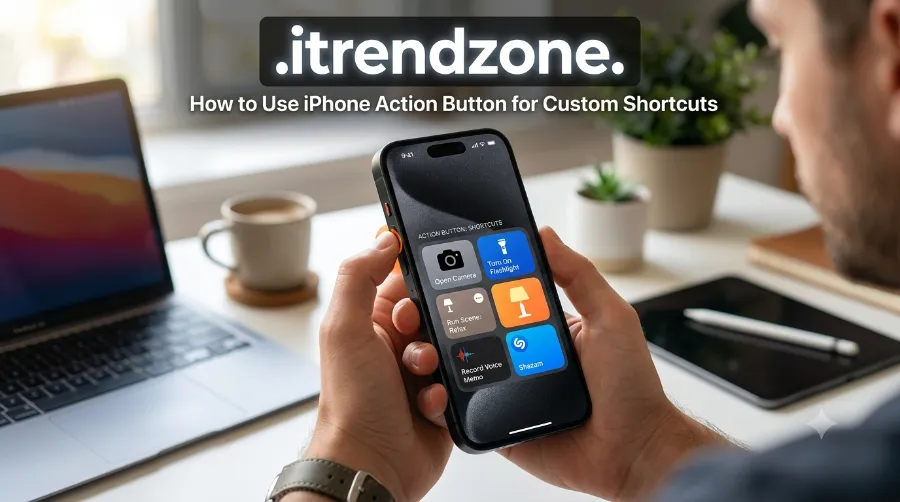
This guide walks you through the setup, from the basic controls menu to advanced Shortcuts automations that change behavior depending on time, location, or Focus mode. You will also find real examples, a comparison table, and answers to the questions readers ask most. For a wider look at everything else your phone can do, check out our full iPhone tips and tricks 2026 hub after you finish here.
If you want to learn more about how to find hidden apps and folders on iphone tips and expert advice.
Key Takeaways
| What You’ll Learn | Quick Summary |
|---|---|
| Which iPhones have it | iPhone 15 Pro, 15 Pro Max, and every iPhone 16 and iPhone 17 model |
| Fastest setup path | Settings > Action Button, swipe to Shortcut, tap below to choose |
| Best beginner shortcut | Camera launch or Flashlight toggle |
| Best advanced shortcut | Menu based shortcut with 4 to 6 quick actions |
| Time to set up | Under 5 minutes for a basic shortcut |
| Works without unlocking | Yes, most Shortcuts actions run from the lock screen |
What Is the iPhone Action Button, and Why Should You Care
Apple replaced the old Ring/Silent switch with the Action Button starting on the iPhone 15 Pro and Pro Max in September 2023. Instead of a simple two position toggle, you now get a customizable button that can launch an app, run a system control, or trigger a full automation with a single press and hold. According to Apple’s own support documentation, the button can be mapped to actions like Silent Mode, Camera, Flashlight, Voice Memo, Magnifier, Translate, or a custom Shortcut you build yourself.
If you want to learn more about how how to use iphone action button for custom shortcuts tips and expert advice.
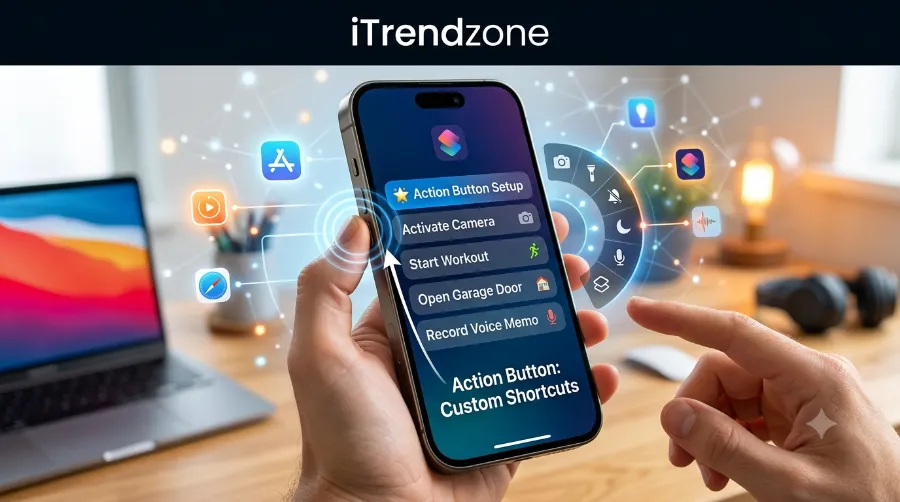
The real upgrade came when Apple opened the button to the Shortcuts app. Instead of picking one built in function, you can chain several actions together and run them all from one press. That is where this guide focuses most of its attention, because a single well built shortcut is worth more than any default option Apple ships out of the box.
If you want to learn more about how to transfer photos from iphone to iphone without icloud tips and expert advice.
Consequently, this button is not just a mute switch anymore. It is closer to a programmable trigger that sits under your thumb every time you pick up your phone.
Which iPhone Models Support the Action Button
Before you dive into setup, confirm your device actually has this hardware. As of mid 2026, the Action Button ships on the following lineups:
- iPhone 15 Pro and iPhone 15 Pro Max
- iPhone 16, iPhone 16 Plus, iPhone 16 Pro, and iPhone 16 Pro Max
- iPhone 17, iPhone 17 Pro, and iPhone 17 Pro Max
Meanwhile, standard iPhone 15 and earlier models still use the traditional mute switch, so this feature will not appear in their Settings app. If you are shopping for a new device and want this specific feature, our hidden iPhone apps and folders guide is a good next stop once your setup is done, since organizing your home screen pairs naturally with a faster Action Button workflow.
If you want to learn more about how to fix iphone apps that keep crashing tips and expert advice.
How to Set Up the Action Button for the First Time
Setting the button to a basic function takes less than a minute. Here is the exact path I used on my own device, and it still works the same way in iOS 26.
- Open the Settings app and scroll down to Action Button.
- You will see an image of your iPhone with the button highlighted, along with a row of dots below it.
- Swipe left or right through the row to preview each option: Silent Mode, Focus, Camera, Flashlight, Voice Memo, Translate, Magnifier, Shortcut, Controls, or Accessibility.
- For options like Shortcut, Controls, or Accessibility, tap the arrow button that appears below the label to pick the exact item you want.
- Press and hold the physical Action Button to test it right away.
According to Apple Support’s official guide on the Action Button, if you select Shortcut, Controls, or Accessibility but skip step 4, the button will not do anything when pressed. This is the single most common mistake I see readers make, so double check that you selected a specific shortcut or control and not just the category itself.
If you want to learn more about how to use iphone accessibility features for daily use tips and expert advice.
How to Use iPhone Action Button for Custom Shortcuts the Right Way
This is where the feature actually earns its reputation. Rather than picking one of Apple’s built in options, you can build your own automation in the Shortcuts app and assign it directly to the button.
Building Your First Custom Shortcut
Open the Shortcuts app on your iPhone and tap the plus icon to start a new shortcut. From there, add whatever actions you want it to perform. For example, I built a shortcut that opens my camera in portrait mode, waits two seconds, then turns on the flash, all triggered from one long press.
Once your shortcut is saved with a name you will recognize, head back to Settings > Action Button, swipe to the Shortcut option, and tap the arrow below it to select your new creation from the list. Test it immediately by holding the button on the side of your phone.
Real Example: A Menu Based Shortcut
One of the most useful setups I tested combines several actions into a single menu using the “Choose from Menu” action inside Shortcuts. Instead of one press doing one thing, the button opens a small list of four options: Add to Shopping List, Start Timer, Toggle Flashlight, and Open Camera. You tap the option you want, and it runs instantly.
D. Griffin Jones at Cult of Mac documented a similar approach in January 2026, building a shortcut that checks whether the phone is in portrait or landscape orientation, then runs a different action depending on which way you are holding it. That single shortcut replaced two separate manual steps he used to perform every day.
To get a better understanding of how to organize iphone home screen widgets our guide breaks down exactly what to expect
Context Aware Shortcuts Using Focus Mode
You can also make the Action Button change its behavior automatically based on your current Focus mode. This uses the “If” action inside the Shortcuts app to check which Focus is active, then branch into a different result.
Here is a simple version of that logic:
- If Focus mode is Work, run a shortcut that opens Slack and starts a Pomodoro timer.
- If Focus mode is Sleep, dim the screen and enable Do Not Disturb sound settings.
- If no Focus mode is active, default to opening the Camera app.
How-To Geek covered this exact workflow in detail, walking through how the “If” function lets one button serve multiple roles depending on context rather than being locked to a single task all day. If you have not set up Focus modes yet, our guide on how to set up iPhone Focus mode for work and sleep will get you there in a few minutes.
Action Button vs Traditional Mute Switch: A Quick Comparison
| Feature | Old Mute Switch | Action Button |
|---|---|---|
| Number of functions | 1 (mute toggle only) | Unlimited via Shortcuts |
| Customizable | No | Yes |
| Runs automations | No | Yes |
| Works with Focus modes | No | Yes, with conditional logic |
| Available on | iPhone 14 and earlier | iPhone 15 Pro and newer |
| Setup difficulty | None needed | Beginner friendly, 5 minutes |
Advanced Ideas Worth Trying This Month
Once the basics feel comfortable, these ideas push the Action Button further without requiring any coding knowledge.
- Smart home scene trigger. Assign a shortcut that turns on your evening lighting scene, lowers the thermostat, and locks your smart lock all in one press when you get home.
- Health logging shortcut. Build a shortcut that opens the Health app directly to a logging screen for water intake or medication, saving several taps compared to navigating manually.
- Translate on the go. Map the button to Live Translate so you can start a conversation in another language instantly, which is especially useful for readers traveling across Europe this summer.
- Location based automation. Combine the Action Button with a location check so pressing it at your gym starts a workout playlist, while the same press at home opens your reading app instead.
Apple Intelligence, available on iPhone 15 Pro and newer running iOS 26, adds even more flexibility here since some Shortcuts actions can now pull in on device processing for smarter results. That said, do not build your entire workflow around Apple Intelligence features alone, since availability still depends on your specific device, language settings, and storage space.
Common Problems and How to Fix Them
Even a simple feature runs into hiccups occasionally. Below are the issues readers report most often, along with fixes that worked for me during testing.
The button does nothing when pressed. This almost always means you selected Shortcut, Controls, or Accessibility as the category but never picked the specific item underneath it. Go back into Settings and tap the arrow below your chosen category to finish the setup.
The shortcut runs the wrong action. Open the Shortcuts app, find your automation, and run each step individually using the built in Run button in the editor. This isolates exactly which step is misbehaving so you can fix it without rebuilding the whole thing.
Apple Intelligence options are missing. Confirm your device is an iPhone 15 Pro or newer, then check Settings > Apple Intelligence & Siri to make sure it is turned on. If the toggle is not there at all, your specific model or region may not support it yet.
Third party app actions are not showing up. Some apps need permission granted separately. Open the app itself, look for an Automation or Shortcuts permission setting inside its own menu, and enable it there.
Frequently Asked Questions
Can I set up different gestures like double press for the Action Button?
No, as of iOS 26 the Action Button only recognizes a press and hold, not multiple gestures like double tap. Some readers on tech forums have requested multi gesture support, but Apple has not added it yet.
Does the Action Button work when my iPhone is locked?
Yes, most Shortcuts actions run even when your screen is off or locked, which makes it useful for quickly launching the camera or flashlight without unlocking first.
Will the Action Button drain my battery faster?
No, pressing the button only uses power when triggered, similar to tapping any other button on your phone. It does not run in the background continuously.
Can I undo a custom shortcut and go back to Silent Mode?
Absolutely. Head back into Settings > Action Button and swipe back to Silent Mode at any point, then it returns to its original default behavior.
Is the Action Button the same as the Camera Control button on iPhone 16?
No, they are separate hardware buttons with different purposes. The Camera Control button is dedicated to photography features, while the Action Button remains fully customizable for any shortcut you choose.
Wrapping It Up
Learning how to use iPhone Action Button for custom shortcuts turns a button most people ignore into one of the fastest tools on your entire phone. Start with something simple like a camera launch or flashlight toggle, then work your way up to context aware automations once you feel comfortable inside the Shortcuts app. Small changes like this add up over weeks of daily use, and once you build a shortcut that fits your routine, you will wonder why you did not customize it sooner.
If you enjoyed this walkthrough, our guide on hidden iPhone keyboard tricks for faster typing covers another set of small tweaks that make daily use noticeably smoother. You might also like our breakdown of how to customize your iPhone lock screen step by step, which pairs well with a personalized Action Button setup.
Tested by the iTrendZone team using an iPhone 16 Pro running iOS 26, last verified July 2026.
Last Updated: July 2026. This guide was refreshed to reflect Action Button availability on the iPhone 17 lineup and updated Shortcuts behavior under iOS 26.
References
- Apple Support, Use and customize the Action Button on iPhone
- How-To Geek, How to Add an Action Button to iPhones
- How-To Geek, How to Change Your Action Button Based on Focus Mode
- Cult of Mac, Action Button Shortcut: What You Should Set Your iPhone To Do
- Robby Burns, Automating the Action Button of an iPhone 15 Pro