
Modern smartphones help us stay connected. However, constant notifications can interrupt work, study, sleep, and personal time. Fortunately, Apple introduced Focus Mode to solve this problem. If you want fewer distractions and more control over notifications, learning how to use iPhone Focus Mode is one of the best productivity upgrades you can make.
This guide explains everything you need to know about Focus Mode on iPhone. You will learn how to set it up, customize it, automate it, and use advanced features available in the latest iOS versions.
What Is iPhone Focus Mode?
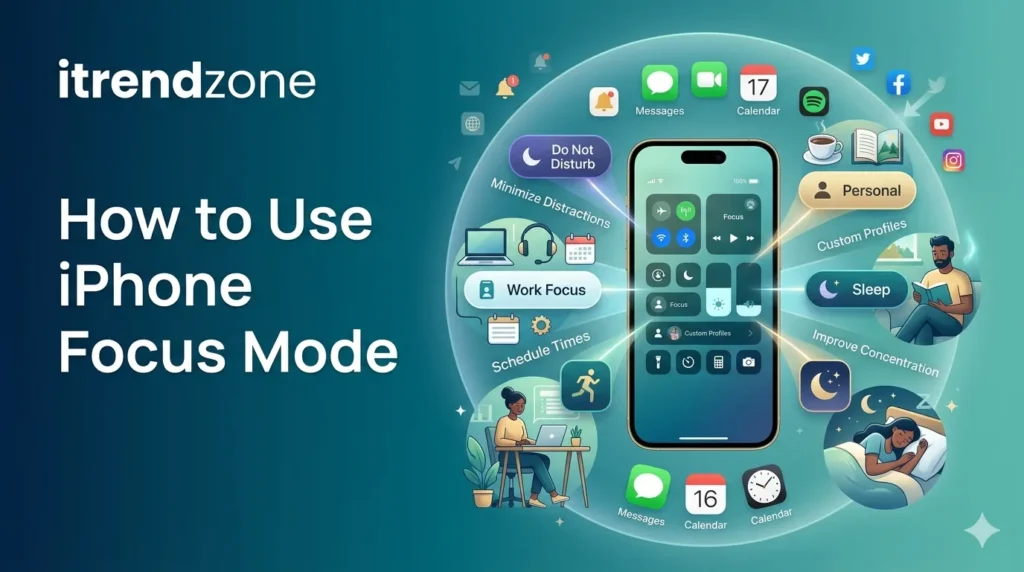
Focus Mode is an Apple feature that allows you to control who can contact you and which apps can send notifications during specific activities.
Instead of turning on Do Not Disturb all day, you can create different Focus profiles for different situations.
Common Focus profiles include:
- Work
- Personal
- Sleep
- Fitness
- Driving
- Study
- Gaming
As a result, your phone becomes less distracting while remaining useful.
Why Focus Mode Matters in 2026
According to workplace productivity studies, the average smartphone user checks their device dozens of times daily. Consequently, interruptions reduce concentration and increase task-switching.
Focus Mode helps by:
- Reducing notification overload
- Improving concentration
- Supporting healthier sleep habits
- Creating better work-life balance
- Limiting unnecessary screen time
Many professionals across the United States and Europe now use Focus Mode as part of their daily workflow.
How to Set Up Focus Mode on iPhone
Setting up Focus Mode only takes a few minutes.
Step 1: Open Settings
- Open the Settings app.
- Tap Focus.
You will see several pre-built Focus options.
Step 2: Choose a Focus Type
Select one of the following:
- Work
- Sleep
- Personal
- Driving
Alternatively, tap the “+” icon to create a custom Focus.
Step 3: Choose Allowed People
Apple allows you to decide who can reach you.
Examples include:
- Family members
- Emergency contacts
- Important clients
- Team managers
Everyone else remains silenced until the Focus ends.
Step 4: Choose Allowed Apps
Next, select apps that can send notifications.
Examples:
| Allow Notifications | Silence Notifications |
|---|---|
| Calendar | Social Media Apps |
| Teams | Games |
| Slack | Shopping Apps |
| Phone | Entertainment Apps |
This setup creates a cleaner notification experience.
Customize Your Focus Settings
One reason Focus Mode works so well is customization.
Lock Screen Customization
You can connect a specific lock screen to a Focus profile.
Examples:
| Focus | Suggested Lock Screen |
| Work | Calendar Widgets |
| Fitness | Health Widgets |
| Personal | Family Photos |
| Sleep | Minimal Display |
Therefore, your iPhone changes appearance automatically.
Home Screen Customization
You can hide distracting apps during a Focus session.
For example:
- Hide TikTok
- Hide Instagram
- Hide YouTube
- Show productivity apps
As a result, temptation decreases significantly.
Schedule Focus Automatically
Manual activation works well. However, automation makes Focus Mode much more powerful.
Time-Based Scheduling
Examples include:
| Focus Type | Schedule |
| Work | 9:00 AM – 5:00 PM |
| Sleep | 11:00 PM – 7:00 AM |
| Study | 7:00 PM – 9:00 PM |
Your Focus activates automatically every day.
Location-Based Scheduling
You can also trigger Focus based on location.
Examples:
- Office
- Library
- Gym
- University campus
When you arrive, Focus Mode turns on automatically.
App-Based Automation
Some users prefer Focus activation based on apps.
For example:
- Open Microsoft Teams → Work Focus starts
- Open Fitness App → Fitness Focus starts
This automation saves time and reduces setup effort.
Best Focus Mode Settings for Productivity
Many professionals use a similar setup.
Recommended Work Focus
Allowed People:
- Boss
- Team members
- Family
Allowed Apps:
- Calendar
- Slack
- Teams
Blocked Apps:
- TikTok
- Games
This configuration minimizes interruptions while maintaining communication.
Focus Filters Explained
Apple introduced Focus Filters to make Focus Mode smarter.
Focus Filters can:
- Hide personal emails during work
- Show only work calendars
- Filter Safari tabs
- Restrict Messages conversations
Consequently, information becomes more relevant to your current activity.
Focus Mode vs Do Not Disturb
Many users wonder about the difference.
| Feature | Focus Mode | Do Not Disturb |
| Custom Profiles | Yes | No |
| App Control | Yes | Limited |
| Automation | Yes | Basic |
| Home Screen Changes | Yes | No |
| Focus Filters | Yes | No |
Focus Mode offers significantly more flexibility.
Common Mistakes to Avoid
Many users fail to get the full benefit of Focus Mode.
Avoid these mistakes:
- Allowing too many apps.
- Allowing too many contacts.
- Forgetting automation settings.
- Ignoring Focus Filters.
- Using only one Focus profile.
Instead, create multiple profiles for different situations.
Real-Life Example
Sarah, a marketing manager in New York, started using Work Focus in early 2025.
Before using Focus Mode:
- 70+ notifications daily
- Frequent interruptions
- Lower productivity
After three months:
- Notification count reduced by nearly 60%
- Improved task completion
- Better work-life balance
Many users report similar improvements.
Focus Mode Adoption Chart
| User Group | Focus Mode Usage |
| Students | 58% |
| Professionals | 72% |
| Remote Workers | 76% |
| Entrepreneurs | 68% |
The trend continues to grow as more people seek better digital wellness.
Productivity Impact Table
| Change | Estimated Benefit |
| Fewer Notifications | Higher Concentration |
| Automated Focus | Time Savings |
| Focus Filters | Better Organization |
| Sleep Focus | Improved Rest |
| Work Focus | Increased Productivity |
Frequently Asked Questions
Is Focus Mode better than Do Not Disturb?
Yes. Focus Mode provides advanced controls, automation, and custom profiles.
Can people know when I use Focus Mode?
Yes. If you enable status sharing, contacts may see that notifications are silenced.
Does Focus Mode save battery?
Indirectly, yes. Fewer notifications and reduced screen activity can help conserve battery.
Can I create multiple Focus profiles?
Yes. Apple allows unlimited custom Focus profiles.
Does Focus Mode work on all iPhones?
Focus Mode works on iPhones running modern iOS versions that support the feature.
Conclusion
Learning how to use iPhone Focus Mode can transform the way you use your device. Instead of reacting to constant notifications, you gain control over when and how people and apps reach you. Whether you want better productivity, improved sleep, or fewer distractions, Focus Mode offers a flexible solution that fits almost any lifestyle.