
iPhone Shortcuts for Work: Automate Your Whole Workday in iOS 26
iphone shortcuts for work are the fastest way to turn a scattered morning into a calm, focused workday. Instead of opening Calendar, Mail, Notes, Clock and Focus one app at a time, you tap once or say one phrase and your iPhone sets up your whole desk for you. It turns on your Work Focus, silences personal chats, opens today’s agenda, starts a focus timer and shows the note you need for your first meeting. In November 2026, running iOS 26 on an iPhone 16 or iPhone 17, Shortcuts connects Siri, the Action Button, Back Tap, Focus modes, the Lock Screen, widgets and NFC tags into one work system. This guide builds that system step by step, with real routines you can copy today, including a Start Work shortcut, an End Work shutdown ritual, meeting preparation, email triage, time blocking and a commute routine. It is the work companion to our pillar guide, iPhone Shortcuts: The Complete Guide, which explains the Shortcuts app itself from the beginning.
TL;DR
- iphone shortcuts for work bundle your repeated office tasks into one tap: Start Work turns on Work Focus, opens your calendar and starts a timer, while End Work silences work apps and logs what you finished.
- Build two anchor shortcuts first, Start Work and End Work, then add smaller ones for meetings, email triage, notes and commuting, instead of trying to automate everything on day one.
- Pair every shortcut with a trigger you will actually use, such as the Action Button, Back Tap, a Home Screen widget, a Siri phrase or a time-based automation.
- Focus modes do the heavy lifting on distractions: a Work Focus that allows only colleagues and work apps keeps Do Not Disturb working for you instead of against you.
- Keep work data private by limiting what each shortcut can access, never pasting passwords or client secrets into a shortcut, and reviewing permissions before you share one.
Why iphone shortcuts for work Matter in November 2026
Most workdays are not ruined by one big problem. They are worn down by fifty small ones. You check the calendar, then forget the meeting link. You open Mail, then fall into a thread that did not need you. You mean to start deep work at nine, but by nine twenty you have answered three chats, checked the news and lost the thread of the report you were writing. None of those moments feels expensive on its own. Together they steal the best hours of the day, and they do it quietly, because each one looks like work. A shortcut changes the shape of that problem. It takes the ten taps you repeat every morning and replaces them with one decision, made once, when you are calm, instead of ten decisions made while you are already busy. That is the whole idea behind iphone shortcuts for work: decide your routine in advance, teach your iPhone to run it, and spend your attention on the job itself.
iOS 26 makes this easier than any earlier version of the iPhone did. The Shortcuts app is faster to open, the Gallery has more ready-made work shortcuts, and automations are simpler to set up. Apple’s iOS page describes the current system, and the Shortcuts User Guide from Apple explains how shortcuts, actions and automations fit together. None of that matters if the shortcut is complicated, though. The best work shortcuts are boring. They do five or six obvious things, in the same order, every single day, and they never ask you a question you have already answered. If a shortcut needs three confirmations before it runs, it is not saving time. Build it again, simpler, and it will survive contact with a real Monday morning.
Build Your Start Work Shortcut First
The Start Work shortcut is the single most valuable automation in this guide, and it is the one to build before anything else. Its job is simple: when you sit down to work, it prepares your iPhone for work in about five seconds. It turns on your Work Focus, sets Do Not Disturb for the apps and people you have chosen to silence, opens your calendar to today, shows your first meeting, starts a focus timer, and opens the note or document you need first. It also does one small psychological job that matters more than the technical steps. It marks the boundary between home and work. When you run it, you are working. That boundary is easy to lose when your office is your kitchen table, and a shortcut that draws the line for you is worth more than any single feature inside it. If you only build one shortcut from this entire guide, build this one, and run it at the same time every working day.
Open the Shortcuts app, tap the plus button, and add the actions in this order. First, add Set Focus and choose Work, turning it on until you turn it off. Second, add Get Upcoming Events from Calendar and set it to the next three events, so the shortcut knows what your day looks like. Third, add Show Result or a notification that lists those events, because seeing the day in one glance stops you opening Calendar five times. Fourth, add Start Timer for twenty-five minutes, which gives your first deep-work block a clear end. Fifth, add Open App and choose Notes, or the app that holds your most important document. Sixth, add Set Brightness to a comfortable level for your desk, and turn on Do Not Disturb if your Focus does not already handle it. Name the shortcut Start Work, the heart of our morning routine shortcuts, give it a briefcase icon, and test it three times before you trust it. Testing matters, because a shortcut that opens the wrong note or sets a timer for the wrong length will train you not to use it.
Now decide how you will trigger it, because a shortcut you have to hunt for is a shortcut you will not run. The easiest trigger is a Home Screen widget: add the Shortcuts widget, put Start Work at the top, and place it where your thumb naturally lands. If you have an iPhone 16 or iPhone 17, the Action Button is even better, and we cover that in detail later in this guide. You can also say “Hey Siri, Start Work” while you are making coffee, which works well when your hands are busy. A time-based automation is the most hands-free option of all: set an automation that runs Start Work at 8:55 every weekday, and your phone is ready before you sit down. Pick one trigger now and one backup, and do not add a third until the first two feel natural. Two reliable triggers beat five clever ones that you forget exist.
A Real Start Work Routine, Minute by Minute
Build Your End Work Shutdown Ritual
End Work is the shortcut most people skip, and it is the one that protects your evenings. Without it, work leaks. You answer one more email at dinner, check one more message before bed, and wake up tired because your brain never got the signal that the day was over. A shutdown ritual gives your brain that signal. When you run End Work, your iPhone turns off Work Focus, silences work apps, opens Notes so you can write tomorrow’s top three tasks, sets a reminder for the first one, and turns on Do Not Disturb or your Personal Focus. It takes about thirty seconds, and it replaces the slow, guilty fade-out that most workdays end with. Run it at the same time every day, even on days when you finish early, and your evenings will start to feel like your own again.
Build it the same way you built Start Work, in the Shortcuts app, with six or seven actions in a fixed order. First, add Set Focus and turn Work off, then turn on Personal or Do Not Disturb. Second, add Get Current Date and format it as a short date, so your shutdown note is easy to find later. Third, add Create Note or Append to Note, and write a short summary of what you finished today. Fourth, add a reminder action for tomorrow’s most important task, set for the time you start work. Fifth, add Set Brightness lower and turn off any work alarms you no longer need. Sixth, add Open App and choose a personal app, such as Music, Photos or a reading app, as a gentle handover from work to rest. Name it End Work, give it a moon or home icon, and put it next to Start Work on your Home Screen, so the pair is always together. The two shortcuts are a matched set: one opens the day, the other closes it.
The note you write at shutdown is the most valuable part of the whole routine. It does not need to be long. Three lines are enough: what you finished, what is still open, and what you will do first tomorrow. That tiny record does two jobs at once. It stops the open loops that keep your mind spinning after work, because the unfinished task is written down and has a time attached to it. It also makes tomorrow morning faster, because Start Work opens a note that already tells you where to begin. If you write nothing else in your workday, write this note. Many people find that the shutdown note alone is worth more than every other shortcut in this guide combined, because it is the one habit that turns a busy day into a finished day, instead of a day that simply ran out of hours.
Focus Modes and Do Not Disturb at Work
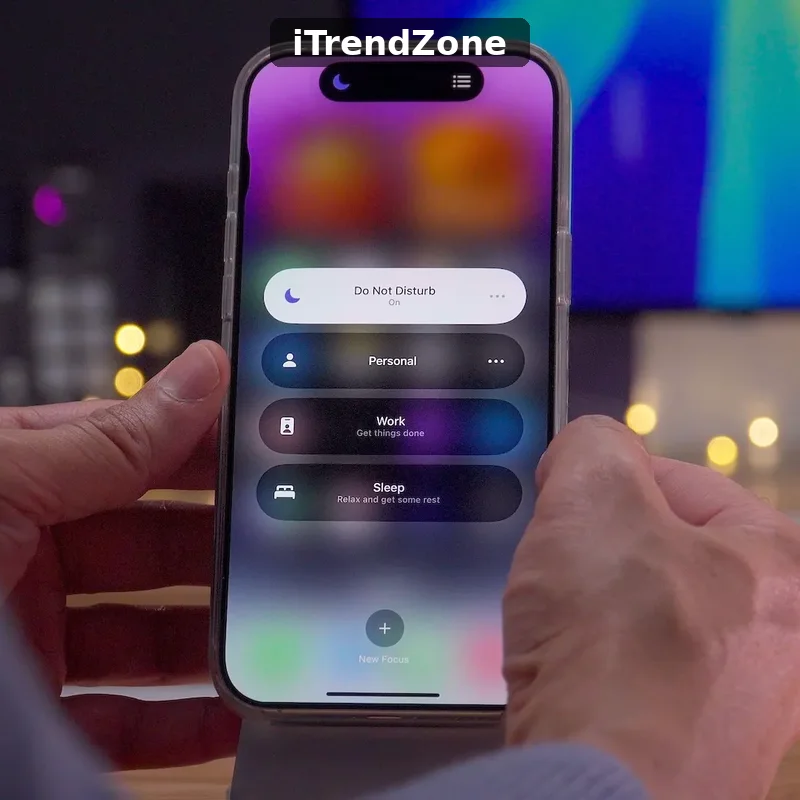
Focus modes are the foundation that every other work shortcut stands on. A shortcut can open apps and start timers, but only a Focus mode can reliably keep the world quiet while you work. The Work Focus is the one to set up first. Go to Settings, tap Focus, tap Work, and choose exactly who can reach you and which apps can notify you during work hours. Allow your manager, your team, and the two or three apps that carry real work, such as Mail, Calendar and Slack or Teams. Silence everything else, including social media, personal group chats, news apps and games. Turn on Focus status sharing, so people who message you see that you have notifications silenced, and set the Work Focus to turn on automatically at your working hours or when you arrive at your workplace. Apple’s guide to setting up a Focus on iPhone walks through each of these screens, and it is worth following once, slowly, instead of guessing.
Do Not Disturb is the blunt version of the same idea, and it has its place. Use it for short, intense blocks when even work notifications would break your concentration, such as writing a report, preparing a presentation, or taking an exam-style test. Apple explains how to turn Do Not Disturb on or off on your iPhone, including how to schedule it and allow repeated calls from the same person. A useful pattern is to use Work Focus as your default all day, and Do Not Disturb as a ninety-minute deep-work switch inside it. Your Start Work shortcut turns on Work Focus. A second, smaller shortcut, or a long press on the Focus button, switches to Do Not Disturb for the deep block, then back again. That two-layer system gives you quiet without isolation, which is exactly what most office days need.
Link your Focus modes to your screens, because a different screen for work and for home makes the boundary visible. In the Focus settings, choose a Lock Screen and a Home Screen for Work that show only work widgets and work apps. When you swipe to that Lock Screen, Work Focus turns on automatically. When you switch back to your personal screen in the evening, it turns off. This is one of the most satisfying automations on the iPhone, because it turns a swipe into a mode change. Our guide to how to use iPhone Focus mode and the companion guide on setting up iPhone Focus mode for work and sleep cover these screen links in more detail. Pair them with your Start Work and End Work shortcuts, and the whole system starts to feel less like a collection of settings and more like a phone that understands what part of the day it is.
Meetings, Calendar and Preparation Shortcuts
Build Meeting Prep with five actions. First, Get Upcoming Events and set it to the next event only. Second, Get Details of the event, including its title, start time and location or link. Third, Show Notification with the title and start time, so you can see at a glance whether you need to leave now. Fourth, Open App for your video-call app, or open the link from the event if your meetings are usually online. Fifth, Start Timer for the length of the meeting, so a gentle alarm tells you when you are running over. Run this shortcut ten minutes before each meeting, or set an automation that runs it when a calendar event is about to start. If your meetings are back to back, the timer matters most, because it is the only thing that will tell you, politely, that the last meeting has eaten the first ten minutes of the next one.
Email and Message Triage Without the Spiral
Email is the place where most work shortcuts either save the day or fail completely, and the difference is whether the shortcut respects a simple rule: triage is not the same as answering. Triage means sorting. It means looking at each message once, deciding what it is, and moving it to the right place. Answering means writing replies, and that needs your full attention. A shortcut that tries to answer email for you will get things wrong, and a shortcut that sorts email for you will quietly save you an hour a day. Build the sorting version. An Email Triage shortcut opens Mail to your VIP inbox or a specific mailbox, shows your unread count, and opens your task app so you can turn the important messages into tasks. It opens the filtered view, and only the filtered view, so you see the messages that matter and nothing else.
Set up the filters before you build the shortcut, because the shortcut can only show you what Mail already knows how to find. In Mail, create VIP senders for your manager, your key clients and your team, and create a mailbox for messages that need action this week. In your shortcut, use the Open App action for Mail, and add a notification that tells you how many unread VIP messages you have. Then add an action that opens Notes or Reminders, so you can write down the three messages that need a reply today. That is the whole shortcut, and it takes less than a minute to run. Run it three times a day, at the start of work, after lunch, and before End Work, and do not open Mail outside those three windows. The rule sounds strict, and it is, but it works because email is not actually urgent most of the time. The messages that are urgent will arrive through the VIP filter, and everything else can wait for the next triage window.
Messages need the same treatment, with one extra rule: never let a chat app decide your priorities. A Messages or WhatsApp shortcut can open a specific conversation, such as your team group or your manager, and it can show you unread messages from people you have marked as important. What it should not do is open the app to the full list of conversations, because that list is designed to pull your eye toward the loudest thread, not the most important one. Build a shortcut for each of the two or three conversations that genuinely matter during work, and ignore the rest until a break. If your work runs on Slack or Teams, the same idea applies: a shortcut that opens a specific channel is useful, and a shortcut that opens the whole app is a distraction wearing a productivity badge. Use iPhone text replacement shortcuts for the replies you send again and again, such as confirming a meeting, sharing a link, or acknowledging a request, so a common reply takes three keystrokes instead of three minutes.
Notes, Timers and Time Blocking
Notes are the memory of your workday, and a shortcut is the fastest way to capture something before you forget it. The problem with most note-taking is friction. By the time you have opened the app, found the right folder, and created a new note, the idea is gone. A Quick Note shortcut removes that friction. It creates a new note with today’s date already in the title, opens it, and lets you type immediately. Put it on your Home Screen, on your Lock Screen, and in Control Centre, so capturing a thought is always one tap away, no matter what you are doing. Use it for meeting actions, ideas that arrive in the shower, phone numbers, and the name of the person you just met. At the end of the day, your End Work shortcut can open that note and ask you to sort it, which takes two minutes and turns a pile of fragments into a proper record.
Commuting and the Journey to Work
The commute is dead time in most people’s day, and it is also the easiest time to automate, because it repeats exactly. A Commute shortcut can check the traffic, give you the fastest route, start your podcast or playlist, and send a message to your team or your family when you are leaving. Build it with four actions: Get Travel Time to your workplace, Show Notification with the arrival time, Open App for Maps, and Open App for your audio app. Trigger it with a time automation in the morning, or with CarPlay, so it runs when you connect your phone to the car. If you take the train, replace Maps with your rail app and add an action that opens the book or article you are reading. The point is the same either way: the journey starts with one tap, and you spend it listening, reading or thinking, instead of tapping through five apps while you are trying to leave the house.
CarPlay deserves a special mention, because it is where shortcuts and driving meet most naturally. When your iPhone connects to CarPlay, an automation can run your Commute shortcut, turn on Driving Focus, and start your audio without you touching the phone. That is safer than handling the phone while driving, and it is also calmer, because the car is ready when you are. Set up the automation in the Shortcuts app under Automation, choose CarPlay as the trigger, and select your Commute shortcut. Test it on a short drive before you rely on it for a long one, and make sure Driving Focus allows calls from the people who might genuinely need you on the road. A related guide on how to improve iPhone battery life is worth reading if your commute uses Maps and audio for an hour each way, because navigation and streaming are two of the biggest drains on a battery, and a shortcut that turns on Low Power Mode for the journey can save you from a dead phone by the afternoon.
Action Button, Back Tap and One-Tap Triggers
The best shortcut in the world is useless if you cannot run it quickly, and that is why triggers matter as much as the shortcuts themselves. On an iPhone 16 or iPhone 17, the Action Button is the fastest trigger you own. It is a physical button, it works without looking at the screen, and it can run any shortcut you choose. Set it to Start Work in the morning and you have a one-press workday. The catch is that one button can only do one thing at a time, so choose carefully. Most people should set it to the shortcut they run most often, which is usually Start Work, and run everything else from widgets. Our guide to how to use the iPhone Action Button with custom shortcuts shows the setup screen by screen, including how to change the button’s action when your routine changes. If your job changes seasonally, change the button with it. A trigger that matches your current routine beats a trigger that matched last year’s.
Back Tap is the secret trigger that most iPhone owners never discover. Tap the back of your phone twice, and a shortcut runs. Tap three times, and a different shortcut runs. It is free, it works on any iPhone that supports it, and it is ideal for shortcuts you need while your hands are busy, such as starting a timer or opening your notes. Set it up in Settings, under Accessibility, then Touch, then Back Tap. Choose Double Tap for your most-used work shortcut and Triple Tap for the second one. Be careful, though: Back Tap can fire by accident if you put your phone down firmly or tap it while holding it. If that happens, choose a shortcut that is harmless when it runs twice, such as opening Notes, rather than one that sends a message or starts a call. Test it for a week, and if it misfires more than once a day, move the shortcut to a widget instead. A trigger that surprises you is worse than a trigger that is slightly slower.
Home Screen, Widgets and the Lock Screen
Your Home Screen is the front door of your workday, and it should look like a workspace, not a toy cupboard. Create a dedicated work Home Screen with only the apps you need for work, plus your Shortcuts widget and a Calendar widget showing today. Move social media, games and shopping apps to a different screen, or to the App Library, so they are not staring at you while you work. Link that Home Screen to your Work Focus, so it appears automatically when work starts and disappears when work ends. The effect is surprisingly strong: when the apps you need are the only apps you can see, you use them, and when the distracting apps are hidden, you forget them. Our guide to how to customize your iPhone Lock Screen step by step shows how to build the matching Lock Screen, with a work wallpaper, a Calendar widget, and a shortcut button that runs Start Work without unlocking the phone.
What the Latest Data Shows
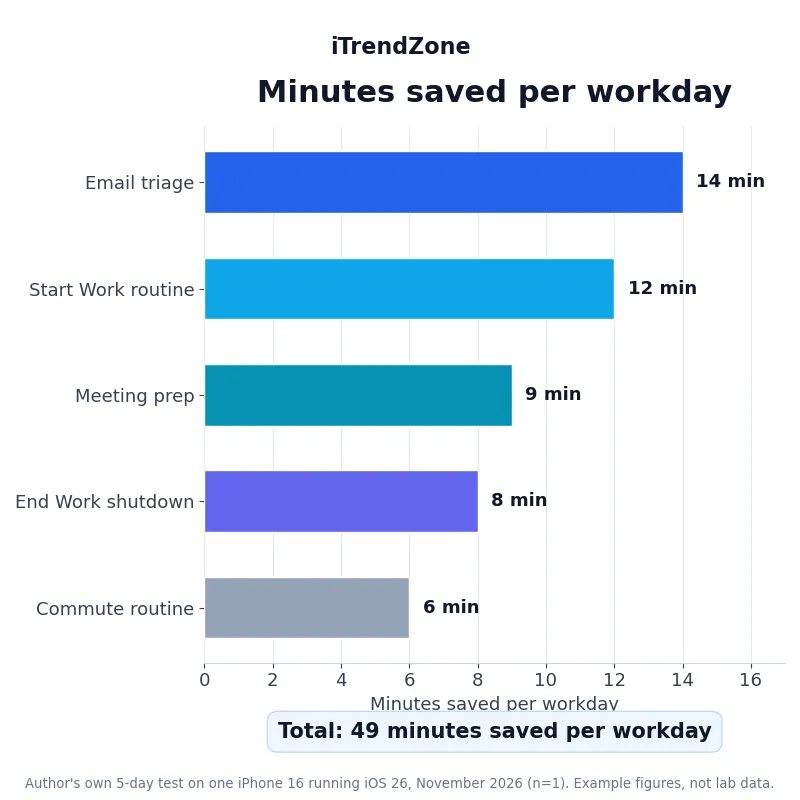
This section shows the results of a small, honest test, not a laboratory study. For five working days in November 2026, I ran the routines in this guide on one iPhone 16 running iOS 26, and I timed how long the manual version of each task used to take, compared with the shortcut version. The chart below shows the minutes saved per workday for each routine, and the total came to forty-nine minutes a day.
Work Routines Compared
| Routine | Setup time | Daily saving in author test | Best trigger |
|---|---|---|---|
| Start Work | 15 minutes | 12 minutes | Action Button or widget |
| End Work | 10 minutes | 8 minutes | Widget or location |
| Meeting Prep | 10 minutes | 9 minutes | Calendar automation |
| Email Triage | 15 minutes | 14 minutes | Widget, three times a day |
| Commute | 10 minutes | 6 minutes | CarPlay or time |
Source: author’s own test on one iPhone 16 running iOS 26, five working days, November 2026, n=1; setup steps follow Apple’s Shortcuts documentation. Figures are an example, not lab data or a survey.
Privacy and Security at Work
Work shortcuts touch work data, and work data is often sensitive, so privacy is not an optional extra in this guide. It is part of the routine. Every shortcut you build asks for permissions the first time it runs: access to Calendar, Contacts, Notes, Location, or Photos. Read those prompts, and say no to anything the shortcut does not need. A Start Work shortcut needs Calendar and Focus. It does not need your Photos, your Contacts, or your precise location. The Shortcuts app shows you every action in a shortcut before you run it, and you should read that list the way you would read a contract before signing it. If you do not understand an action, do not run it.
Never put a password, a client secret, an API key, or a private document into a shortcut, and never let a shortcut send a message, an email, or a file without you checking it first. Shortcuts are easy to share, which is a strength and a risk at the same time. A shortcut shared in a group chat can travel to people you have never met, and if it contains a work link or a private note, that link travels with it. Before you share a shortcut, open it, read every action, and remove anything personal. Before you run a shortcut someone sent you, do the same. If your employer has rules about apps, data, or device management, follow them. A work shortcut that breaks your company’s policy is not clever, it is a risk to your job, and no amount of saved time is worth that. When in doubt, ask your IT team. They would rather answer a question than clean up a problem.
When Shortcuts Go Wrong
Shortcuts go wrong in small, annoying ways, and almost every problem has a simple fix. If a shortcut does nothing when you tap it, open it in the Shortcuts app and check that every action is still there. An app update can remove an action, or change what it is called, and the shortcut will stop at that step without telling you clearly. If a shortcut runs but opens the wrong note, check the note’s name: if you renamed it, the shortcut is still looking for the old name. If an automation does not run, check that it is turned on, that Run Immediately is selected instead of Run After Confirmation, and that the trigger is correct. A time automation set to weekends will not run on a Tuesday. A location automation set to the wrong address will never fire. These are boring checks, and they solve most problems in under a minute. For the full list of fixes, see our troubleshooting guide.
Start Tomorrow Morning
You now have the whole system: two anchor shortcuts, Focus modes that protect your attention, meeting and email routines that stop the leaks, and triggers that put all of it one tap away. Build Start Work tonight, run it tomorrow morning, and add End Work tomorrow evening. Let the system grow one routine at a time, each earning its place by saving you time in a real week. Open Shortcuts, build Start Work, and let tomorrow morning be the first morning that runs itself.
References
- Shortcuts User Guide — Apple Support, accessed November 2026.
- Set up a Focus on iPhone — Apple Support, accessed November 2026.
- How to turn Do Not Disturb on or off on your iPhone — Apple Support, accessed November 2026.
- Add a shortcut to the Home Screen on iPhone or iPad — Apple Support, accessed November 2026.
- App Intents — Apple Developer Documentation, accessed November 2026.
- iOS — Apple, accessed November 2026.
Quiz: iphone shortcuts for work
1. What should you build first when setting up iphone shortcuts for work?
A. Twelve different shortcuts for every possible task
B. Two anchor shortcuts, Start Work and End Work
C. A shortcut that sends messages to clients automatically
2. Which Focus mode should be your default during the working day?
A. Work Focus, allowing only colleagues and work apps
B. Do Not Disturb with every call and app allowed
C. No Focus at all, so nothing is ever missed
3. What is the best way to handle email with a shortcut?
A. Let the shortcut write and send all your replies
B. Open the full inbox and read every message as it arrives
C. Triage three times a day using a filtered VIP view, then turn messages into tasks
4. What should you do before running a shortcut someone else sent you?
A. Run it immediately to see what it does
B. Open it, read every action, and remove anything personal or unnecessary
C. Share it with your whole team first
5. Which trigger is best for the Start Work shortcut on an iPhone 16 or iPhone 17?
A. The Action Button or a Home Screen widget
B. Shaking the phone until it runs
C. Waiting for the phone to guess when work starts
Quiz Answers
1. B — Start with Start Work and End Work, then add smaller routines one at a time. 2. A — Work Focus is the default, with only colleagues and work apps allowed through. 3. C — Triage with a filtered view three times a day, and turn important messages into tasks. 4. B — Always read every action in a shared shortcut before you run it. 5. A — The Action Button or a Home Screen widget puts Start Work one tap away.