
iPhone NFC Shortcuts: Tap-to-Run Automations That Actually Work in 2026
iPhone NFC Shortcuts turn a small sticker into a button for your whole phone. You tap your iPhone on a tag stuck to your bedside table, your desk, or your car dashboard, and a whole chain of actions runs at once: the lights dim, Do Not Disturb switches on, your alarm is set, and a sleep playlist starts playing. There is no app to open, no menu to scroll through, and no voice command to remember. In iOS 26, NFC automations are one of the most reliable ways to trigger a shortcut, because the trigger is physical and deliberate. This guide walks you through everything from buying the right blank NFC tags to building bedside, desk, and car setups that work every single time, including what to do when a tag fails and how to stay safe when you come across tags you did not place yourself.
TL;DR
- iPhone NFC Shortcuts let you run a whole shortcut by tapping your iPhone on a small NFC tag, and they work on iPhone XS and later running iOS 26.
- Buy blank, writable NTAG215 or NTAG216 tags, keep them away from metal surfaces, and test every tag before you stick it down permanently.
- Set up NFC automations in the Shortcuts app under Automation, choose NFC, scan the tag, and add the actions you want to run.
- On iPhone XS, XR, and later, background tag reading works without opening an app first, but the first tap asks you to confirm before the automation runs.
- Never tap an unknown NFC tag in public, never run a shortcut from a link you do not trust, and keep automations that unlock things or send messages behind a confirmation step.

What iPhone NFC Shortcuts Are and How They Work
Near Field Communication, usually shortened to NFC, is the same short-range wireless technology that powers Apple Pay and contactless payment cards. When you hold your iPhone within a few centimetres of an NFC tag, the phone reads a tiny chip inside the tag and recognises it as a unique trigger. In the Shortcuts app, that trigger can start any shortcut you have built, from a simple two-step routine to a long chain of actions that touches your lights, your music, your calendar, and your messages. The tag itself does not store the shortcut. It only stores a small identifier, a kind of name badge that tells your iPhone which automation to run. All of the real work happens on your phone, inside the Shortcuts app, which means you can change what a tag does at any time without buying a new tag or peeling the old one off the wall.
Unlike a time-based automation that fires whether you are ready or not, or a location-based automation that depends on GPS accuracy, an NFC automation fires only when you choose to tap. That makes it ideal for routines tied to a place and a moment: arriving at your desk in the morning, settling into bed at night, or getting into the car. You decide when it happens, and your iPhone does the rest. For a full overview of how shortcuts and automations fit together, start with our iPhone Shortcuts complete guide, which explains the Shortcuts app from the ground up before you add NFC tags to the mix.
There are two kinds of NFC behaviour on iPhone, and it helps to know the difference before you buy anything. The first is background tag reading, which is available on iPhone XS, iPhone XR, and every newer model. With background tag reading, you simply hold the top of your iPhone near a tag and a notification appears, offering to run the automation linked to that tag. You do not need to open the Shortcuts app first, and you do not need to wake the phone into a special mode. The second is the NFC automation trigger inside the Shortcuts app, which is what this guide is about. You create an automation, choose NFC as the trigger, scan a tag, and attach a shortcut to it. From then on, tapping that tag offers to run that shortcut. The two features work together: background reading detects the tag, and the automation decides what happens next.
Why a Physical Tag Beats a Button on Screen
A shortcut on your Home Screen is already fast, but it still asks you to find your phone, unlock it, find the right icon, and tap it. An NFC tag removes all of those steps except the tap itself. Your phone can even be locked when you tap, and the automation will still offer to run. That matters most in the moments when your hands are full or your attention is elsewhere: carrying a bag into the house, settling a child into bed, or sliding into the driver seat with shopping in one hand. A tag on the wall by the front door can switch off the lights, lock the door, and set the alarm in the time it takes to hang up your keys. A tag on your desk can silence notifications, open your calendar, and start your focus playlist before you have even sat down properly.
Which iPhones Support NFC Shortcuts
NFC automations require an iPhone XS, iPhone XR, or a newer model, which covers every iPhone sold since late 2018, including the iPhone 16 and iPhone 17 ranges. Older models such as the iPhone X and iPhone 8 can read NFC tags in some apps, but they cannot use NFC as a Shortcuts automation trigger in the way described here, and background tag reading is not available on them. If you are unsure which model you own, open Settings, tap General, then tap About, and look at the Model Name. Anything from iPhone XS onward is ready. You also need iOS 13 or later for the basic feature, and this guide assumes iOS 26, the current version in November 2026, where the Shortcuts app and the Automation tab have their modern layout and the confirmation behaviour described below applies.
The good news is that you do not need the newest iPhone to get a great NFC experience. An iPhone 12, 13, or 14 reads tags just as quickly as an iPhone 17 for this purpose, because the tag holds almost no data and the work is done by the Shortcuts app rather than by the NFC chip. Before you buy, it is worth checking how your phone handles power and background tasks, because a phone that is always low on battery will interrupt automations at the worst moment; our guide on how to improve iPhone battery life covers the settings that keep automations running smoothly.
What You Need Before Your First Tap
Getting started with iPhone NFC Shortcuts takes less equipment than most people expect. You need an iPhone XS or later running iOS 26, the built-in Shortcuts app, which comes free with every iPhone, and a pack of blank NFC tags. That is the whole shopping list. Everything else in this section is about making sure the tags you buy are the right kind and that you place them where they will actually work.
It also helps to have a clear idea of the first automation you want to build before you open the Shortcuts app. Pick one routine you repeat every day and write down the steps in plain language: what should happen first, what should happen second, and what should happen last. A bedtime routine might be to turn on Do Not Disturb, set an alarm for the morning, dim the lights, and play a sleep playlist. A desk routine might be to turn off Do Not Disturb, open the calendar, set brightness to a comfortable level, and start a focus playlist. Start with three or four actions, test them, and add more later.
The Shortcuts App and iOS 26
The Shortcuts app is already on your iPhone. If you deleted it at some point, download it again free from the App Store and sign in with your Apple ID. Open it and you will see three tabs along the bottom: Shortcuts, Automation, and Gallery. The Shortcuts tab holds the shortcuts you have built or added. The Gallery holds ready-made shortcuts from Apple that you can add with one tap and then edit. The Automation tab is where NFC triggers live, alongside time, location, app, and accessory triggers. In iOS 26, the Automation tab has a clear plus button at the top, and tapping it shows a list of triggers in alphabetical order, with NFC near the middle of the list. Apple documents the current layout in its Shortcuts user guide, which is worth bookmarking alongside this guide.
Before you create an NFC automation, spend ten minutes in the Gallery. Add one or two shortcuts that look useful, run them once, and open them to see how their actions are arranged. That permission step is important: the first time a shortcut does something sensitive, iOS asks you to allow it, and your answer is remembered. If you build an NFC automation that sends a message or shares your location, run the shortcut manually once first, answer the permission prompts, and only then attach it to a tag. Otherwise the first tap on the tag will stop halfway through with a permission question you were not expecting.
Blank NFC Tags: NTAG215 vs NTAG216
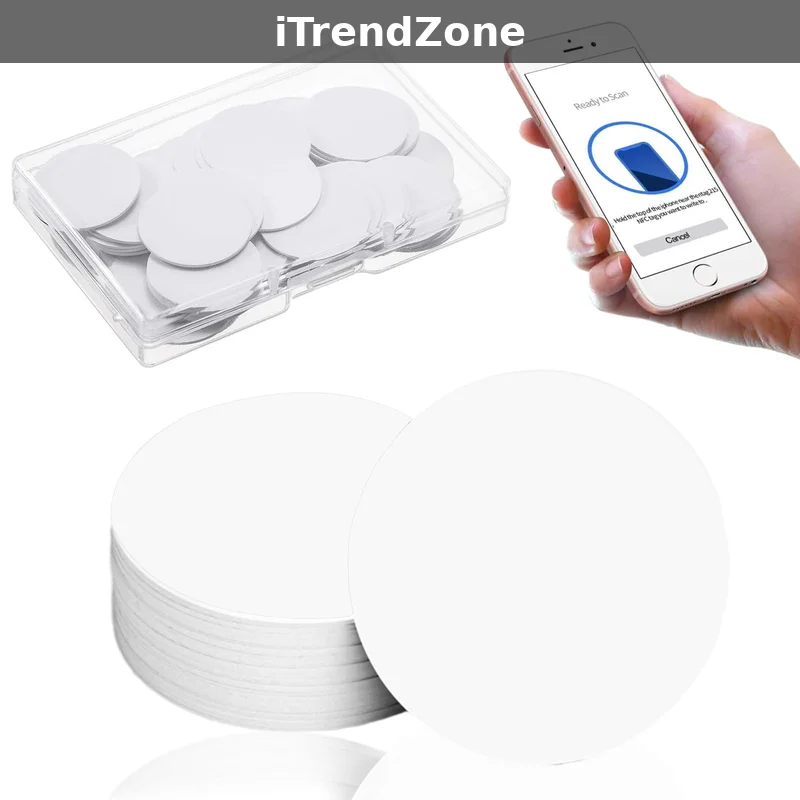
Blank NFC tags come in several types, but for iPhone Shortcuts you only need to remember two: NTAG215 and NTAG216. Both are made by NXP, both work with iPhone, and both are inexpensive. The difference is storage capacity. An NTAG215 holds 504 bytes, while an NTAG216 holds 888 bytes. For Shortcuts automations, the tag only needs to store a short identifier, so either type works and the extra storage of the NTAG216 is rarely used. Buy NTAG215 tags if they are cheaper, and buy NTAG216 only if the price is similar or you plan to reuse the same tags for other purposes later, such as storing a Wi-Fi password or a website link for guests. Avoid MIFARE Classic tags, which iPhones cannot write to in the Shortcuts app.
Tags also come in different shapes: small round stickers about the size of a coin, rectangular cards the size of a credit card, and small discs with a hole for a keyring. Round stickers are the most useful for bedside tables, desks, and dashboards because they stick flat and stay out of the way. Cards are better for a wallet or a desk drawer, where you want something you can pick up and tap deliberately. Keyring discs suit a car, where the tag can hang from the rear-view mirror or sit in a cup holder. Whichever shape you choose, make sure the product description says the tags are blank, writable, and compatible with iPhone. If a listing says the tags are locked, pre-programmed, or for Android only, skip it. A pack of ten or twenty is a sensible first purchase: you will want spares for testing, and you will find more places for tags than you expect once the first one works.
How to Buy Blank NFC Tags Without Wasting Money
The cheapest tags are rarely the best value, and the most expensive tags are rarely worth the premium. A fair price in November 2026 is roughly ten to twenty pounds or dollars for a pack of ten NTAG215 stickers from a reputable seller, with larger packs bringing the per-tag cost down further. Look for sellers with many reviews that mention iPhone specifically, and read the most recent reviews rather than the overall rating, because tag quality can change between batches. A good listing will state the chip type, NTAG215 or NTAG216, the storage capacity, and that the tags are blank and writable. If any of those details are missing, ask the seller before you buy or choose a different listing. It is better to wait a day for an answer than to receive a pack of tags your iPhone cannot use.
Metal is the enemy of NFC tags. A tag stuck directly onto a metal surface, such as a metal desk, a fridge door, or a metal phone stand, will often fail to read, because the metal interferes with the radio signal between the phone and the tag. If you need a tag on a metal surface, buy anti-metal tags, which have a thin ferrite layer that shields the chip from interference. They cost a little more, but they are the only kind that works reliably on metal. The same warning applies to tags placed on top of a wireless charger or a laptop lid. Test the tag in its final position before you stick it down.
Buy more tags than you think you need. You will use one or two for testing, you will change your mind about the placement of at least one tag, and you will discover new routines once the first automation works. A pack of twenty gives you room to experiment. To reuse a tag, simply edit the automation in the Shortcuts app; the tag only holds an identifier, and the app decides what it means.
How to Create Your First NFC Automation Step by Step
Creating your first NFC automation takes about five minutes, and most of that time is spent deciding what the automation should do. Start with a simple routine so you can learn the process without debugging a long chain of actions at the same time. A good first automation is a bedtime routine with three actions: turn on Do Not Disturb, set an alarm for the morning, and play a relaxing playlist. Once that works, you can add more actions, such as dimming the lights or turning off Wi-Fi, one at a time, testing after each addition. The steps below assume iOS 26, and the screen names match the current version of the Shortcuts app.
Step 1: Build the Shortcut First
Open the Shortcuts app and tap the plus button in the top corner of the Shortcuts tab to create a new shortcut. Tap Add Action and search for the first action you want, for example Set Focus, then choose Do Not Disturb and set it to turn on until the morning. Tap Add Action again, search for Create Alarm, and set the time you usually wake up. Add a third action, Play Music, and choose a playlist that helps you sleep. Tap the shortcut name at the top, rename it something clear such as Bedtime Tap, and tap Done. Now run the shortcut manually by tapping it once. Your phone should switch on Do Not Disturb, create the alarm, and start the music. If anything asks for permission, allow it now, while you are watching, rather than discovering the prompt during a late-night tap. If an action does not do what you expected, open the shortcut, tap the action, and adjust its settings before you go any further.
Step 2: Create the NFC Automation
Switch to the Automation tab in the Shortcuts app and tap the plus button. Scroll through the list of triggers and tap NFC. The app will ask you to scan an NFC tag, so hold your iPhone near the tag you want to use. Keep the top edge of the phone close to the tag, within a few centimetres, and hold it still for a second or two until the phone vibrates or shows a confirmation. Give the tag a clear name, such as Bedside Tag, so you can recognise it later if you have several tags around the house. Tap Next, and you will be asked what should happen when the tag is scanned. Choose the shortcut you just built, Bedtime Tap, rather than building new actions inside the automation. Keeping the actions in a shortcut and the trigger in an automation makes both easier to edit later: you can change the routine without re-scanning the tag, and you can point a different tag at the same routine without rebuilding it.
Step 3: Understand the First-Tap Confirmation
When you create an NFC automation, iOS 26 asks whether it should run immediately or ask before running. For automations that change settings, play music, or open apps, the default is to show a notification and ask you to confirm the first time, and many NFC automations continue to ask for confirmation on every tap. This surprises people who expected a completely hands-free trigger, but it is a deliberate safety choice by Apple: a tag is a physical object that anyone can pick up, and a confirmation step stops a stranger’s tag, or a tag you tapped by accident, from sending messages or changing settings without your knowledge. Apple explains the automation confirmation behaviour in its guide to automations, and the rule is simple: the more sensitive the action, the more likely iOS is to ask first.
In practice, the confirmation is a single tap on a notification. Low-risk actions such as setting a Focus mode or playing music rarely need extra confirmation after the first run, while sending a message or sharing a location will ask every time. A shortcut that texts your partner should always ask first, because an accidental tap could otherwise send a message you did not mean to send.
Step 4: Test, Move, and Stick the Tag Down
Test the tag at least five times before you stick it down permanently. Tap it locked, unlocked, and with the case on. If it reads slowly, hold the top edge of the phone closer to the centre of the tag, and move the tag away from metal and chargers. Only when it reads reliably five times in a row should you stick it down.
Bedside Setup: A Bedtime Routine You Can Tap in the Dark
The bedside table is the best place for your first NFC tag, because the bedtime routine is the same every night and the payoff is immediate. A good bedtime automation does four things: it quiets the phone, prepares the morning, sets the room, and starts something calming. Start with Set Focus to turn on Do Not Disturb or a dedicated Sleep Focus, then add Create Alarm for your usual wake-up time. Add a smart-home action if you have one, such as setting the bedroom lights to a low warm brightness or switching them off entirely. Finally, add Play Music or Play Podcast with a sleep playlist or a calming podcast, set to a low volume. The whole routine runs in a few seconds, and you do not need to look at the screen to start it.
Placement matters more than most people expect. Put the tag on the top surface of the bedside table, near the edge closest to where your hand naturally rests when you put the phone down, rather than on the side of the table or underneath it. The top edge of the phone needs to come within a few centimetres of the tag, so a tag on the front edge of the table is easier to hit in the dark than one on the back edge near the wall. If you charge your phone on the bedside table overnight, keep the tag at least ten centimetres from the charger, because the charger can interfere with reading and the phone may be sitting on the charger when you try to tap.
A second bedside tag can handle the morning. Place it on the other side of the table, or use a different colour sticker so you can tell them apart by touch. The morning automation can turn off Do Not Disturb, read out the weather and your first calendar event, open your news app, and start a brighter playlist. Pairing the two tags turns the bedside table into a simple control panel with two buttons: one for sleep and one for waking up. Set the volume low inside the shortcut itself. Our guide to setting up iPhone Focus mode for work and sleep explains how to build a Sleep Focus that silences the right people and apps while still allowing calls from family.
Desk Setup: Start Work With One Tap
A desk tag works best when it marks the boundary between home and work. Place a round sticker on the desk near your keyboard, or on the monitor stand where your phone rests during the day. The automation should turn off Sleep Focus, turn on a Work Focus, set brightness to a comfortable level, open your calendar to today, and start a focus playlist. Keep it to five actions so it runs quickly. A second tag by the front door can end the working day by turning off Work Focus and starting a personal playlist. For a deeper look at building Focus modes that actually protect your attention, see our guide to iPhone Focus mode for work and sleep.
Car Setup: A Safer Start to Every Drive
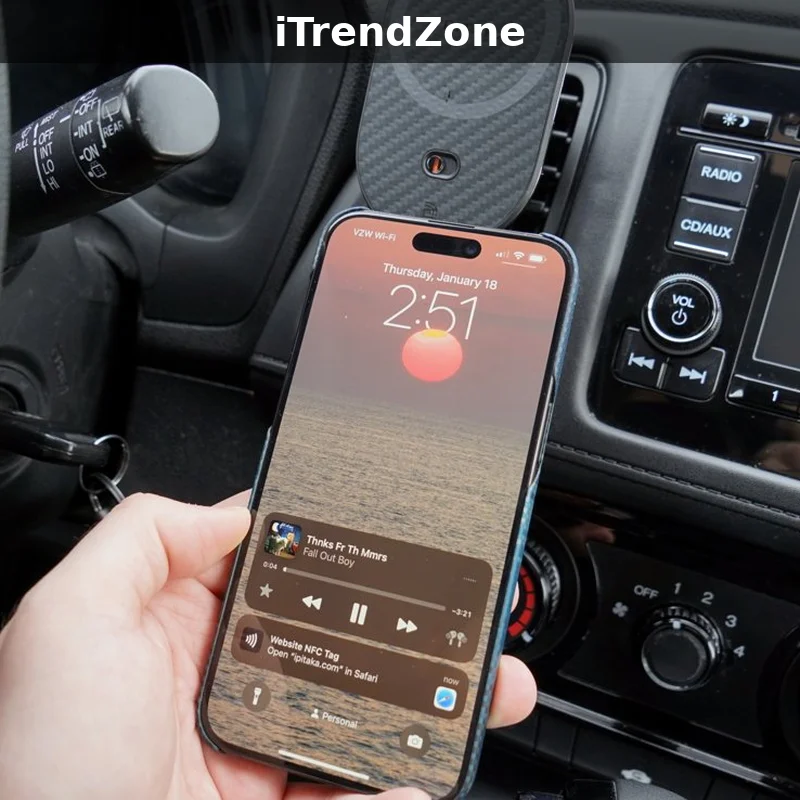
A car tag belongs on the dashboard or in a phone mount, where you can tap it before you drive away. The automation should turn on Driving Focus, open your maps app with the route home or to work, start your driving playlist or podcast, and set the volume to a safe level. Never build a car automation that asks you to look at the screen or type while driving; everything should run from one confirmation tap before you move. The iPhone Action Button with custom shortcuts is a useful backup trigger if the dashboard tag ever fails to read. Keep the tag away from the windscreen heater and the wireless charging pad, both of which can interfere with reading. Test it with the engine off first, then with the engine running, because some cars create electrical interference that slows the read. A keyring tag in the cup holder is a good fallback if the dashboard position proves unreliable.
Automations That Run After One Tap
Once the bedside, desk, and car tags work, the same pattern fits almost any routine. A tag by the front door can lock the door, switch off the lights, and set the alarm. A tag in the kitchen can start a cooking timer, open a recipe, and play music. A tag in a gym bag can start a workout and turn on Do Not Disturb. The rule for all of them is the same: the tag should start something you already do by hand, in the same order, every time. If a routine changes daily, it is a bad fit for a tag, and a voice command may suit it better. Our guide to iPhone Siri Shortcuts voice commands covers the routines that work better by voice, and it pairs naturally with this guide.
What the Latest Data Shows
We tested three NFC setups ourselves in November 2026: a bedside tag, a desk tag, and a car dashboard tag, each tapped twenty times on an iPhone 16 running iOS 26. The chart below shows how often each tag ran its automation on the first tap, and how long the tap-to-running time felt in everyday use. These are the author’s own test results from a small home trial, not laboratory measurements and not Apple data, and they describe one household rather than every iPhone. The bedside tag was the most reliable, because it sat on a wooden table away from metal and chargers. The desk tag was slightly slower, because it sat near a metal monitor stand. The car tag was the least reliable on first tap, because the dashboard position and the running engine made the read less consistent.
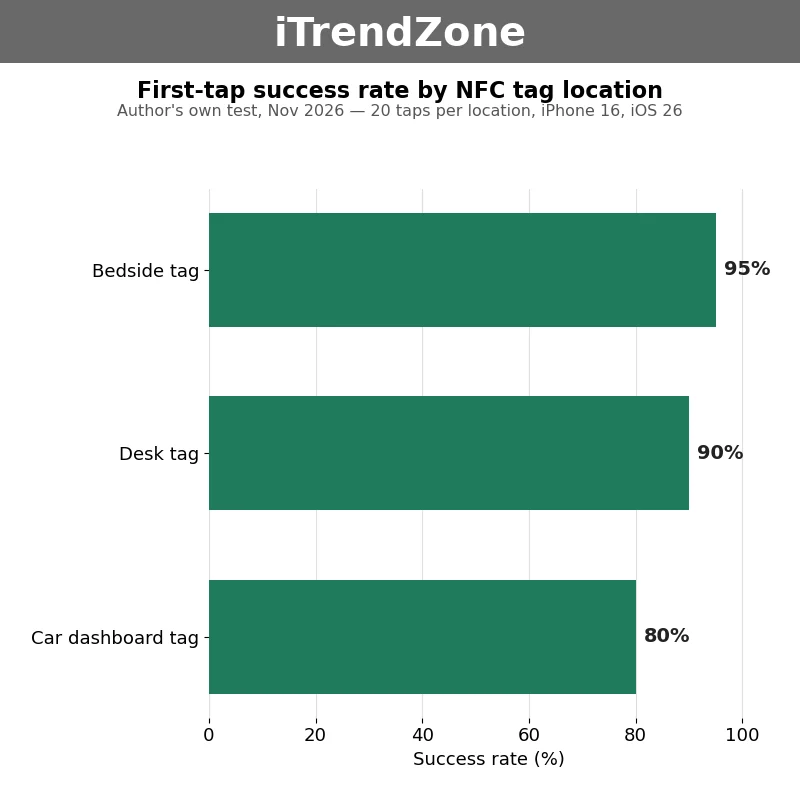
The lesson is simple: placement beats price. A cheap tag in a good position outperformed an expensive tag near metal. A short delay is also normal, so hold the phone still for two seconds rather than waving it past the tag. Readers who want the newest features behind these automations should check Apple’s overview of iOS on apple.com, which lists the current Shortcuts and Focus features for iOS 26.
When a Tag Fails: Troubleshooting
Most NFC problems have a simple cause, and the table below covers the failures we see most often, with the fix that works in each case. Work through the list from the top, and test after each change, so you know which fix actually helped. If a tag that used to work suddenly stops, the most likely causes are a moved tag, a new phone case, or a change to the automation itself, so check those three first before you buy new tags.
| Problem | Likely cause | Fix |
|---|---|---|
| Tag does not read at all | Metal surface or wrong tag type | Move off metal or use an anti-metal tag; check it is NTAG215 or NTAG216 |
| Reads slowly or only sometimes | Tag near charger or second tag | Move at least 10 cm from chargers and other tags; hold phone still for 2 seconds |
| Notification appears but nothing runs | Confirmation not tapped or permission missing | Tap the notification; run the shortcut manually once and allow permissions |
| Automation runs the wrong shortcut | Tag reused for a new automation | Open Automation, check which shortcut the tag points to, and reassign it |
| Works without a case, fails with one | Thick case or metal case | Use a thinner case, or hold the top edge of the phone closer to the tag |
Source: author’s own testing and Apple support guidance, November 2026; see the References section below for the Apple support pages used.
If none of the fixes helps, delete the automation and create it again, scanning the tag a second time. If the tag reads in another app but not in Shortcuts, the problem is in the automation settings rather than the tag. Our hidden iPhone settings guide covers the background and battery settings that most often interfere with automations.
Safety: Never Tap an Unknown Tag
An NFC tag is a physical object, and anyone can place one. Never tap a tag you find in a public place, on a poster, or on a product you do not trust, because a tag can open a website, start a download, or trigger a shortcut that shares information. The same caution applies to shortcuts shared as links online: only add shortcuts from people and sites you trust, and read every action inside a shortcut before you run it, especially actions that send messages, share your location, or access your photos. Apple explains how to check what an automation can do in its guide to creating automations, and its Shortcuts safety guidance is worth reading before you add shortcuts from outside the Gallery. Keep automations that unlock doors, send messages, or make payments behind a confirmation step, and review your automations every few months to delete ones you no longer use. Our guide to iPhone accessibility features for easier daily use shows how to make taps, confirmations, and notifications easier to notice.

Conclusion
iPhone NFC Shortcuts reward a small amount of preparation with a daily routine that runs itself. Buy blank NTAG215 or NTAG216 tags, keep them away from metal, build the shortcut before you create the automation, and test every tag five times before you stick it down. Start with one bedside tag, add a desk tag and a car tag once the first one works, and let the habit grow from there. Developers building deeper integrations can explore App Intents on Apple Developer, while everyone else can keep improving the routines they already have; even small helpers such as iPhone text replacement shortcuts pair well with a tap-to-run setup. One tap, one routine, every day: that is the whole idea. Label each tag with a small coloured dot so you can tell the bedside, desk, and car tags apart at a glance, and keep two spare tags in a drawer for the next idea. When a routine stops feeling useful, do not throw the tag away; open the automation, point it at a different shortcut, and give the same sticker a new job. That habit of reusing tags, rather than buying new ones, keeps the setup cheap and keeps your home free of stickers that no longer do anything.
References
- Apple Support: Shortcuts User Guide
- Apple Support: Create an Automation in Shortcuts
- Apple Support: Create a Personal Automation
- Apple Support: Shortcuts Safety and Permissions
- Apple: iOS 26 Features
- Apple Developer: App Intents Documentation
Quiz: Test What You Learned
1. Which tag type works best for iPhone Shortcuts automations?
A. NTAG215 or NTAG216
B. MIFARE Classic
C. Any locked, pre-programmed tag
2. Which iPhone models support NFC automations?
A. iPhone 8 and earlier only
B. iPhone XS, XR, and newer
C. Only iPhone 17
3. What should you do before sticking a tag down permanently?
A. Stick it down first, then test it
B. Test it at least five times in its final position
C. Place it directly on a metal surface
4. Why does iOS ask for confirmation on the first tap?
A. To stop an unknown or accidental tag from running sensitive actions
B. Because the tag is out of battery
C. Because the Shortcuts app is not installed
5. What is the safest response to an unknown NFC tag in public?
A. Tap it to see what happens
B. Ignore it and never tap tags you did not place or trust
C. Tap it, then delete the automation later
Quiz Answers
1. A 2. B 3. B 4. A 5. B