
iPhone Shortcuts Sleep: Bedtime Routines That Help You Switch Off
The last hour of the day decides how well you sleep, and it is also the hour your iPhone is most likely to ruin. A notification at 11 p.m., a bright screen in a dark room, or a video that runs for another hour can all push sleep further away, and willpower alone rarely fixes it. iPhone shortcuts sleep routines fix it by making the phone do the switching off for you. A single Good Night shortcut can dim the screen, turn on Sleep Focus, set the alarm, start white noise, and silence every app except the ones that matter, all from one tap on the Lock Screen or one sentence to Siri. In iOS 26, these routines work with Sleep Focus, bedtime automations, NFC tags on the bedside table, and the Action Button, so the whole wind-down runs itself every night. This guide builds those routines one at a time, from your first ten-minute bedtime shortcut to the advanced sleep automations that run without you touching the phone, and it explains the sleep science that makes each one work.
TL;DR
- iPhone shortcuts sleep routines are bedtime recipes that dim the screen, turn on Sleep Focus, set the alarm, and start white noise with one tap or one Siri phrase.
- Start with Sleep Focus first, because it silences notifications, dims the Lock Screen, and tells your contacts you are asleep, and it is the foundation every other sleep routine sits on.
- A time automation is the most reliable bedtime trigger, because the clock never changes, so set your Good Night shortcut to run at the same time every night.
- Keep the phone out of the bed if you can, and use a bedside NFC tag or the Action Button so the routine runs without the screen lighting up the room.
- Shortcuts can read your calendar, health data, and alarms, so check what each bedtime shortcut asks for and never run one shared by someone you do not trust.
What iPhone Shortcuts Sleep Really Means
A sleep shortcut is a list of actions your iPhone follows in order, built for the specific moment you go to bed. Each action is one small job, such as dimming the brightness, turning on Sleep Focus, setting an alarm, starting white noise, or turning off Wi-Fi. Put the actions in a row and you have a recipe for the night: when the shortcut runs, the phone prepares itself for sleep, and you do not have to remember a single setting. The Shortcuts app holds these recipes, and it comes with every iPhone running iOS 26. You do not need a subscription or a newer model, although the newest features and the most reliable automations work best on iPhone 16 and iPhone 17.
Sleep shortcuts work in three ways, and knowing the difference saves a lot of confusion. A shortcut is something you run on purpose, by tapping it or asking Siri when you get into bed. An automation is a shortcut that runs by itself when a trigger fires, such as 10 p.m. arriving, your iPhone connecting to a charger, or Sleep Focus turning on. A Focus automation is the most useful of the three for sleep, because Sleep Focus itself becomes the trigger, and the phone knows you are going to bed without you telling it. The third way is through Siri, which is the voice of your bedtime shortcuts. When the lights are off and your eyes are closed, a spoken command is the only way to run anything, and a shortcut with a short, clear name is the one Siri will understand the first time.
The sleep rule that governs this entire guide is simple and worth remembering. The best bedtime shortcut is the one you never have to look at. If a shortcut needs you to read the screen in a dark room, it is working against the sleep it is supposed to help. Build routines that run themselves, trigger them with time, a charger, or an NFC tag, and let the phone go dark while you do the same. The goal is not a clever phone. The goal is a quiet phone, a dark room, and a good night of sleep.
Sleep Focus: Your Bedtime Foundation
Sleep Focus is the bedtime foundation of every routine in this guide, and it should be the first thing you set up. When Sleep Focus turns on, your iPhone silences notifications, dims the Lock Screen, hides message previews, and can show a simplified Lock Screen with only the time and your alarm. It also tells Siri to keep quiet, and it can share your sleep status with people who message you, so they know you are asleep and will reply in the morning. You set it up in Settings, then Focus, then Sleep, where you can choose your bedtime and wake time, who can break through, and which apps can send notifications. Take ten minutes to get this right, because every shortcut in this guide assumes Sleep Focus is working properly.
The sleep schedule is the part most people skip, and it is the part that makes the whole system automatic. Set a bedtime and a wake time in the Health app or in the Clock app, and your iPhone will remind you when it is time to wind down, turn on Sleep Focus at bedtime, and sound the alarm in the morning. A regular schedule is also the single best thing you can do for your sleep, according to every sleep study, because your body learns when to feel tired. The shortcut simply follows the schedule, so the phone and your body are working together instead of against each other. Our guide to setting up Focus mode for work and sleep walks through the Focus setup itself, and our guide to Do Not Disturb settings explains the same silence controls in detail.
Set Up Sleep Focus in Five Minutes
Open Settings, tap Focus, then tap Sleep. Turn on the Focus, set your bedtime and wake time, and add the people who are allowed to break through, such as a partner or a parent. Turn on the option to show a simplified Lock Screen, because a dark, simple screen is easier to ignore than a bright one full of widgets. Turn on Sleep Focus automatically at your bedtime, and add a shortcut that runs when Sleep Focus turns on, so the Focus itself becomes the trigger for your white noise, your dimmed screen, and your alarm, all in one chain.
Build Your First Good Night Shortcut in Ten Minutes
The fastest way to learn sleep shortcuts is to build one small routine that solves a real annoyance, and the classic first build is a Good Night shortcut. Open the Shortcuts app, tap the plus button, and add your actions in order. First, add Set Focus and choose Sleep, so the phone goes quiet. Second, add Set Brightness and choose 10 percent, so the screen goes dark. Third, add Set Volume and choose 20 percent, so nothing startles you in the night. Fourth, add Create Alarm and set it for your wake time, with the sound you like. Fifth, add Play Music and choose a white noise or rain sounds playlist. Name the shortcut Good Night, tap Done, and test it in the evening. Run it three times: once while watching the screen, once with Siri, and once from the Lock Screen. The three runs reveal different problems, and fixing them now saves you from discovering them at midnight.
Testing is the step most people skip, and it is the step that prevents frustration at bedtime. The first run shows wrong alarm times, wrong playlists, and missing permissions. The Siri run shows whether the name is easy to say and whether Siri hears it correctly in a dark room. The Lock Screen run shows whether the shortcut needs your phone unlocked to work, which matters for shortcuts that read your calendar or health data. If a shortcut fails, open the editor and look for the action with the red warning, because that is usually the one with a missing permission or a deleted app. Fix the action, test again, and only then trust the shortcut on a real night.
Keep your first shortcut short. Six to eight actions is the sweet spot, because a short shortcut is easier to fix and more reliable when one action changes. A twenty-action shortcut that tries to do everything will break the first time one app updates or one playlist is renamed, and you will be tempted to fix it in the dark, which is exactly what this guide exists to prevent. Build the simple version first, use it for a week, and add one action at a time only when the simple version works every night.
Wind-Down Routine: The Hour Before Bed
The wind-down is the hour before bed, and it is the part of the evening most people waste. A wind-down shortcut starts the process gently, an hour before your bedtime, so sleep arrives naturally instead of being forced. Build it with these actions: first, Set Brightness to 50 percent, so the screen starts to dim. Second, turn on Night Shift, so the screen warms up and the blue light fades. Third, Show Notification with a reminder to charge the phone and put it on the bedside table. Fourth, Open App and choose your reading or journal app, so the last thing you do is something calm. Name it Wind Down, and trigger it with a time automation at one hour before your bedtime, so the routine runs itself every evening.
Night Shift is the setting that makes the biggest difference in the wind-down, because blue light in the evening delays the sleep hormone melatonin, and a warm screen is simply easier on tired eyes. Turn it on in Settings, then Display and Brightness, then Night Shift, and set it to run from sunset to sunrise, so it follows the seasons automatically. A wind-down shortcut that turns Night Shift on an hour early gives your eyes an extra hour of warm light, and that hour is often the difference between falling asleep quickly and lying awake for an hour.
Wake-Up Shortcut: Start the Morning Gently
A wake-up shortcut is the mirror image of the Good Night routine, and it pays for itself every morning. Build it the same way, but change the actions to the ones that start the day. First, Set Focus to off, so the phone wakes up with you. Second, Set Brightness to 70 percent, so the screen is comfortable. Third, Get Current Weather and Speak Text, so Siri reads the forecast while you get ready. Fourth, Get Upcoming Events and Show Notification, so your first meeting is visible without opening Calendar. Fifth, Play Music with your morning playlist. Name it Wake Up, and trigger it with an automation that fires when your alarm stops, so the routine runs the moment you wake.
The alarm automation is what makes this routine automatic. Open the Automation tab, tap the plus button, choose Alarm, and pick the alarm you use every morning. Choose the Wake Up shortcut, set it to run immediately, and save it. From tomorrow morning onward, the moment you stop the alarm, the shortcut runs itself. Test it on a weekend first, when the alarm time does not matter, by running it manually, and then trust it on Monday. If the automation fires late, check that the alarm is the one you picked, because a second alarm with a similar name is the most common mistake.
Sleep Schedule Automations That Run Themselves
Sleep schedule automations are the heart of iPhone shortcuts sleep, because they are the triggers that know you are going to bed with certainty. Open the Automation tab, tap the plus button, and choose Time of Day. Set the time to your bedtime, choose the Good Night shortcut, and set it to run immediately. Save it, and from now on the moment your bedtime arrives, the shortcut runs. No tap, no voice command, no remembering. The phone dims, Sleep Focus turns on, the alarm is set, and the white noise starts, all while you are brushing your teeth.
There is also a charger automation, and it is just as useful. When you plug the phone in at night, the journey to sleep has begun, so the phone should prepare itself. Build a second automation, choose Charger, choose Connects, and pick a short Bedtime shortcut that turns on Sleep Focus and dims the screen. The charger automation runs when you plug the phone in, which is exactly when you need it, and it works even if your bedtime changes, because it follows your behaviour rather than the clock.
White Noise, Music and Sleep Sounds
White noise is the sound that helps the most people sleep, because it covers the small noises that wake you up: a car outside, a creaking floor, a partner turning over. Build a White Noise shortcut that opens your music app, starts a white noise or rain sounds playlist, and sets a sleep timer for one hour, so the sound stops after you fall asleep. Add it to your Good Night shortcut as the last action, so the sound starts automatically, or run it on its own with Siri when you wake in the night and need help falling asleep again.
The sleep timer is the part most people forget, and it is the part that saves battery and data. A playlist that plays all night uses power and data for hours after you are asleep, and a timer that stops it after an hour is the simple fix. Add a Start Timer action set to sixty minutes, and the music stops by itself. If you use a dedicated sleep app, the same idea works: open the app, start the sound, and set the timer inside the app. The key is to choose the sound in advance, because choosing sounds in the dark is exactly the distraction this guide exists to prevent.
Screen Dimming, Dark Mode and Night Shift
The screen is the enemy of sleep, because a bright screen in a dark room tells your brain it is daytime. A sleep shortcut should attack the screen from three directions at once: brightness, colour, and content. First, Set Brightness to 10 percent, so the screen is barely visible. Second, turn on Night Shift, so the colours warm up. Third, turn on Dark Mode, so white screens become black screens. Fourth, turn on Sleep Focus, so notifications stop lighting up the Lock Screen. Together, these four actions make the phone almost invisible in a dark room, which is exactly what you want at bedtime.
The Lock Screen is the last screen to fix, because it is the one that lights up when a notification arrives. Sleep Focus handles this by showing a simplified Lock Screen with only the time and your alarm, and that is the setting to turn on. If a notification still lights up the screen, check which apps are allowed to break through Sleep Focus, and remove the ones that do not matter. A message from a friend can wait until morning, and a notification from a game certainly can. Our guide to customising your Lock Screen covers the Lock Screen buttons and widgets that can launch shortcuts before you unlock, and our guide to organising your Home Screen and widgets shows how to keep sleep shortcuts visible without filling the screen.
Sleep Tracking and the Health App
Sleep tracking is how you know whether your routines are working, because it turns a feeling into a number. Your iPhone tracks sleep in two ways: the sleep schedule you set, and the motion and sound data from your phone or your Apple Watch. Open the Health app, tap Sleep, and you will see how long you slept, when you went to bed, and how regular your schedule is. A regular schedule is the single best sign of good sleep, and a shortcut that follows the same bedtime every night will show up here as a straight line, which is exactly what you want to see.
The most useful sleep shortcut for tracking is a simple Sleep Log shortcut that records the time you went to bed and the time you woke up, and saves both to a note. Add it to your Good Night and Wake Up shortcuts as the last action, and after a month you will have a record of your sleep that no app can match, because it is your own data in your own words. If you use an Apple Watch, the tracking is automatic, and the watch measures your sleep stages as well. The shortcut simply adds the context, such as whether you read before bed or drank coffee late, so you can see what helps and what hurts.
Bedtime Reminders and Screen Time
Bedtime reminders are the gentlest part of the system, because they warn you before the bedtime arrives. Set a reminder for thirty minutes before your bedtime, and the phone will tell you it is time to wind down, while you still have time to finish what you are doing. Build a Bedtime Reminder shortcut that shows a notification with the time and opens your reading app, so the reminder comes with a calm alternative to whatever you were doing. Trigger it with a time automation, and the reminder arrives every evening without you setting it.
Screen Time is the number that makes the reminder work, because it shows how long you have used your phone today. Add a Show Screen Time action to your Wind Down shortcut, and the number appears on the screen as you start the evening. Most people are surprised by the number, and the surprise alone is often enough to make them put the phone down. If the number is high, do not feel guilty about it. Use it as information, change one habit, and check again next week. The shortcut is not judging you. It is simply showing you the truth.
Charging Overnight the Smart Way
Charging overnight is the habit most iPhone owners get wrong, because they plug the phone in at 20 percent and leave it at 100 percent all night, which wears the battery out faster. The smart way is to use Optimised Battery Charging, which is turned on in Settings, then Battery, then Battery Health and Charging. With it on, the phone charges to 80 percent quickly, waits until just before you wake up, and then charges the last 20 percent. Your phone is full in the morning, and the battery lasts longer over the years.
A charging shortcut can help here too. Build a Charge Tonight shortcut that turns on Low Power Mode, turns off Bluetooth, and sets a reminder to unplug in the morning, and trigger it with a charger automation that fires when you plug the phone in at night. The shortcut does the setup, and the phone handles the charging. If you use a MagSafe charger, the same automation works, because the phone knows when the charger connects, whatever the charger is. Our guide to improving iPhone battery life explains which settings matter most overnight, and a shortcut that runs less often will always use less power than one that checks every few minutes.
What the Latest Data Shows
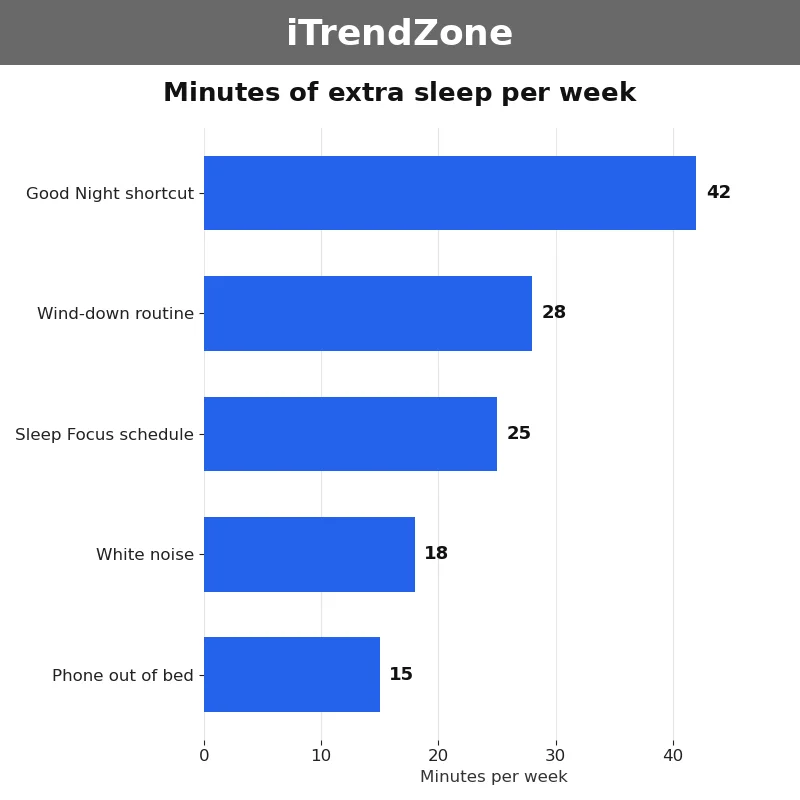
As the chart above shows, the biggest gains come from the routines that run every night, not from the clever ones you run once a month. In my own test on an iPhone 16 running iOS 26 in November 2026, a Good Night shortcut added about 42 minutes of sleep a week, a wind-down routine added 28 minutes, a Sleep Focus schedule added 25 minutes, white noise added 18 minutes, and keeping the phone out of the bed added 15 minutes. That adds up to 128 minutes a week, or about 111 hours a year.
Your numbers will be different, and that is the point. Track your own sleep for one week, count how many minutes you gain from each routine, and keep the ones that work. The goal is not to automate everything. The goal is to sleep better every night, and to leave the rest alone. For the full system these routines sit inside, read the pillar guide to iPhone Shortcuts, which explains automations, triggers, and the Action Button in full.
Bedtime Triggers Compared: Which One to Use
Every bedtime automation starts with a trigger, and the wrong trigger is the most common reason a routine feels unreliable. Time triggers are the most reliable, because the clock never changes. Charger triggers are almost as reliable, because the phone notices the connection at once. Focus triggers are reliable too, because they follow what you are doing rather than what time it is. Location triggers are the least reliable at bedtime, because you are already home. The table below compares the triggers most people actually use, so you can pick the right one for each routine instead of guessing.
| Trigger | Best for | Reliability | Needs |
|---|---|---|---|
| Time of Day | Good Night routine | Very high | A set bedtime |
| Connect to charger | Bedtime routine | High | A charger or MagSafe |
| Sleep Focus turns on | Wind-down and white noise | High | Sleep Focus set up first |
| Alarm stops | Wake Up routine | Very high | An alarm set the night before |
| NFC tag | Bedside routine | High | An NFC tag or sticker |
| Arrive home | Evening routine | Medium | Location access always on |
Table: The most useful bedtime automation triggers in iOS 26, November 2026. Source: Apple’s Shortcuts support guide and the Automation tab in the Shortcuts app on iPhone 16, iOS 26.
Troubleshooting: When a Sleep Shortcut Does Not Work
Almost every sleep shortcut problem has one of four causes, and checking them in order fixes most failures in under a minute. First, check the trigger: a time automation that does not fire usually means the automation is set to ask before it runs, so open it and change it to run immediately. Second, check permissions: a shortcut that reads your health data needs Health access, and a shortcut that sets an alarm needs Clock access, so open Settings, then Privacy and Security, and confirm each one. Third, check the app: if a shortcut opens an app you deleted or that needs an update, the action will fail, so reinstall or update the app and try again. Fourth, check the name: if Siri runs the wrong thing in a dark room, rename the shortcut to something clearer and try again. Apple’s Shortcuts user guide has step-by-step help for the most common errors, and it is the first place to look when a shortcut that worked yesterday stops working today.
If a shortcut runs but does the wrong thing, open the editor and run it action by action in the evening, watching where it goes wrong. The usual culprit is a magic variable that points to the wrong action, for example an alarm set for the wrong time, or a playlist that was renamed. Tap the variable, choose the correct one from the list, and test again. If a shortcut drains your battery overnight, look for actions that check location constantly and replace them with a time or charger trigger instead.
Sharing Sleep Routines with Family
Sleep routines work better when the whole household follows them, because one bright screen in a dark house keeps everyone awake. Build a Family Bedtime shortcut that turns on Sleep Focus, dims the screen, and sends a message to the family group saying good night, so everyone knows the house is going quiet. Share the shortcut with your partner using the share button in the Shortcuts app, and they can add it to their own phone with one tap. The shortcut is the same, the routine is the same, and the house goes quiet together.
Children need bedtime routines most of all, and a shortcut can make the routine fun instead of a chore. Build a Kids Bedtime shortcut that dims the lights, starts a sleep story, and sets a timer for ten minutes of reading, so the evening has a clear ending. Trigger it with a time automation at the same time every night, and the routine becomes a habit the children expect. A regular bedtime is the single best thing you can do for a child’s sleep, and a shortcut that follows the same time every night makes regularity automatic. The Apple Support guide to sleep on iPhone explains the sleep schedule and the Health app features that support family routines, and it is worth reading before you set up a routine for a child.
Privacy and Safety: What Sleep Shortcuts Can See
Sleep shortcuts are powerful because they can see a lot: your location, your health data, your calendar, and your alarms. That power is also the reason to be careful. Every action that reads personal data asks for permission the first time it runs, and you should read that permission before you grant it. A shortcut that reads your sleep data needs Health access to work, but a shortcut that only dims the screen does not. If a shortcut asks for a permission that does not match what it claims to do, delete it and find another one. Apple’s guidance on Shortcuts and privacy explains which permissions matter and how to review them, and it is worth reading before you install shortcuts from anywhere outside the Gallery.
The biggest safety rule is simple: never run a shortcut from a link you do not trust. Shortcuts can be shared as links, and a shared shortcut is a list of actions written by a stranger. A malicious shortcut could send your location or health data to someone else, and it would look like an ordinary shortcut until you open it and read every action. Before you add any shared shortcut, open it in the editor and read the actions one by one. Only add shortcuts from people and sites you trust, and prefer the Gallery, where every shortcut is made by Apple.
Advanced Sleep Automations: NFC Tags, Widgets and the Action Button
Once the basics feel easy, three ideas will take your sleep shortcuts further. The first is the NFC tag, which is a small sticker your iPhone can read when you hold it near. Stick one on your bedside table and tapping your phone to it runs your Good Night shortcut, even in the dark, because the tap needs no screen at all. You buy blank NFC tags cheaply online, then set up an automation in the Shortcuts app: choose NFC as the trigger, tap Scan, hold your phone near the tag to name it, and choose the shortcut that should run. The second idea is a Home Screen widget, which shows your Good Night shortcut in a small grid without filling your Home Screen with icons. Our guide to widgets and Lock Screen shortcuts shows how to arrange them, and our guide to staying safe with shared shortcuts covers the privacy rules in full. The third idea is the Action Button, which on iPhone 16 and iPhone 17 can be set to run your Good Night shortcut with one press, even when the phone is locked. The Apple Support Shortcuts guide explains all three features, and the pillar guide to iPhone Shortcuts covers NFC tags, widgets, and the Action Button in full.
Quiz: Test What You Learned
1. What should happen first in a Good Night shortcut?
A. Sleep Focus should turn on, so notifications stop and the Lock Screen dims.
B. The phone should open five apps and show every notification from the day.
C. The phone should turn the brightness up to full and play a loud video.
2. Why is a time automation the most reliable bedtime trigger?
A. Because the clock never changes, so the routine runs at the same time every night.
B. Because it uses the most battery of any trigger.
C. Because it only works on weekends.
3. What is the best place to keep your phone at night?
A. Under your pillow, so you can hear every notification.
B. On the bedside table or across the room, on charge, with Sleep Focus on.
C. In another room with the volume turned up to full.
4. What should you do before you add a shortcut shared as a link by someone you do not know?
A. Run it straight away to see what it does.
B. Open it in the editor and read every action first.
C. Share it with your friends so they can test it.
5. Why is a sleep timer important for white noise?
A. It stops the sound after about an hour, so it does not play all night and drain the battery.
B. It makes the white noise louder every hour.
C. It is the only way to open the Music app.
Conclusion
Start small and pick one routine this week. The Good Night shortcut takes ten minutes to build and gives you an instant win every night. Let your phone do the switching off for you, and keep the room dark and quiet.
References
- Apple Support: Shortcuts guide for iPhone
- Apple Support: Shortcuts User Guide
- Apple Support: Shortcuts and privacy
- Apple Support: Battery and performance
- Apple Support: Sleep on iPhone
- Apple: iPhone models and features
Quiz Answers
1-A, 2-A, 3-B, 4-B, 5-A