
iPhone Shortcuts Focus Mode: Automate Work, Sleep, Driving and Do Not Disturb in iOS 26
iPhone shortcuts focus mode is the combination that finally makes your iPhone behave the way you always wanted it to behave, quietly switching itself into the right state at the right moment instead of waiting for you to remember to silence it, dim it, or open the right app. When you pair a Focus mode with a shortcut, a single tap, a time of day, or a place you arrive at can turn on Work, Sleep, Driving, Personal, or Do Not Disturb, rearrange your Home Screen, and silence the notifications that do not matter. In iOS 26, on iPhone 16 and iPhone 17, that pairing is deeper than ever, with Focus filters, linked Lock Screens, and automations that fire the moment a Focus mode changes. This guide shows you how to build the whole system step by step, so your phone stops interrupting your life and starts protecting it.
TL;DR
- iPhone shortcuts focus mode pairs a Focus mode with a shortcut or automation, so Work, Sleep, Driving, Personal, or Do Not Disturb can switch on and off by themselves.
- Use the Set Focus action to turn a Focus mode on or off inside any shortcut, and use a Focus-change automation to run other actions the moment a Focus mode starts or ends.
- Schedule Focus by time, location, or app, add Focus filters to change how Mail, Safari, Calendar, and Messages behave, and link a different Lock Screen and Home Screen to each Focus mode.
- Choose exactly who and what can break through, share your Focus status so contacts see you are busy, and silence the rest without missing anything urgent.
- Start with one simple routine, test it for a week, then add the next one, because a small system you actually use beats a complicated system you abandon.
Why Focus and Shortcuts Belong Together
Focus on its own is useful, but it is also passive. You turn it on, your notifications quieten, and that is roughly where the story ends. Shortcuts change the story completely, because a shortcut can do the ten small jobs that surround a change of mode. When Work starts, a shortcut can open your calendar, start a timer, set your brightness, and open your task list, all from one trigger. When Sleep starts, a shortcut can dim the screen, turn on your alarm, and start a sleep sounds playlist. None of that happens if you only tap the Focus button in Control Centre. The Focus button changes your notification state. A shortcut changes your whole phone, and that is why people who build even two or three Focus routines rarely go back to manual switching.
The second reason the pairing matters is timing. Most of us do not forget to focus because we are lazy. We forget because the moment we need to focus is the moment we are busiest, walking into a meeting, putting a child to bed, or starting the car. An automation that fires when you arrive at the office, when your calendar event begins, or when your iPhone connects to CarPlay removes the need to remember at exactly the moment remembering is hardest. In iOS 26, Apple has made these triggers more reliable, and the Focus system now syncs across your iPhone, iPad, Apple Watch, and Mac when you want it to, so turning on Work on your phone can quieten your other devices too. That shared state is a genuine quality-of-life change for anyone who works across several screens during the day.
The Five Focus Modes You Need to Know
iOS 26 ships with several built-in Focus modes, and you can create custom ones too, but almost every useful routine is built on five of them: Do Not Disturb, Personal, Sleep, Work, and Driving. Each one has its own personality, its own default notification rules, and its own best use. Do Not Disturb is the blunt instrument, silencing almost everything. Personal is the flexible middle ground for evenings and weekends. Sleep is the specialist, tied to your sleep schedule, your Wind Down period, and your alarm. Work is the professional, tied to your office, your working hours, and your work apps. Driving is the safety mode, tied to motion and CarPlay, keeping your eyes on the road. Learning what each one does by default, before you customise anything, saves you from rebuilding the same rules five times.
Do Not Disturb: The Simple Silence
Do Not Disturb is the oldest Focus mode and still the most useful for short, sharp periods of silence. When it is on, calls, alerts, and notifications are silenced, and they wait quietly in Notification Centre instead of lighting up your screen. You can allow calls from specific people, allow repeated calls from the same person within three minutes in case of an emergency, and allow notifications from specific apps, but the default is silence, and that is the point. Do Not Disturb is the right choice for a cinema visit, a dentist appointment, a nap, or any hour when you simply do not want to be reached. In Shortcuts, Do Not Disturb is also the easiest Focus mode to control, because the Set Focus action can turn it on for a set period, such as one hour or until the evening, which makes it perfect for shortcuts that say silence my phone until this meeting ends. If you build only one Focus shortcut, build one that turns on Do Not Disturb for an hour, because you will use it every week.
Personal: Your Evenings and Weekends
Personal is the Focus mode for the parts of your life that are not work and not sleep, which is a surprisingly large part of life. It is the mode for family dinners, walks, reading, cooking, and weekends, when you want to hear from the people who matter and ignore everything else. Unlike Do Not Disturb, Personal is designed to be customised generously. You might allow calls and messages from family and close friends, allow your photos and music apps, and silence work email, Slack, and news apps completely. You can link Personal to a warm, calm Lock Screen with a family photo and a Home Screen that shows only personal apps, so your phone itself feels different when you are off duty. A good Personal shortcut might run when you arrive home, turning on Personal, opening your music app, and turning off work notifications until the morning. That small ritual marks the end of the working day more clearly than any to-do list ever will.
Sleep: The Night Shift
Sleep is the most specialised Focus mode, and it works best when it is tied to your sleep schedule in the Health app. When Sleep is on, your Lock Screen dims, notifications are silenced, and your phone shows a simplified screen with the time, your alarm, and little else. You can set a Wind Down period before bed, during which Sleep prepares you for rest by dimming the screen and suggesting you put the phone away. Shortcuts make Sleep far more powerful than the default. A bedtime shortcut can turn on Sleep, set your alarm for the morning, start a sleep sounds playlist or a podcast at a low volume, turn on your bedroom lights at a dim level or turn them off entirely, and enable Low Power Mode so your battery lasts until morning. A wake-up shortcut, triggered when Sleep turns off, can turn the lights on gently, read out the weather, open your calendar, and start your morning playlist. If you struggle with sleep, this is the Focus mode that will repay your effort fastest.
Work: The Professional Mode
Work is the Focus mode that most people set up first, and it is the one where Shortcuts deliver the biggest time savings. In its default form, Work silences personal notifications and allows work apps and colleagues, but a well-built Work routine goes much further. It can open your calendar and your task manager, start a focus timer, set your phone to silent, turn on a specific Lock Screen with your next meeting on it, and show a Home Screen with only work apps, hiding social media and games entirely. You can trigger Work by time, by arriving at the office, by opening a work app, or by a calendar event starting, and you can turn it off automatically when you leave the office or when your last meeting ends. The most useful Work shortcut many people build is a simple one that turns on Work and opens their most important document or task list, because it removes the moment of friction that so often leads to opening a distracting app instead.
Driving: Safety First
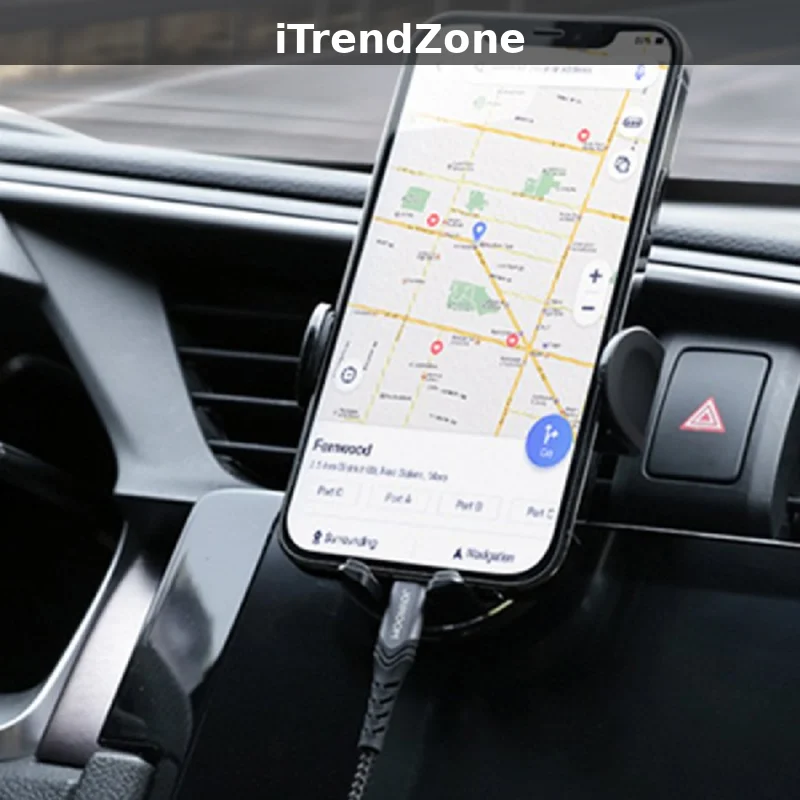
Driving is the Focus mode that protects you and everyone else on the road, and it is the one you should set up even if you never build another Focus routine. When Driving is on, notifications are silenced, calls are silenced unless they are urgent or from allowed contacts, and your iPhone can send an automatic reply to people who message you, letting them know you are driving and will reply later. You can set Driving to turn on automatically when your iPhone detects motion, when it connects to your car’s Bluetooth, or when it connects to CarPlay, which means you never have to remember it at all. A Driving shortcut can go further, opening your maps app, starting your driving playlist, and turning on Do Not Disturb for your passengers’ devices if you share the routine. The key point is that Driving should be automatic, not manual, because the moment you need it is the moment you should not be touching your phone.
Set Up Your First Focus Mode in Five Minutes
Setting up a Focus mode is quick, and it is worth doing the setup properly once, because every shortcut and automation you build later will rely on the choices you make here. Open Settings, tap Focus, and choose the mode you want to set up, or tap the plus button to create a custom one. Give it a clear name and an icon you will recognise at a glance, then choose the people who can contact you while it is on. Be strict here. Allow only the people whose call you would genuinely want to take during that mode, because you can always add someone later, and a Focus mode that lets everything through is not a Focus mode at all. Do the same for apps, allowing only the apps genuinely needed during that mode.
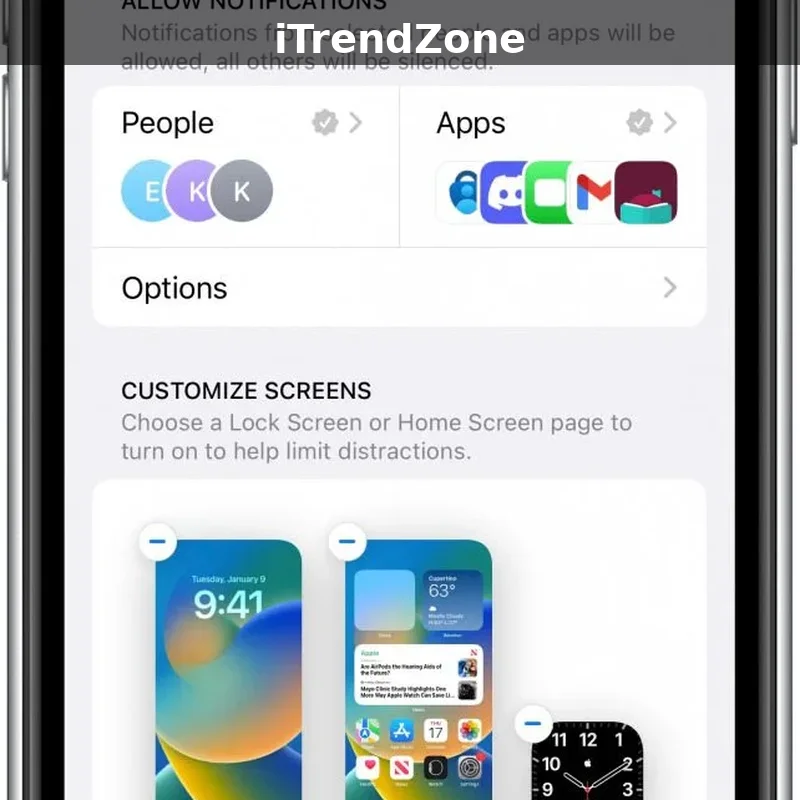
Next, choose your Lock Screen and Home Screen. This step is often skipped, and skipping it wastes half the power of Focus. A different Lock Screen for each mode is a visual signal to your brain that you are in a different part of your day. A Work Lock Screen might show your calendar widget and your next meeting. A Sleep Lock Screen should be dark and minimal, with nothing to tap. A Personal Lock Screen might show a photo that makes you smile. For the Home Screen, you can choose to show only certain app pages while a Focus mode is on, hiding the pages that contain distracting apps. That single choice does more to stop doomscrolling than any amount of willpower, because the distracting app is simply not there to open. Take the extra minute to set these up, and your Focus modes will feel like different phones for different parts of your life.
Finally, decide how the Focus mode will turn on. You can turn it on manually from Control Centre, schedule it for certain times, or set it to turn on when you arrive at a location or open an app. At this stage, choose the simplest option, which is usually a schedule, and leave the clever automation for the Shortcuts app, where you will have far more control. Turn on Share Focus Status if you want people who message you to see that your notifications are silenced, and turn on Share Across Devices if you want the Focus mode to apply to your iPad, Apple Watch, and Mac as well. That last setting is a personal choice. Some people love it, because silencing one device silences them all. Others prefer to keep their Mac free while their phone is silenced. Try it for a week and see which you prefer. You can change it at any time.
Shortcuts That Turn Focus On and Off
The heart of iPhone shortcuts focus mode is a single action in the Shortcuts app called Set Focus. It does exactly what its name suggests, turning a Focus mode on or off, and it can do so until a time you choose, until you leave a location, or until you turn it off manually. To use it, open Shortcuts, tap the plus button to create a new shortcut, tap Add Action, search for Set Focus, and choose the Focus mode you want to control. Then choose whether the shortcut turns it on or off, and for how long. That is the whole shortcut, and it is already useful, because you can add it to your Home Screen, run it from a widget, trigger it from the Action Button on iPhone 16 and iPhone 17 Pro models, or ask Siri to run it. A shortcut that turns on Work for two hours is a meeting shortcut. A shortcut that turns on Do Not Disturb until the evening is a deep-work shortcut. A shortcut that turns off Sleep is a wake-up shortcut.
The real power appears when you add more actions after Set Focus. A Work shortcut might set Focus to Work, open your calendar, open your notes app, set your brightness to a comfortable level, and turn on Low Power Mode if your battery is low. A Sleep shortcut might set Focus to Sleep, set an alarm for seven in the morning, start a playlist of sleep sounds, set the volume low, and turn on your smart lights at ten percent brightness. A Driving shortcut might set Focus to Driving, open Maps, and start your favourite podcast. Each of these shortcuts is still simple, with five or six actions, but together they replace a whole series of manual taps with a single trigger. The best way to build them is to write down, on paper, the five things you do every time you start work, go to bed, or get in the car, and then turn that list into a shortcut, one action at a time.
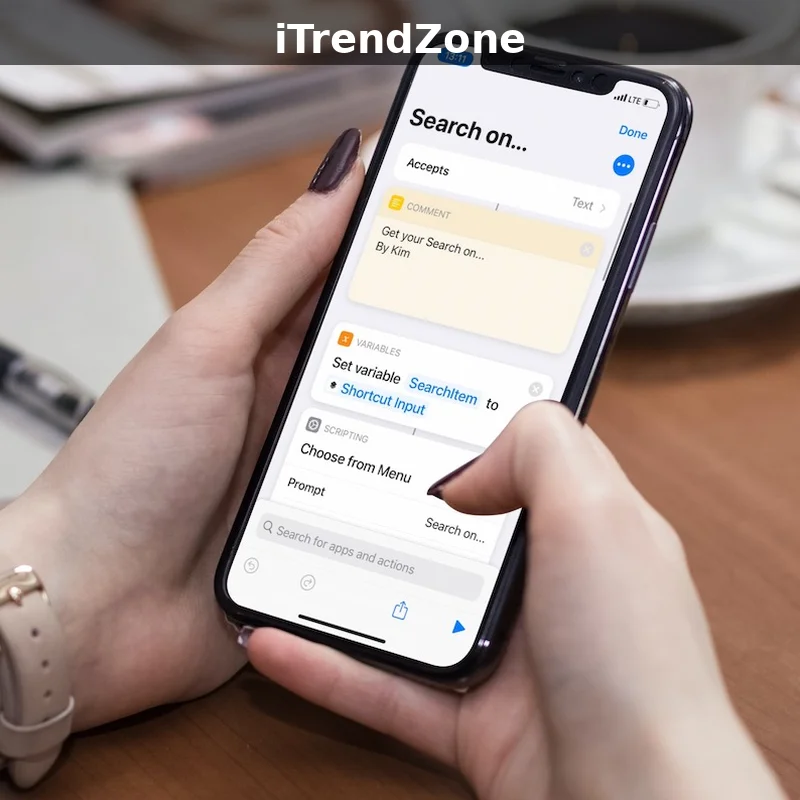
You can also build a shortcut that toggles a Focus mode, turning it on if it is off and off if it is on, which is useful for a Home Screen button or an Action Button assignment. To build a toggle, use the If action to check the current Focus mode, then use Set Focus to turn it on or off accordingly. This is slightly more advanced, but it is a useful pattern to learn, because it means one button does the right thing in both directions. Similarly, you can build a shortcut that asks you which Focus mode to turn on, using the Choose from Menu action, so a single shortcut can switch you between Work, Personal, and Do Not Disturb. That menu shortcut is a good choice for the Action Button, because one press gives you a choice of modes without opening Settings. For more ideas about building your first shortcuts from scratch, see the complete guide to iPhone Shortcuts, which explains the Shortcuts app from the beginning.
Automations That Trigger When Focus Changes
If a shortcut that turns on Focus is the first half of the system, an automation that runs when Focus changes is the second half, and it is the half that makes everything feel automatic. In the Shortcuts app, tap the Automation tab, tap the plus button, and choose Focus as the trigger. You can choose a specific Focus mode, such as Work, and choose whether the automation runs when that Focus turns on, when it turns off, or both. Then add the actions you want to run. This is different from a shortcut that turns on Focus, because here Focus is the trigger, not the result. The automation runs because Focus changed, however Focus changed, whether you turned it on manually, a schedule turned it on, or another shortcut turned it on. That makes it the most reliable way to attach a routine to a mode.
A Work automation is a good example. When Work turns on, the automation can open your task manager, set your phone to silent, turn on a specific wallpaper, and send a message to your team chat saying you are available. When Work turns off, a second automation can open your personal apps, turn your volume back up, and remind you to log your hours. A Sleep automation can turn on your smart lights at a low level when Sleep turns on, and turn them off when Sleep turns off. A Driving automation can start your music when Driving turns on, and pause it when Driving turns off. Because these automations run automatically, you do not have to remember to run a shortcut at all. You just turn on the Focus mode, in whatever way is easiest, and the rest happens by itself. That is the feeling this whole system is aiming for.
There are two practical details to get right with Focus automations. First, decide whether the automation should run immediately or ask before running. For Focus automations, running immediately is almost always the right choice, because an automation that asks for permission defeats the purpose of automation, and it will interrupt you at exactly the moment you are trying to focus. Second, keep each automation short. An automation with twenty actions is fragile, because one failed action can stop the rest. An automation with five actions is robust, and you can always chain a second automation to the same trigger if you need more. If an automation needs to do something complicated, such as sending a message or controlling a smart home device, test that action on its own first, then add it to the automation. The Shortcuts app will show you a notification when an automation runs, which is useful for the first few days while you are checking that everything works.
How to Schedule Focus by Time, Place and App
Scheduling is the simplest form of Focus automation, and it is built into the Focus settings themselves, so you do not even need the Shortcuts app to use it. Open Settings, tap Focus, choose a mode, and tap Add Schedule or Automation. You can schedule a Focus mode to turn on at a certain time on certain days, which is perfect for Work from nine to five on weekdays, or Sleep from ten at night to seven in the morning. You can also schedule it by location, so Work turns on when you arrive at the office and off when you leave, or Personal turns on when you arrive home. And you can schedule it by app, so Work turns on when you open your email or your work chat app, and off when you close it. Each of these options is simple on its own, but together they cover most of the predictable patterns in your week.
Time schedules work best for routines that happen at the same time every day, such as work hours or bedtime. Location schedules work best for routines tied to a place, such as the office or the gym. App schedules work best for routines tied to a task, such as opening a study app. You can combine them, so Work turns on at nine on weekdays and also when you arrive at the office. If a schedule fires at the wrong time, check the days and times carefully, because a schedule set for weekdays only will not run on a Saturday, and a location schedule needs Location Services turned on for Focus.
One warning about schedules is worth remembering. A schedule that turns on a Focus mode at the wrong time is worse than no schedule at all, because it silences calls you wanted to receive. Test every new schedule for a few days before you rely on it, and check the allowed people and apps for that Focus mode before you schedule it. If you are worried about missing an urgent call, allow calls from your family, allow repeated calls, and allow notifications from your phone app. Those three settings are your safety net, and they mean that even if a Focus mode turns on at the wrong moment, the people who matter most can still reach you. A well-designed Focus schedule should make you feel safer, not more anxious, and if it does not, simplify it until it does.
Focus Filters: Change How Your Apps Behave
Focus filters are one of the most powerful features in iOS 26, and they are also one of the least understood, because they do not change your notifications. They change how your apps behave while a Focus mode is on. A Focus filter can tell Mail to show only your work inbox while Work is on, and only your personal inbox while Personal is on. It can tell Safari to show only a specific tab group while Work is on, hiding your personal browsing. It can tell Calendar to show only your work calendar while Work is on, and only your family calendar while Personal is on. It can tell Messages to show only conversations with certain people. In other words, Focus filters change the content of your apps, not just the noise they make, and that is a much deeper change.
To set up a Focus filter, open Settings, tap Focus, choose a mode, and tap Add Filter. You will see apps that support Focus filters, including Mail, Messages, Safari, and Calendar, plus system filters for Dark Mode and Low Power Mode. Choose the app, choose the setting, and save it. The filter applies automatically whenever that Focus mode is on. The most useful filters are Mail, Safari, and Calendar, because those are the apps where work and personal life mix most. A Work filter showing only your work inbox means a personal email will not pull you away from work, and a Personal filter means a work email will not ruin your evening.
Focus filters also work with third-party apps that support them, and with Shortcuts itself. You can create a Focus filter in the Shortcuts app that runs a shortcut when a Focus mode turns on, which is another way to attach a routine to a mode. You can also use Focus filters to change system settings, such as turning on Dark Mode when Sleep is on, or turning on Low Power Mode when Work is on. These system filters are small, but they add up to a phone that feels different in each mode. The key to using Focus filters well is to start with one app, usually Mail, and see how it feels to have your inbox filtered for a week. If you like it, add Safari. If you like that, add Calendar. Do not turn on every filter at once, because you will not know which one is helping and which one is getting in the way.
Lock Screens, Home Screens and Per-App Focus
A different Lock Screen for each Focus mode is the fastest way to make your phone feel different when your day changes. In Settings, under Focus, choose a mode, tap Choose under Lock Screen, and pick or create a screen for that mode, with widgets that match the moment: your calendar and reminders for Work, nothing but the clock for Sleep, and photos and music for Personal. Do the same for your Home Screen, showing only the app pages that belong to that mode, so work apps appear at work and games and social apps disappear. You can also set per-app behaviour, for example opening a work document when Work starts, and you can put a Focus shortcut on your Home Screen or assign it to the Action Button on iPhone 16 and iPhone 17 Pro models, so switching modes takes one press. A matching set of widgets for each mode makes the change visible at a glance, and Apple explains how Focus and Lock Screens work together in its official Focus guide for iPhone.
Notifications and Sharing Your Focus Status
Notifications are where Focus either earns your trust or loses it, so set the allowed list carefully. In each Focus mode, choose the people who can call or message you and the apps that can notify you, allow repeated calls for emergencies, and consider allowing time-sensitive notifications from apps such as your bank or your security system. Turn on Share Focus Status so people who message you see that you have notifications silenced, which stops them wondering why you have not replied, and remember that contacts can still choose to notify you anyway for something urgent. The difference between a good Focus setup and a frustrating one is usually this list: allow too little and you miss something important, allow too much and the mode does nothing. For a step-by-step walkthrough of these settings, see the guide to using Focus mode on iPhone, and for the strictest silence of all, read about Do Not Disturb on iPhone. If messages still break through at the wrong time, a routine that silences message notifications when Work starts can help, as explained in the guide to Shortcuts for Messages.
What the Latest Data Shows
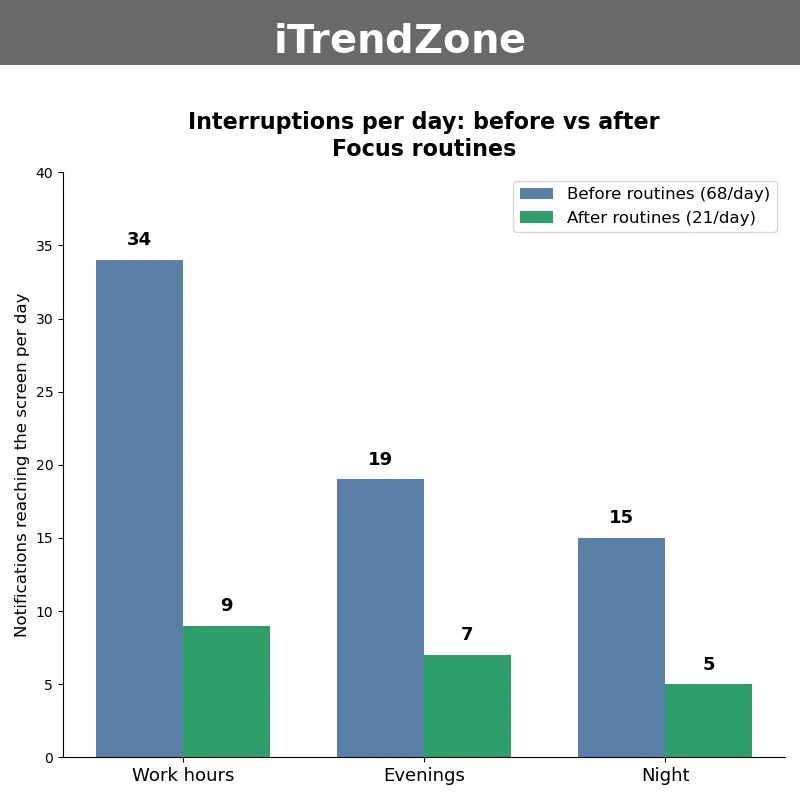
The chart above shows the result of a small example test the author ran on one iPhone 17 running iOS 26 in November 2026, counting how many notifications reached the screen each day before and after setting up Work, Sleep, and Personal routines. Before the routines, 68 notifications a day reached the screen. After a week with the routines running, that number fell to 21 a day, with the biggest drop during work hours, from 34 to 9, and a smaller drop at night, from 15 to 5. This is the author’s own test on one phone, not laboratory data, and your numbers will be different, because every person’s apps and contacts are different. The point is the direction, not the exact figure: a Focus routine that hides most notifications is doing its job, and if your count barely changes, your allowed list is probably too generous. Count your own notifications for a few days in Screen Time, then compare the week after you set up your routines.
Four Routines to Copy Today
Start with four simple routines and you will cover most of your week. A morning routine turns off Sleep, opens your calendar, reads the weather, and starts your playlist. A work routine turns on Work when you arrive at the office, opens your task list, and silences personal apps. An evening routine turns on Personal when you arrive home, opens your music, and hides work email until morning. A photo routine turns on Do Not Disturb when you open your camera app, so a family photo session is not interrupted by a notification, and a health routine starts a workout playlist and turns on Do Not Disturb when you start a workout. Each routine is only a few actions, and each one is a shortcut you can build in minutes, then improve over time.
| Focus mode | Best trigger | Best for | Silences |
|---|---|---|---|
| Do Not Disturb | Manual or timer | Meetings and quiet hours | Almost everything |
| Work | Time or office location | Working hours | Personal apps |
| Sleep | Sleep schedule | Nights | All but alarms |
| Driving | CarPlay or motion | Driving | Calls and messages |
| Personal | Arriving home | Evenings and weekends | Work apps |
Source: Apple Support, Focus on iPhone, accessed November 2026.
Troubleshooting Focus Shortcuts
Most Focus shortcut problems have simple causes. If an automation does not run, check that it is set to run immediately rather than asking first, and check that the Focus mode it triggers is spelled exactly as you named it. If a Focus mode turns on at the wrong time, check its schedule and location settings, and make sure Location Services are on. If notifications still break through, check the allowed people and apps list, and check whether the app is sending time-sensitive notifications. If a shortcut runs but Focus does not change, open the shortcut and run it manually to see which action fails. For the full setup of work and sleep schedules, see the guide to setting up Focus mode for work and sleep, and for more on iPhone automation in iOS 26, see the official Shortcuts guide from Apple.
Quiz: Test What You Learned
1. Which Shortcuts action turns a Focus mode on or off?
A. Set Focus
B. Set Wallpaper
C. Set Brightness
2. What triggers a Focus automation?
A. Opening any app
B. A Focus mode turning on or off
C. Charging your iPhone
3. What does a Focus filter change?
A. Your wallpaper only
B. How an app behaves during a Focus mode
C. Your battery level
4. Which Focus mode is best for driving?
A. Personal
B. Sleep
C. Driving
5. What should you check first if a Focus automation does not run?
A. Whether it is set to run immediately
B. Your iPhone colour
C. Your storage space
References
- Apple Support: Focus on iPhone
- Apple Support: Shortcuts User Guide
- Apple Support: Use Focus on iPhone
- Apple Support: Focus settings on iPhone
- Apple: iPhone
- Apple Support: Notifications on iPhone
Quiz Answers
1. A — Set Focus. 2. B — A Focus mode turning on or off. 3. B — How an app behaves during a Focus mode. 4. C — Driving. 5. A — Whether it is set to run immediately.