
iPhone Shortcuts Morning Routine: Automate Your Wake-Up in iOS 26
iPhone shortcuts morning routine setups turn the first ten minutes of your day from a scramble into a single calm command. Instead of silencing your alarm, switching off Do Not Disturb, checking the weather, opening your calendar, catching the headlines, starting your music and sorting out your commute one app at a time, you tap once or say one phrase and your iPhone does all of it in order. In iOS 26, on iPhone 16 and iPhone 17, the Shortcuts app ties alarms, Focus modes, the Lock Screen, widgets, Siri, the Action Button and your smart home together into one morning system. This guide shows you how to build that system step by step, with five ready-made routines you can copy, real examples from everyday mornings, and fixes for the problems that actually trip people up.
TL;DR
- An iPhone shortcuts morning routine is a single shortcut that runs your wake-up jobs in order: alarm off, Do Not Disturb off, weather, calendar, news, music, smart home and commute, all from one tap or one Siri phrase.
- Build it in the free Shortcuts app on iOS 26: add actions one at a time, test after every few steps, and keep a backup copy before you change anything that already works.
- Let an automation run it for you: trigger the shortcut from your alarm, a set time, an NFC tag on your bedside table, Back Tap or the Action Button on iPhone 16 and iPhone 17.
- Pair the shortcut with a Lock Screen widget and a Focus mode so your morning information is visible before you even unlock your phone.
- Keep it private and light: check what each action can access, avoid shortcuts from untrusted links, and keep the routine short enough to finish before your coffee does.
Why an iPhone Shortcuts Morning Routine Is Worth Building
Mornings are the worst time to make decisions. You are half awake, your phone is full of notifications from the night, and every app wants your attention before you have even had a glass of water. A morning routine shortcut removes those small decisions. You decide once, on a Sunday evening when you are thinking clearly, what your ideal first ten minutes look like. Then your iPhone repeats that plan every morning without asking you to remember it. The result is not just saved time. It is a calmer start, because you stop reacting to whatever notification shouts loudest and start following a plan you chose yourself.
There is also a focus benefit that is easy to miss. Every time you open an app to check one thing, you see five other things, and a quick weather check can turn into fifteen lost minutes. A shortcut that reads the weather aloud keeps you out of those apps entirely. If you are new to this whole idea, start with the complete guide to iPhone Shortcuts first, then come back here.
What Your Morning Looks Like With and Without a Shortcut
Before you build anything, it helps to see the difference clearly. The table below compares a typical weekday morning done the old way, app by app, with the same morning run by a single shortcut. The times are from the author’s own timed comparison on an iPhone 16 running iOS 26 in November 2026, so treat them as a realistic example rather than a laboratory result. Your own times will vary with your apps and your habits, but the pattern is the same for almost everyone: the shortcut does not change what you check, it changes how many taps and decisions stand between you and the information.
| Morning task | Doing it by hand | With a morning shortcut |
|---|---|---|
| Stop the alarm and switch off Do Not Disturb | Two apps, four taps, about 40 seconds | Automatic when the alarm ends |
| Check the weather and what to wear | Open the Weather app, about 30 seconds | Spoken summary in 10 seconds |
| See today’s calendar and first meeting | Open Calendar, scroll, about 45 seconds | Shown on the Lock Screen widget |
| Catch the morning headlines | Open a news app, three to four minutes | Top three stories read aloud |
| Start music or a podcast | Search, pick, press play, about a minute | Starts by itself as you get up |
| Coffee, lights and heating | Three apps or switches, about two minutes | One command to the smart home |
| Check traffic and start the commute | Open Maps, type the destination, two minutes | Directions ready with one tap |
Source: author’s own timed comparison on iPhone 16 running iOS 26, November 2026. Times are typical examples from one person’s routine, not laboratory measurements.
What You Need Before You Start
You do not need to buy anything to build a morning routine shortcut. The Shortcuts app is built into every iPhone, it is free, and it works on iPhone 16 and iPhone 17 with iOS 26 as well as on older models running the same software. Before you start, check three things. First, update to the latest version of iOS 26 in Settings, then General, then Software Update, because shortcut actions and Focus features change between releases and this guide describes the November 2026 version. Second, decide which apps your routine will use: Apple Weather, Calendar, Reminders, Clock, Music or Podcasts, News, Maps and Home all work out of the box, and most popular third-party apps offer shortcut actions too. Third, make sure the apps you want can see the data they need, such as Calendar access for your schedule and Location access for weather and traffic.
One more preparation step saves a lot of frustration: give your shortcut a name you can say easily. Siri understands short, distinct names far better than clever ones. “Morning Routine” works. “Good Morning Sunshine Protocol” does not, because you will never say it the same way twice. The same rule applies to any Focus mode you create for the morning. Call it “Morning”, not “AM Productivity Flow”. Simple names also make widgets and the Action Button easier to use, because you can read them at a glance when you are still half asleep. Apple’s own Shortcuts User Guide is a useful reference while you build, especially the sections on adding actions and testing a shortcut.
The 60-Second Version: Build Your First Morning Shortcut
If you only have a minute, build this version now and improve it later. Open the Shortcuts app, tap the plus button, and add these actions in order. First, add “Get Current Weather” and then “Speak Text” so your iPhone reads the forecast aloud. Second, add “Find Calendar Events” set to today, followed by “Show Result” so your meetings appear on screen. Third, add “Play Music” and choose a playlist you like in the morning. Fourth, add “Set Do Not Disturb” to off, or “Set Focus” to turn your Morning focus on. Tap the name at the top, call it “Morning Routine”, tap Done, and then tap it once to test it. That is the whole shortcut, and it already does more than most people manage before breakfast.
Testing matters more than building. Run the shortcut three times in a row and watch what happens at each step. Does the weather speak before the music starts? Does the calendar show today’s events or yesterday’s? Does Do Not Disturb actually switch off, or does it stay on because your Sleep focus is still active? Each of these is a small fix, usually just reordering two actions or changing one setting inside an action. Never test a morning shortcut for the first time on a morning when you have an early meeting. Test it on a Sunday afternoon, when a mistake costs you nothing and you can fix it calmly. Once it runs cleanly three times, you can trust it on a weekday.

Step 1: Wake Up Right With Alarms, Sleep and Gentle Starts
A good morning starts the night before, in the Health app’s Sleep settings. Set a sleep schedule with a bedtime and a wake-up time, and your iPhone will handle the wind-down, the Sleep focus, and a gentler alarm sound automatically. The advantage of using the built-in sleep schedule instead of a plain alarm is that it connects to everything else: when the alarm goes off, your iPhone knows you are waking up, and that moment can trigger your shortcut. Open the Health app, tap Browse, then Sleep, then set your schedule for weekdays and weekends separately, because most people wake at different times on a Saturday and a shortcut that fires at 6 a.m. on a weekend is not a gift.
Sleep Schedule or Alarm Shortcut: Which One Should You Use
Use the sleep schedule for the alarm itself, and use a shortcut for everything that happens after it. The sleep schedule is reliable, it syncs with your Apple Watch if you wear one to bed, and it adjusts your Sleep focus automatically. A shortcut that tries to replace the alarm is fragile, because it depends on automations firing at exactly the right second. The winning combination is simple: the sleep schedule wakes you, and an automation set to run when the alarm stops launches your morning shortcut. That way the reliable part stays with Apple, and the clever part stays with your shortcut, and neither one has to do a job it is bad at.
Step 2: Turn Off Do Not Disturb and Switch Your Focus
Do Not Disturb is wonderful at night and terrible at breakfast. If it stays on, you miss the message from your colleague about the meeting moving, the delivery driver at the door, and the school message about a delayed start. Your morning shortcut should therefore switch it off, or better, switch from your Sleep focus to a Morning focus. Add a “Set Focus” action near the start of your shortcut, choose “Morning” or “Off” as the target, and make sure it runs before the actions that send you notifications. Order matters here: if the weather speaks first and the Focus switches second, any urgent message that arrived overnight will stay silent until you notice it yourself.
A dedicated Morning focus is worth the five minutes it takes to set up. Unlike simply turning Focus off, a Morning focus lets you choose exactly who can reach you and which apps can notify you between, say, 6 a.m. and 9 a.m. Allow calls from family and your manager, allow messages from your team, and silence everything else until your work focus takes over. You can set this up in Settings, then Focus, then the plus button, and you can read the full walkthrough in our guide to setting up iPhone Focus modes for work and sleep. Once it exists, your shortcut can turn it on and off with a single action, and your mornings become noticeably quieter without becoming unreachable.
Step 3: Weather, Calendar and News in One Glance
This is the heart of the morning routine, because it answers the three questions every morning asks: what is the sky doing, what is my day doing, and what is the world doing. Start with the weather. Add “Get Current Weather”, then use a “Text” action to build a short sentence such as “Today it is 18 degrees and sunny, with rain after 4 p.m.”, and then “Speak Text” to read it aloud. Spoken weather is better than a screen in the morning, because you can listen while you are in the shower or making breakfast. Add the high and low temperatures and the chance of rain, but leave out the hourly detail: if you need the hourly forecast, you will open the app, and the shortcut has already done its job by telling you whether to take a jacket.
Next comes the calendar, and here the trick is to show less, not more. Use “Find Calendar Events” filtered to today, limited to the next three events, and add a spoken summary of the first meeting. Add “Find Reminders” filtered to today too, so tasks and meetings appear in one briefing. Apple explains these building blocks in the official Shortcuts help pages, which are worth bookmarking while you build.
Step 4: Music, Podcasts and the Right Mood
Sound sets the tone of a morning more than almost anything else, and it is the easiest part of a routine to automate. Add a “Play Music” action and choose a playlist that matches the morning you want: something calm for a slow start, something energetic for a gym morning, or a news podcast for a commute. The key detail is to set the playlist inside the action, not to open the Music app and choose by hand, because choosing by hand is where the distraction begins. If you listen to podcasts, use “Play Podcast” instead and pick a daily show that publishes overnight, so a fresh episode is waiting when you wake up. Set the playback destination too: phone speakers in the bedroom, a HomePod in the kitchen, or your AirPods if you already wear them.
Volume deserves its own thought: set it to 30 or 40 percent inside the shortcut so a 6 a.m. playlist never blasts the house. Apple’s support pages on Siri and playback explain how voice commands interact with these actions if you want to control the music hands-free later.
Step 5: Coffee and the Smart Home
If you have any smart home devices, the morning shortcut is where they earn their keep. A “Control Home” action can switch on the coffee machine, turn on the kitchen lights, open the blinds, and set the heating to a comfortable temperature, all in one step. The trick is to add these actions near the end of the shortcut, after the weather and calendar, so that the house is ready by the time you walk into the kitchen rather than before you are awake enough to enjoy it. If your coffee machine is not smart, a smart plug does the same job for very little money: plug the machine into the plug, fill it the night before, and let the shortcut switch the plug on at the right moment.
Step 6: Hand Over to Your Commute
The last job of a morning routine is to hand you over to the day, and that usually means travel. Add a “Show Directions” action at the end of your shortcut, with your workplace already filled in, so your iPhone checks current traffic at the moment you are actually leaving.
This handover is also where your morning routine connects to your driving routine, which we cover in our planned guide to iPhone shortcuts for your driving routine. For now, the important thing is that your morning shortcut ends cleanly, with the directions or departure time on screen and a short spoken line such as “You are ready to go, the drive takes 25 minutes.”
Automate It: Triggers That Run Your Morning for You
A shortcut you have to remember to run is only half an automation. The real magic starts when your iPhone runs it for you, and iOS 26 gives you several triggers to choose from. The simplest is time: open the Shortcuts app, tap Automation, tap the plus button, choose “Time of Day”, set 6:30 a.m. on weekdays, and choose your Morning Routine shortcut as the action. Set it to “Run Immediately” rather than “Run After Confirmation”, or you will have to approve it every morning, which defeats the purpose. Time triggers are reliable and easy to understand, and they are the right choice for anyone whose wake-up time is regular. If your schedule changes weekly, a time trigger can become a nuisance, and one of the triggers below will suit you better.
The most natural trigger is your alarm. In the Automation tab, choose “Alarm”, then “When an alarm is stopped”, and select your wake-up alarm. Now your morning shortcut runs the moment you switch the alarm off, which is exactly when you want it. This works whether you wake at 6 a.m. or sleep in until 9 on a Sunday, because it follows your behaviour instead of the clock. It also means the shortcut never fires while you are still asleep, which is the main flaw of a fixed time trigger on a day you decide to lie in. If you use a sleep schedule alarm, this trigger works with it too, and it is the setup the author of this guide uses every day.
Two physical triggers are worth knowing about. An NFC tag on your bedside table can run your shortcut when you tap your phone against it, and the Action Button on iPhone 16 and iPhone 17 can start it with a long press. Our guide to custom shortcuts on the iPhone Action Button walks through that setup, and the complete guide to iPhone Shortcuts compares every trigger in detail.
What the Latest Data Shows
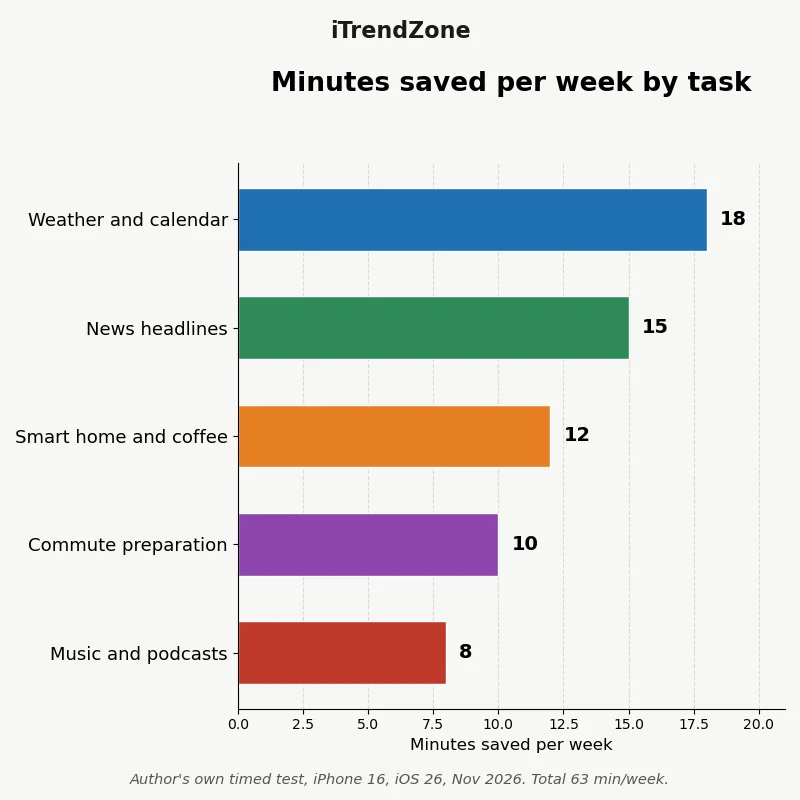
How much time does a morning shortcut actually save? The honest answer is that it depends on your habits, so instead of quoting a survey, this section shows the author’s own timed test. For one working week in November 2026, the author timed each morning job twice: once done by hand, app by app, and once run by the shortcut described in this guide, on an iPhone 16 running iOS 26. The chart below shows the minutes saved per task across the whole week. Weather and calendar together saved the most, at 18 minutes, because opening two apps and reading both takes far longer than a single spoken summary. News saved 15 minutes, mostly because the shortcut’s three-headline limit stopped the usual scrolling. Smart home actions saved 12 minutes, commute preparation saved 10, and music setup saved 8, for a total of 63 minutes across five mornings.
Five Ready-Made Morning Routines to Copy
Not everyone wakes up the same way, so here are five complete routines you can copy and adjust. Each one is a variation on the basic shortcut from earlier in this guide, with a few actions swapped to fit a different life. Pick the one closest to yours, build it exactly as written, use it for a week, and then change one thing at a time.
The Early Riser: Up at 5:30 for a Quiet Start
The early riser wants silence, not stimulation. The shortcut turns off Sleep focus, speaks the weather and the first meeting only, and starts a calm playlist at low volume. There is no news in this version, because the early riser reads the news later, over breakfast, when they are properly awake. The smart home step turns on one warm light in the kitchen and starts the coffee, nothing more. The whole routine finishes in under a minute, and the house stays quiet enough that nobody else wakes up. If this is you, keep the spoken parts short and the lights dim: your morning is a slow ramp, not a launch.
The Commuter: Out of the Door in Twenty Minutes
The commuter’s shortcut is built around one question: when must I leave. It checks traffic first, before the weather, and speaks the departure time aloud: “Leave by 7:40, the drive takes 35 minutes.” Then it reads the calendar’s first two meetings, starts a news podcast for the drive, and opens Maps with the route ready. The smart home step is minimal, just the lights off behind you, because you are leaving, not settling in. The key addition is a “Show Directions” action with your workplace saved as the destination, so the route is one tap away. Pair this with the driving setup in our planned guide to iPhone shortcuts for your driving routine and the handover from home to car becomes seamless.
The Work-From-Home Morning: No Commute, More Focus
Without a commute, the danger is not being late but never really starting. This routine turns off Sleep focus, switches on a Morning focus that allows only family and work messages, speaks the day’s top three tasks from Reminders, and opens your calendar to the first meeting. Music is optional here; many people working from home prefer silence until their first call. The smart home step sets the office light to a bright, cool white, which is a small physical signal that work has begun. If you work from home, you may also want the workday version of this idea, which we cover in our planned guide to iPhone shortcuts for work, where the routine hands over to a full work setup.
Widgets and the Lock Screen: Your Morning at a Glance
A shortcut is only useful if you can reach it without hunting, and the Lock Screen is the best place for it. In iOS 26, you can add a Shortcuts widget to the Lock Screen that runs your morning routine with one tap, before you even unlock the phone. Long-press the Lock Screen, tap Customise, tap the widget area, and add the Shortcuts widget, then choose your Morning Routine shortcut. Now your first action of the day is a single tap on a screen you were going to look at anyway. Add a Calendar widget beside it so your first meeting is visible at the same time, and a Weather widget so the temperature is there too. Three widgets, one glance, no unlocking, no apps, no distraction.
The Home Screen deserves the same treatment: put a large Shortcuts widget where your thumb lands and move distracting apps to a second screen. Our guide to organising iPhone Home Screen widgets like a designer shows how to lay this out, and our walkthrough on customising the iPhone Lock Screen step by step covers Lock Screen widgets in more depth.
Control Centre is the third place to put your shortcut: add the Shortcuts control there and your routine is one swipe away from any app. If you have an iPhone 16 or iPhone 17, the Action Button is even faster, and you can see the newest models on Apple’s official iPhone page.

Siri: Run Your Morning Hands-Free
Some mornings your hands are full, with a toothbrush, a coffee cup, or a child who needs carrying, and that is when Siri earns its place. Say “Hey Siri, run Morning Routine” and the shortcut starts without you touching the phone. The trick, as always, is the name: short, clear, and different from anything else you say. “Morning Routine” works because it is unlikely to be confused with another command. Test it the way you will actually use it: say it from across the room, with the phone on the bedside table, and check that Siri hears you and runs the right shortcut. If Siri keeps opening the wrong thing, rename the shortcut to something more distinct, such as “Start My Day”, and try again.
Siri can also run pieces of the routine on their own: “Hey Siri, what is my first meeting today” or “Hey Siri, will it rain today”. One caution: spoken summaries and a sleeping partner do not mix well, so use the on-screen version in the bedroom and save the spoken version for the kitchen. Apple’s support pages on Focus and Siri explain how voice commands work with Focus modes.
Common Mistakes and How to Fix Them
Most morning shortcuts fail for boring reasons, and almost all of them are fixable in under a minute. The most common is the shortcut that runs but does nothing visible. This usually means an action is waiting for input you did not give it, such as a “Choose from List” action with no list, or a music action with no playlist chosen. Open the shortcut, tap each action, and look for anything highlighted or empty. The second most common failure is the automation that asks for confirmation every morning. Open the Automation tab, tap the automation, and change it to “Run Immediately”. This setting sometimes resets after a software update, so if your shortcut suddenly starts asking permission again, this is the first place to look.
The third common problem is the shortcut that worked yesterday and fails today. Something changed overnight: an app updated, a playlist was deleted, or a smart home device lost its connection. Run the shortcut step by step and fix the one failed action instead of rebuilding everything. Our planned guide to troubleshooting iPhone Shortcuts collects these fixes in one place, and Apple’s own iPhone User Guide covers the underlying settings.
Privacy and Battery: What a Morning Shortcut Costs
A morning shortcut touches a lot of personal data: your location for the weather, your calendar for your meetings, your messages for your notifications, and your home for your lights. That is normal, and it is also why you should check what each action can see. When you add an action that needs your location or calendar, your iPhone asks for permission, and you can change these later in Settings, then Privacy and Security. Only grant what the shortcut actually needs. A weather action needs your location; a news action does not. A calendar action needs calendar access; a music action does not. If you download a shortcut someone else made, read every action before you run it, because a shortcut can send messages, share files, and access your photos, and a malicious one is a real, if rare, risk.
Battery is a smaller concern than most people expect: a morning shortcut runs for a minute or two and uses about as much power as checking email, and you can verify this in Settings, then Battery. If you want to keep your battery healthy in general, our guide to improving iPhone battery life covers the settings that actually matter.
Frequently Asked Questions
Do I need an iPhone 16 or iPhone 17 to build a morning routine shortcut?
No. The Shortcuts app and everything in this guide works on any iPhone running iOS 26, including older models. The iPhone 16 and iPhone 17 add conveniences, such as the Action Button for starting a shortcut with a press and faster on-device processing, but none of the actions in this guide require them. If your iPhone is older, the only difference you may notice is that some smart home actions take a second longer. Build the shortcut on the phone you have today, and upgrade the hardware later if you want the extra buttons.
Can my morning shortcut run completely automatically?
Yes, with the right trigger. An automation set to run when your alarm stops, or at a fixed time of day, will launch your shortcut without you touching the phone, as long as you set it to run immediately rather than asking for confirmation first. Time triggers are the most reliable, alarm triggers follow your actual wake-up time, and NFC tags and the Action Button give you a deliberate physical start. Try the alarm trigger first, because it adapts to lie-ins and early starts alike, and only add a second trigger if the first one does not fit your life.
What should I do if my morning shortcut stops working?
Run it step by step and watch where it stops, because the Shortcuts app will usually highlight the failed action. Most failures come from something that changed overnight: an app updated, a playlist was deleted, a Focus mode was renamed, or a smart home device lost its connection. Fix that one action and test again, rather than rebuilding the whole shortcut. Keep a duplicate copy of any shortcut that works, so you always have a version to fall back on while you fix the broken one.
Quiz: Test What You Learned
Five quick questions to check you understood the guide. Choose one answer for each, then check your answers at the very end of the article, after the references.
1. What is the best trigger for a morning shortcut if your wake-up time changes from day to day?
- A. A fixed time of day, such as 6:30 a.m. every day
- B. An automation that runs when your alarm stops
- C. A shortcut that only runs when you open the Shortcuts app
2. Why should your shortcut switch off Do Not Disturb or change Focus before the weather and news actions run?
- A. Because the weather action will not work while Focus is on
- B. Because Focus modes use more battery in the morning
- C. Because urgent overnight messages would otherwise stay silent until you notice them yourself
3. How many headlines should a morning news step read aloud?
- A. Three, so you stay informed without losing half an hour to scrolling
- B. As many as possible, at least twenty
- C. None, because news should never be part of a shortcut
4. What is the safest first step before you improve a shortcut that already works?
- A. Delete the old shortcut so the new one cannot conflict with it
- B. Share the shortcut online and ask strangers to test it
- C. Duplicate it or save a backup copy so you can go back if the changes break it
5. Where is the best place to put your morning shortcut so you can reach it before unlocking your phone?
- A. Inside a folder on the third Home Screen
- B. As a widget on the Lock Screen, next to the calendar and weather
- C. In the Settings app, under General
References
- Apple Support: Shortcuts User Guide for iPhone
- Apple Support: Shortcuts help and actions
- Apple Support: Focus and Siri on iPhone
- Apple Support: Siri and playback help
- Apple: iPhone models and features
- Apple Support: iPhone User Guide
Quiz Answers
1-B, 2-C, 3-A, 4-C, 5-B.