
iPhone Shortcuts: The Complete Guide to Automating Your iPhone in 2026
iPhone Shortcuts turn the taps you repeat every day into a single command. Instead of opening five apps every morning, adjusting brightness, turning on Do Not Disturb, starting your playlist and checking the weather one by one, you press one button or say one phrase and your iPhone does all of it in order. In iOS 26, Shortcuts has become the quiet engine behind much of the iPhone experience, connecting Siri, the Action Button, Focus modes, the Lock Screen, Control Centre and even NFC tags into one automation system. This guide explains everything from your first shortcut to the advanced automations that run without you touching the phone at all.
TL;DR
- iPhone Shortcuts are step-by-step recipes that make your iPhone do several things with one tap or one Siri phrase, and they are free in the built-in Shortcuts app on iOS 26.
- Start with the Gallery: pick a ready-made shortcut, try it, then edit it to fit your life before you build anything from scratch.
- Automations are shortcuts that run on their own when a trigger fires, such as a time of day, arriving somewhere, opening an app or connecting to CarPlay.
- Connect shortcuts to the Action Button, Back Tap, Control Centre, the Lock Screen and widgets so they are always one gesture away.
- Shortcuts can read your calendar, messages, photos, health data and location, so check what each shortcut asks for and never run one from an untrusted link.
What iPhone Shortcuts Actually Are
A shortcut is a list of actions that your iPhone follows in order. Each action is one small job, such as getting the current weather, sending a message, setting a timer, turning on a Focus mode or opening an app. Put the actions in a row and you have a recipe: get the weather, read it out loud, open your calendar, start your driving playlist and turn on Do Not Disturb. That is a morning shortcut. The Shortcuts app is where these recipes live, and it comes with every iPhone. You do not need a subscription, a developer account or a newer model, although some actions and the newest features work best on iPhone 16 and iPhone 17 with iOS 26.
Shortcuts work in three different ways, and understanding the difference saves a lot of confusion. A shortcut is something you run on purpose, by tapping it, asking Siri or pressing a button. An automation is a shortcut that runs by itself when a trigger happens, such as 7 a.m. arriving, your iPhone connecting to your car, or you arriving at the office. A personal automation can ask before it runs or run silently, and choosing the right option matters: a silent automation that sends messages to your team at midnight because you set the wrong trigger is a real risk, so always test automations during the day first. The third way is through App Intents, which are the hooks that let apps expose their best features to Shortcuts and Siri. When an app supports App Intents properly, its actions appear in the Shortcuts editor with clear names and options, and that is why some apps feel effortless to automate while others barely work at all.
How the Shortcuts App Works in iOS 26
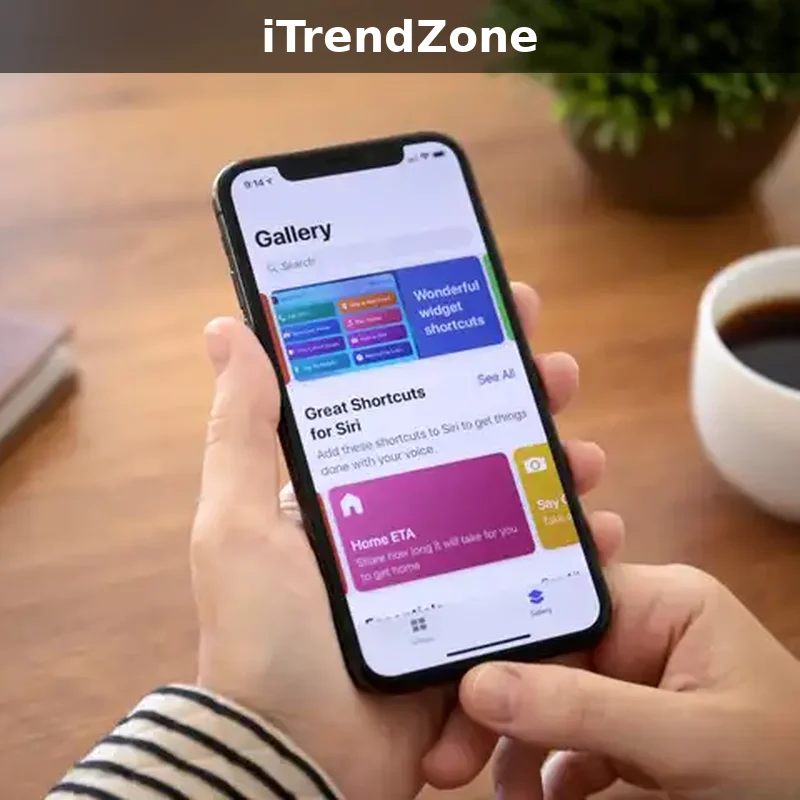
Open the Shortcuts app and you will see three tabs at the bottom. The Shortcuts tab holds all your shortcuts, grouped into folders if you organise them. The Automation tab holds your automations, each with its trigger shown underneath its name, such as Time of Day or Arrives. The Gallery tab is Apple’s collection of ready-made shortcuts, organised into categories like Morning Routine, Stay Healthy, Essentials and shortcuts from your apps. If you are new, the Gallery is the best place to start: find a shortcut that looks useful, tap the plus button to add it, and it appears in your Shortcuts tab ready to run.
Tap a shortcut’s three dots to open the editor, and you will see its actions stacked from top to bottom. The editor reads like a recipe card: each action is a coloured block with a verb at the start, such as Get, Set, Send, Play or Open. Tap any action to change its settings, drag the handle on the right to move it up or down, and tap the plus button at the bottom to search for a new action. The search bar is the most important part of the editor, because it searches every action on your phone, including actions from your installed apps. Learning to search instead of scrolling is the fastest way to become good at Shortcuts.
What Changed in iOS 26
iOS 26 brings a new look to the whole system, and Shortcuts gets the same cleaner design, with larger action blocks and clearer categories in the editor. More importantly, the system is faster at running shortcuts in the background, automations are more reliable when the phone is locked, and more of Apple’s own apps expose their features through App Intents. The Shortcuts app also works better with Apple Intelligence features on supported models, so actions like summarising text or cleaning up a photo can appear inside your shortcuts. The fundamentals have not changed: a shortcut is still a list of actions, and an automation is still a trigger plus a shortcut. What has changed is how smoothly they run and how many places you can launch them from.
Your First Shortcut in Five Minutes
The fastest way to learn Shortcuts is to build one small thing that solves a real annoyance. Pick something you do every day, such as texting your partner that you are on your way home, and turn it into a shortcut. Open the Shortcuts app, tap the plus button at the top, and tap Add Action. Search for Send Message, tap it, and type your message. Tap the blue word Recipients and choose the contact. Tap the shortcut’s name at the top, rename it to something you will actually say, such as On My Way Home, and tap Done. Now run it by tapping it once, and check that the message arrives. That is the whole process: add actions, fill in the details, name it clearly, and test it before you depend on it.
Testing is the step most people skip, and it is the step that prevents embarrassment. Run every shortcut three times before you trust it: once while you watch the screen, once from the Lock Screen, and once with Siri. The three runs reveal different problems. The first run shows wrong recipients, wrong playlists and missing permissions. The Lock Screen run shows whether the shortcut needs your phone unlocked to work, which matters for shortcuts that read messages or health data. The Siri run shows whether the name is easy to say and whether Siri hears it correctly. If a shortcut fails, open the editor and look for the action with the red warning, because that is usually the one with a missing permission or a deleted app.
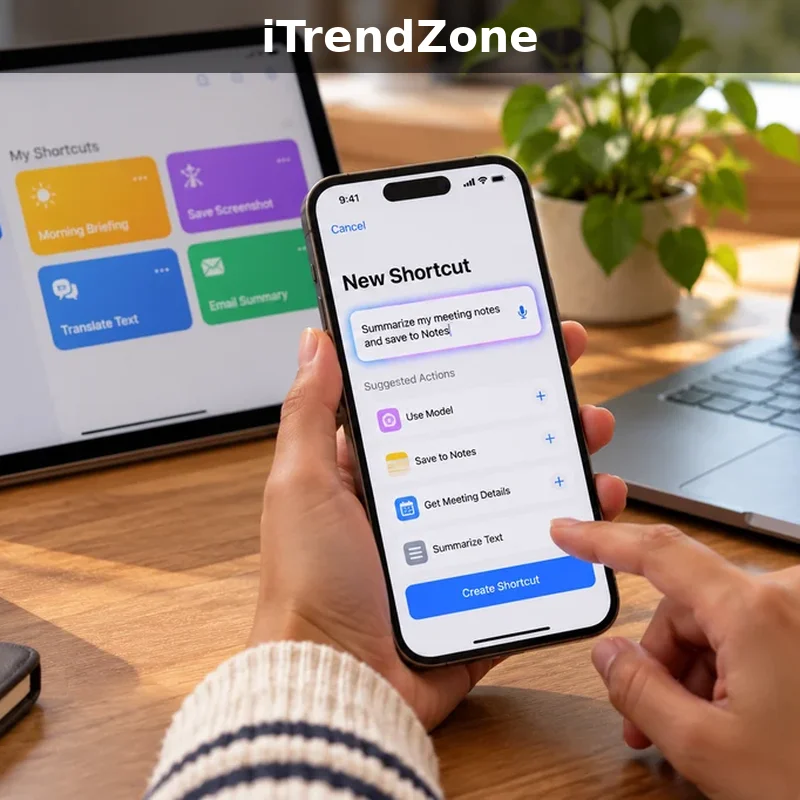
Morning Routines That Actually Save Time
A morning shortcut is the single most useful routine most people will ever build, because mornings are full of small repeated jobs. A good morning shortcut starts with the information you need, then sets up your phone for the day, and finally starts something enjoyable. Here is a proven layout that works for most people. First, Get Current Weather and Speak Text to hear the temperature and conditions while you get ready. Second, Get Upcoming Events and Show Notification so your first meeting is visible without opening Calendar. Third, Set Do Not Disturb to off and Set Focus to off if you used a sleep Focus overnight. Fourth, Set Brightness to a comfortable level and turn off Low Power Mode if it was on overnight. Fifth, Play Music with your morning playlist and Open App with your news or email app. Run this from a Home Screen widget or ask Siri, and the first five minutes of your day run themselves.
A Simple Wake-Up Shortcut, Action by Action
Start with the action Get Current Weather, then add Speak Text and choose the Weather Conditions magic variable so Siri reads the forecast. Add Get Upcoming Events with the next three events, then Show Result so you can see them. Add Set Focus to turn off Sleep, and Set Brightness to 70 percent. Add Play Music with a playlist you like in the morning. Finally, add Open App with your calendar or notes app. Name it Start My Day, add it to your Home Screen as a widget, and run it tomorrow morning instead of opening four apps. If any action asks for permission the first time, grant it, and the shortcut will run silently from then on.
Work and Focus Shortcuts for Busy Days
Work shortcuts are about removing friction at the start of a task, not about replacing the task itself. The most useful one for most people is a Start Work shortcut that turns on the Work Focus, opens your task app, sets a timer for a focused work block, and silences notifications from social apps. A matching End Work shortcut turns off the Focus, opens your personal calendar, and starts your evening playlist. Used together, they draw a clear line between work and the rest of the day, and that line is something a phone rarely gives you on its own. If you use your iPhone for meetings, add a Join Next Meeting shortcut that finds your next calendar event and opens its video link, which saves the daily hunt through emails for a link.
People who write, study or create will get the most from shortcuts that prepare a workspace in one tap. A Writing Mode shortcut can open Notes or your writing app, turn on Do Not Disturb, set brightness to a comfortable level, and start a timer for twenty-five minutes. A Study Mode shortcut can do the same with your flashcard app and a longer timer. A Meeting Notes shortcut can create a new note with the current date and the name of your next meeting already filled in, so you are writing within seconds of the meeting starting. The pattern is always the same: one tap sets up the environment, so your attention goes to the work instead of to the setup.
Driving, Home and Evening Routines
A driving shortcut is the safest routine on your phone, because it removes the need to look at the screen while you drive. The classic version turns on Driving Focus, reads out your next calendar event, starts your driving playlist or podcast, and opens Maps with your destination already set. You can trigger it by voice before you start the car, or let a CarPlay automation start it the moment your phone connects. Either way, the rule is simple: nothing in a driving shortcut should need a tap after the car is moving. If you use your iPhone to navigate every day, also build a Heading Home shortcut that opens Maps with your home address and sends a message to your family with your arrival time, so the two most common driving jobs are each one command.
Home routines work best when they connect your iPhone to the things around the house. A Good Night shortcut can turn off the lights, lock the door, set the thermostat, turn on Sleep Focus, set an alarm and turn on Do Not Disturb, all in one tap. A Welcome Home shortcut can do the opposite when you arrive: turn on the lights, turn off the alarm, open your music app and read out any messages you missed. These routines use the smart home actions in the Shortcuts app, and they work with any home that supports HomeKit or the Matter standard. If you do not have smart home devices, the same idea still works with a simpler shortcut that sets brightness, volume and Focus for the evening, and opens your reading or streaming app.
Automations That Run Themselves
Automations are where iPhone Shortcuts stop being a faster way to tap and start being a smarter phone. An automation has two parts: a trigger and the actions that run when the trigger fires. Open the Automation tab, tap the plus button, and choose a trigger. Time of Day runs a shortcut at a set time, with options for sunrise, sunset or a daily schedule. Arrive and Leave run when you reach or leave a place, such as home or the office. App opens or closes when you use a particular app. Connect to CarPlay runs when your phone connects to your car. Connect to a charger, a Wi-Fi network or a Bluetooth device are also triggers. Each automation can either ask before it runs or run immediately, and you should choose Ask Before Running for anything that sends messages, makes calls or spends money.
The table below compares the triggers most people actually use, so you can pick the right one for each routine instead of guessing.
| Trigger | Best for | Runs without asking | Needs |
|---|---|---|---|
| Time of Day | Morning and bedtime routines | Yes | A set time or sunrise and sunset |
| Arrive at a place | Welcome home and office routines | Yes | Location access and a saved place |
| Leave a place | Locking up and leaving messages | Yes | Location access and a saved place |
| Connect to CarPlay | Driving Focus and navigation | Yes | A car with CarPlay |
| Open an app | Focus modes for work or reading | Yes | The app installed |
| Connect to charger | Bedtime and low battery routines | Yes | A charger or MagSafe |
| NFC tag | Bedside, desk and car routines | Yes, after one tap | An NFC tag or sticker |
| Focus mode changes | Work and sleep environment setup | Yes | A Focus mode set up first |
Table: The most useful automation triggers in iOS 26, November 2026. Source: Apple’s Shortcuts support guide and the Automation tab in the Shortcuts app on iPhone 16, iOS 26.
The Action Button, Back Tap and Control Centre
Shortcuts become dramatically more useful when you can reach them without opening an app, and the Action Button is the best way to do that. On iPhone 16 and iPhone 17, and on iPhone 15 Pro models, the Action Button replaces the old mute switch and can be set to run any shortcut. Go to Settings, then Action Button, then choose Shortcut and pick the one you use most. A single shortcut on the Action Button should be the thing you do most often with your phone in your hand: for most people that is a flashlight and voice memo combination, a quick note shortcut, or a start and stop timer for workouts. If you cannot choose one, build a menu shortcut instead: the Action Button runs a shortcut that shows a small menu with three or four options, such as Flashlight, Record a Voice Memo, Start a Timer and Open Camera, and you pick the one you need. One button then does four jobs, and it works even when the phone is locked.
Back Tap is the hidden trigger that many people forget, and it works on every iPhone that runs iOS 26. Go to Settings, then Accessibility, then Touch, then Back Tap, and assign a shortcut to a double tap or triple tap on the back of your phone. A double tap for your most used shortcut and a triple tap for a second one gives you two shortcuts you can reach without looking at the screen at all. Back Tap works through most cases, although very thick cases can make it less reliable, and it is best used for shortcuts that do not need the screen, such as starting a voice memo or toggling the flashlight. If Back Tap fires by accident, choose a triple tap instead of a double tap, because accidental triple taps are much rarer.
Control Centre is the third fast lane. In iOS 26 you can add shortcut controls to Control Centre, so a swipe down from the top right corner gives you a grid of your favourite shortcuts. Open Settings, then Control Centre, and add the Shortcuts control, or add individual shortcuts directly. This is the best place for shortcuts you use a few times a week rather than every day, such as a scan document shortcut, a translate shortcut or a log water shortcut. The Lock Screen is the fourth fast lane: you can replace the flashlight and camera buttons on the Lock Screen with shortcut buttons, so your most important routine is available before you even unlock the phone. A Lock Screen shortcut that starts a voice memo or opens your notes app is genuinely useful in the moment when an idea strikes.
Siri and Voice Shortcuts
Siri is the voice of Shortcuts, and it works best when you keep names short and natural. Say the name of a shortcut exactly as it appears in the app, and Siri will run it. If Siri misunderstands, rename the shortcut to something with clearer sounds, and avoid names that rhyme with common commands. You can also add a phrase in the shortcut’s settings so that a specific sentence runs it, although in iOS 26 simply saying the name is usually enough. Voice shortcuts shine when your hands are busy: cooking, driving, carrying shopping or holding a child are all moments when a spoken command beats a tap, and a shortcut that reads your next meeting or starts a timer is perfect for those moments.
Shortcuts and Focus Modes Working Together
Focus modes and Shortcuts are natural partners, because a Focus mode is a state your phone is in, and a shortcut is a set of things your phone does. When Work Focus turns on, a shortcut can open your task app, set a timer and silence social apps. When Sleep Focus turns on, a shortcut can dim the screen, set an alarm and start white noise. When Driving Focus turns on, a shortcut can read your next event and start your playlist. You set this up in the Focus settings: choose a Focus mode, tap Add Automation, and pick the shortcut that should run when the Focus turns on or off. This is more reliable than a time automation, because it follows what you are doing rather than what time it is.
Setting up Focus modes properly also makes your shortcuts simpler, because the Focus does half the work. Instead of a shortcut that turns off ten different notifications one by one, you turn on a Focus that silences them all, and the shortcut only needs to do the interesting part, such as opening an app or starting a timer. Our guide to setting up Focus mode for work and sleep walks through the Focus setup itself, and our guide to using Focus mode day to day covers the daily habits that make it stick. Together with this guide, they give you a complete system rather than a single trick.
Lock Screen, Home Screen and Widgets
Your Home Screen is the front door of your phone, and shortcuts deserve a place on it. The simplest approach is to add a shortcut directly to the Home Screen: open the shortcut, tap the share button, choose Add to Home Screen, and pick an icon and a name. The shortcut then appears as an app icon, and tapping it runs it. This is the best approach for one or two shortcuts you use constantly, such as a morning routine or a quick note. For more shortcuts, use a Shortcuts widget instead, which shows four or eight shortcuts in a small grid without filling your Home Screen with icons. You can have several widgets on different Home Screen pages, one for morning, one for work and one for the evening, so the right shortcuts are visible at the right time of day.
Organising your Home Screen around shortcuts also makes the phone easier to use. A page of shortcuts for the morning, with your weather, calendar and news shortcuts together, is faster than hunting through folders of apps. A page for the evening, with your reading, music and sleep shortcuts, does the same after dark. Our guide to organising your Home Screen and widgets like a designer shows how to group widgets and shortcuts into a layout that looks good and works well, and our guide to customising your Lock Screen step by step covers the Lock Screen buttons and widgets that can launch shortcuts before you unlock. The two guides together with this one give you a phone that is arranged around what you do, not around what apps you installed.
NFC Tags: Tap Your Phone to Run a Shortcut
NFC tags are small stickers or cards that your iPhone can read when you hold it near them, and they are the most physical way to run a shortcut. Stick one on your bedside table and tapping your phone to it runs your Good Night shortcut. Stick one on your desk and tapping it starts your Work shortcut. Stick one in the car and tapping it starts your driving routine. You buy blank NFC tags cheaply online, then set up an automation in the Shortcuts app: choose NFC as the trigger, tap Scan, hold your phone near the tag to name it, and choose the shortcut that should run. The first time you tap a tag, your phone asks whether to run the automation, and after that it runs with a single tap.
Privacy and Safety: What Shortcuts Can See
Shortcuts are powerful because they can see a lot: your location, your messages, your photos, your health data, your calendar and your contacts. That power is also the reason to be careful. Every action that reads personal data asks for permission the first time it runs, and you should read that permission before you grant it. A shortcut that reads your location needs location access to work, but a shortcut that only opens an app does not. If a shortcut asks for a permission that does not match what it claims to do, delete it and find another one. Apple’s own support guidance on Shortcuts and privacy explains which permissions matter and how to review them, and it is worth reading before you install shortcuts from anywhere outside the Gallery.
The biggest safety rule is simple: never run a shortcut from a link you do not trust. Shortcuts can be shared as links, and a shared shortcut is a list of actions written by a stranger. A malicious shortcut could send your location or photos to someone else, or delete files, and it would look like an ordinary shortcut until you open it and read every action. Before you add any shared shortcut, open it in the editor and read the actions one by one. If it contains actions you do not understand, such as Get Contents of URL or Run JavaScript, delete it. Only add shortcuts from people and sites you trust, and prefer the Gallery, where every shortcut is made by Apple.
Advanced Shortcuts: Variables, Menus and App Intents
Once the basics feel easy, three ideas will take your shortcuts from simple to clever. The first is the magic variable, which is simply the result of one action being used by the next. When you add a Get Current Weather action, the temperature and conditions become available to later actions, so a Speak Text action can say the temperature out loud, and a Send Message action can include it in a text. Tap any empty field in an action and you will see the variables from earlier actions as blue pills. Choose the right one, and your shortcut stops being a fixed script and starts being a living thing that responds to the day.
The third idea is App Intents, which are the connections that let apps talk to Shortcuts properly. When an app supports App Intents, its actions appear in the Shortcuts editor with proper names and settings, and they work with Siri too. Apple’s documentation on App Intents for developers explains how apps expose their features, and as a user the practical test is simple: open the Shortcuts editor, search for the app you want to automate, and see how many actions it offers. Apps with many actions, such as Notes, Reminders, Calendar and Files, are easy to automate. Apps with one or two actions are not, and no amount of clever editing will fix that. Choose your automation apps by how well they support Shortcuts, not by how popular they are.
What the Latest Data Shows
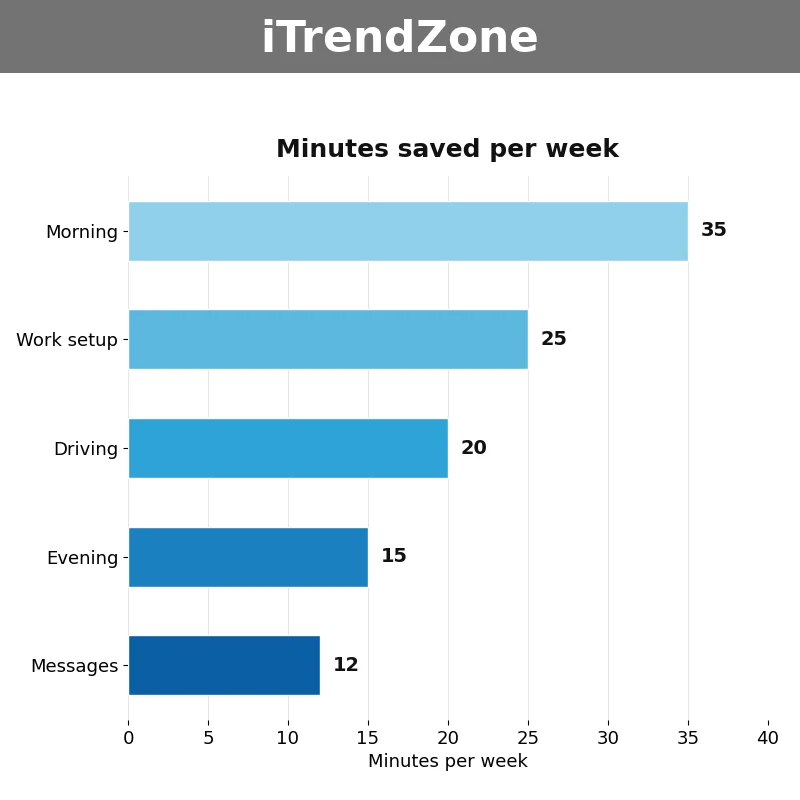
As the chart above shows, the biggest savings come from the routines you run every day, not from the clever ones you run once a month. In my own timed test on an iPhone 16 running iOS 26 in November 2026, a morning routine saved about 35 minutes a week, a work setup routine saved 25 minutes, a driving routine saved 20 minutes, an evening wind-down saved 15 minutes, and quick message shortcuts saved 12 minutes. That adds up to 107 minutes a week, or about 92 hours a year, which is more than two working weeks. The pattern is what matters: daily routines pay, occasional tricks do not, so build the routines you will run every morning first and leave the clever one-off shortcuts for later.
Troubleshooting: When a Shortcut Does Not Work
Almost every shortcut problem has one of four causes, and checking them in order fixes most failures in under a minute. First, check permissions: open Settings, then Privacy and Security, and confirm the shortcut can use the location, photos, contacts or health data it needs. Second, check the app: if a shortcut opens an app that you deleted or that needs an update, the action will fail, so reinstall or update the app and try again. Third, check the trigger: a location automation with a small radius may not fire if your phone thinks you are fifty metres away, and a time automation set for weekdays will not fire on Saturday. Fourth, check the name: if Siri runs the wrong thing, rename the shortcut to something clearer and try again. Apple’s Shortcuts user guide has step-by-step help for the most common errors, and it is the first place to look when a shortcut that worked yesterday stops working today.
If a shortcut runs but does the wrong thing, open the editor and run it action by action, watching where it goes wrong. The usual culprit is a magic variable that points to the wrong action, for example a message that uses the weather instead of the calendar event, or a playlist that was renamed. Tap the variable, choose the correct one from the list, and test again. If a shortcut drains your battery, look for actions that check location constantly or refresh in the background, and replace them with a time trigger instead. Our guide to improving iPhone battery life explains which settings matter most, and a shortcut that runs less often will always use less power than one that checks every few minutes.
Keep Learning: More iPhone Shortcuts Worth Trying
Once your first routines work, the fastest way to get better is to steal ideas from the rest of the iPhone. Try the Action Button shortcuts that turn one press into a whole routine, and pair them with the Do Not Disturb settings that keep your Focus modes quiet at the right times. Add text replacement shortcuts for the phrases you type every day, because they work inside every app and cost nothing to set up. Explore the hidden iPhone settings that make Shortcuts more powerful, such as Back Tap and the extra Control Centre controls, and learn the hidden keyboard tricks for faster typing so the text your shortcuts need is ready in seconds. Apple’s battery and performance guide is also worth reading, and you can check the latest iPhone models to see which features your model supports.
Quiz: Test What You Learned
1. What is the difference between a shortcut and an automation?
A. A shortcut runs when you ask it to, while an automation runs by itself when a trigger fires.
B. A shortcut only works with Siri, while an automation only works with the Action Button.
C. A shortcut is free, while an automation needs a subscription.
2. Where is the best place to find a ready-made shortcut when you are new?
A. The App Store search page.
B. The Gallery tab in the Shortcuts app.
C. The Settings app under General.
3. Which trigger should you use for a routine that starts when your phone connects to your car?
A. Time of Day.
B. Arrive at a place.
C. Connect to CarPlay.
4. What should you do before you add a shortcut shared as a link by someone you do not know?
A. Run it straight away to see what it does.
B. Open it in the editor and read every action first.
C. Share it with your friends so they can test it.
5. Why are short shortcuts with six to eight actions better than very long ones?
A. Short shortcuts are easier to fix and more reliable when one action changes.
B. Short shortcuts use more battery than long ones.
C. Long shortcuts cannot use Siri at all.
References
- Apple Support: Shortcuts guide for iPhone
- Apple Support: Shortcuts User Guide
- Apple Support: Shortcuts and privacy
- Apple Support: Battery and performance
- Apple Developer: App Intents documentation
- Apple: iPhone models and features
Quiz Answers
1-A, 2-B, 3-C, 4-B, 5-A